Ace Combat 8
HDR analysis and setup guide for Ace Combat 8: Wings of Theve on PC and PS5.
It's the same HDR implementation on PC and PS5. I did not test it on SS/SX, but it most likely the same HDR there too.
See HDR setup recommendations at the end.
It's a bad HDR implementation that will look good for many, if they can set it up correctly. It's bad because;
- HDR setup sliders are un-intuitive to setup when there is no indication on the HDR sliders what the game outputs in nits, so you need HDR waveform analysis tools, like I use, to set it up precisely.
- The HDR brightness slider effects both peak brightness and paper white (mid tones), so you can't setup paper white (mid tones) and peak brightness independently. When you can't do that then you risk losing one or the other, or a bit of both.
- HDR is capped at only 1000 nits, so it will not utilize higher nits displays.
- There is no roll-off near the peak brightness cut-off, so highlight detail is not preserved as we increase the HDR Brightness slider.
- UI brightness seams to be all over the place depending if you are in-game, in the menu or in those fighter plane equipment setup scenes. And it's brightness are way to high at default settings on the slider.
Peak Brightness + Paper White (mid tones):
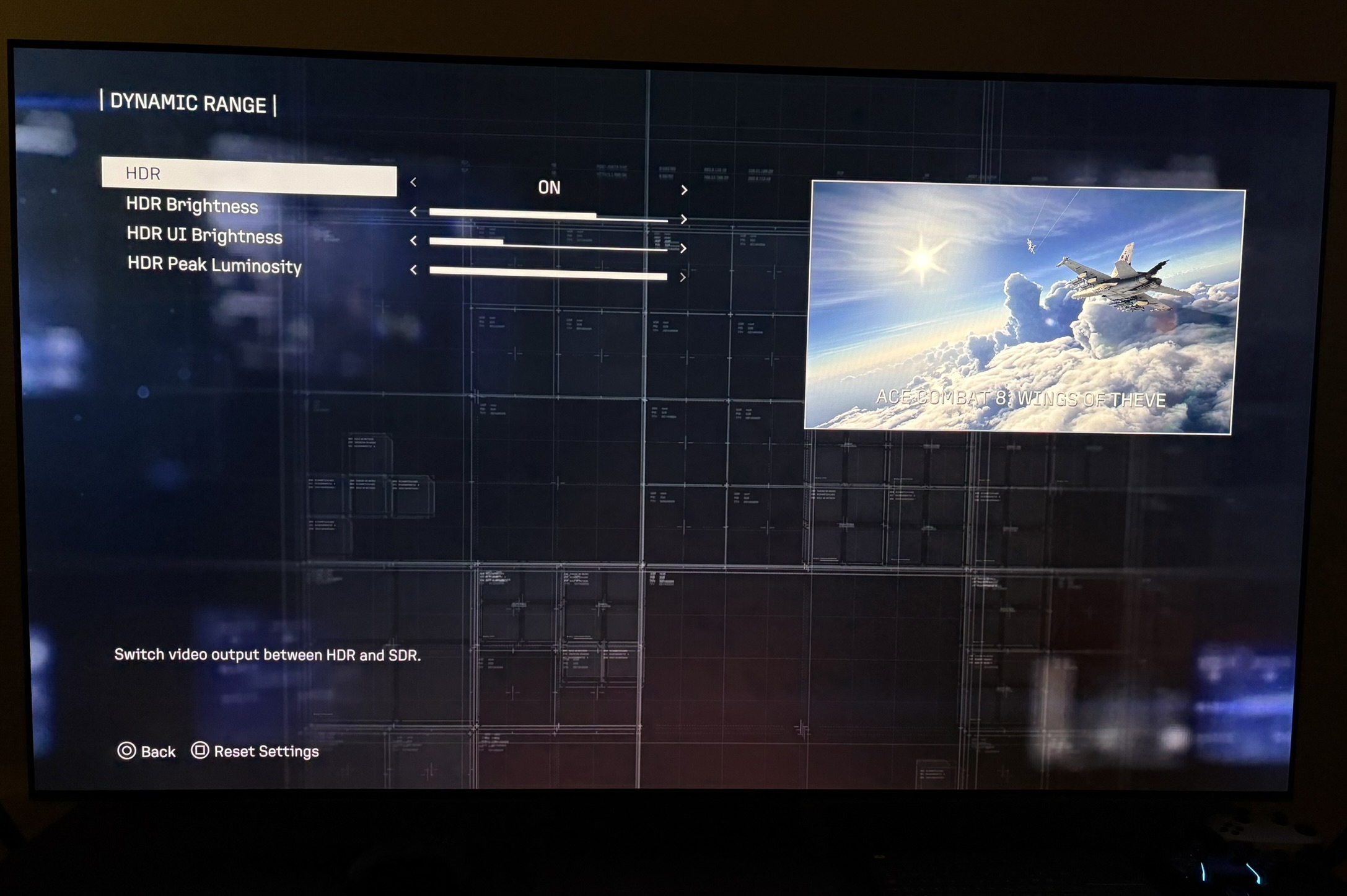
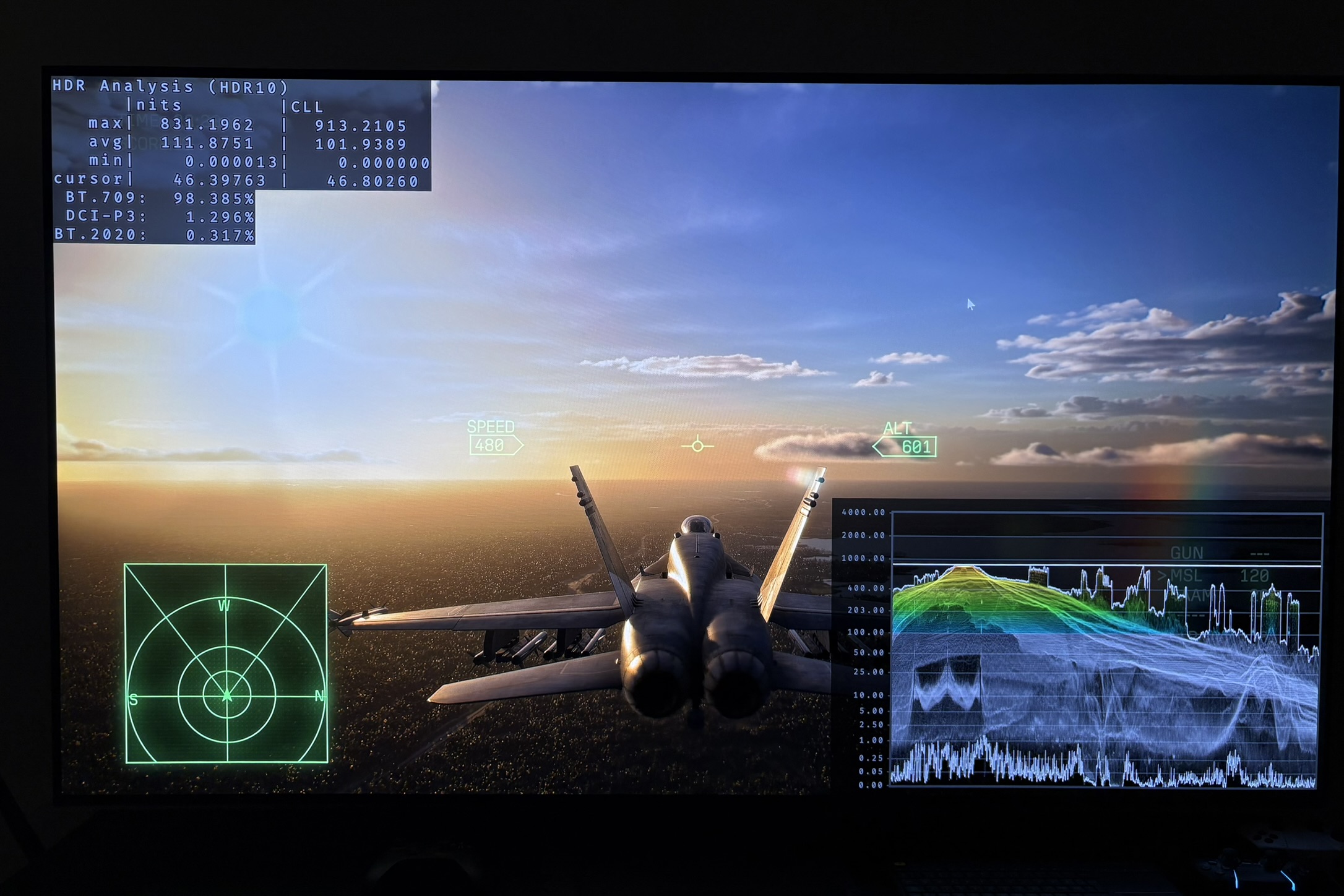
There are two sliders that effect peak brightness. The HDR Luminosity slider and HDR Brightness slider. See picture 1.
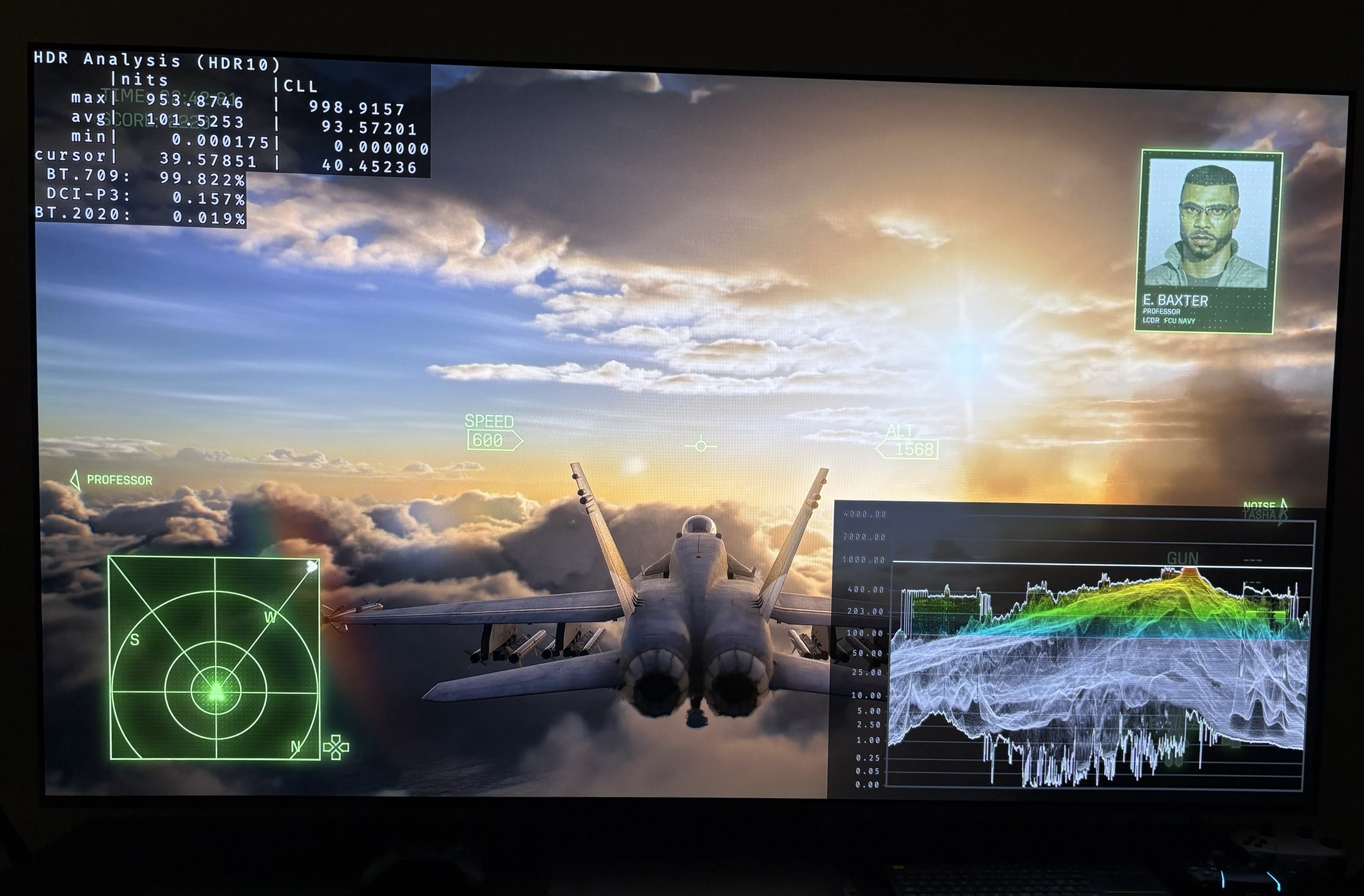
The HDR Luminosity slider only sets the cut-off point - the point at which the game will cut everything above. That's all that slider does. It only goes up to 1000 nits, so that is what limits the games HDR to a max of 1000 nits peak brightness. Picture 2 shows a max of 1000 nits output.
It's good that it cuts-off at your displays max brightness, because your display can't output more anyway. The problem is it's cut-off at only 1000 nits.
This is the cut-off point at different settings on the HDR Peak Brightness slider:
10 steps = 390 nits
12 steps = 480 nits
17 steps = 720 nits
19 steps = 805 nits
23 steps (default) = 1000 nits
This is the peak brightness the game will output at different settings on the HDR Brightness slider:
5 steps = 400 nits
12 steps = 790 nits
16 steps = 1000 nits
17 steps (default) = 1000 nits
23 steps = 1000 nits
The HDR Brightness slider effects everything from upper shadows, to mid tones, to peak brightness. So as you lower it, it will lower both peak brightness and paper white (mid tones). I have played at different peak brightness settings on the slider and I find the lowering of mid tones to fit pretty well with what different displays can output.
The problem is that if you want something else, than the paper white and mid tone brightness the game sets for you at your displays peak brightness, then you either have to compromise peak brightness, highlight detail or a bit of both.
When you increase the slider above what your display can do in peak brightness - it pushes highlights and secondary highlights in to peak, where its detail gets cut-off. The cut-off in it self is not the issue. The issue is that there is no roll-off close to the peak brightness we set on the HDR Luminosity slider. Roll-off should be there to preserve highlight detail, instead of it just being cut-off.
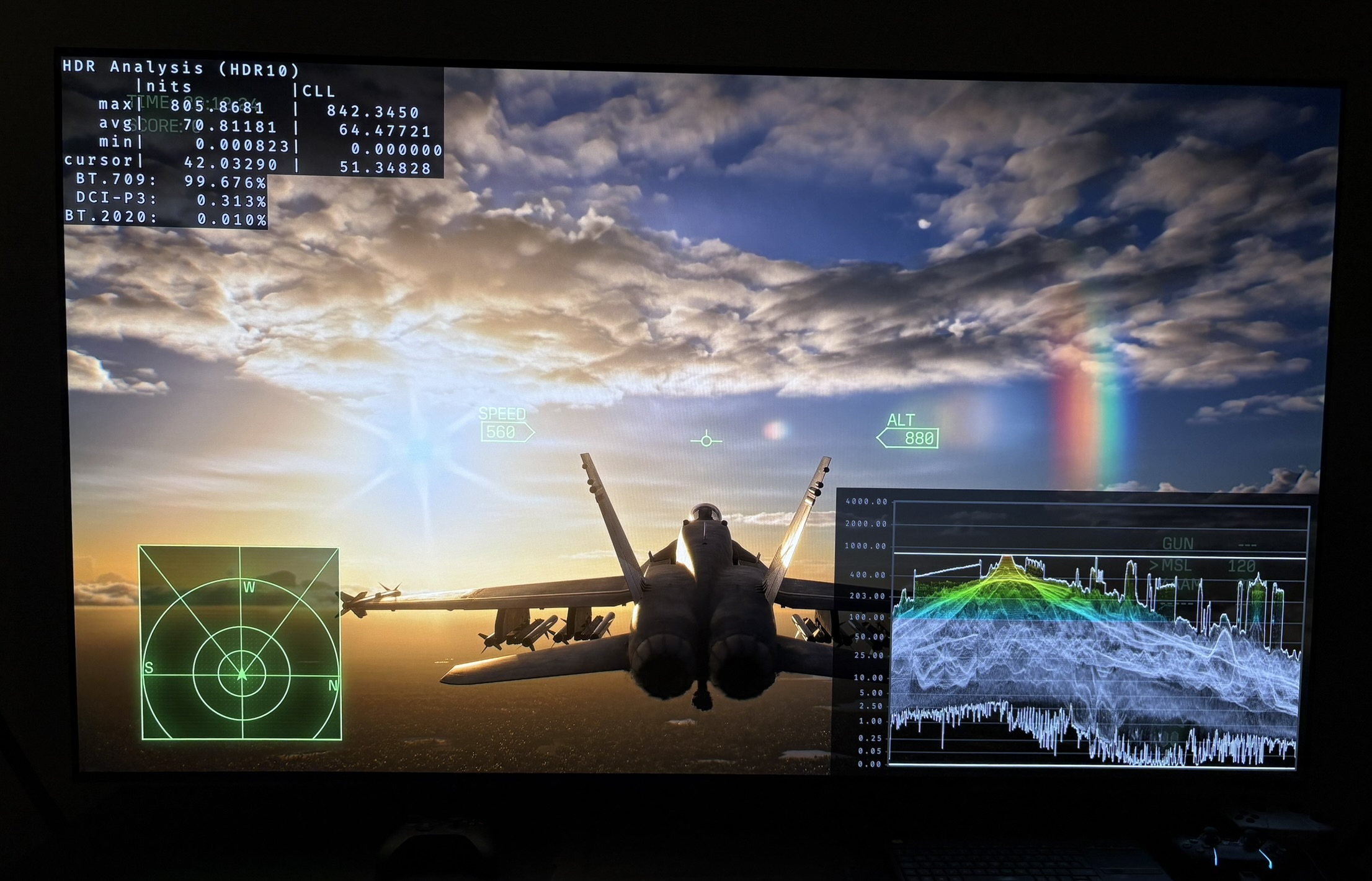
Picture 4 and 5 are both with 1000 nits on the HDR Max Luminosity slider, but picture 4 is with 800 nits on the HDR Brightness slider and picture 5 is with 1000 nits on the HDR Brightness slider. We see how highlights are not rolled off and just clipped in picture 5 (flatter curve), and it's not in picture 4.
Also, why is there no nits on the sliders. Gamers will have to guess or use HDR waveform analysis, like me.
It's really a bad HDR slider design.
Black levels + shadows:
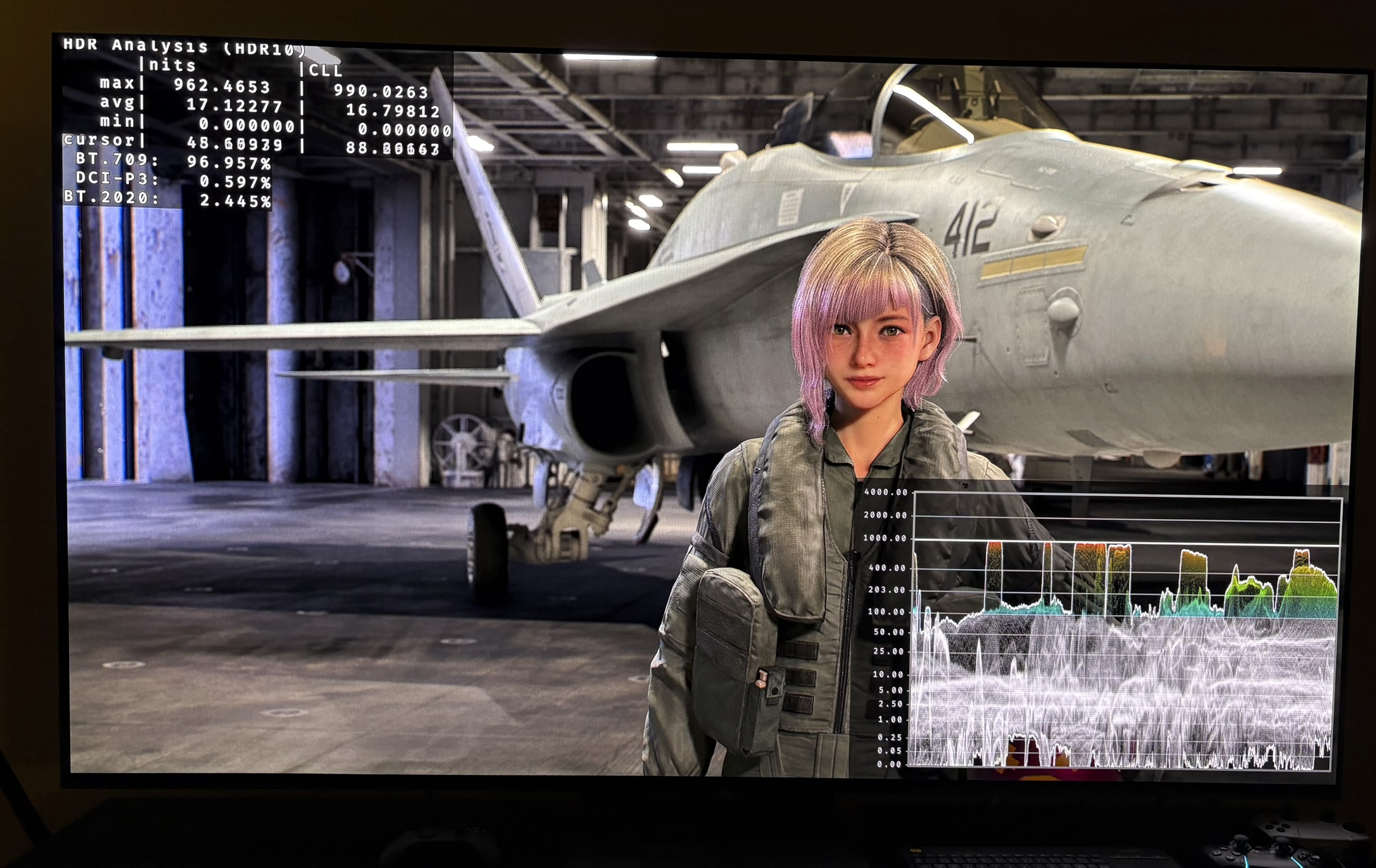
I see no issues with black levels and shadows. They go down to zero and have good detail. See picture 2 and 3. There is no way of adjusting black levels or shadows in-game.
UI Brightness:
The UI brightness is different in the menu and in-game. What's most important, I think, is the green UI you see in your cockpit. This is what the game outputs on that green colour in-game;
6 steps = 180-220 nits on green hud in-game
7 steps = 200-240 nits on green hud in-game
17 steps (default) = 340-380 nits on green hud in-game.
White UI text in-game is 580 nits at default settings.
HDR setup recommendations:
Peak Brigtness
Setup the HDR Brightness slider and the HDR Peak Luminosity slider to what you display can maximum output.
Paper White (mid tones)
If the overall brightness and mid tone brightness of the game look natural to you after setting up the HDR Brightness slider to your peak brightness capabilities of your display, then you have no more to do.
But if you want a dimmer or brighter overall brightness then adjust the HDR Brightness slider a bit up or down. Just be aware that you lose peak brightness when you lower it and you lose detail in the brightest highlights as it gets clipped at peak brightness (no roll-off).
UI Brightness:
I recommend to set it to 7 steps. That will give you 200-240 nits on the green UI in the cockpit.
RenoDX HDR mod
There is a RenoDX HDR mod (in beta) on the RenoDX Discords. I have not tried it. Be aware that the game uses anti-cheat, so you need to remove that to get Reshade and the RenoDX HDR mod to work for the campaign. Its also shown how on the RenoDX Discords. It probably wont work for the multiplayer section of the game.