Auto HDR - Windows PC
Foreword: This article will explain what Auto HDR is, how to set it up and compare it to RTX HDR and to "reference" HDR (RenoDX HDR mod) to evaluate its output. I only use one game, Kena Bridge of Spirits, for this "test" so its behavior can differ elsewhere. I'm not a developer, and this is from a gamer's perspective. It's not an exact science article.
I have a separate article about RTX HDR, that goes in further detail with RTX HDR.
Auto HDR - what it does - compared to RTX HDR
Auto HDR takes the SDR image the game outputs and expands it into an HDR signal. Where RTX HDR runs a neural network on the GPU's Tensor cores every frame, Auto HDR uses a lighter algorithm built into Windows. It analyzes the SDR luminance and expands it, and it runs on any GPU.
The purpose is the same as RTX HDR: to "guess" how HDR would have looked if the game had handed over its engine data for a proper HDR tone map.
It can't recreate what was lost when the SDR image was created. It can only redistribute and expand the luminance that survived.
Because it's a simple algorithm and not a neural network running on every frame, the performance hit is very low, far smaller than RTX HDR's. That's its main advantage.
The trade is quality. It doesn't intelligently add color steps the way RTX HDR does, so it's likely more prone to banding (I did not verify this in my testing). RTX HDR also does separation of highlights slightly better than Auto HDR (as my tests show).
You also get far less control than with RTX HDR. Auto HDR gives you a single intensity slider in the Xbox Game Bar (Win+G), while RTX HDR has a full set of sliders.
Highlights top out around 1000 nits on both Auto HDR and RTX HDR.
RTX HDR works in more games than Auto HDR, in my experience. Recent games I tested, where I could not get Auto HDR to work are Arc Raiders, Hell Let Loose Vietnam and Wardogs. In those titles the Xbox Game Bar Auto HDR intensity slider stays grayed out. I have not been able to confirmed a method that makes it attach on my system. Someone else may get it working with extra tools, such as ForceAutoHDR tools. That does not change the consumer point: if it does not engage on a normal launch, most players will not have Auto HDR in that game. I use RTX HDR in those titles instead.
Enabling it
- Turn on HDR in Windows - Settings > System > Display
- Turn on Auto HDR - Settings > System > Display
- Setup "SDR content brightness" to 30. This targets roughly 200 nits, close to the 203-nit "diffuse white" standard (ITU-R BT.2408) HDR content is mastered against.
- Run Display HDR Calibration - Settings > System > Display. It will setup peak brightness. Auto HDR will output its peak brightness according to this value, for peak brightness of 1000 nits or lower.
- Check the Brightness Adjustment slider is all the way to the right via Xbox Game Bar (Win+G). It may not be.
- Fix the Windows bug, if relevant. See last section "The Windows Bug That Elevates Black Levels in Auto HDR Games"
Auto HDR - How it "tone map" compared to native HDR and RTX HDR
Kena Bridge of Spirits does not natively support HDR, so I have used the RenoDX HDR multi-game mod as a "reference", so we can see how Auto HDR's image looks compared to a "reference" HDR tone mapped image.
I matched peak brightness to 1000 nits. Be aware RenoDX can be setup to go much higher (up to 4000 nits).
Detail lost
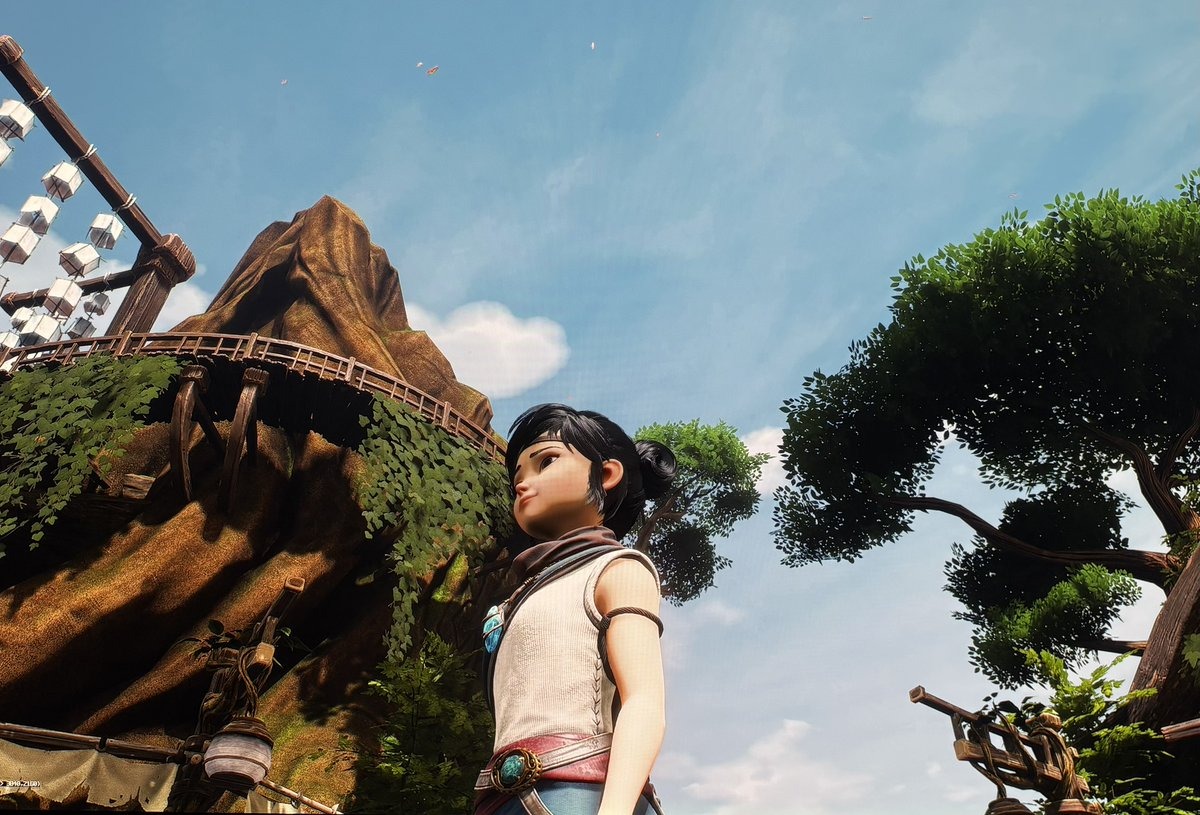
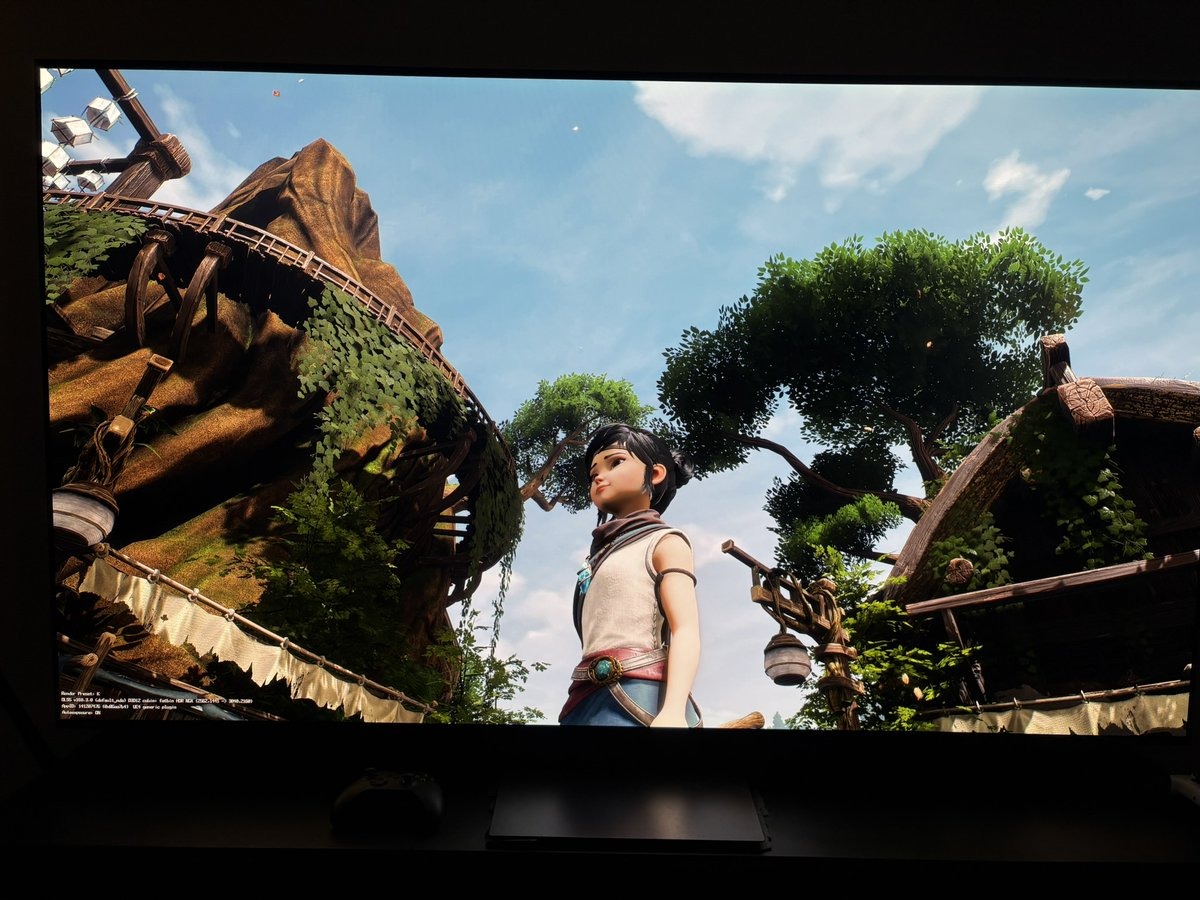
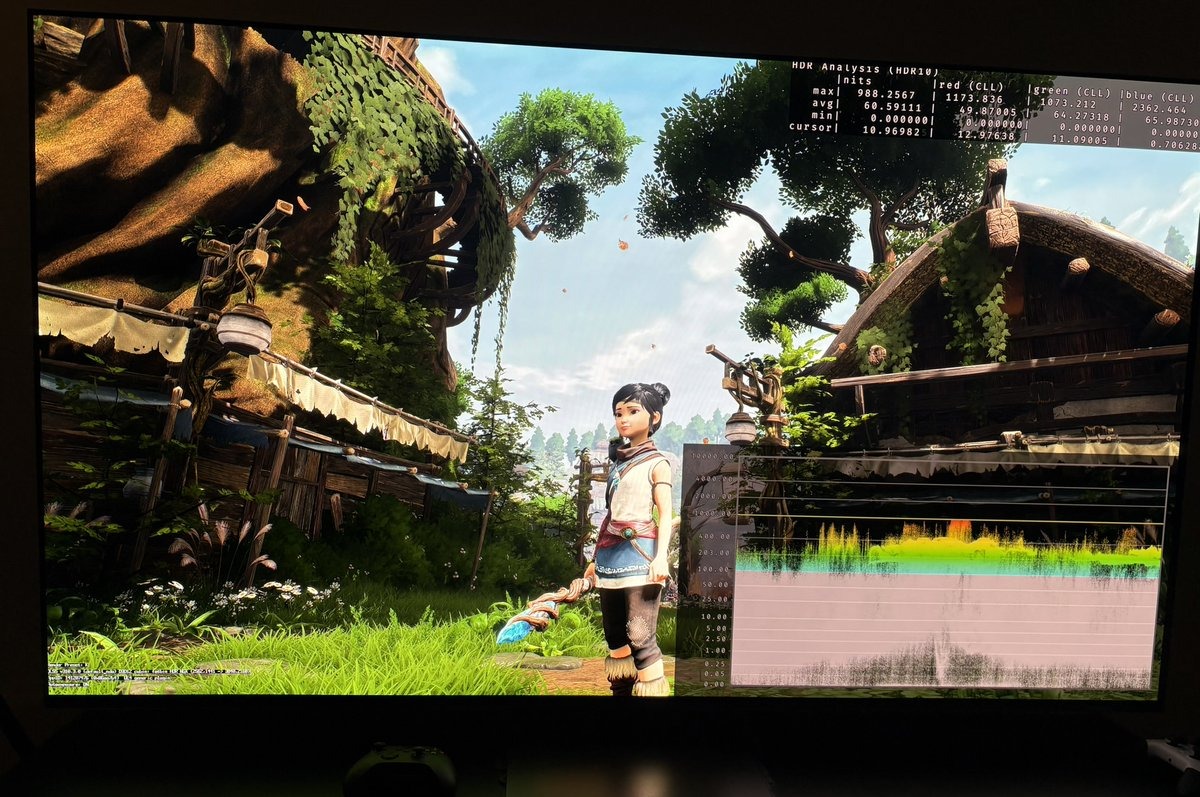
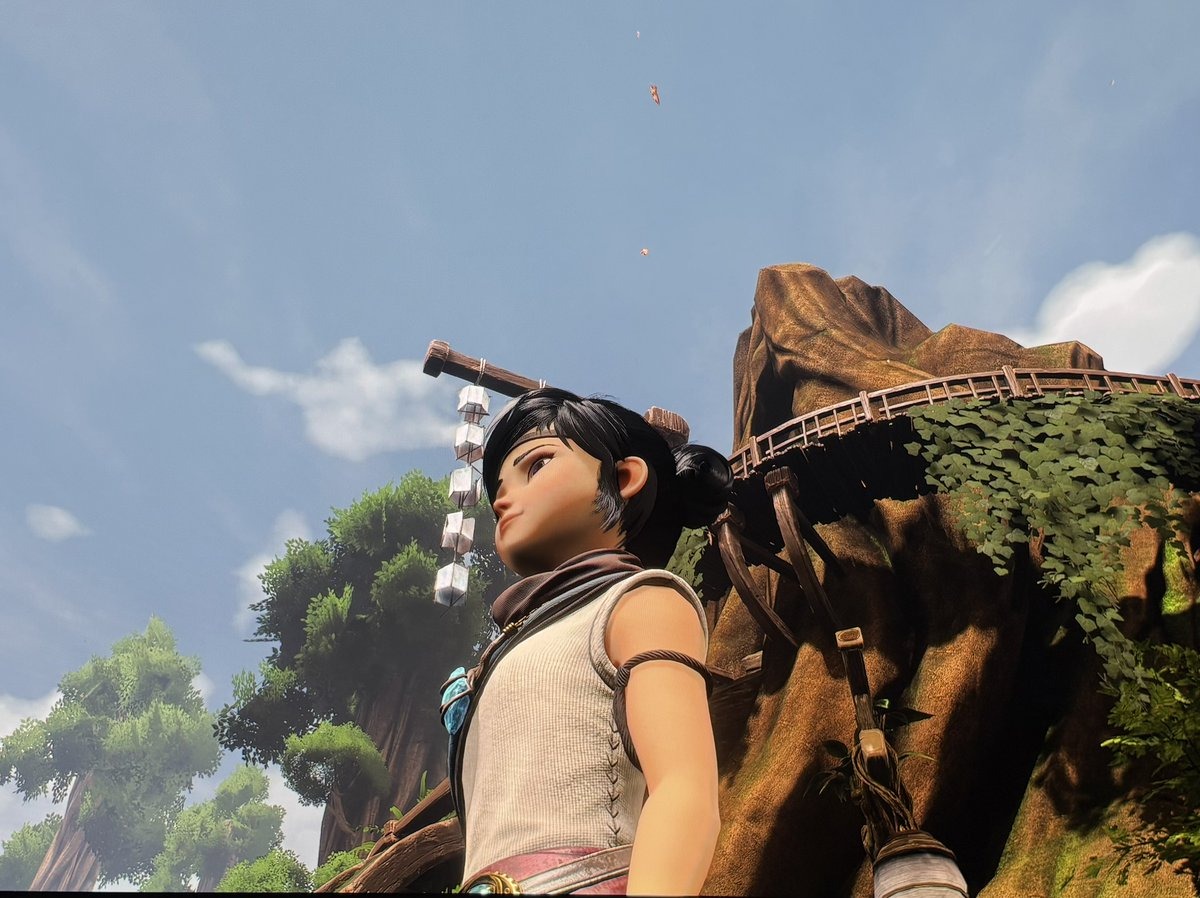
The pictures below show the Sun shining on Her arm and blouse. Picture 1 is SDR and here we see color/detail on Her arm is completely clipped away and color and detail on her blouse is reduced. That's what we typically see In SDR - smaller and bigger bright highlights get crushed, such as fine detail in explosions, skies, lights, or reflections just clips to flat white. No texture left.
Auto HDR and RTX HDR increase the brightness of the already crushed SDR image, so no detail or color gets restored. This is what we see in picture 2 and 3.
RenoDX fully restores the color/detail in picture 4. RenoDX works inside the game's engine (pre-tonemapping), so it preserves the full dynamic range and restores those hidden details, that were clipped away in SDR.
"Tone mapping" - High Lights
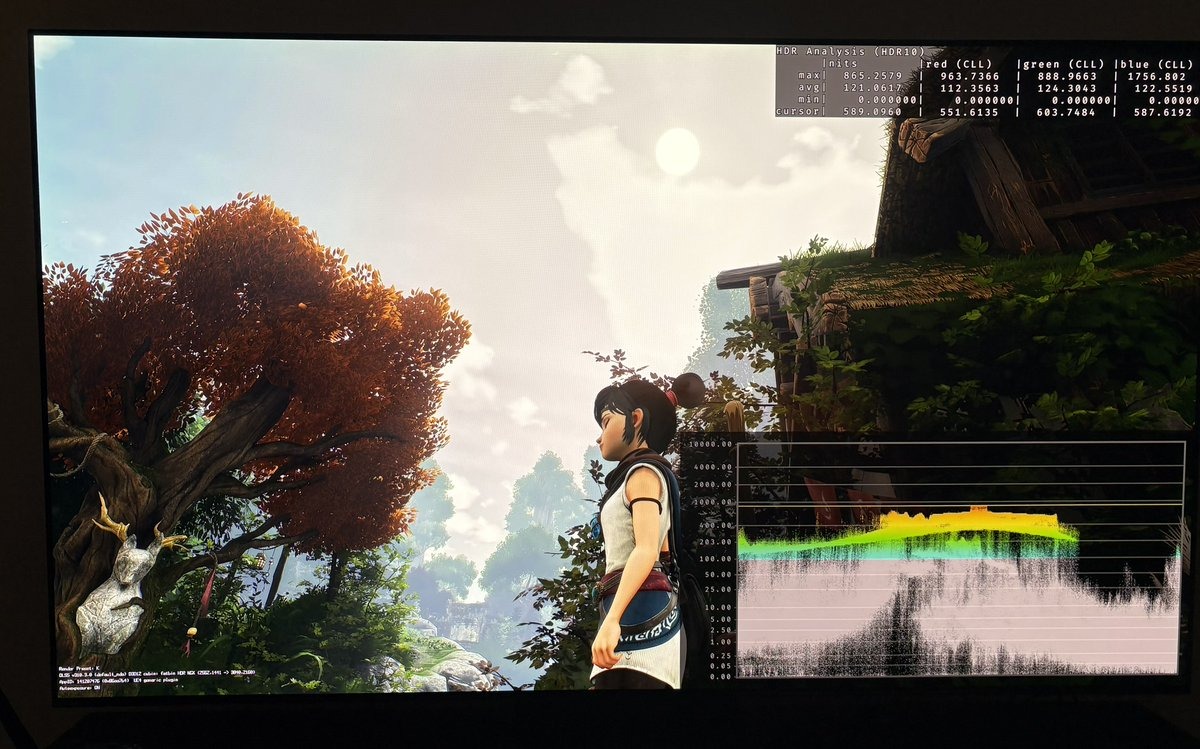
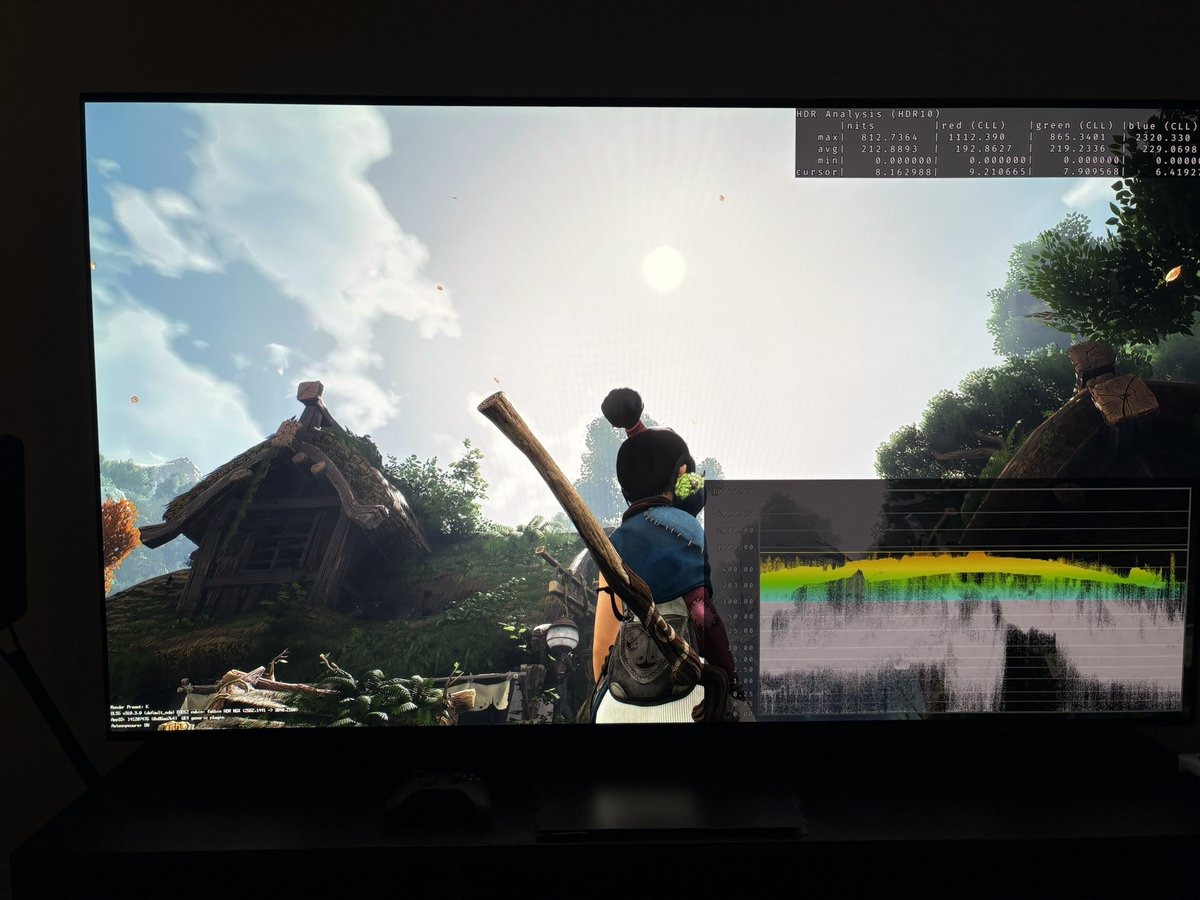
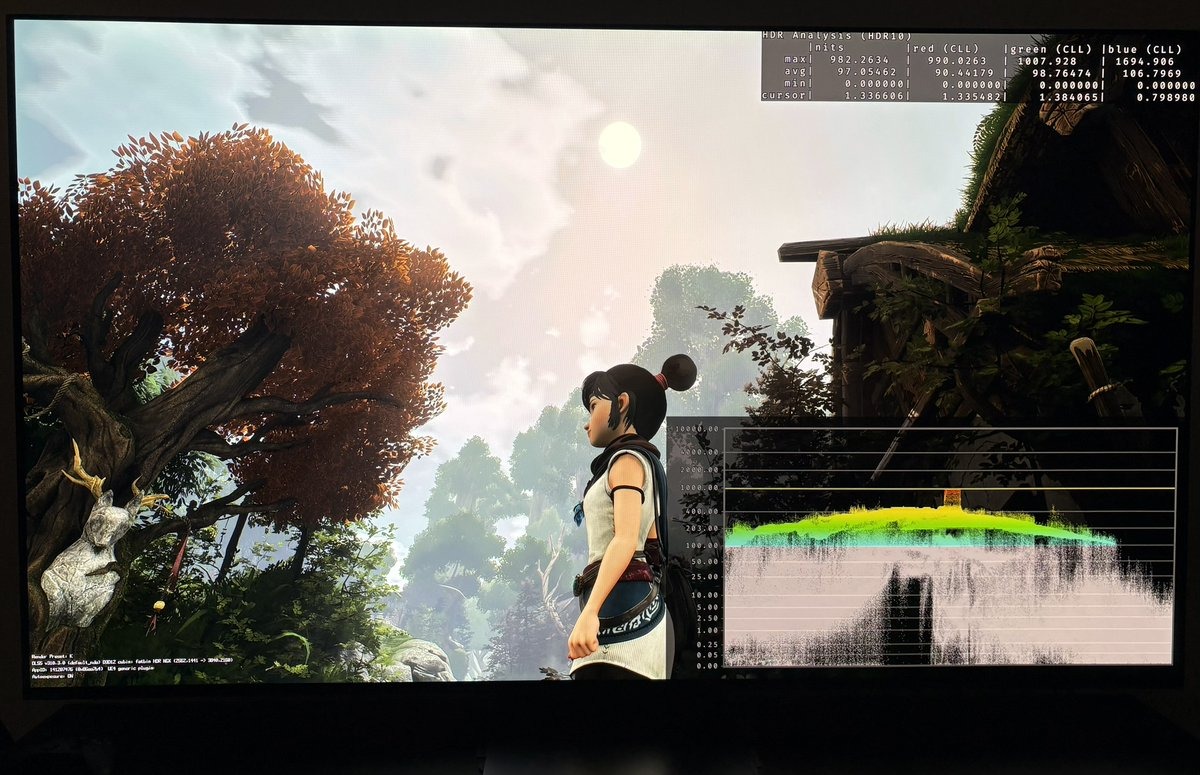
I used 1000 nits peak in Auto HDR, RTX HDR and RenoDX to test how good a bright Sun is separated from the clouds and sky. It's at close to peak brightness Auto HDR's and RTX HDR's algorithms have least information to work with and have to make its educated guess. So it's here they will make the biggest errors.
It's clear to see that RenoDX does a much better separation of the brightest highlights compared to Auto HDR and RTX HDR. RTX HDR seems to have a slight advantage over Auto HDR. It might be the more advanced frame by frame processing of RTX HDR that shows its advantage here.
RTX HDR:
Auto HDR:
RenoDX;
"Tone mapping" - Peak, midtones, shadows
I started with trying to get RTX HDR as close as I could to RenoDX.
Settings to get RTX HDR closest to RenoDX in Kena:
- Contrast 25
- Saturation −50
- Middle Grey 45
There are no sliders in Auto HDR to adjust contrast, saturation or middle Grey, so we can't do the same to Auto HDR.
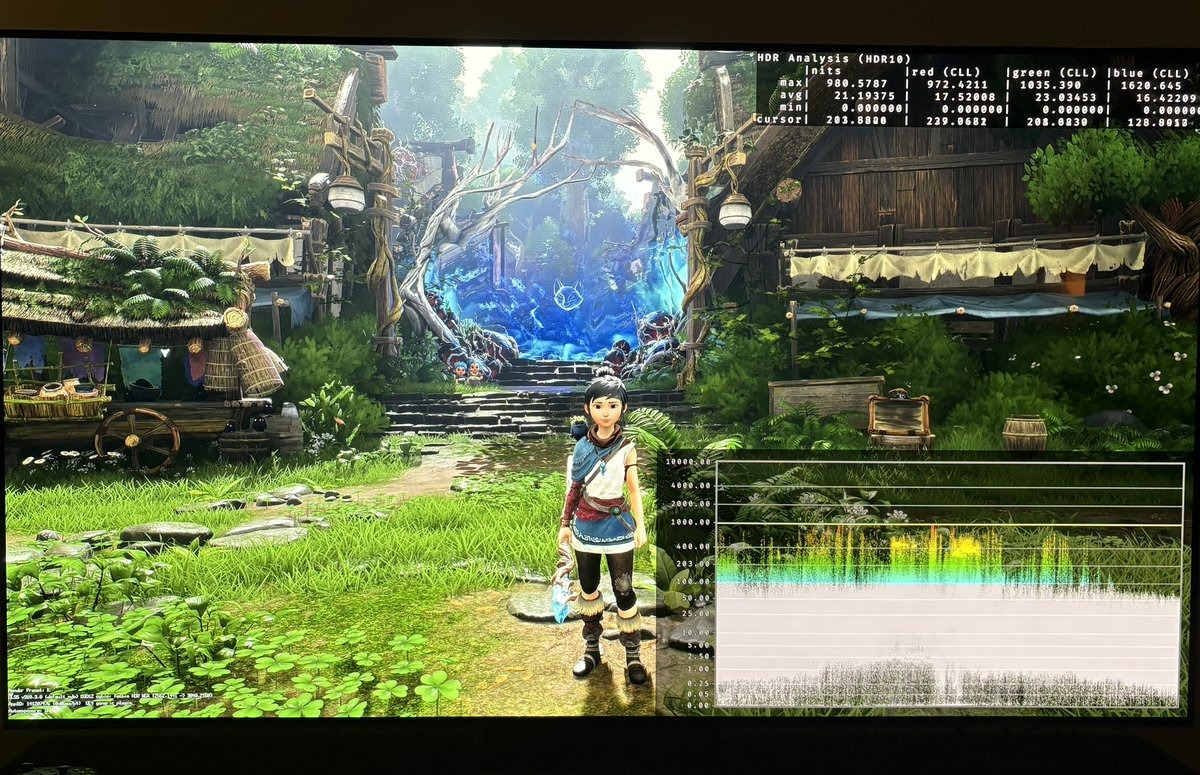
Picture 1 and 2 show that lower and upper shadows and up to midtones can be matched pretty closely between RTX HDR and RenoDX. We can't do the same matching with Auto HDR. This is an advantage to RTX HDR.
Above the midtones is where they diverge. It's here Auto HDR's and RTX HDR's algorithm has the least real data and has to make its educated guess. We see how Auto HDR and RTX HDR push upper midtones and secondary highlights higher than RenoDX. Auto HDR again has the least separation between highlights, and pushes them the highest.
Be aware, that this is what I found in this game. It could be different in other games.
RTX HDR:
RenoDX;
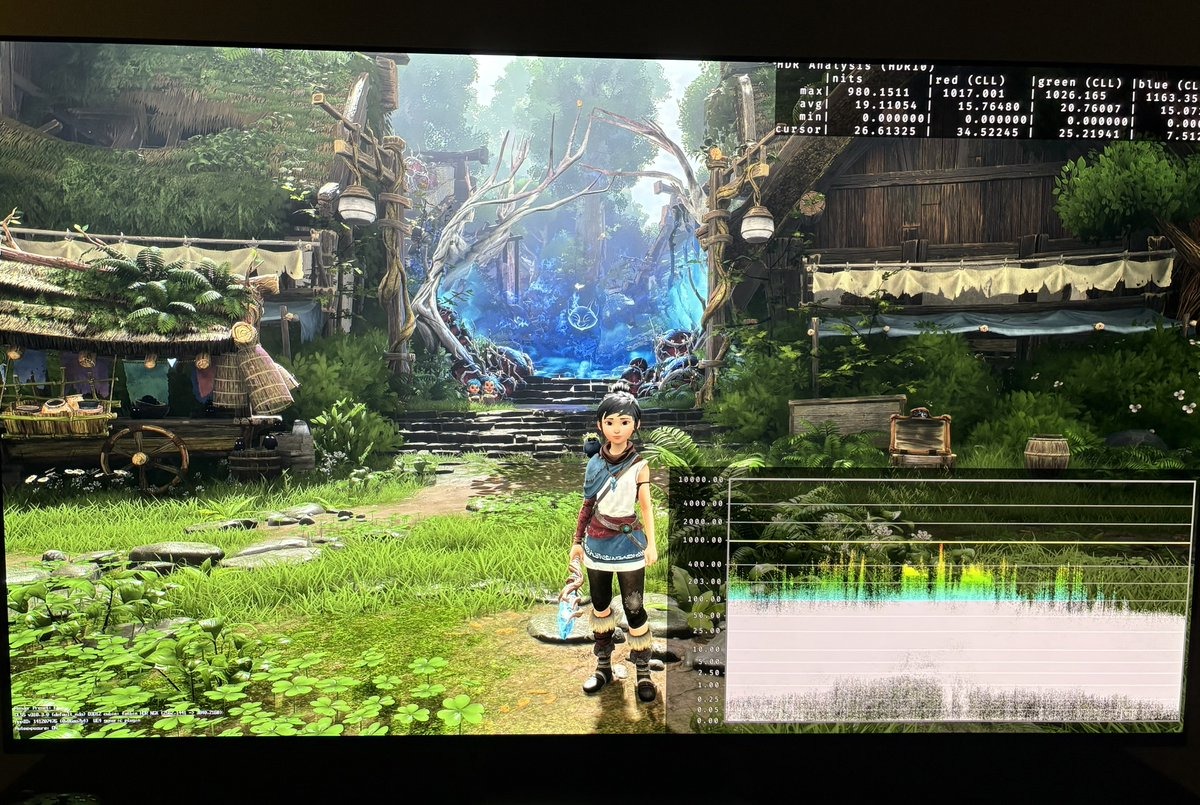
Auto HDR:
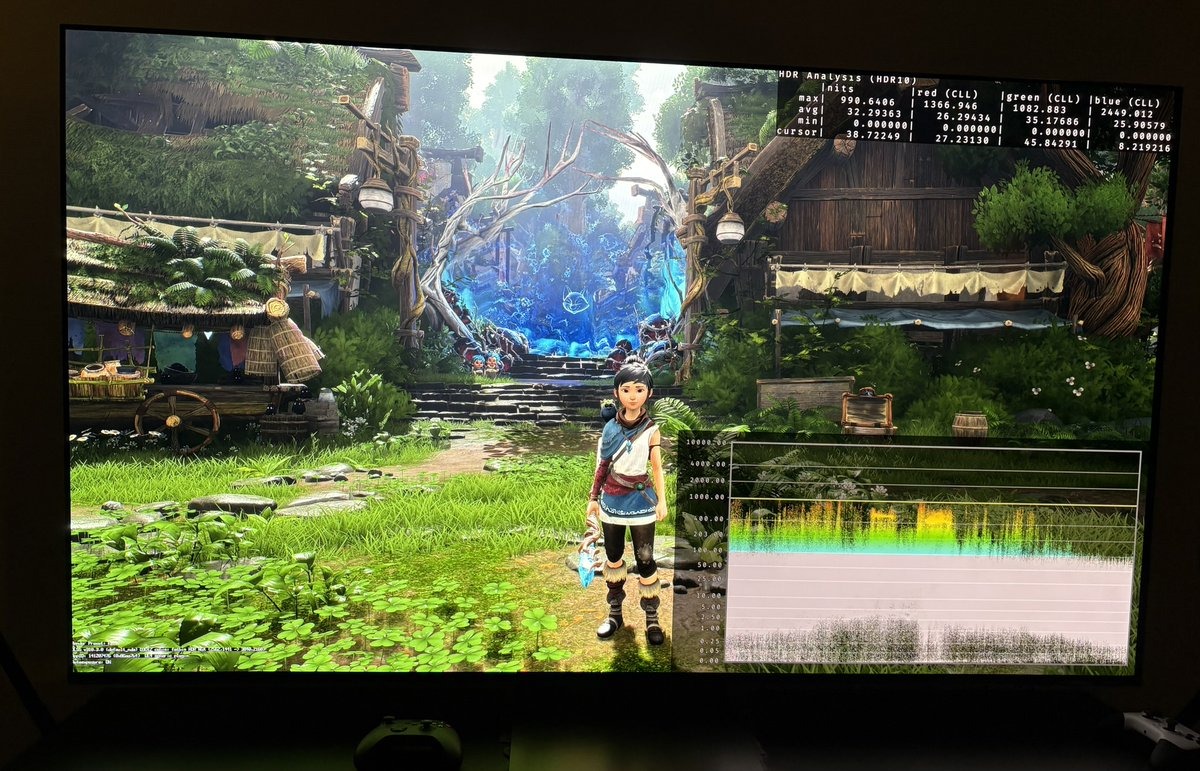
The Windows Bug - That Elevates Black Levels in Auto HDR Games
Most Auto HDR games are affected by a Windows bug that elevates black levels when Windows is in its HDR on mode.
What's happening
Windows displays SDR content (when HDR is on in Windows), including Auto HDR games, using the sRGB tone curve, which elevates black levels compared to the gamma 2.2 tone curve. Most PC games are mastered assuming gamma 2.2, so this elevation shows up on those games. Games already mastered using the sRGB curve don't have this problem. How visible it is depends on the game.
Check if a specific game is affected
Play the game with Windows HDR off (Settings > System > Display > HDR off), on a dark scene. Turn HDR on, same scene. If black levels rise, with lower contrast, then the game is affected by this bug.
I have done this test in Kena Bridge Of Spirits. The first picture is with HDR OFF in Windows, so it's true SDR. It shows great black levels. Picture 2 is with HDR ON in Windows. It shows lifted shadows. So Kena has this bug. Picture 3 is with Auto HDR with the fix applied below. It shows the shadows are close to SDR.
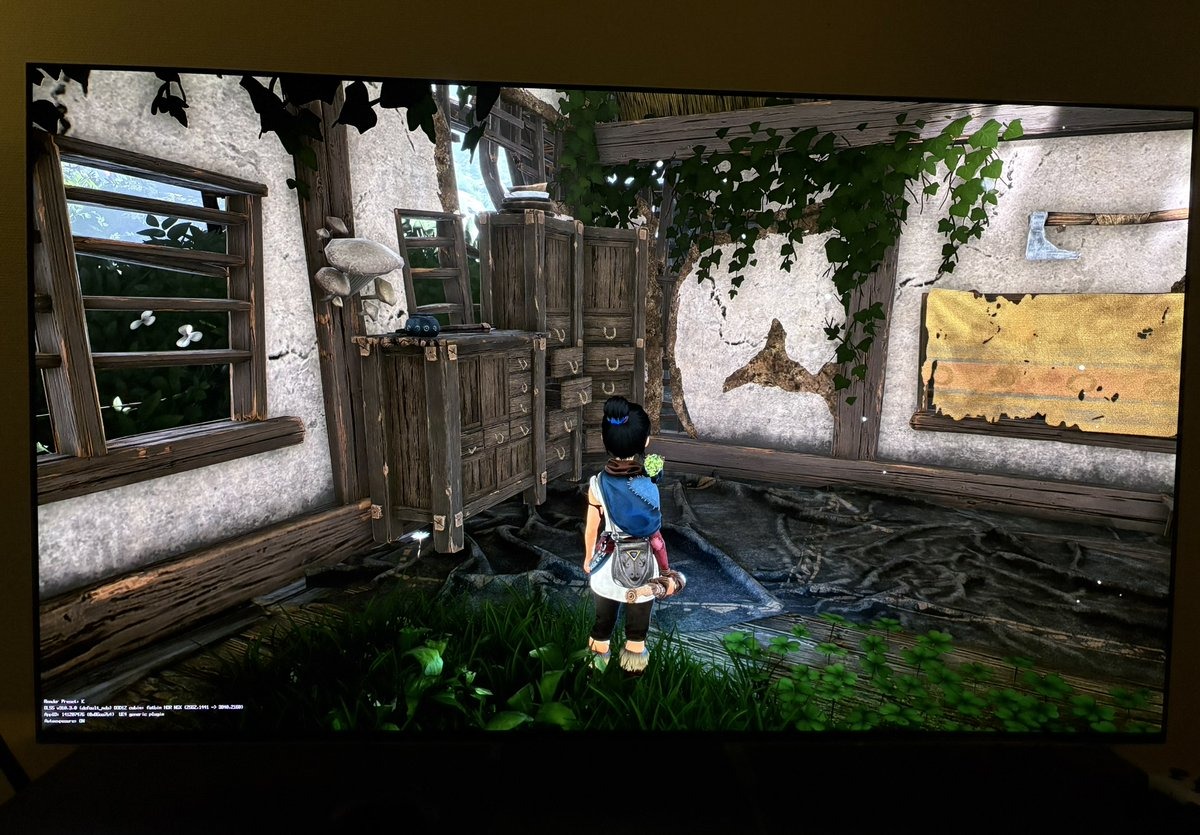
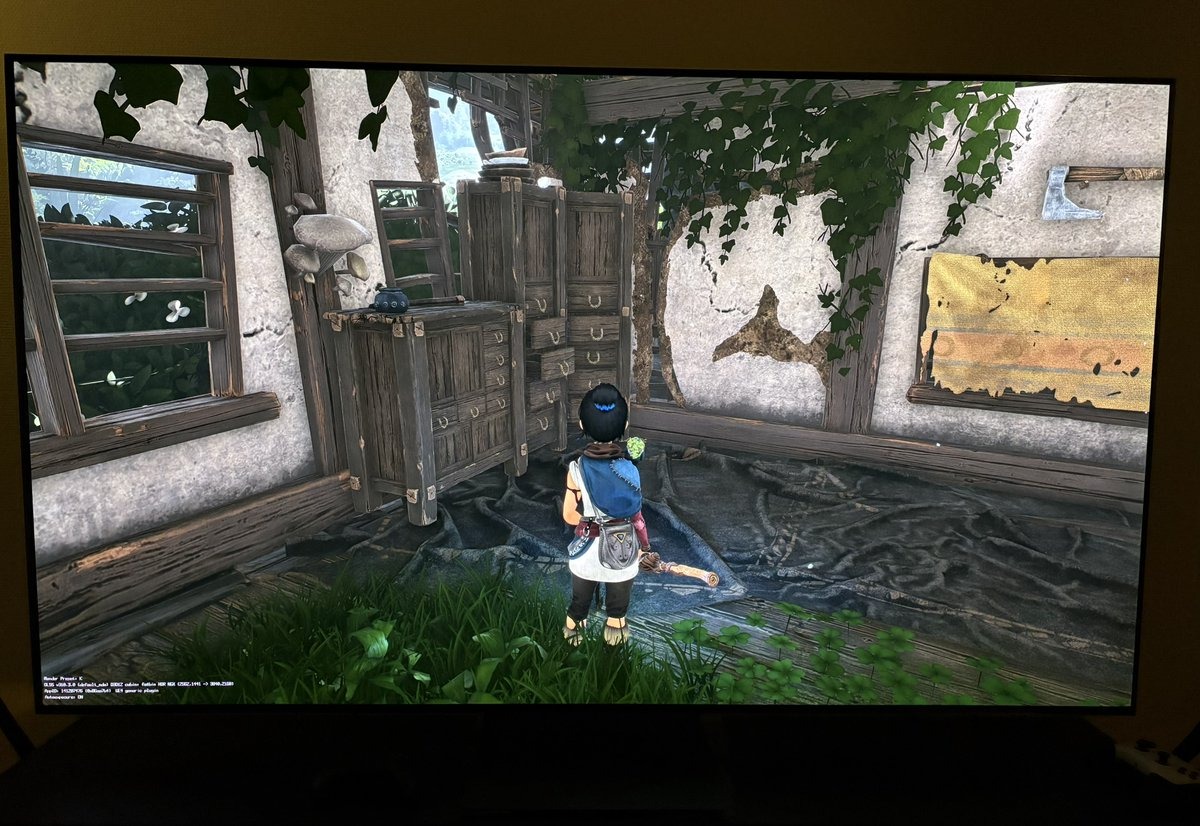
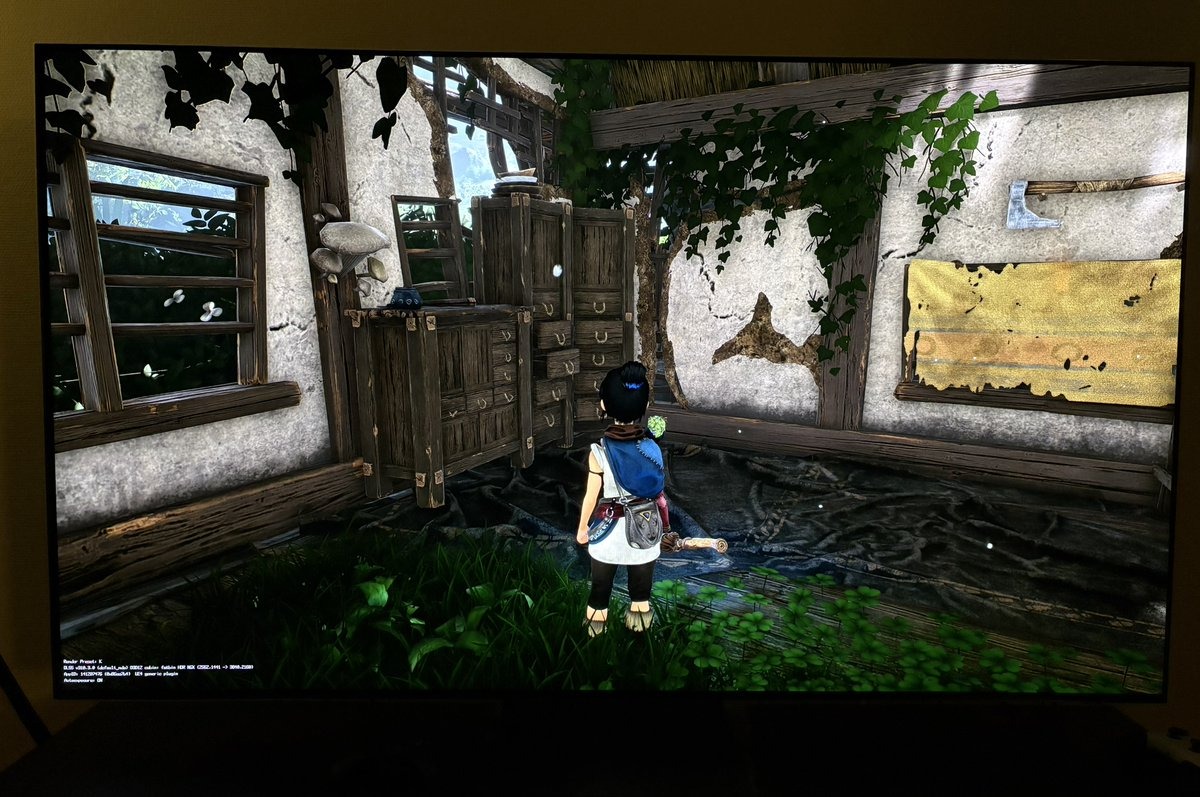
If the game is affected, here's the fix
- Download this profile: https://raw.githubusercontent.com/dylanraga/win11hdr-srgb-to-gamma2.2-icm/main/srgb_to_gamma2p2_200_mhc2.icm
- Win+R > type colorcpl > Enter.
- Add > select the file > check "Add as HDR Profile" > Set as Default Profile.
Check the same scene again. Black levels should look close to how they did with HDR off in Windows.
One thing to remember
This profile applies to all HDR content system-wide, including native HDR games. Applying it can therefore affect or even crush shadow detail in content that does not need this fix.
Switch back to your old profile when you no longer use Auto HDR, or run the Windows HDR Calibration app to create a new profile, if you don't know how to find the old profile.
A note on native HDR games
You might have seen this fix be used to fix black level raise in native HDR games. It's not because these games have the same bug in Windows, but because the system wide fix darkens shadows in all HDR content. It can therefore help offset a game's own separate bug with raised shadows. Battlefield 6 is one reported case. The general rule still is therefore to switch back for native HDR games.
Optional: keep full peak brightness on brighter displays
The profile above is tagged at 800 nits peak. While it's active, Windows treats your display as an 800-nit display, so Auto HDR caps its highlights at 800 nits. Windows Auto HDR tops out around 1000 nits, so on a display brighter than 800 nits you're leaving some peak on the table.
You can rebuild the same fix with a 1000-nit peak using the free ColorControl app:
- Install and open ColorControl, and open the Create Color Profile window for your display.
- Press Load and select the srgb_to_gamma2p2_200 profile you already installed.
- Change three fields: Maximum Luminance to 1000, MHC2 MaxCLL to 1000, and SDR maximum brightness to 200. ColorControl fills that last one with 100 by default — 200 keeps it matched to the SDR content brightness value of 30 from the fix above. Leave SDR Transfer Function on Pure Power 2.2.
- Tick "When activating, set MinTML and MaxTML to minimum/maximum luminance"
- Set Save option to "Install and set as display default" and press Generate.
- Check in Display settings > Advanced Display that peak brightness is 1000 nits.
Because this profile is built from your display, make your own rather than reusing someone else's.