Cyberpunk 2077 PC
HDR analysis Cyberpunk 2077 on PC (see separate analysis for PS5).
The analysis is after the big update we got October 23, 2026, that changed how HDR is implemented.
The update significantly changed the HDR implementation. I think HDR overall looks good and more natural now, if you set it up correctly.
The problem is that you only can set it up correctly using HDR waveform analysis tools and that is of course bad. HDR is therefore very un-intuitive to setup. The biggest problem now, is that default settings look really bad and that is the setting most will use. And we still have a black level raise, just like the old HDR implementation.
Changes to HDR:
I have used Claude AI to help me analyze the games shader code. From that we can see what actually has changed. I have compared that knowledge with my own HDR waveform analysis using Liliums HDR Analysis Tool.
Patch 2.5 replaces the game’s HDR tone mapping with a new version of the ACES standard and changes the HDR settings menu.
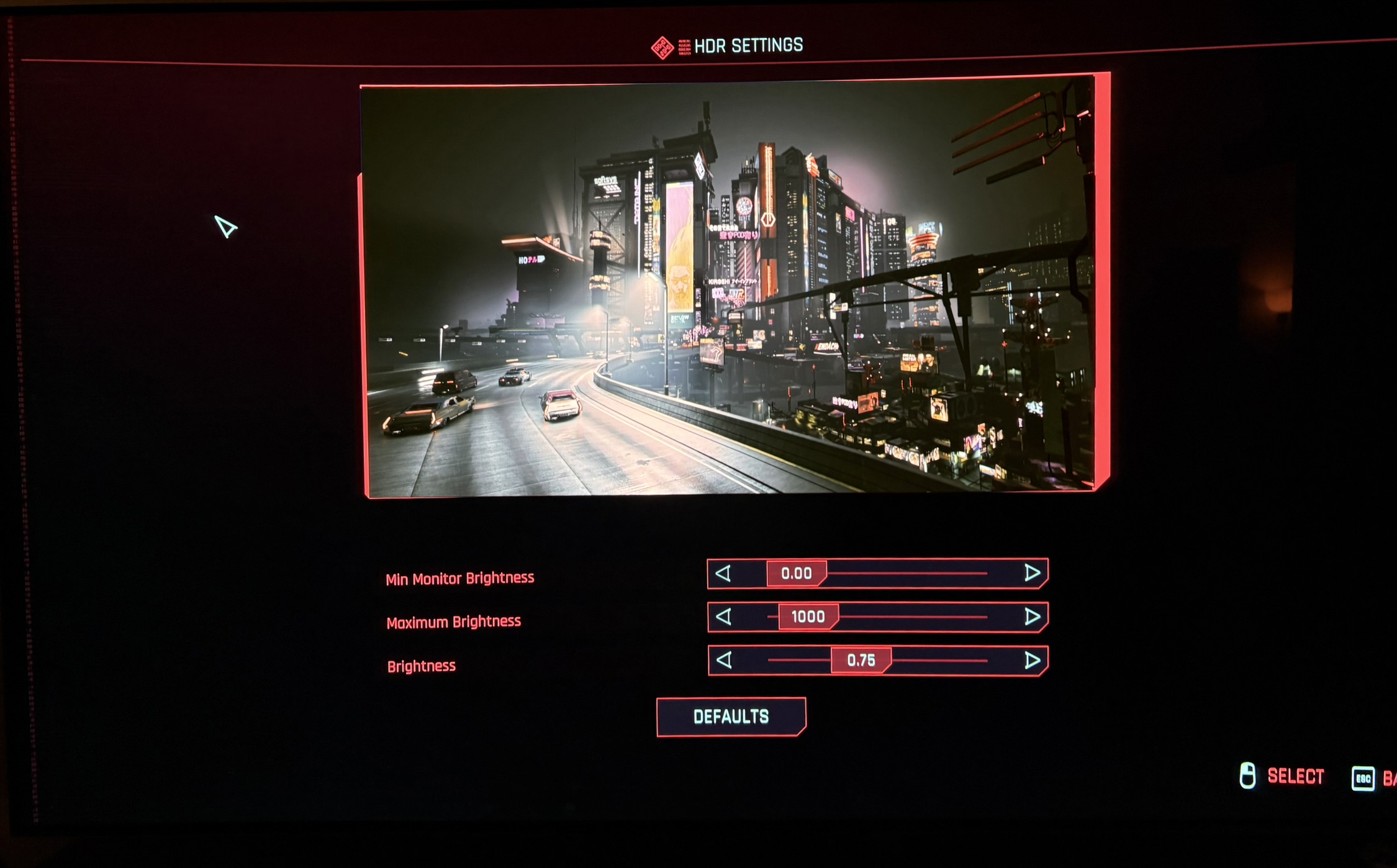
There are now three sliders on PC (see picture 8 below): Maximum Brightness, Min Monitor Brightness and Brightness. Tone-Mapping Midpoint and PQ Saturation are gone. On first start, the game now takes your display’s peak brightness from the Windows HDR Calibration app.
The good:
- More natural whites. The old version gave whites a slight yellow tint. Whites are now neutral.
- Wider colours. Bright, saturated light like neon signs can now use colours beyond the old SDR colour range. In my test scenes, the share of wide-gamut colours went from about 2% to 8% on a street, and to over 40% in a neon-lit club. This only works in HDR10 PQ mode. HDR10 scRGB cuts the colours back to the SDR range.
- No more PQ Saturation slider. Set above zero, it could shift colours.
The Bad:
- The Brightness slider affects everything, not just the UI. Its description says it changes the UI, but it brightens the whole picture: blacks, paper white and highlights. When we can't setup peak brightness, mid tones (paper white) and shadows / black levels independently, then it's always going to a compromise, as I explain in the bullet points below.
- Raised black levels, even at the best settings. At the default Brightness of 0.75 on PC, blacks are strongly raised, about 0.15 in a dark club. Lowering Brightness to 0.30 brings that down to about 0.05 nits (0.035 at 0.20), but that’s still a significant raise. There is no setting that gives proper black levels.
- Lowering the raise costs brightness. The Brightness slider lowers, not only the overall picture brightness, but also the highlights, so you can’t reduce the black raise without giving up brightness elsewhere. At 0.30 the game still looks good, and sunlit surfaces reach around 400 nits (at 2000 nits peak), but it’s a compromise forced by how the slider works.
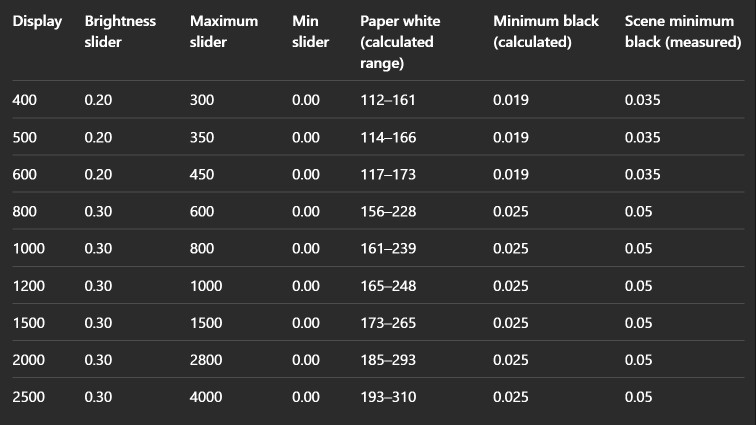
- Maximum Brightness slider don't sets the peak you actually get in-game, when the brightness slider effects peak brightness. From the table below we see how much you have to adjust the Maximum Brightness slider to get a peak brightness output from the game that fits your TVs capabilities.
- Defaults are wrong for almost everyone. Most players will never change them and will see a washed-out picture with raised blacks.
Unchanged: film grain still only cuts off the brightest highlights at your Maximum Brightness setting. Everything below that looks the same with it on or off.
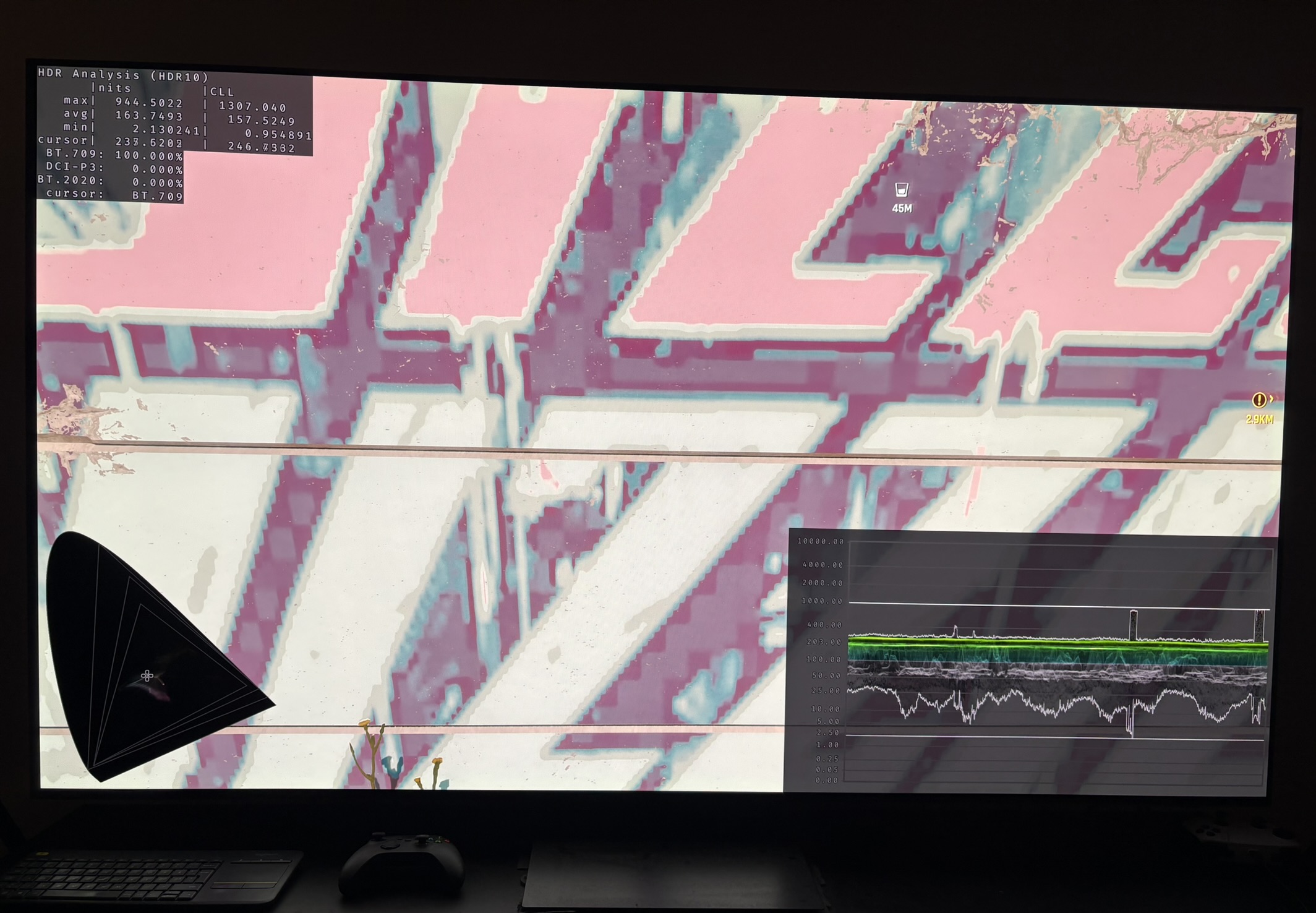
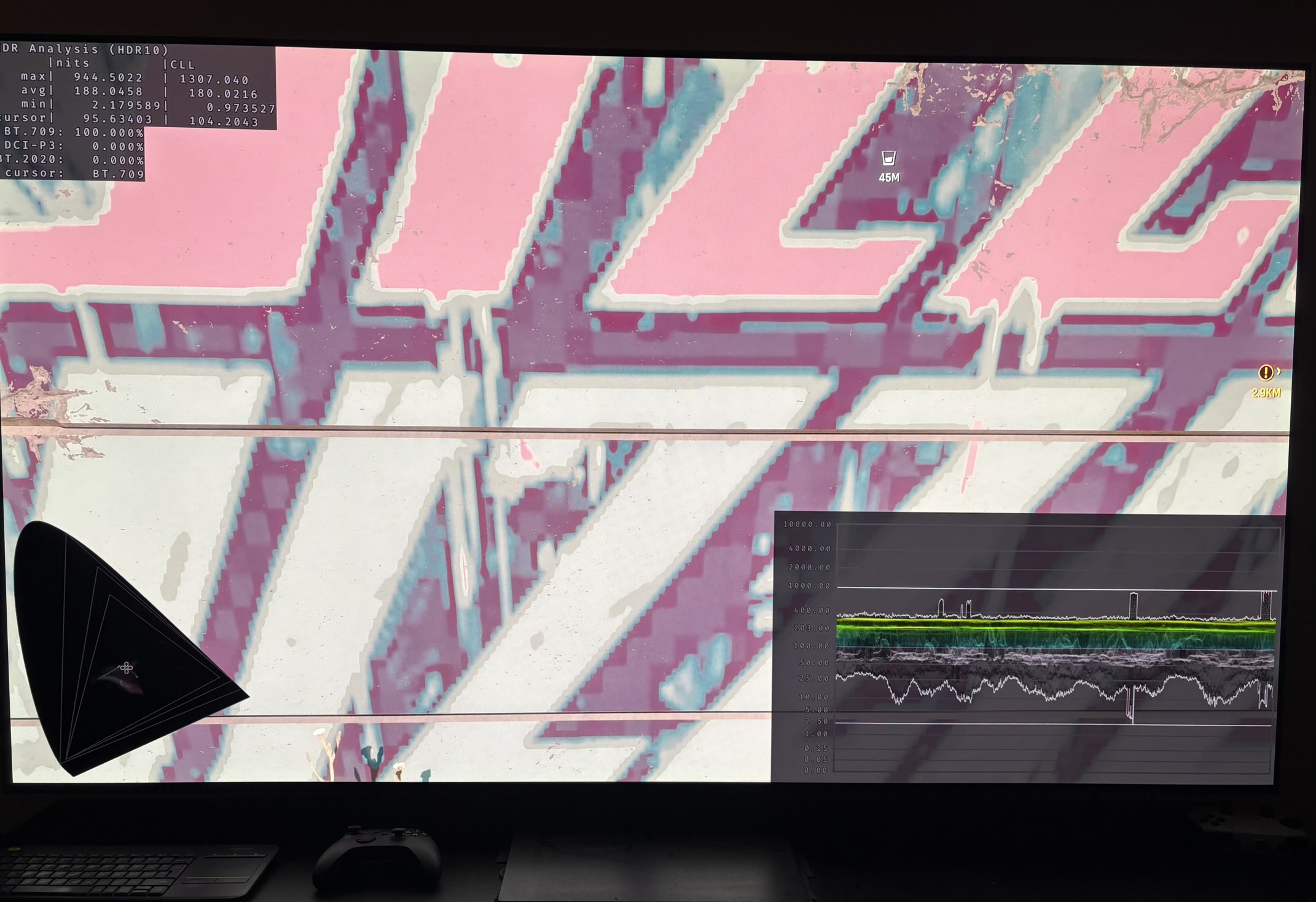
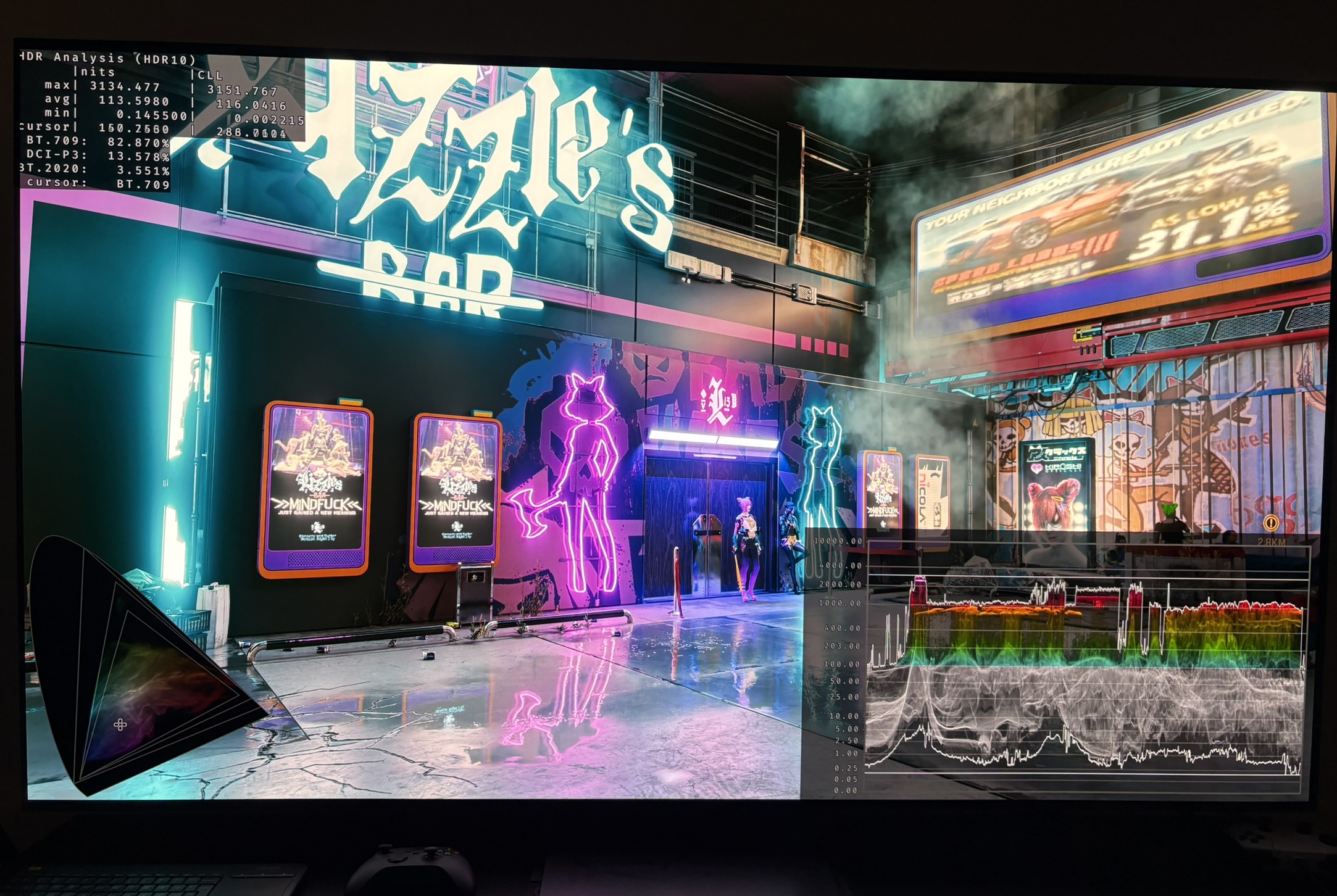
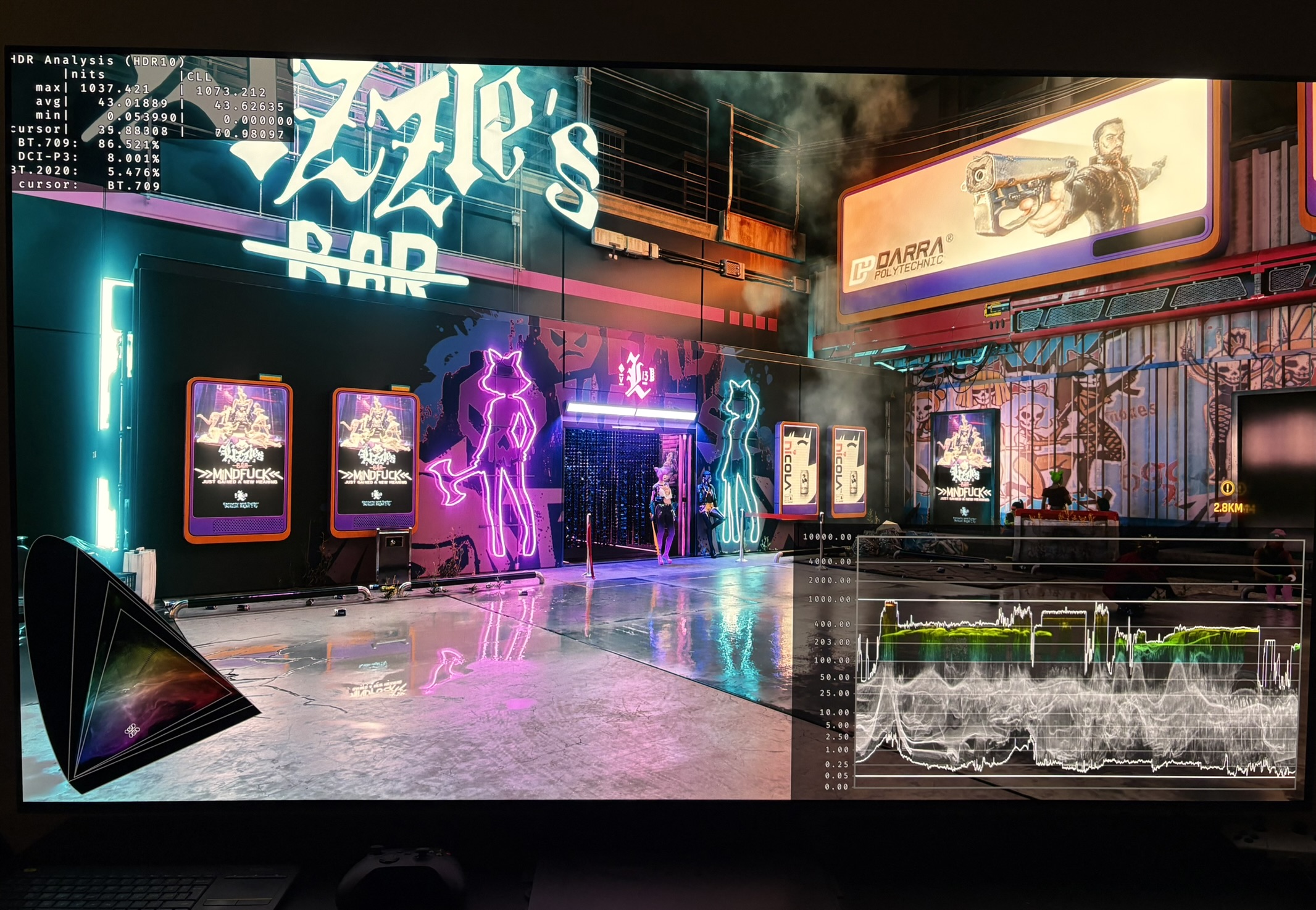
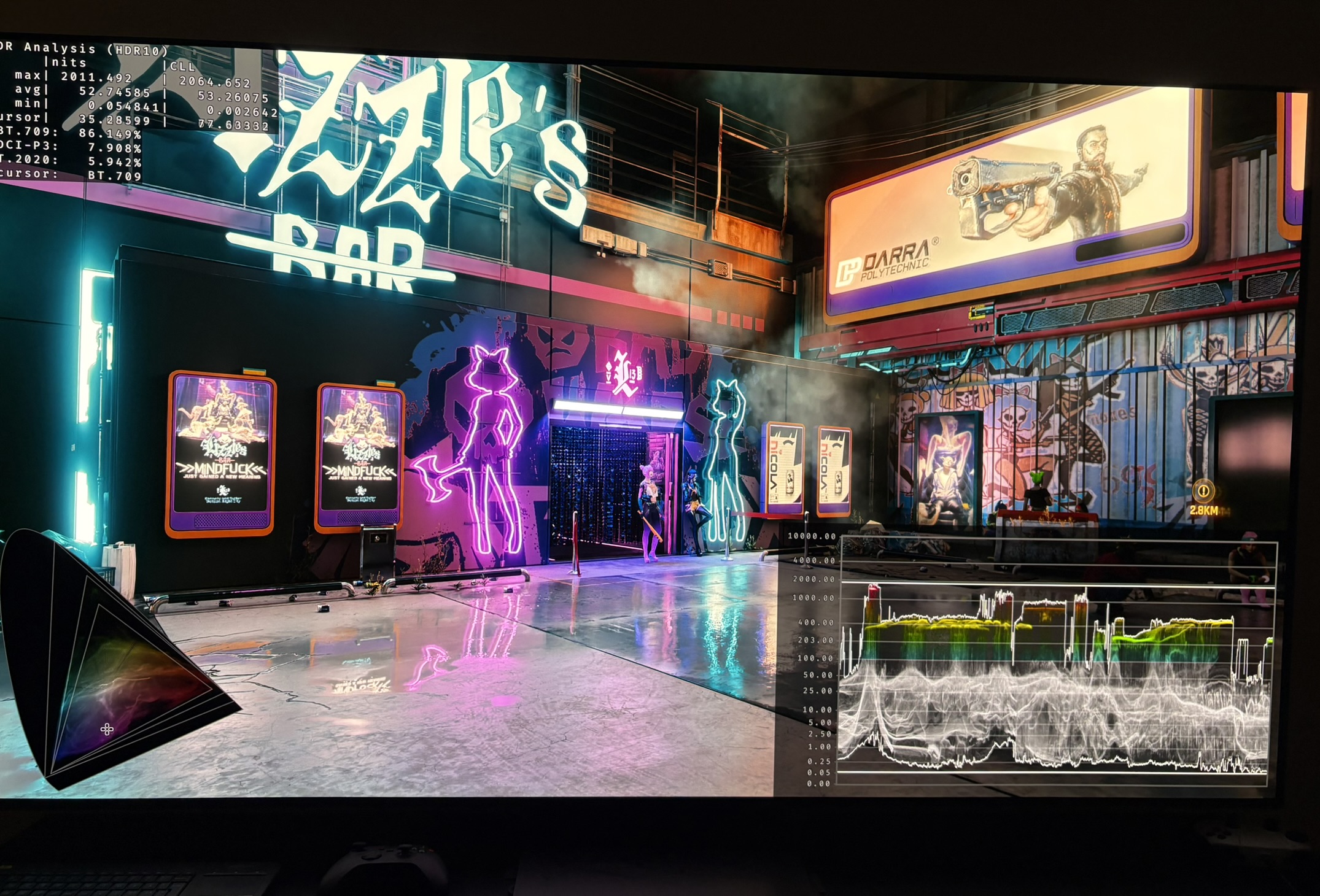
Picture 4 shows a scene outside a night club. It uses the default 0.75 on the Brightness slider with 2000 nits maximum brightness. We can see how bad that looks with massively raised black levels and peaks going much higher than 2000 nits. Picture 5 and 6 is with 0.30 on the brightness slider and 1000 and 2000 nits max. It looks much better, but we do still have a black level raise and the lowering of the brightness slider costs brightness in secondary highlighs.
Setup HDR - recommendations:
Below is for PC gamers.
In the table in picture 1 below you can see what I recommend to setup on different displays. The first column is the max peak brightness your display is capable of outputting. Simply setup the sliders according to the recommendations in the table.
It's the brightness slider that ultimately determines what black levels and paper white (mid tones) output the game has. So it has to be setup with the best compromise of black levels and paper white. Increasing the max brightness slider also effects paper white, as we can see in the table in picture 1. I think a value of 0.30 is the best compromise for most. We get a black level raise of 0.05 nits for most gamers and a paper white (mid tones) that is decent, but still to to dim side, at most peak brightness settings.
For gamers on lower nits displays, such as OLED gaming monitors, I recommend 0.20. The games HDR can only get peak brightness below 700 nits if we lower the brightness slider to 0.20. That of course has a significant effect on paper white that is lowered a lot, as we can see in the table in picture 1.
The calculated paper white and Minimum black levels, is done by Claude AI based on the games shader code. The range in paper white is with a scene value of 1.0 and 1.6 and it corresponds with my own measurements done on mid tones in the game. I have measured 250 nits and 300 nits on the brightest mid tone in picture 3 and 4 with 1000 and 2800 nits on the maximum brightness slider.
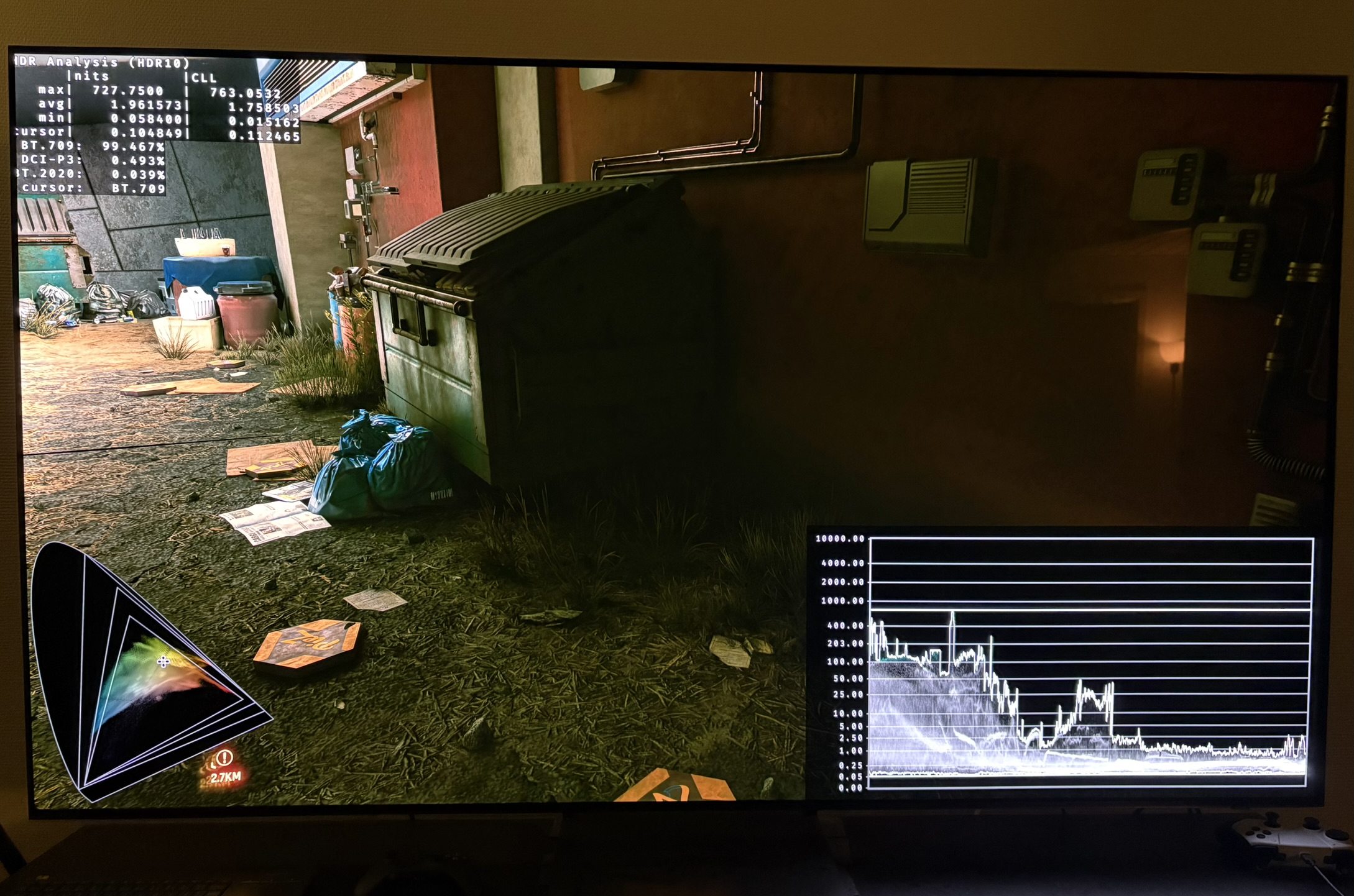
The scene minimum black level is what I see in most scenes, so consider Claude's calculated minimum black levels the theoretical minimum blacks. In picture 2 we see 0.05 nits black level raise using 0.30 on the brightness slider.
HDR10 PQ versus scRGB
There is an option to chose between HDR10 PQ and scRGB. ScRGB can help if you have colour banding. But it will come at the expense of the HDR implementations use of HDR colour space. I recommend to use HDR10 PG and only try scRGB if you have issues with colour banding.
RenoDX HDR mod:
I don't know if the current RenoDX HDR mods needs to be updated. It's a long time since I tried the RenoDX HDR mods for Cyberpunk. I have not tested them when writing this review. But as always, it's generally recommended for PC gamers to use RenoDX.