Cyberpunk 2077 PS5
HDR analysis and setup guide for Cyberpunk 2077 on PS5 (there is a separate analysis for PC).
The analysis is after the big update we got on October 22, 2026 that significantly changed the games HDR.
The games HDR at default settings look awful with a washed out look. It has a massive black level raise, too high mid tones and has 3000+ nits peak brightness.
The introduction of one slider, that does everything, means setting up HDR is going to be a compromise.
I do think we can get HDR to look decent when following the settings below. But the game still have a significant black level raise with the settings I recommend. And it will look too dim on higher nits displays.
There are improvements to the games HDR, such as a wider color gamut and more natural whites with less yellow tint. These improvements make the HDR look more natural. It's not all bad.
What changed and how it works:
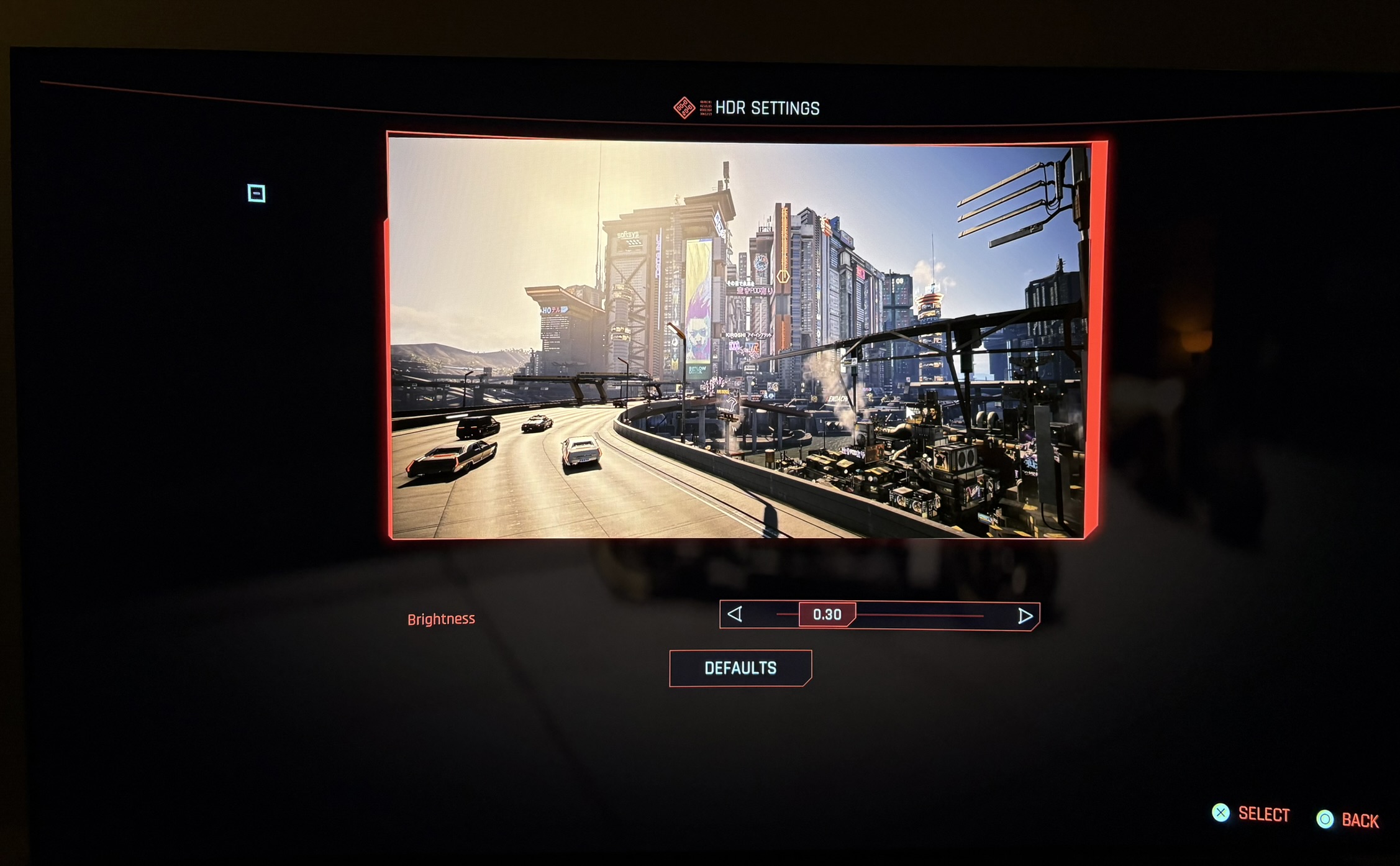
- They removed the old sliders and now there are only one slider that sets up everything. See picture below. It's the brightness slider.
- The brightness slider adjusts everything from black level floor, shadows, mid tones (paper white) and highlights. In this table we can see what the game outputs at different settings on the brightness slider. The HDR we setup in PS5s system settings, including peak brightness, has no effect on the games HDR.
- HDR now uses a wider color gamut. It outputs HDR colors instead of only SDR colors in the old HDR version.
- White look more natural with less yellow tint.
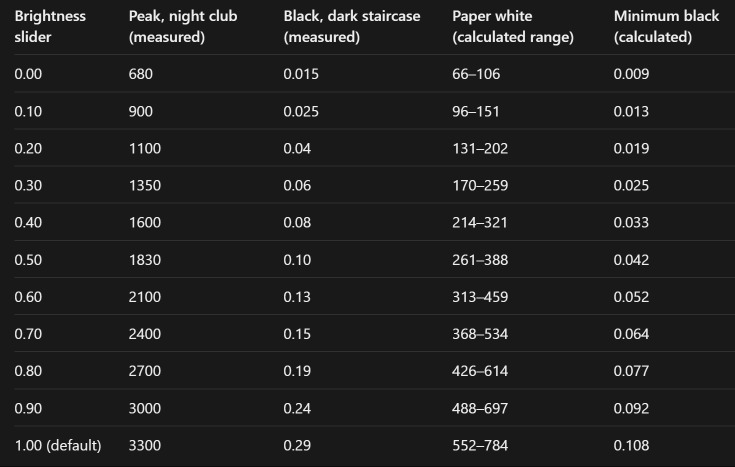
At the games default 1.0 on the brightness slider we see a massive black level raise of 0.29 nits. The paper white or mid tone brightness is 500+ nits. Those two in combination makes HDR look very washed out. The game will also output up to 3300 nits peak brightness in the brightest highlights (I measured on neon lights in a night club). It means clipping of detail and color on most displays.
HDR setup recommendations:
We have to find the setting on the brightness slider that gives us the least black level raise without losing too much mid tone brightness (paper white). Less important are the highlights, but if we see massive blow out detail and color in the brightest highlights, then the brightness slider can go one click lower.
0.30 brightness slider:
A paper white of around 200 nits is what most gamers can be happy with. It's good for 800-1200 nits capable displays. At 0.3 on the brightness slider we get around 200 nits paper white and 0.05 nits in black level raise. And 1350 nits highlights. That is the setting I would recommend for most, even those with displays capable of higher than 1350 nits.
Higher nits display owners of course want brighter highlights than 1350 nits and probably also a higher paper white, but that's simply not possible to do when we have one slider that adjusts everything.
0.20 brightness slider:
You can also try and lower the brightness slider to 0.20. If you the lower overall brightness (paper white) and highlights don't bother you, then you get a bit lower black level raise.
0.10 brightness slider:
Lowering the brightness slider to 0.10, I recommend for gamers with low nits displays capable of 400-700 nits. They probably prefer a paper white lower than 200 nits to give more room for highlights above the mid tones.