Destiny 2
A quick look at setting up HDR in #Destiny2 on PC and PS5.
I didn't try it on Series X, but it's most likely the same.
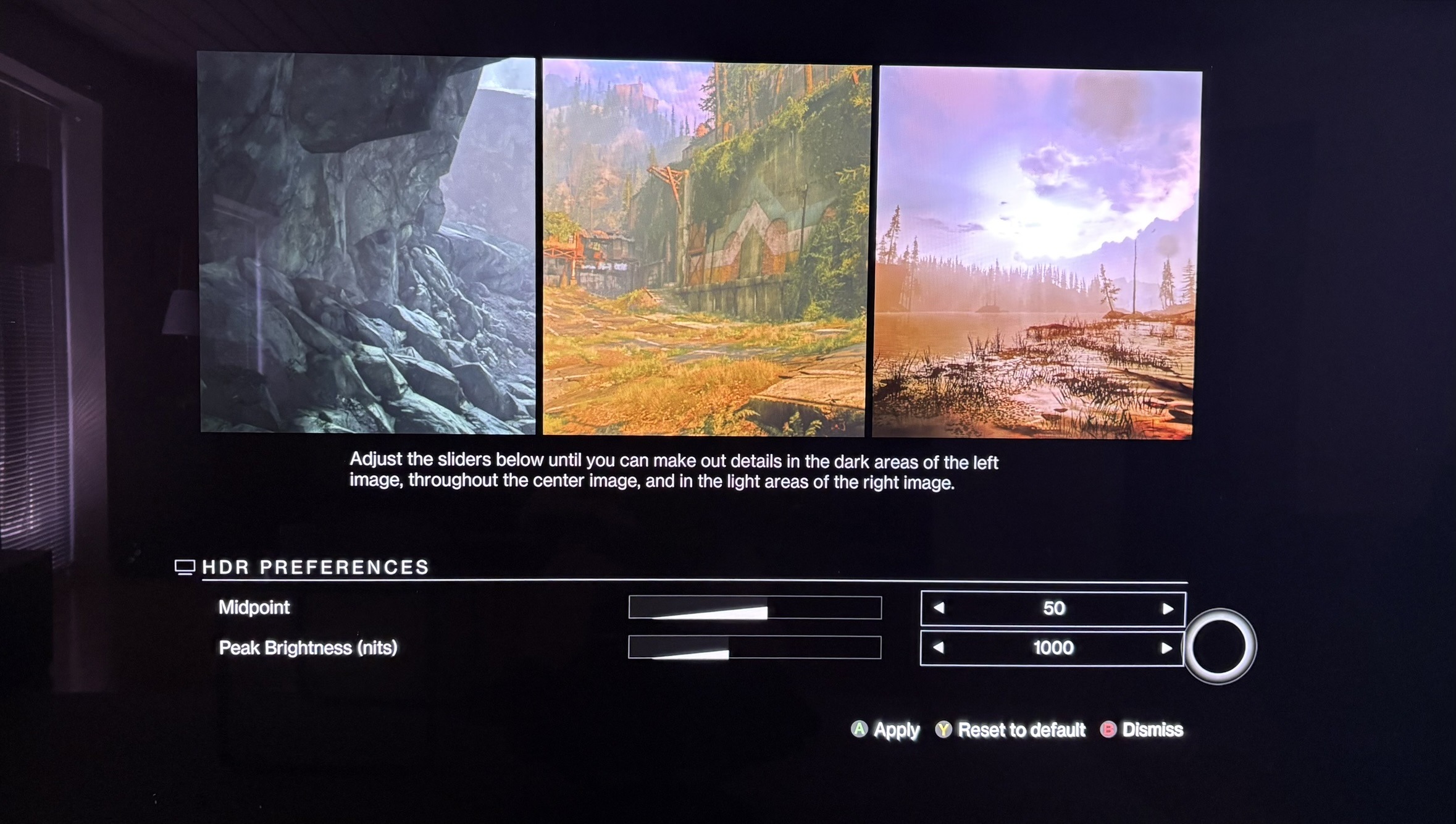
I think HDR looks decent at default settings, but as soon as we begin to adjust the in-game HDR sliders we get issues - so just game at default settings.
We have two sliders in-game. See picture 4.
Peak Brightness slider:
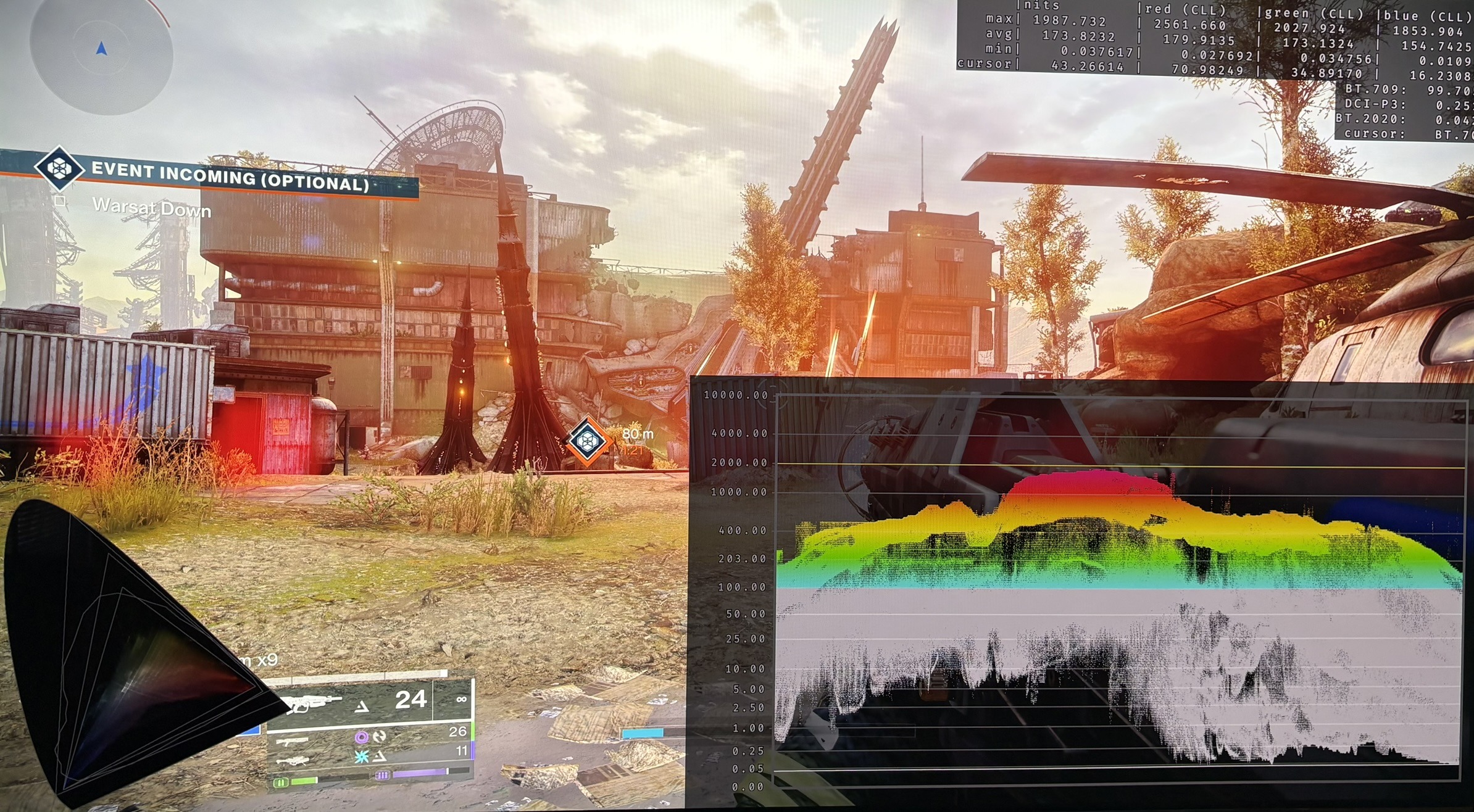
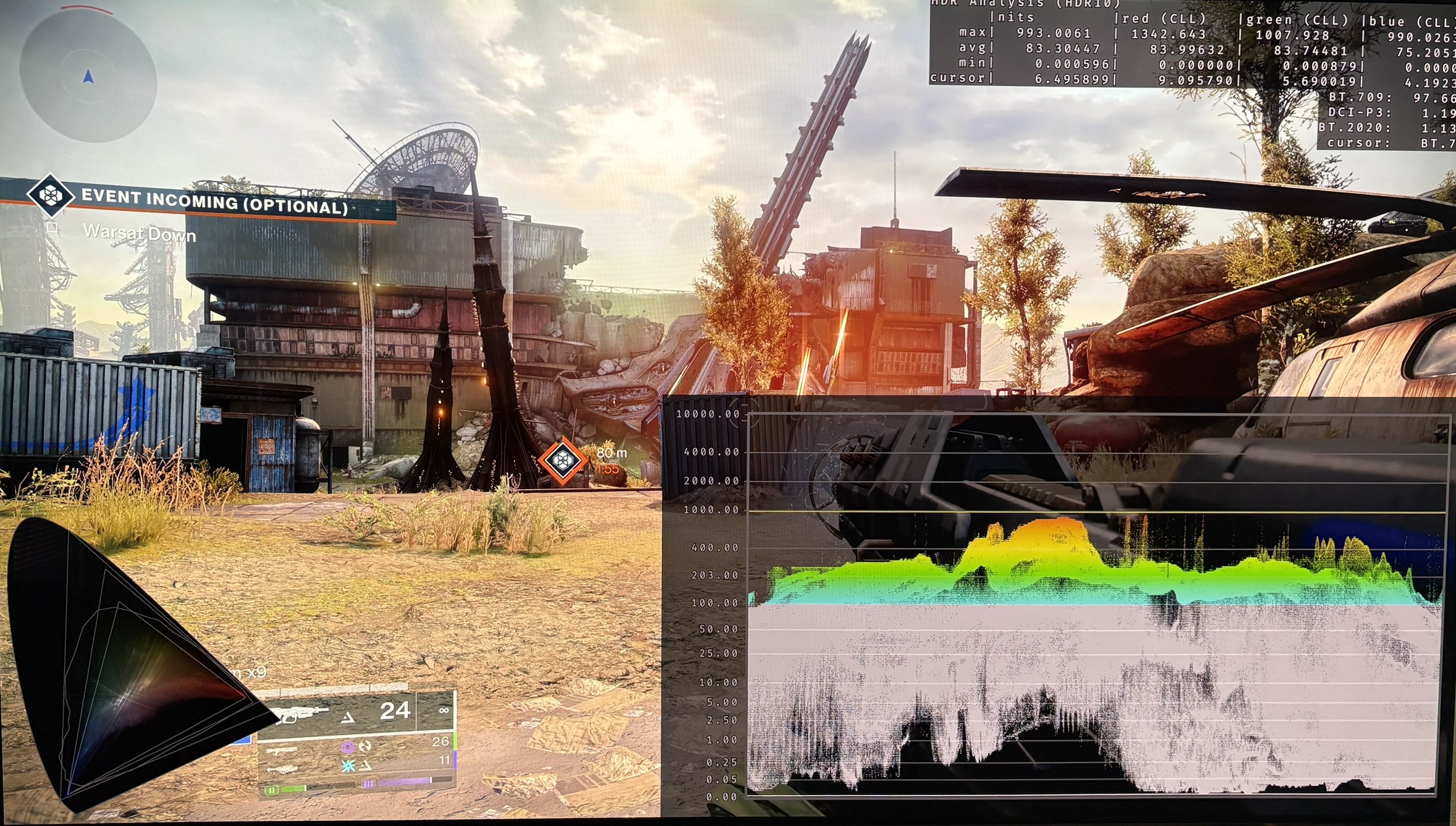
The peak brightness slider defaults to 1000 nits. It goes up to 2000 nits and it will output in-game what you set it to. Picture 2 is with 1000 nits peak brightness and picture 3 with 2000 nits peak brightness.
When increasing the peak brightness slider, everything is increased from brighter shadows, brighter midtones and brighter highlights. That's definitely not what we want from a peak brightness slider. We basically only want it to increase brightness above the midtones.
Midpoint slider:
It defaults to 50. It only affects shadows lower than 50 nits, as far as I can see.
Setup recommendation:
I think the game looks its best at default settings - 50 on the midpoint slider and 1000 nits on the peak brightness slider. Here we have good black levels with good shadow detail and good midtone brightness.
When we increase the peak brightness slider we increase upper shadows and midtones too much. The game begins to have a washed out look. It's especially an issue in the areas with fog.
It sounds a bit boring, but just play the game at default settings, if you have a display capable of 1000 nits or more.
If you have a display that can do less than 1000 nits, then simply set the peak brightness slider to your displays peak brightness.
If you have a dim HDR display, such as a gaming monitor with 500 nits, then I can see the peak brightness slider lowering upper shadows and midtones, as a real issue. It could make the game too dim. And you can't use the midpoint slider to compensate, because it only adjusts below 50 nits (lower shadows). Here you might be better off gaming in SDR.