Gears 5
Quick HDR analysis and setup guide for Gears 5 on PC.
It's impactful HDR but also what we call deep fried HDR.
Deep fried because HDR has more saturated colors and darker shadows than SDR, while having too bright midtones and upper midtones, in my opinion. That's at default settings.
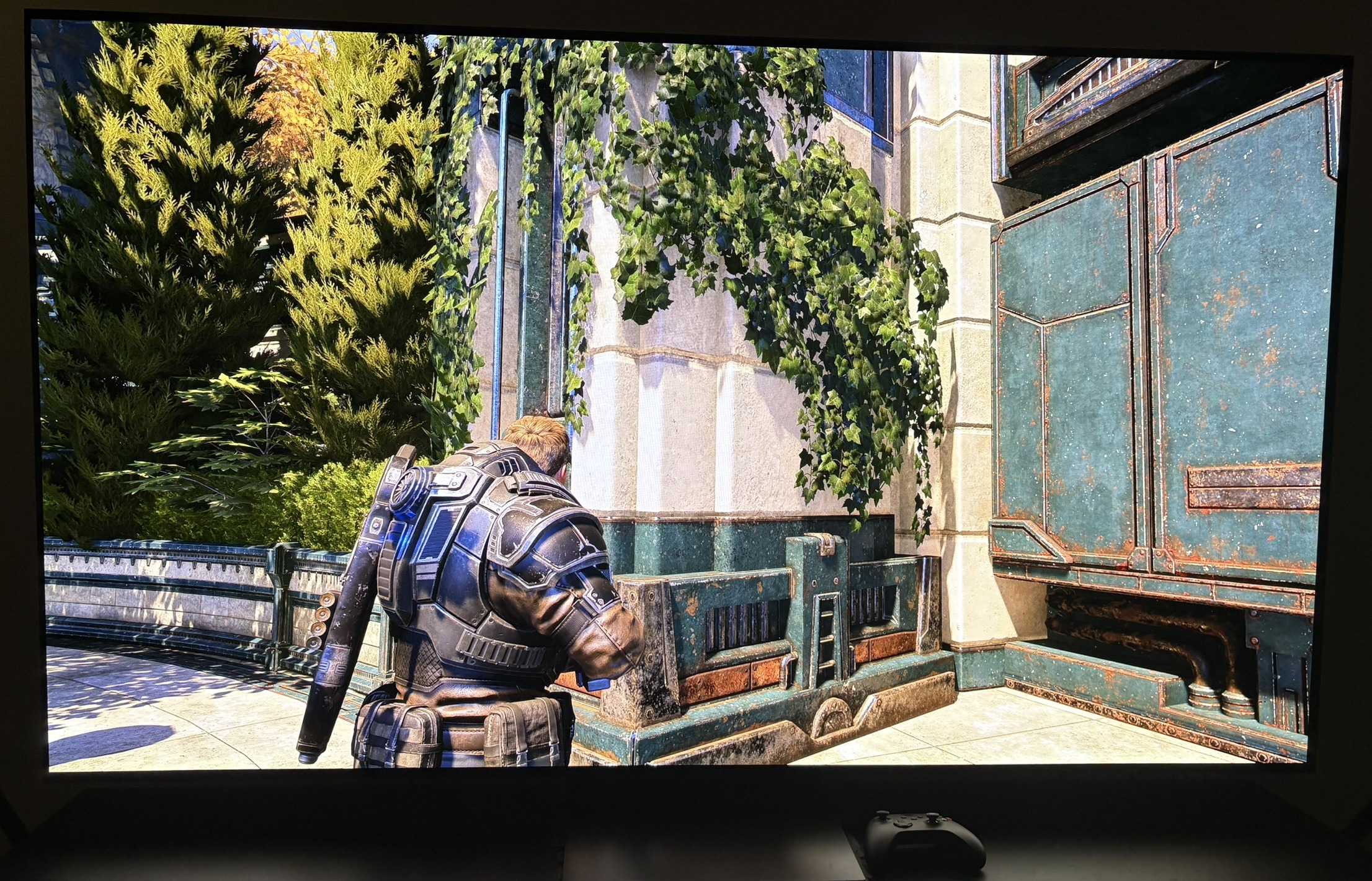
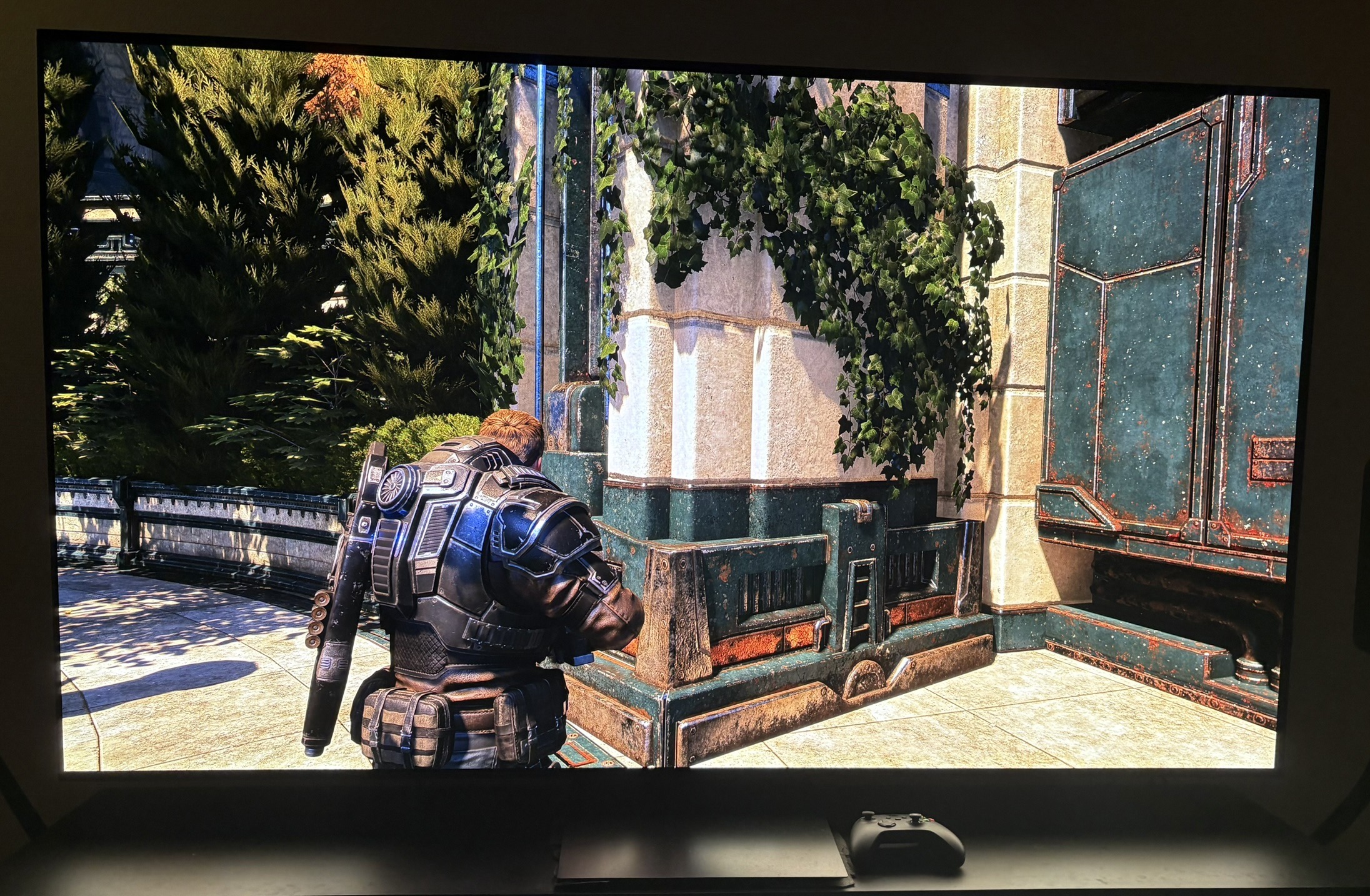
Picture 3 and 4 shows the saturation and contrast difference between HDR and SDR.
Recommended settings:
I recommend to change the default settings from 50 to 30 on the contrast slider and 120 instead of 140 on the brightness slider. It will dial back some of that saturation and contrast and make HDR look closer to SDR.
Use the above as the baseline no matter the display you use. Then increase or decrease the contrast and brightness slider a bit if you need to, to your personal preference and display.
The HDR brightness slider sets up what the brightest highlights output. And the game actually outputs that. Setup to what your TV can max output.
In-game sliders:
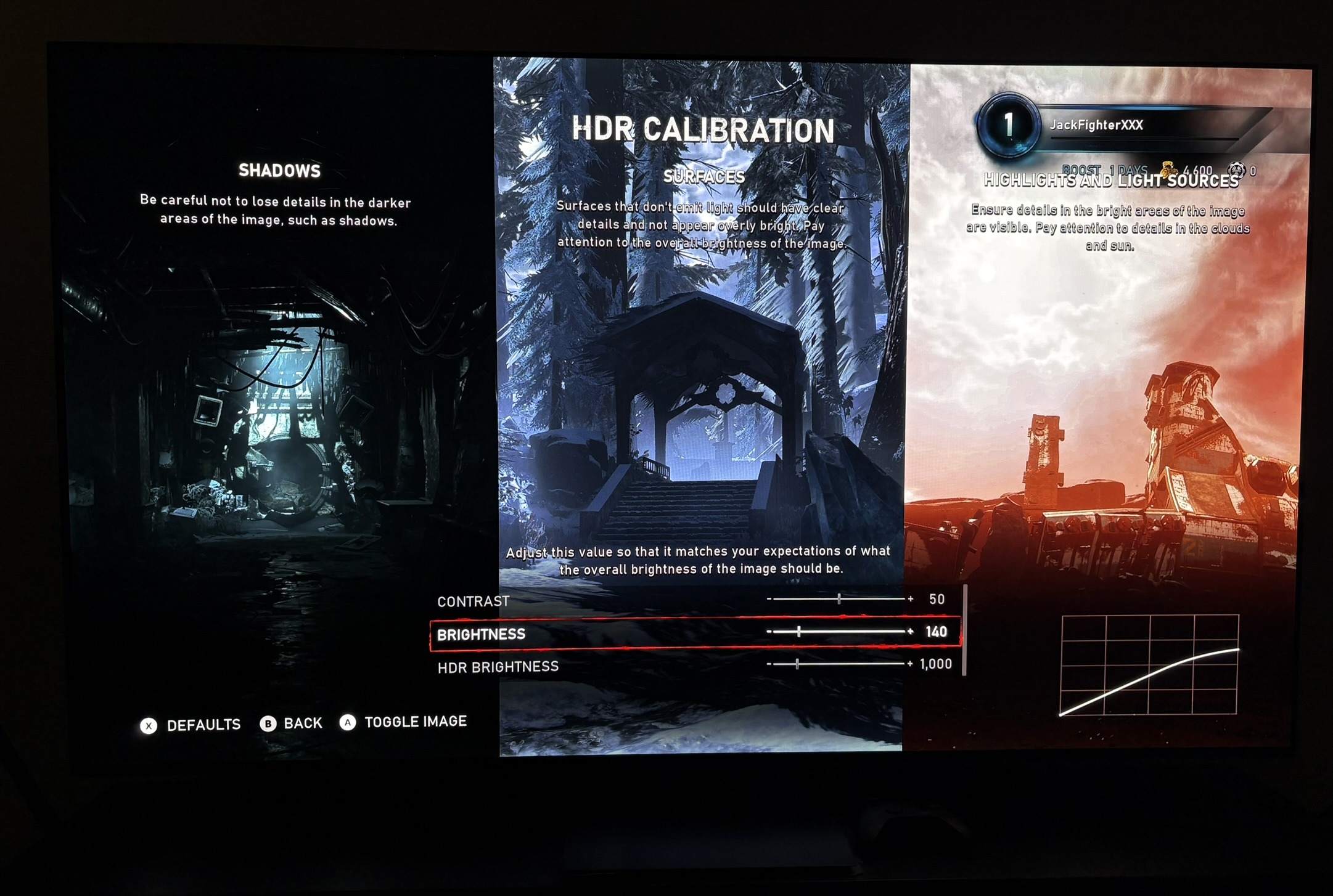
In picture 2 you can see the in-game HDR setup screen with 3 sliders.
Below I describe in further detail what these sliders do.
Contrast slider:
It's basically a shadow slider. It adjusts lower and upper shadows. Shadows of course also affects contrast.
Brightness slider:
It changes everything inbetween peak brightness (HDR brightness) and the black level floor. It does so in what seems to be a linear adjustment on the tone curve, with a roll off near peak brightness and the black level floor. Peak brightness and black level floor are not affected.
HDR brightness slider:
It sets peak brightness and the game output what we set on the slider. It also adjusts secondary highlights below peak brightness.
The 3 sliders work as such sliders must basically.
In the in-game menu there is a little cool illustration of what effect the sliders have on the HDR tone curve. I tested that this is actually also what happens in-game using HDR waveform analysis.
I like that you can overlay the HDR sliders over the actual in-game picture, making HDR setup much more easy. I wish all games had this.
Tone Mapping highlights:
Increasing the brightness slider or lowering the HDR brightness slider pushes secondary highlights closer to peak brightness. It seems the tone mapper handles this task well without crushing highlight detail too much.