Gears Of War E-day
HDR analysis and setup guide for Gears Of War E-day on PC and SX.
HDR is implemented the same on both platforms (it does not release on Playstation).
Graphics look amazing and HDR also looks good when setup properly. But the HDR implementation has issues. It's main issues are un-intuitive HDR setup sliders, way too dim mid tone brightness (paper white) at default settings, the game does not output the peak brightness the HDR Max Nits slider indicates and UI brightness is way to bright at default settings.
I also think secondary highlights look too dim, but that is only at the default 7 on the HDR Mid Point slider.
See setup recommendations at the end.
In-game sliders
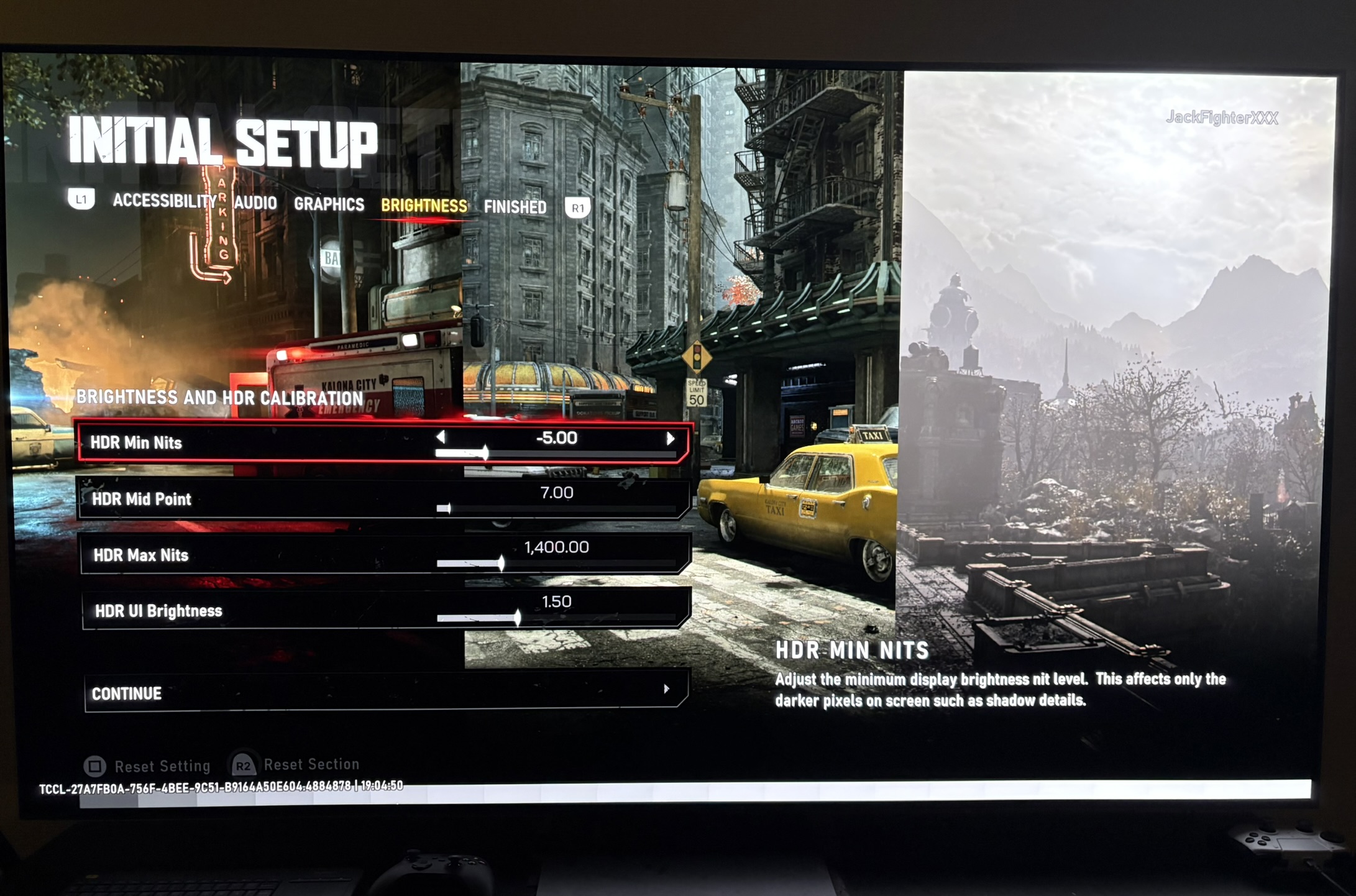
The game has 4 HDR sliders, as you can see in picture 1. I don't think anyone will understand what -5, 7 and 1.5 means. That in itself will make setting up HDR more difficult for the average gamer.
Why is there 93 steps above the default 7 on the HDR Mid Point slider. Makes no sense. And as we will see below, I never recommend to setup higher than around 18-20, so all these steps are useless. This will not help the gamer understand what the best settings are.
And why use names on the sliders, that most other games do not use. Why not call the sliders Shadows, Paper White (brightness) and Peak Brightness.
The default value on a shadow slider should simply be 0 and not -5. The Paper White slider must have a default value of 203 nits, because that's the standard paper white and the value most will use for around 800-1200 nits peak brightness capable displays. The UI slider must show the nits the UI elements output and it should be set to 203 nits at default, because we want our UI elements to have the same brightness as the mid tones or paper white value. The peak brightness slider is showing it's nits, and that is great.
I will comment more on what the game actually outputs at different values on the sliders below.
Peak Brightness
First I show what the game outputs of peak brightness at different values on the HDR Max Nits slider. We see that the game does not output what the slider indicates and it's especially and issue on higher nits displays.
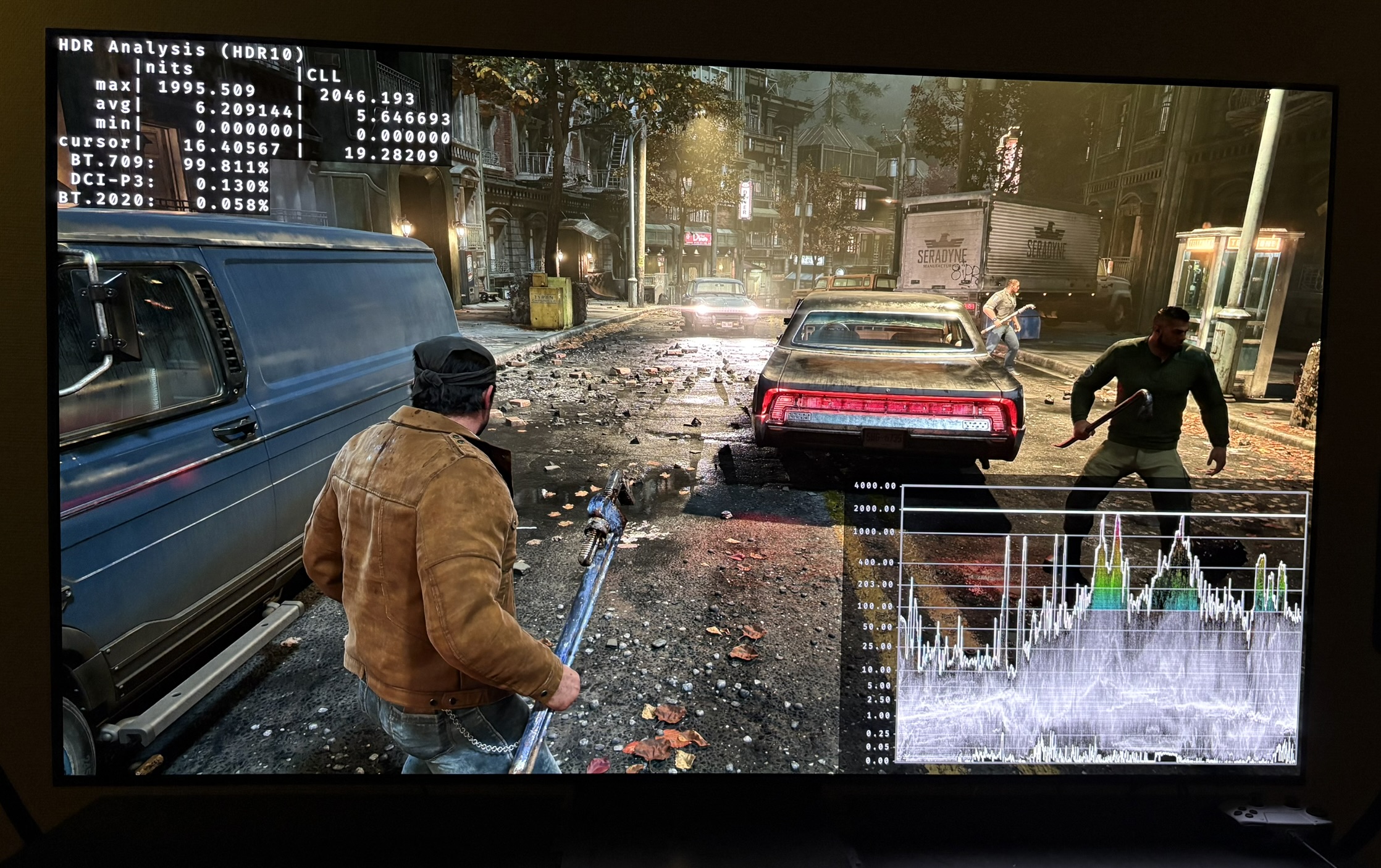
You only lose around 80 nits at 1000 nits peak, but at 2000 nits peak, the game will output more than 300 nits too low. Picture 2 is with 2000 nits.
HDR Max Nits slider (with 7.00 on HDR Mid Point Slider):
300 = 462 nits
400 = 462 nits
600 = 600 nits
800 = 760 nits
1000 = 920 nits
1200 = 1100 nits
1400 = 1230 nits (default)
1500 = 1300 nits
1800 = 1500 nits
2000 = 1670 nits
2500 = 2100 nits
3000 = 2300 nits
4000 = 2850 nits
5000 = 3400 nits
Here I show peak brightness with 20 on the HDR Mid Point slider. We see the game slightly changes peak brightness output when increasing the HDR Mid Point slider. That we don't like to see, but it's not the biggest issue, when the changes are so small. It does make setting up HDR more difficult.
HDR Max Nits slider (with 20.00 on HDR Mid Point Slider):
600 = 600 nits
1000 = 970 nits
2000 = 1770 nits
5000 = 3800 nits
Paper White / Brightness
The mid tone brightness or paper white is adjusted on the HDR Mid Point slider. The overall brightness of the game looks vary dim to me at default 7 on the slider. So we need to increase the slider.
It's very difficult to estimate what paper white a game exactly outputs. Here is what I have estimated:
Paper white (estimated):
7 = 130-150 nits
10= 180 nits
12 =203 nits
15 = 230-250 nits
18-20 = 275 nits
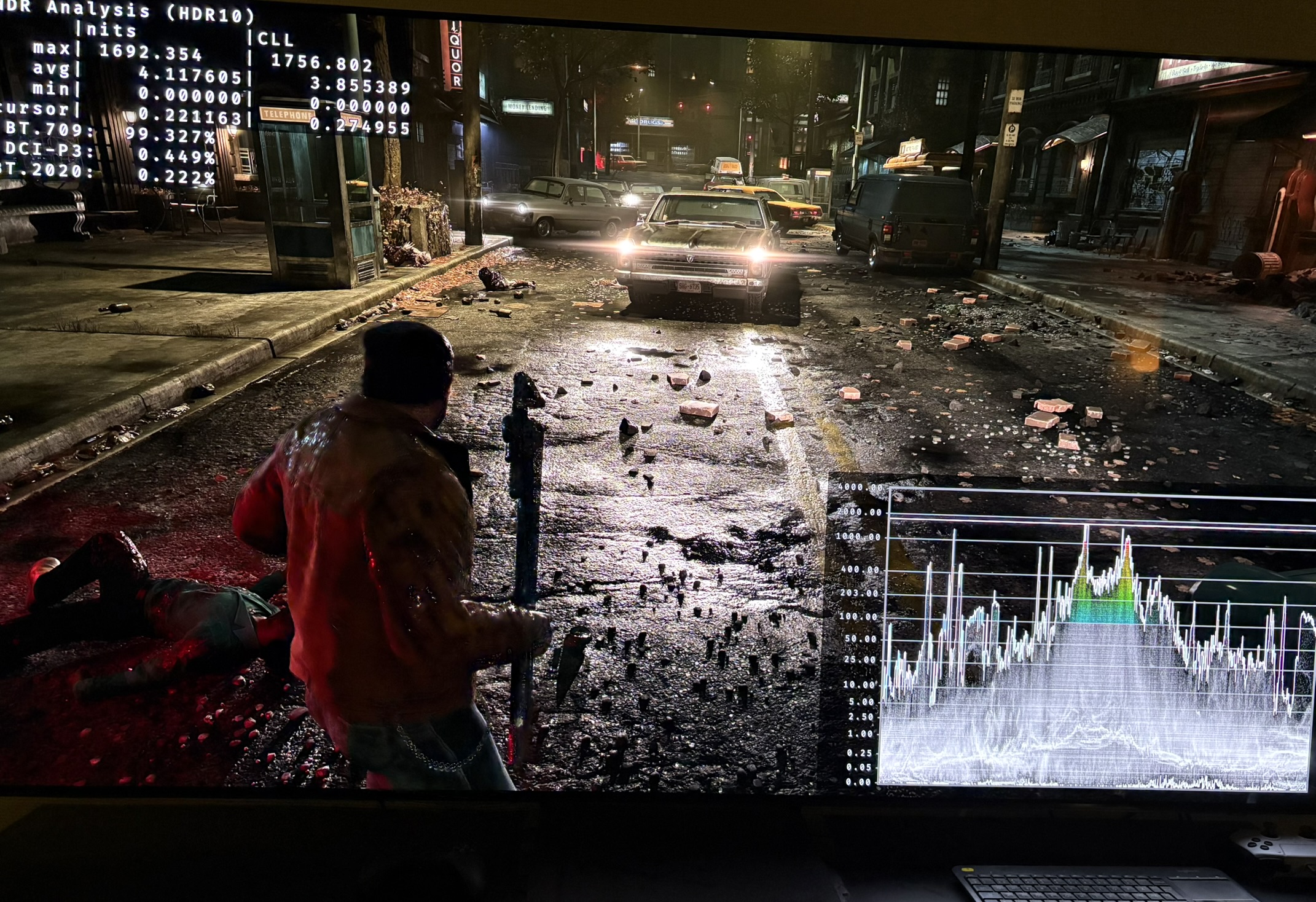
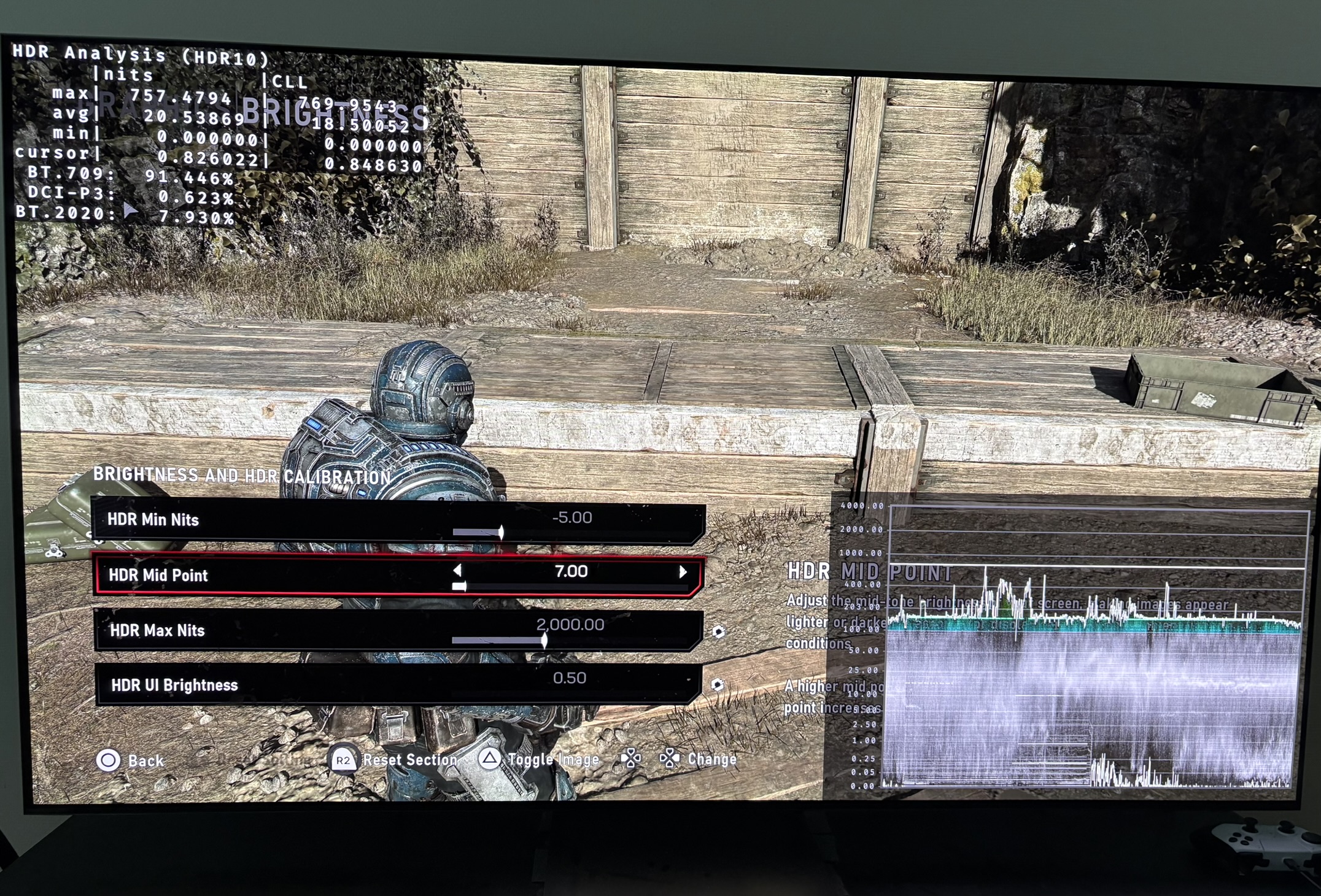
Picture 3 shows around 130-150 nits mid tones at 7 on the slider. Picture 4 shows around 203 nits mid tones at 12 on the slider.
Increasing the slider increases upper shadows quite a lot. I don't think it's recommendable to go above 18 because of this. We can't use the HDR Min Nits slider to bring down upper shadows, because that slider only affects lower shadows. That's unfortunate, because we want sliders that can adjust the whole range on the brightness curve.
Shadows:
The black level floor looks great, as you can see in several of the pictures below at default setting of -5. The waveform shows 0 nits or slightly above in darker scenes.
On the HDR Min Nits slider you can adjust the lowest shadows a bit. It unfortunately does not affect the upper shadows by much, so there is a gab on the brightness curve, as mentioned above.
UI Brightness
Here I show what nits the game outputs of brightness on UI elements. The default value of 1.5 on the HDR UI Brightness slider outputs a way to high brightness of 450 nits.
0.50 = 150 nits
0.75 = 215 nits
1.00 = 300 nits
1.25 = 370 nits
1.50 = 450 nits (default)
1.75 = 530 nits
Setup Recommendations
HDR Mid Point Slider:
Setup this slider first. Here I show you what you can set it too as a starting point, before you adjust to your personal preference. I assume you game in a dark room.
7 = 130-150 nits - 400-600 nits peak displays
10= 180 nits - 700 nits peak peak displays
12 =203 nits - 800 - 1200 nits peak displays
15 = 230-250 nits - 1500 nits peak displays
18-20 = 275 nits - 1800+ nits peak displays
I would normally recommend slightly higher on 1500+ nits displays, but I think the increase in upper shadows gets to high if we increase the slider more. I use 18 myself on my 2000 nits display.
HDR Max Nits slider:
Setup to what you display can maximum output. When the game output less than you set on the slider and when the HDR Mid Point slider effects peak brightness, then I would setup to this (assuming you follow my recommended HDR mid Point slider settings);
- 800 nits to 800 nits
- 1000 nits to 1100 nits
- 1500 nits to 1700 nits
- 2000 nits to 2300 nits
HDR Min Nits slider:
Leave at default -5 at 12 or less on the HDR mid point slider. Lower to -5.5 at 12 or higher on the HDR Mid Point slider.
HDR UI Brightness slider
Set to 0.75.
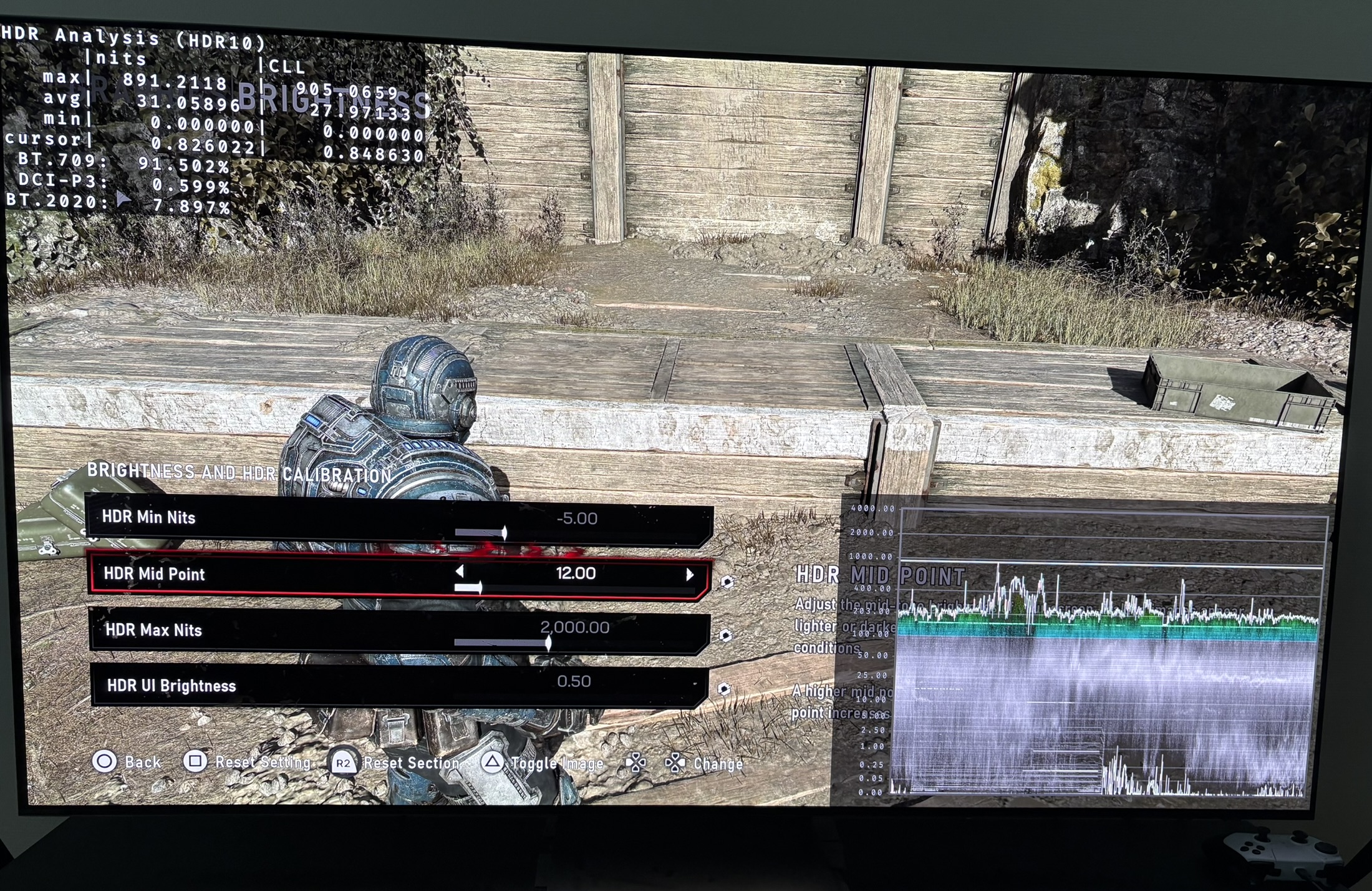
1100 nits on Max Nits slider and 12 on Mid Point slider
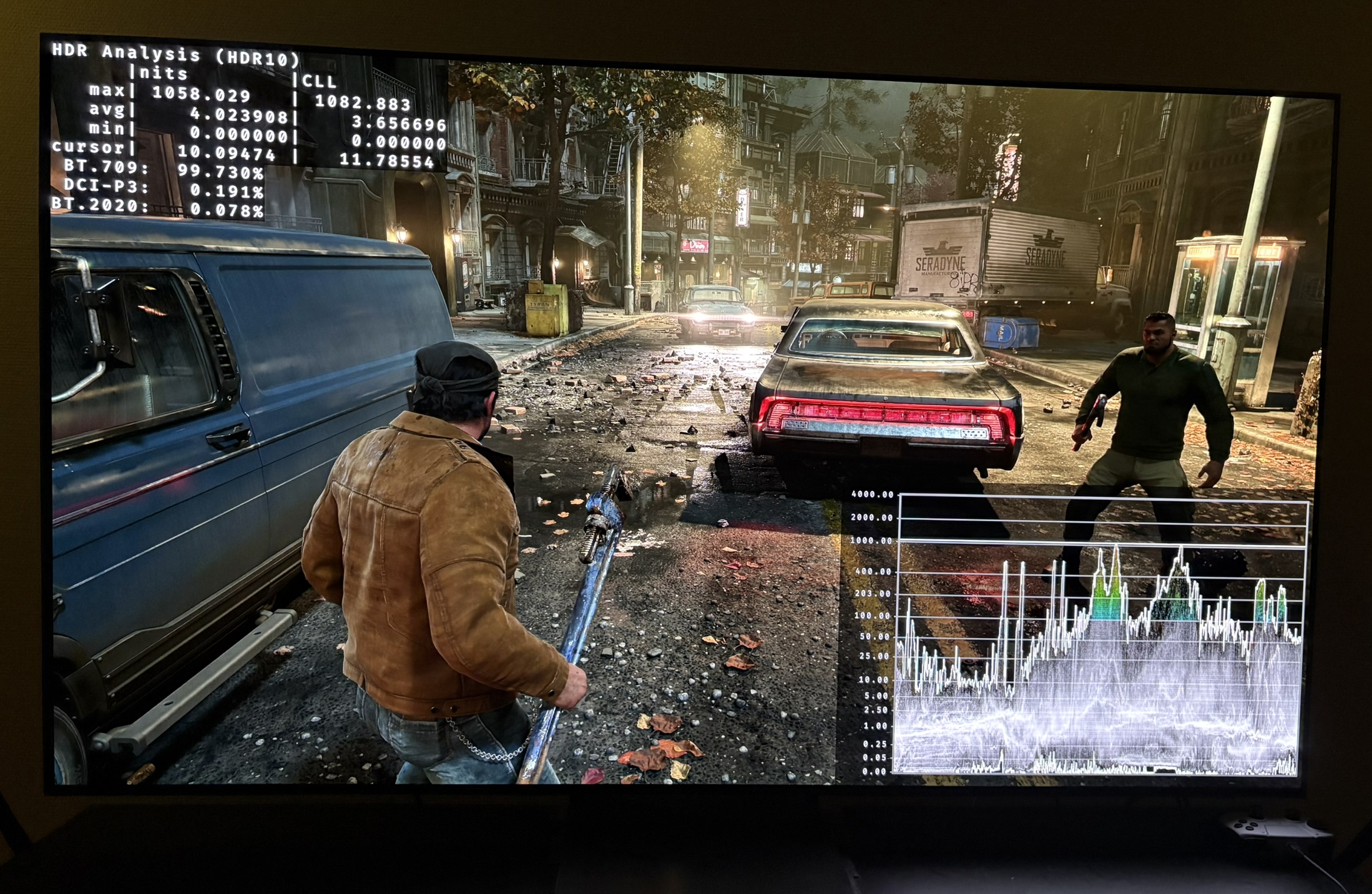
2300 nits on Max Nits slider and 18 on Mid Point slider