GTA 6
HDR analysis & setup guide for GTA 6.
I tested the games HDR on my PS5 Pro. It will most likely be the same on PS5/SX/SS.
See setup guide at the end.
MY OVERALL IMPRESSION
GTA 6's graphics looks amazing and I think HDR enhances the games presentation. It overall does what it must and looks good to me. HDR does not need to be perfect to look good and better than SDR.
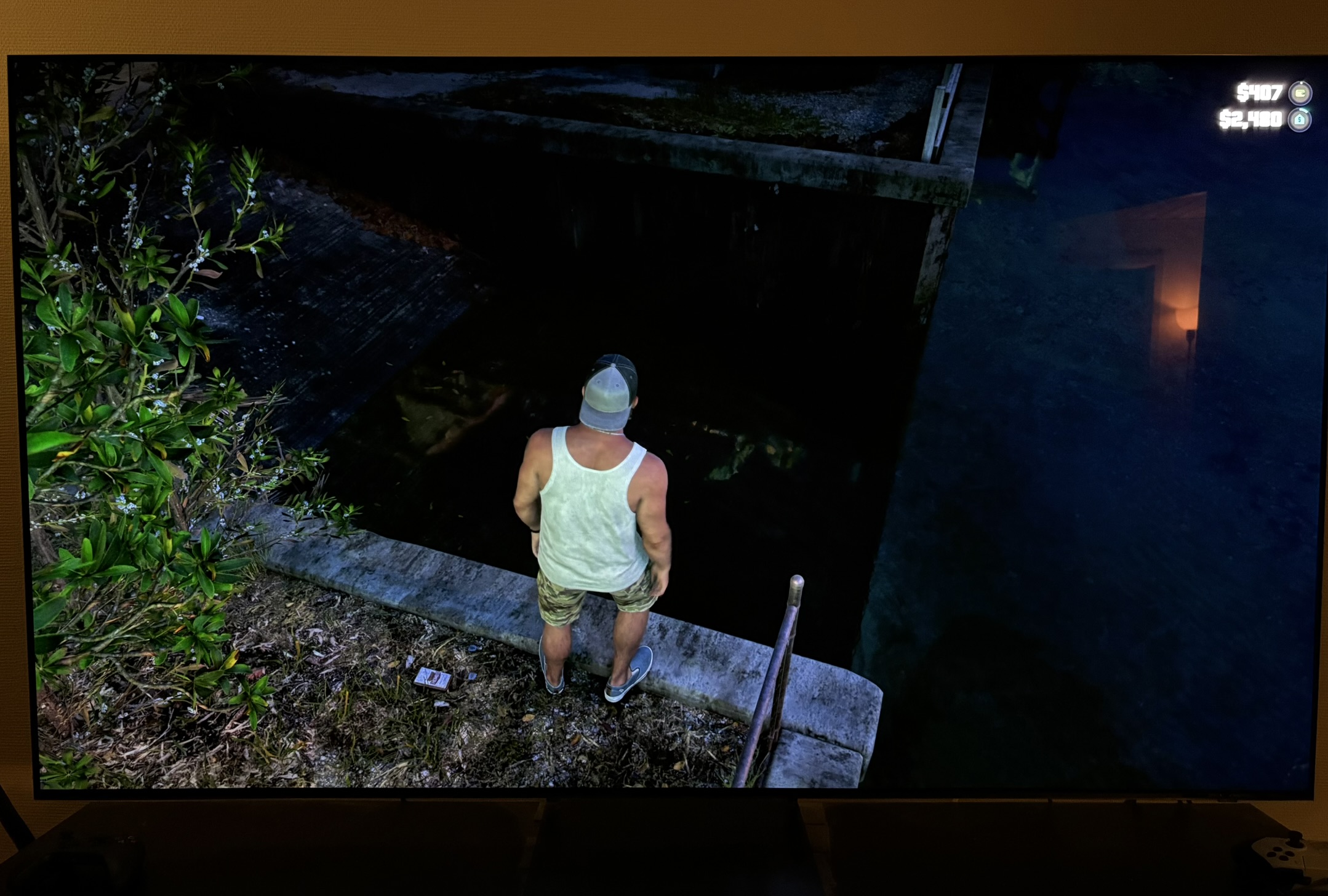
I really like how night time looks really dark in both SDR and HDR. Most games makes night time overly bright to preserve detail.
Since the game is only on consoles, I can't go into the games shader code and confirm exactly how HDR is made. But to me HDR looks like SDR stretched into HDR using a good inverse tone mapping method. So it does not look like a native HDR implementation to me, but I can't know for sure before we get the PC version.
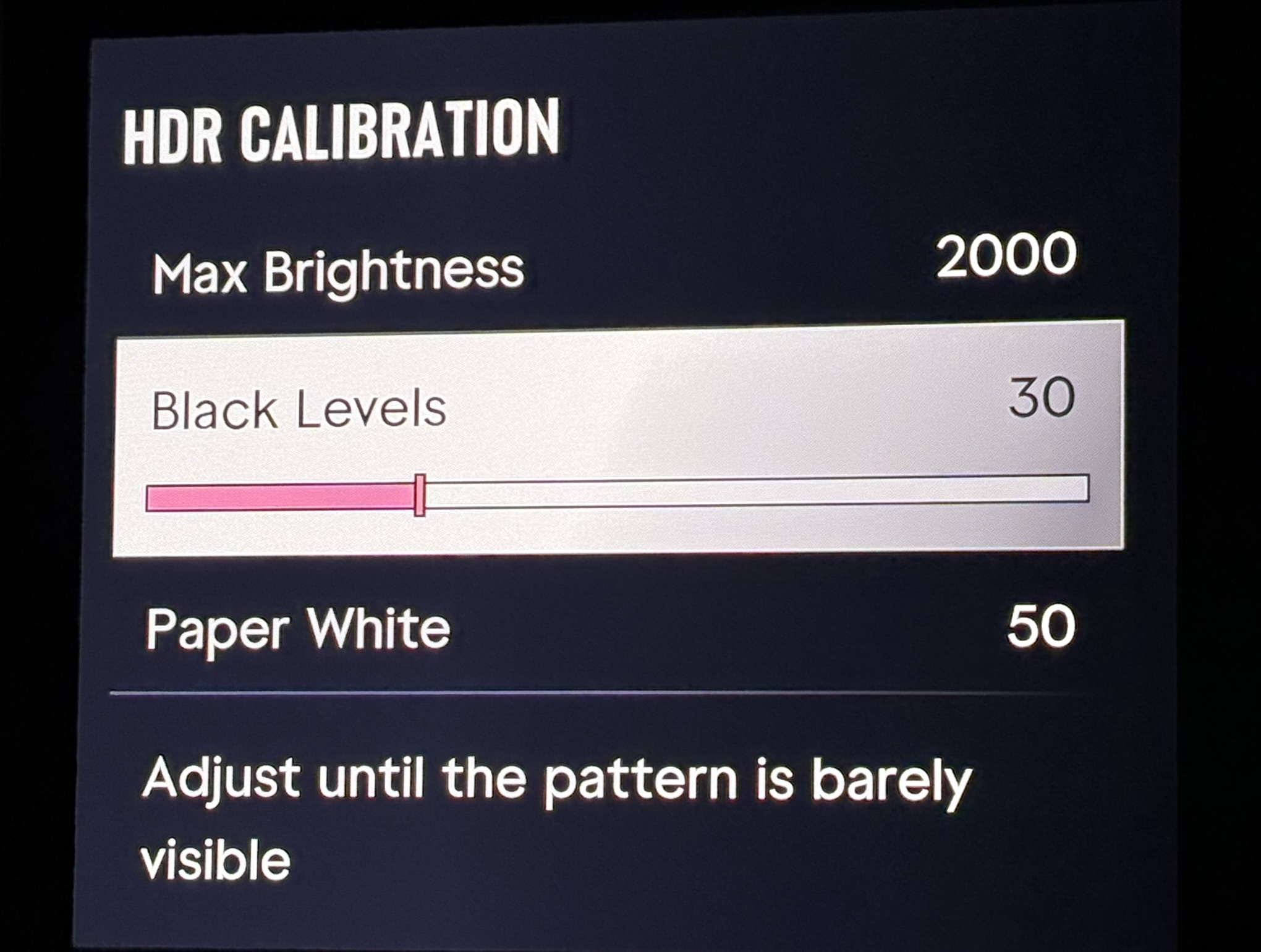
The biggest problem is not so much the HDR presentation. It's that HDR setup is very poor and unintuitive. Max Brightness does not always give you the peak you set, Paper White changes the peak, which we don't want, and Max Brightness changes the mid tones, which we also don't want. None of this is explained in the menu.
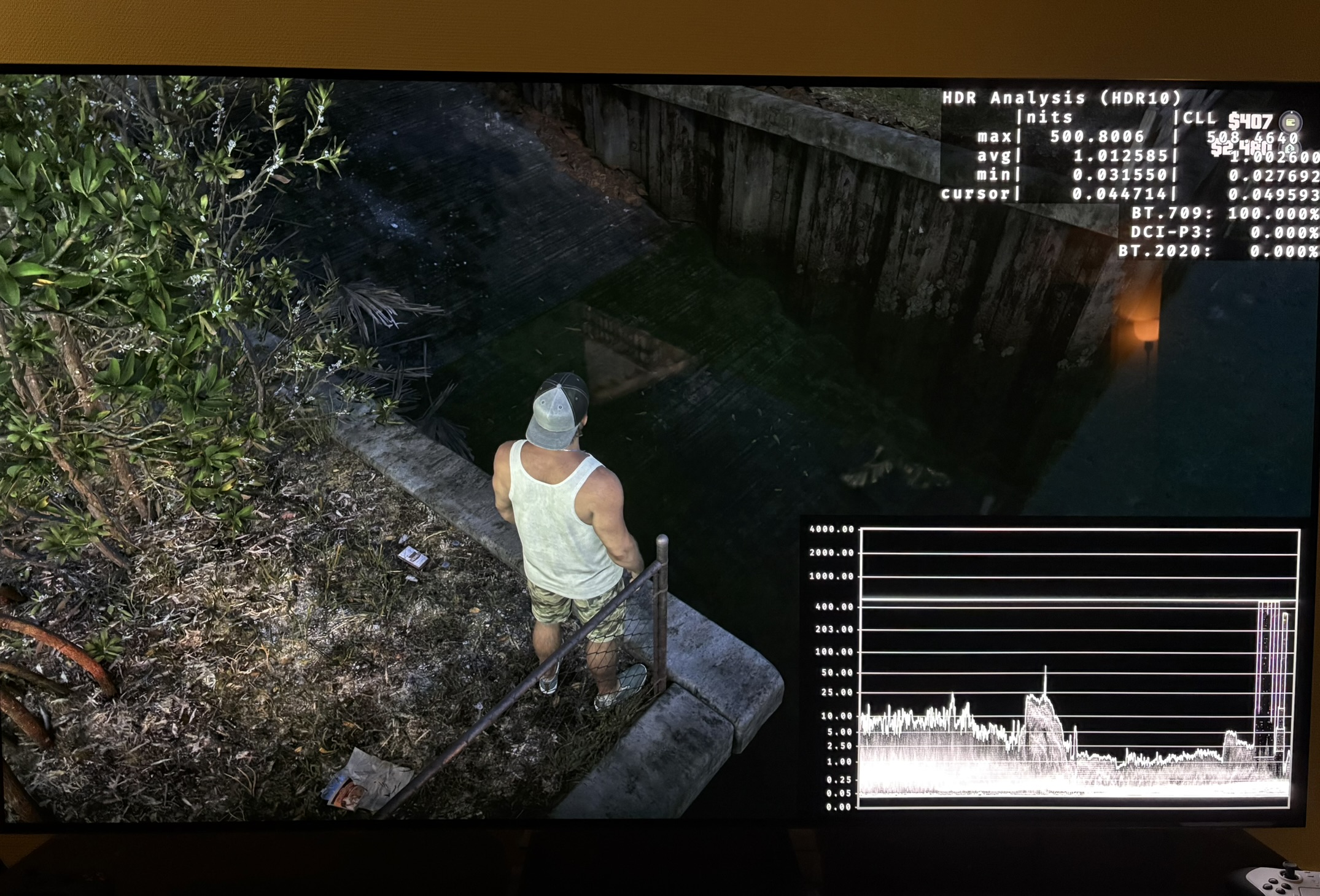
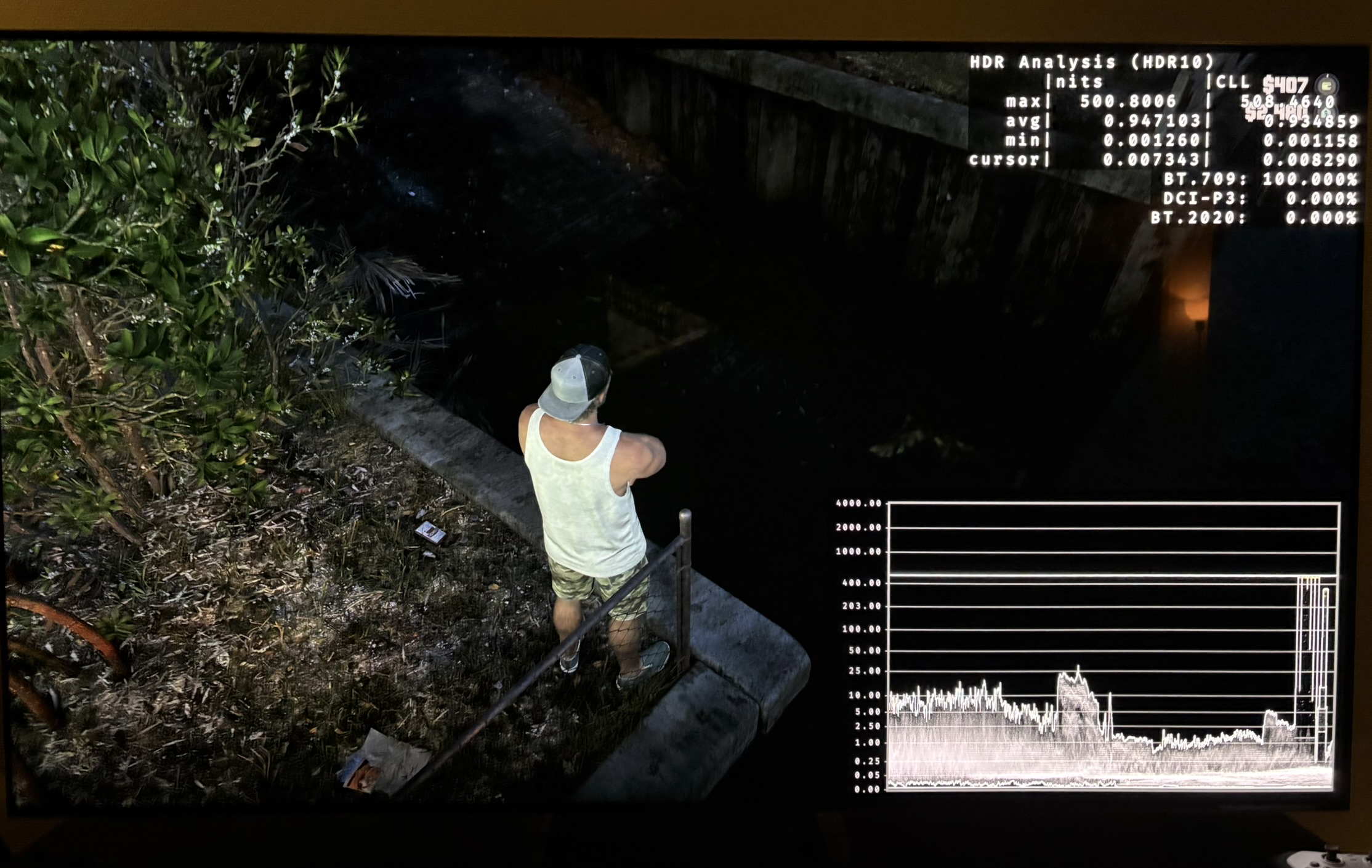
There is also a significant black level raise of around 0.05 nits at default 50 on the Black Level slider. This black level raise is not there in SDR's default. SDR at its default looks significantly darker at night time than default HDR (try out SDR too see how dark the developers actually wanted us to see the shadows).
MAX BRIGHTNESS
At the default Paper White of 50, the game gets close to the Max Brightness value, and falls a little behind the higher you go:
Max Brightness 500 → about 490 nits
Max Brightness 1000 → about 960 nits
Max Brightness 2200 → about 1,960 nits
Max Brightness 3000 → about 2,580 nits
The game will never output higher peak brightness than the value you set on the max brightness slider.
PAPER WHITE
Paper White works as an overall brightness control. It sets the overall brightness of the picture. Every 5 steps down lowers the whole picture by roughly 17% (measured), shadows included. It also lowers the peak. With Max Brightness at 1000 we here see how massively paper white effects peak brightess:
Paper White 50 → about 960 nits
Paper White 45 → about 830 nits
Paper White 40 → [not measured at 1000; about 770 at 1100]
Paper White 35 → about 620 nits
Paper White 30 → about 530 nits
Paper White 25 → about 470 nits
Raising Paper White above 50 does not raise the peak. The picture is only compressed against it.
It's not easy to estimate a games paper white, but this is roughly how the games paper white output looks like to me. For reference 203 nits paper white is the standard paper white most uses on an 800-1200 nits display. You can set it higher on higher nits displays and lower on lower nits displays. Personal preference and light in the room also influences what paper white you will chose.
GTA 6 estimated paper white (nits)
Paper White setting.........1,000 nit setup
40 (measured).................about 170
45 (estimated).................about 190
50 (measured).................about 215
55 (estimated).................about 245
HLG reference white.......203
Paper White setting.........2,000 nit setup
40 (measured).................about 190
45 (estimated).................about 215
50 (measured).................about 250
55 (estimated).................about 290
HLG reference white.......344
I think most will setup between 40 and 50 in a dark room.
RAISING THE PEAK ALSO RAISES THE MID TONES
If you lower Paper White, you can raise Max Brightness to bring the peak back. But Max Brightness does not only move the highlights it also increases mid tones and paper white.
- Around 200 nits, doubling Max Brightness lifts the picture by roughly 13 to 14%.
So check the overall brightness again to see if it still looks natural to you if you are increasing peak by 2x or more.
BLACK LEVELS
The black level slider sets the black level floor, but it also defines how much shadow detail, there is above the black level floor.
The Black Levels slider raises the game's black level with every step:
15 → about 0.001 nits - this is basically true black on an OLED
30 → about 0.009 nits - Still a good black level, if you need a bit more shadow detail.
50 → about 0.034 nits - Usable in a bright room or on lower-end LCD/LED TVs
70 → about 0.089 nits - To high - don't use
SIGNS OF AN EXPANDED SDR IMAGE
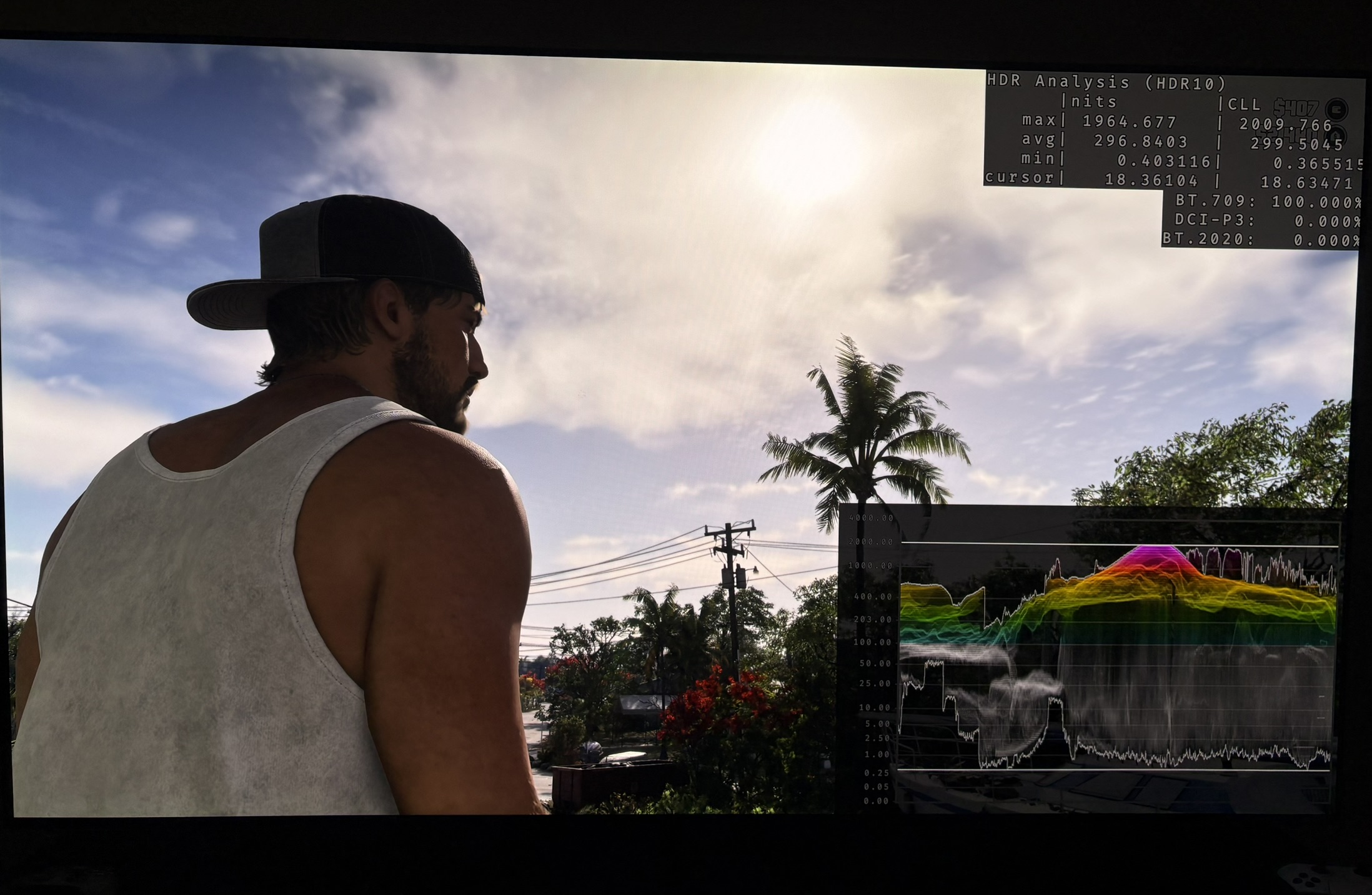
There are signs of cut-off detail in bigger bright areas. Together with the way the sliders behave, this is consistent with a non-native, expansion-based HDR implementation, such as inverse tone mapping of an SDR image. I can't confirm until its released on PC, where we can see exactly how HDR is implemented by analysing the games shader code.
SETUP GUIDE
Steps to follow:
1. Set Max Brightness to your display's max output capabilities, measured on a 2-3% window (see Rtings) for OLED.
2. Set Paper White to the overall brightness that looks most natural to you. Most will land between 40 and 50.
3. Raise Max Brightness to get your peak back, using the values below.
4. Setup the Black Level slider to 15 on an OLED display in a dark room for true blacks while still having good shadow detail.
Paper White 50:
Slider value → peak nits output
300 → 288
500 → 486
700 → 673
800 → 770
1000 → 961
1200 → 1,128
1600 → 1,478
1900 → 1,731
2200 → 1,963
2400 → 2,114
2700 → 2,370
3000 → 2,578
Paper White 45:
Slider value → peak nits output
300 → 273
500 → 446
700 → 606
900 → 756
1000 → 831
1300 → 1,058
1800 → 1,388
2000 → 1,510
2500 → 1,807
2900 → 2,027
3500 → 2,373
4000 → 2,663
Paper White 40:
Slider value → peak nits output
300 → 253
500 → 397
700 → 528
900 → 651
1100 → 780
1300 → 885
1500 → 994
2000 → 1,251
2500 → 1,492
3000 → 1,715
3500 → 1,945
4000 → 2,159
5000 → 2,577
Paper White 35:
Max brightness slider → peak (nits) output
300 → 235
400 → 294
500 → 357
600 → 410
700 → 465
800 → 512
900 → 569
1000 → 619
1200 → 702
1400 → 797
1900 → 1,003
2000 → 1,058
3000 → 1,434
4000 → 1,768
4600 → 1,944
5000 → 2,093
6000 → 2,373
7000 → 2,635
Paper White 30:
Max brightness slider → peak (nits) output
300 → 217
400 → 267
500 → 321
600 → 365
700 → 410
800 → 451
900 → 496
1000 → 534
1100 → 569
1200 → 607
1300 → 646
1400 → 681
1500 → 717
1600 → 747
1700 → 780
1800 → 821
1900 → 850
2000 → 876
2100 → 911
2200 → 942
2300 → 971
2400 → 1,003
2500 → 1,034
3000 → 1,176
4000 → 1,449
5000 → 1,693
6000 → 1,924
6500 → 2,043
7000 → 2,158
HDR setup screen - sliders
Indication of inverse tone mapping - flat waveform at the top
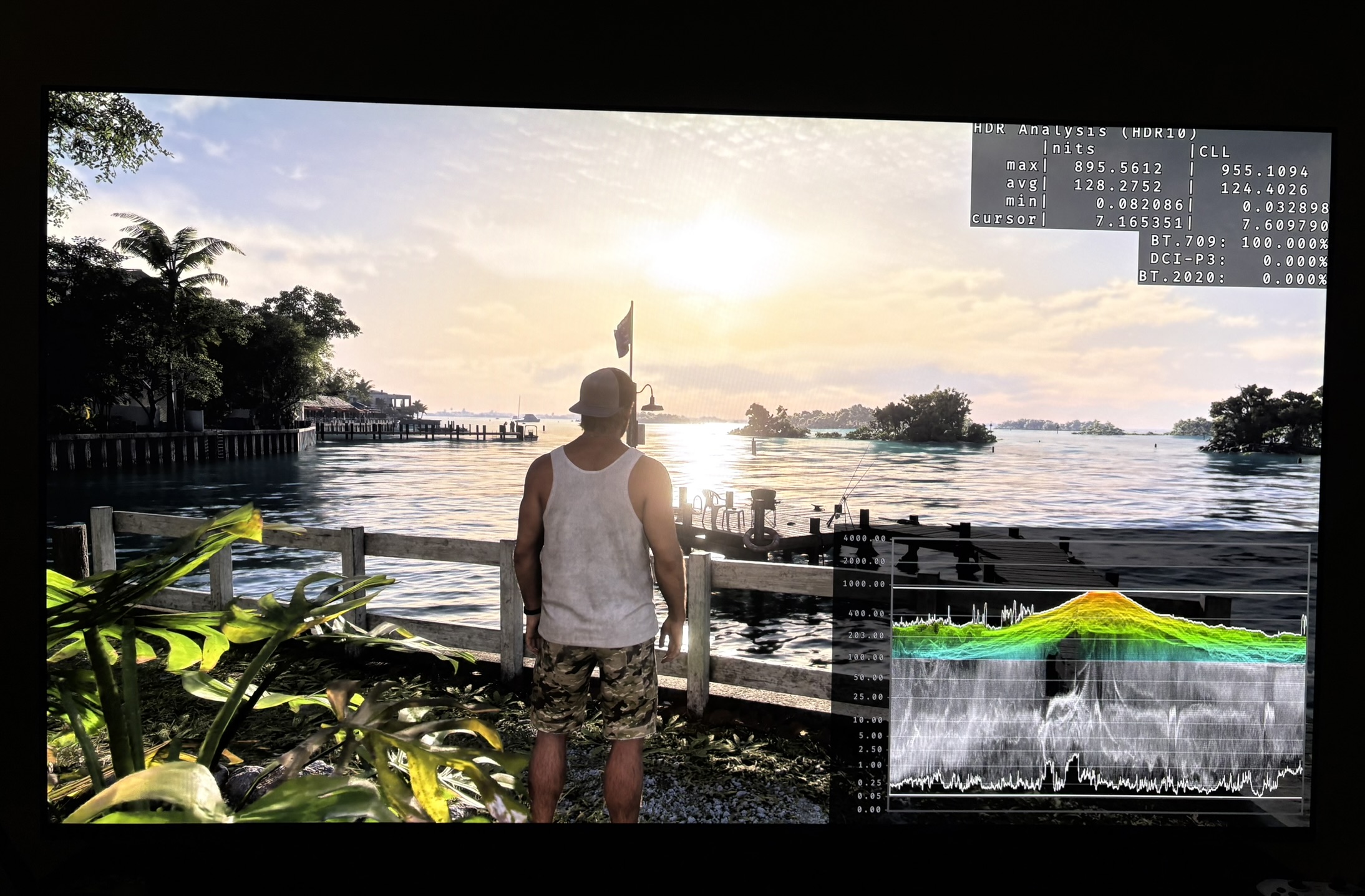
Black level raise - 50 on black level slider
No black level raise and looks close to SDR - 15 on black level slider
SDR at default settings