GTA6 - HDR setup guide
This is an HDR setup guide for GTA6. See my full HDR analysis to help you further understand how the games HDR works.
GTA6's HDR is not easy to setup, so the guide will probably also be difficult to read, so read it a few times, if you have to.
SETUP GUIDE
Steps to follow:
1. Find your displays peak brightness
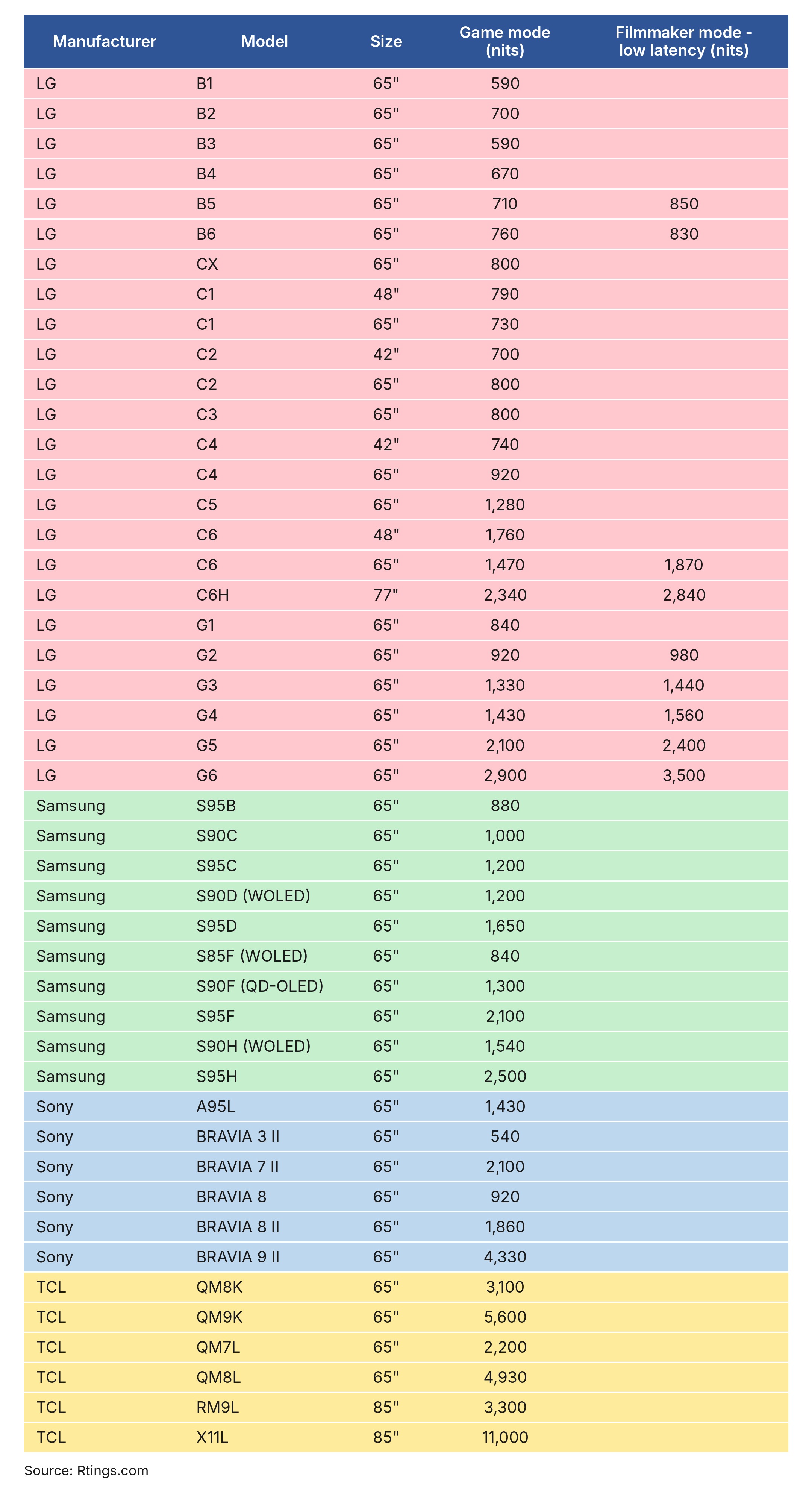
First set the value on the Max Brightness slider to your display's max output capabilities, measured on a 2-3% window for an OLED. For LCD/LED displays use the max you display can do on any window size. See picture 1 below that shows most higher end TVs peak brightness output capabilities. If your TV is not mentioned then you can find peak brightness output for most displays on Rtings.com or Google your TV and see if you can find reviews of it. For OLED Gaming Monitors read the linked article to help find your peak brightness.
2. Find the paper white that looks most natural to you
Then start testing different values on the paper white slider. Find the value on the Paper White slider that gives you the overall brightness in daytime and nighttime scenes, that looks most natural to you.
The challenge is that gamers using lower nits displays will typically want a lower paper white, than the games default of 50. But that also makes night time and darker indoor scenes significantly darker. Too dark in my opinion. So it's unfortunately going be be a compromise between getting the right overall brightness at daytime, without making nighttime and other darker scenes, too dark.
I can therefore not give you my usual guidance for paper white based on your displays peak brightness, because gamers will prefer different levels of darkness at night time etc.
I think most will land between 40 and 50. I recommend to try out 40, 45 and 50 on most displays because we have this dynamic with nighttime and daytime brightness, before you decide on which paper white to use.
Try 55 for 2000+ nits displays. It will give you a higher paper white and overall brightness well suited for such bright TVs. I don't recommend going higher than 55, because increasing the Paper White slider, increases upper shadows. That can give too bright nights and a bit washed out shadows at daytime. It also pushes upper mid tones closer to peak brightness giving the picture an even more harsh look.
I see a lot using 35 on the Paper White slider. That low paper white will give you even darker nights, and darker indoor scenes, because the Paper White slider is the slider that effects upper shadows the most. Be aware of that.
3. Setup the Max Brightness slider
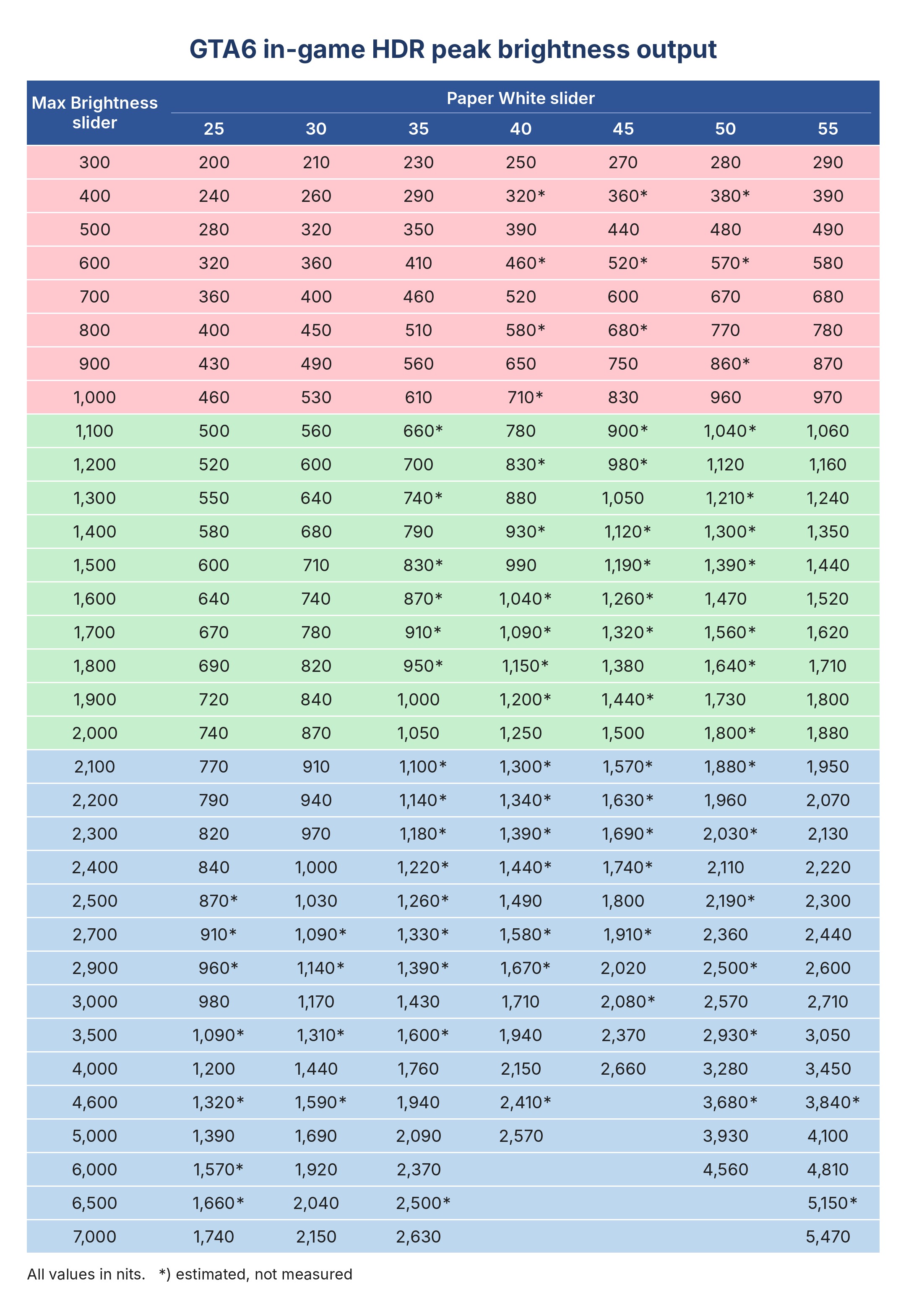
The value you have chosen on the paper white slider, has a huge influence on what the game will output of peak brightness. The lower the paper white, the lower the peak brightness output in-game. So we need to raise the value on the Max Brightness slider to a value that is often much higher than what your TV can actually output.
You need to raise the Max Brightness slider to get your peak brightness back, using the values below in picture 2.
But there is a catch. I think the brightest light sources can look unrealistically bright, especially at nighttime and in dark indoor scenes. Almost all light sources at nighttime get pushed all the way to our displays peak brightness capabilities. So I recommend to be ready to lower the max brightness slider by around 20%, or to what ever max brightness that looks most natural to you.
4. Setup Black Level slider
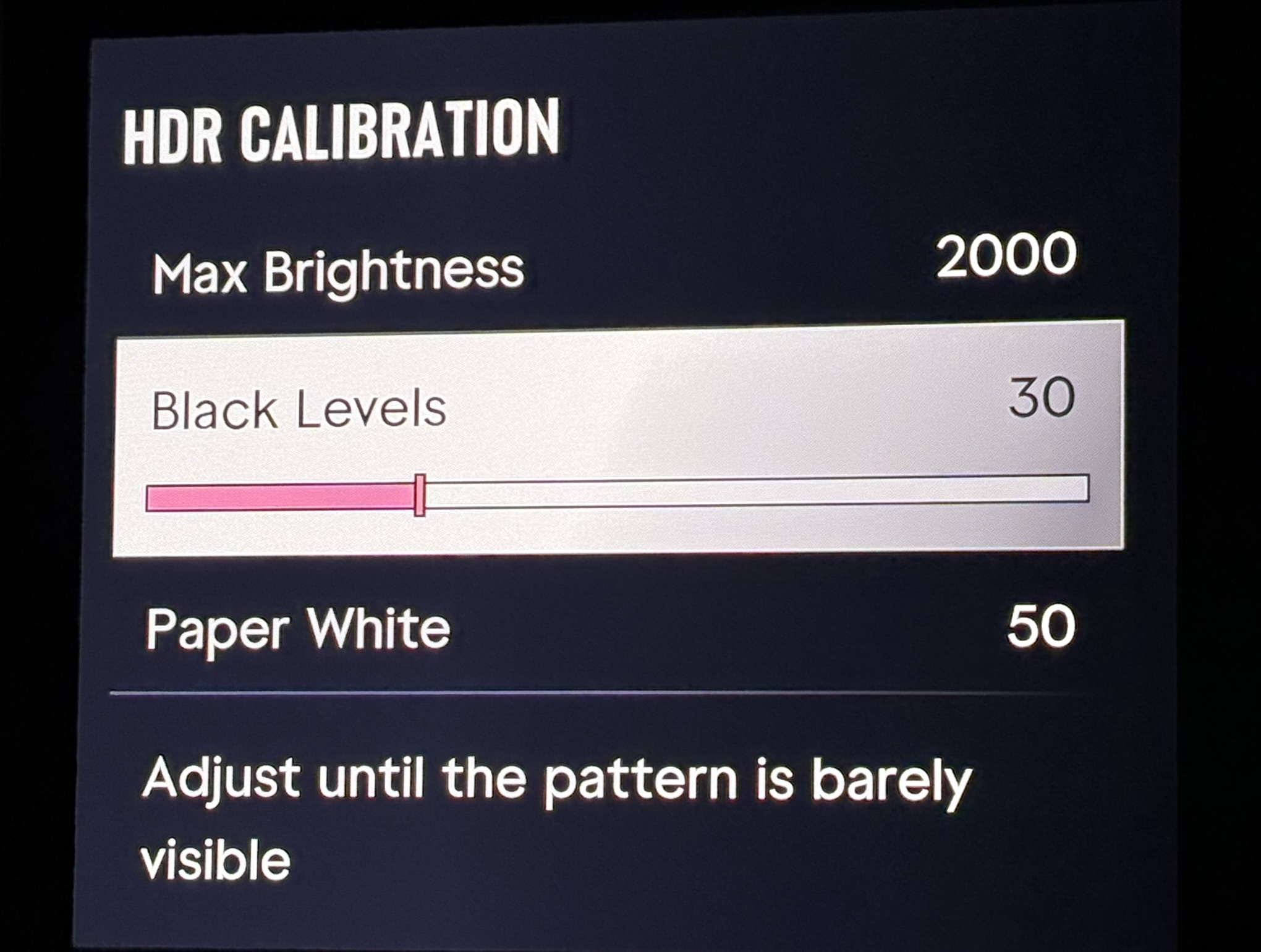
Setup the Black Level slider to 15 on an OLED display in a dark room for true blacks while still having good shadow detail. If you need more shadow detail at nighttime then set to 30.
Don't try and fix too dark nights by raising the Black Level slider a lot. It will give you a higher black level floor with raised blacks. Its the Paper White slider that effects upper shadows the most and therefore the dark nights the most, so use it to fix too dark nights instead. You then of course have to accept brighter daytime too.
Picture 1:
Picture 2:
HDR sliders