Halo: Campaign Evolved
Preliminary HDR and settings setup guide for Halo Campaign Evolved on PC and Xbox (it's most likely the same on PS5).
This is a very quick guide based on playing the first hour of the game on PC and SX.
The purpose is to get something quickly out to those who bought early access. I will make a proper HDR analysis and setup guide before the game releases in 4 days, or when I have had time to play the game more.
1) Settings:
The game looks quite blurry to me, because it has the effects mentioned below, or some of them.
Chromatic aberration / Film Grain etc.
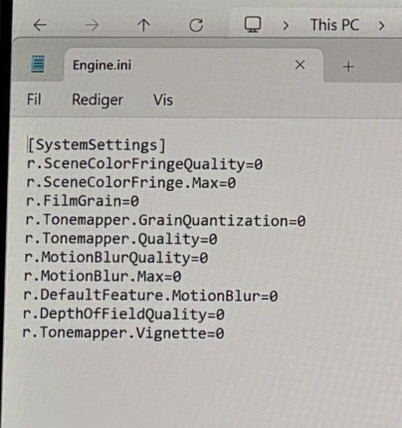
We can't turn this off in-game and that should be a crime. So the first thing I recommend PC gamers to do, is to make an Engine.ini file and write the commands I show in picture 4. It will disable Chromatic aberration, Film grain, depth of field, vignette (if there is any) and motion blur (that we can also do ingame). I don't know if the game uses all of these.
Sharpening:
I think the game needs sharpening. So I use AMDs CAS sharpening. It's a personal preference.
After turning these things off and applying extra sharpening, the game looks much better to me.
2) HDR:
I think the HDR looks pretty good, but not at default settings.
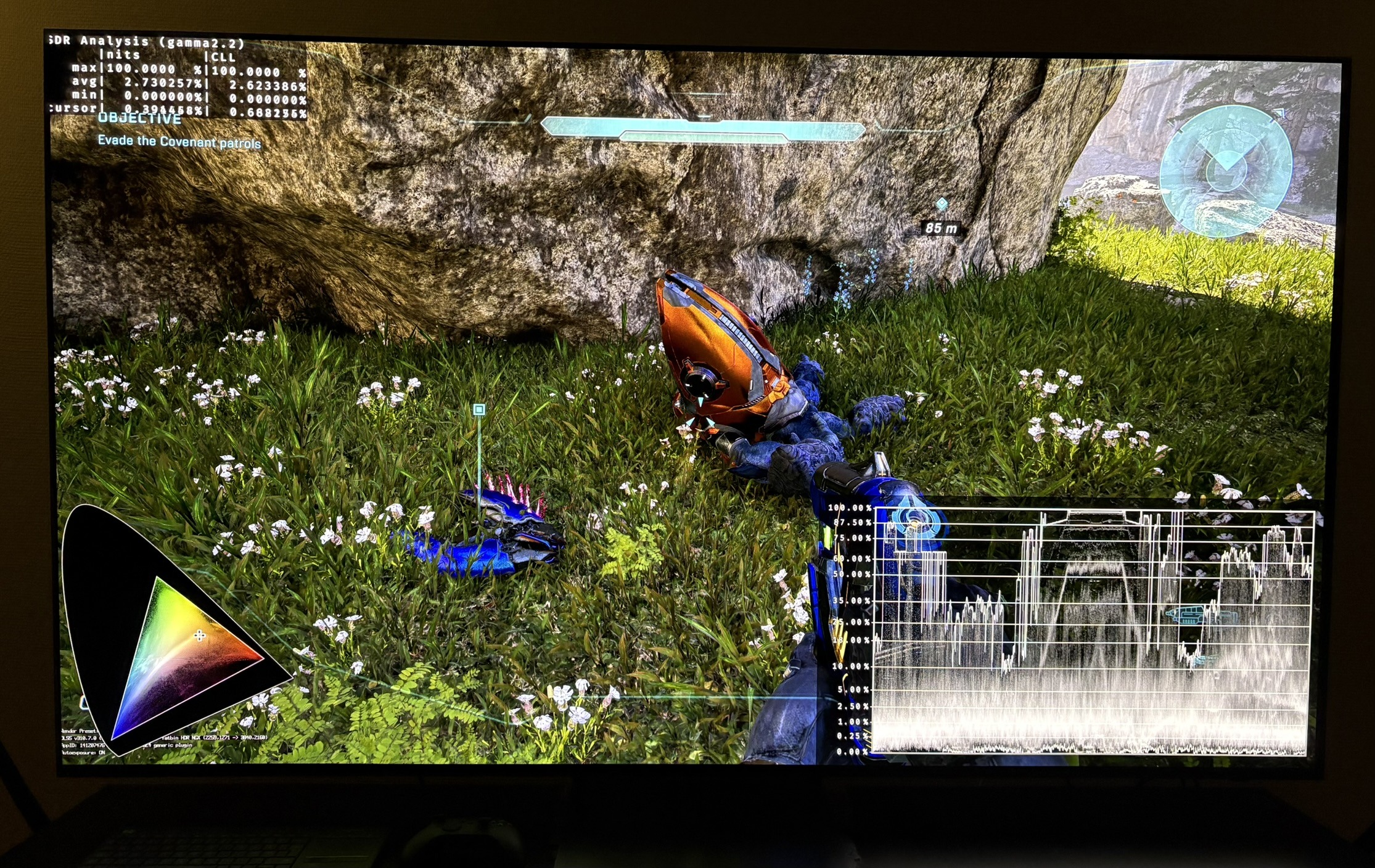
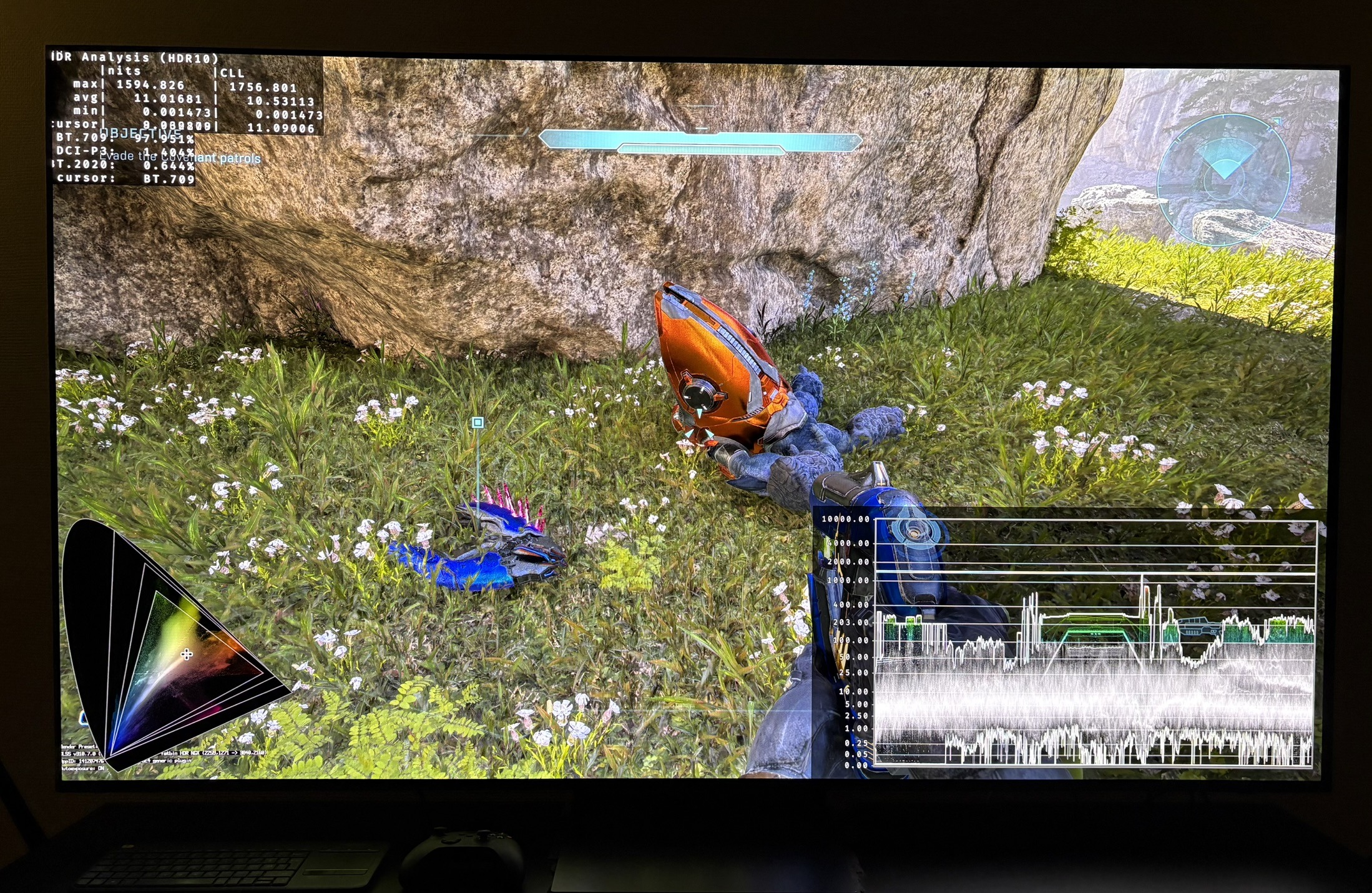
Shadows are lifted a lot in HDR compared to SDR. So contrast is worse in HDR. Luckily we can do something about it using the in-game sliders. Picture 2 is SDR and picture 3 is default HDR settings. We see how lifted shadows are in HDR compared to SDR.
We have 3 sliders.
The HDR slider adjusts highlights. It goes up to 2000 nits. The game will output what you set on the slider.
The brightness slider affects upper shadows, midtones and upper midtones.
Increasing the contrast slider increases midtones and decreases upper shadows. That's how a contrast slider is supposed to work. So that's great.
The problem is, that we now have two sliders that affect both upper shadows and midtones.
I have made the following suggested settings for a 500 nits, 800, 1000, 1500 and 2000 nits display. These settings will try and get closer to the shadows in SDR and it will try and have midtones / paper white, that fits each peak brightness (the higher peak brightness the higher paper white).
HDR: 2000 nits
Brightness: 10
Contrast: 25
HDR: 1500 nits
Brightness: 5
Contrast: 20
HDR: 1000 nits
Brightness: 0
Contrast: 15
HDR: 800 nits
Brightness: -3
Contrast: 10
HDR: 500 nits
Brightness: -3
Contrast: 10
At 500 nits you can go lower than -3 in brightness if you don't mind getting a dimmer image to get more space between midtones and highlights.
RenoDX HDR mod:
Since the game is using Unreal Engine 5, then we can use the multi-game mod in the extended version. I have not yet tested that.