Halo Infinite
HDR analysis and setup guide for Halo Infinite on PC and Xbox (SX/SS).
It's a good native HDR implementation, but not perfect. It looks much better than SDR.
The biggest issues are clipping of some highlight detail, unintuitive HDR setup sliders and it's not possible to adjust shadows separately from midtones.
HDR is implemented the same way on PC and Xbox consoles.
Peak brightness:
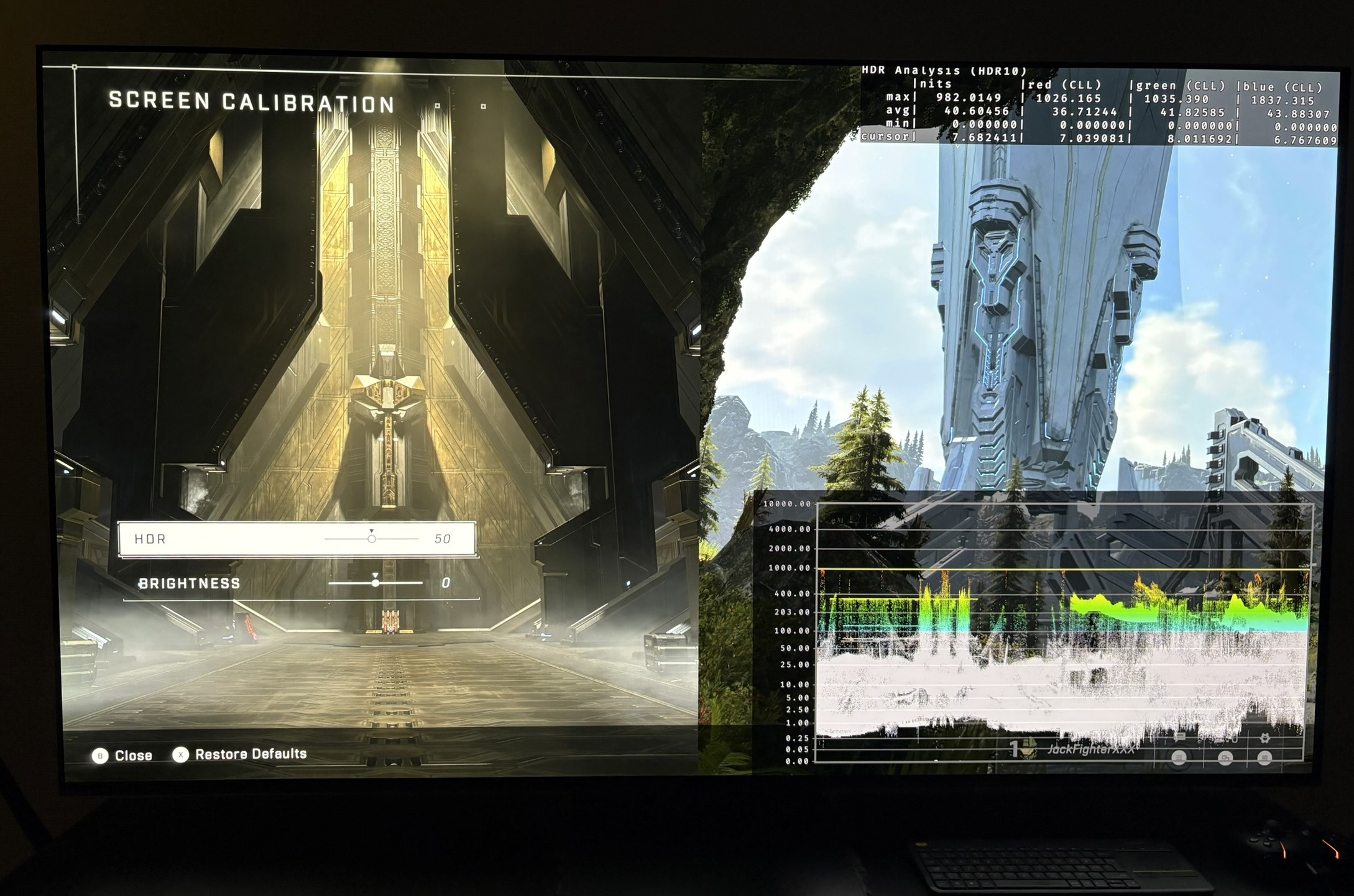
It's setup using the HDR slider (see picture 4). It adjusts only the highlights and that's how such a slider must work.
It goes from 0 to 100. No gamer will know how much the game outputs of peak brightness at any of those settings. Why not just write the nits on the slider the game outputs. Why make it so difficult ???
The game outputs the following peak brightness on the HDR slider:
0 = 400 nits
5 = 460 nits
10 = 540 nits
15 = 600 nits
20 = 670 nits
25 = 730 nits
30 = 800 nits
35 = 870 nits
40 = 930 nits
45 = 1000 nits
50 = 1070 nits
51 = 1200 nits
52 = 1360 nits
53 = 1540 nits
54 = 1710 nits
55 = 1890 nits
56 = 2080 nits
57 = 2260 nits
58 = 2430 nits
59 = 2610 nits
60 = 2800 nits
70 = 4610 nits
Highlight Tone Mapping.
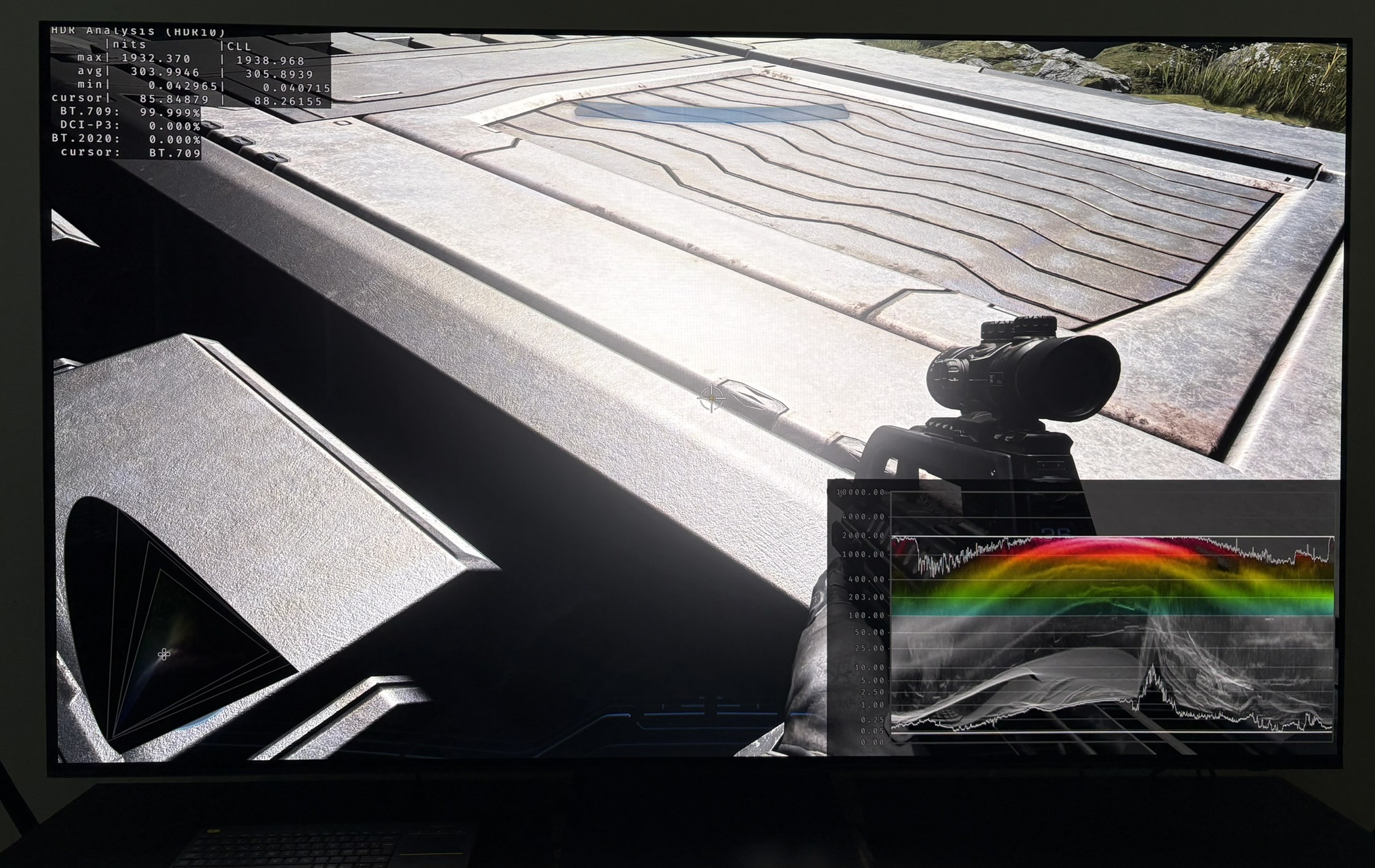
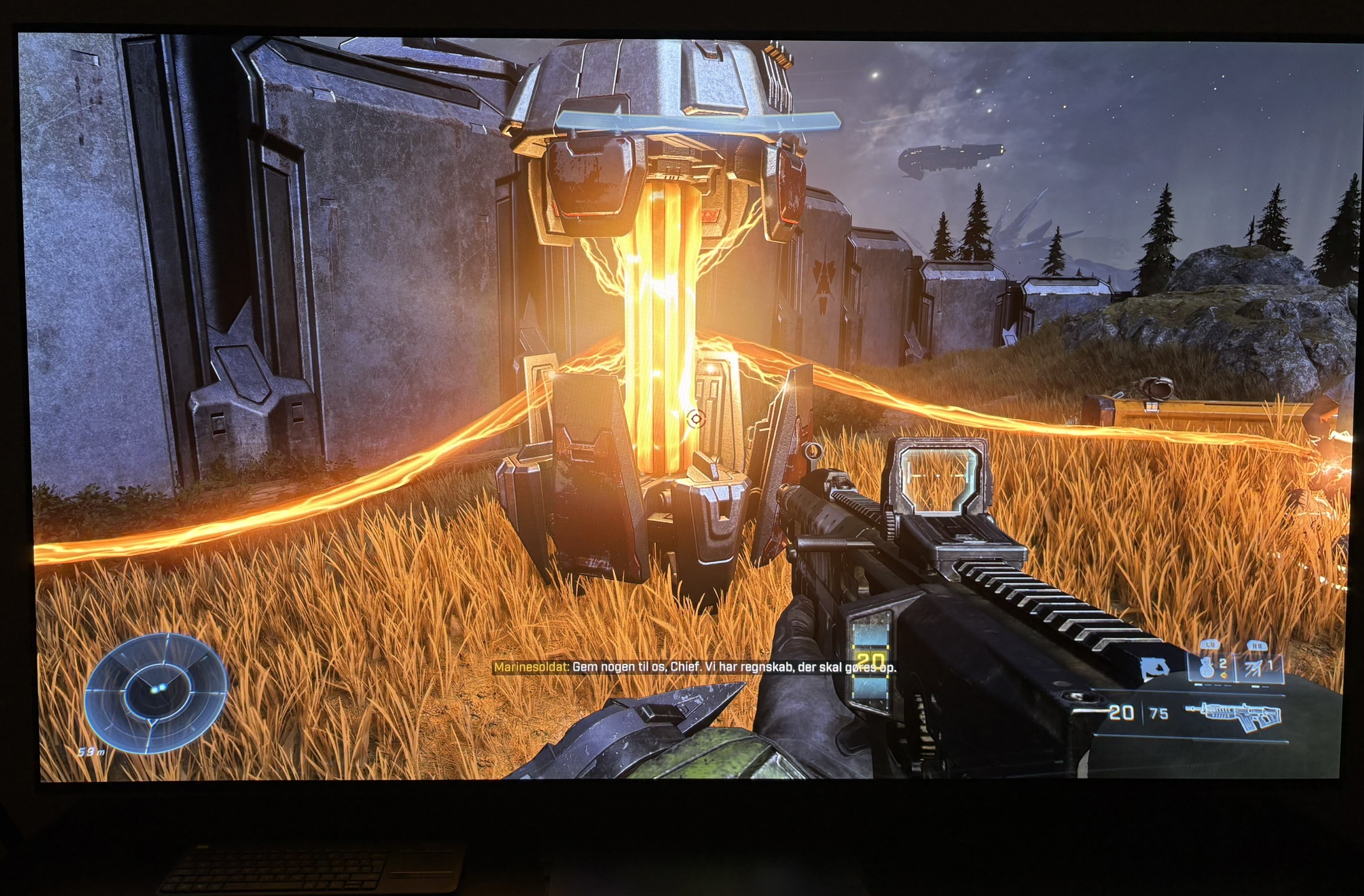
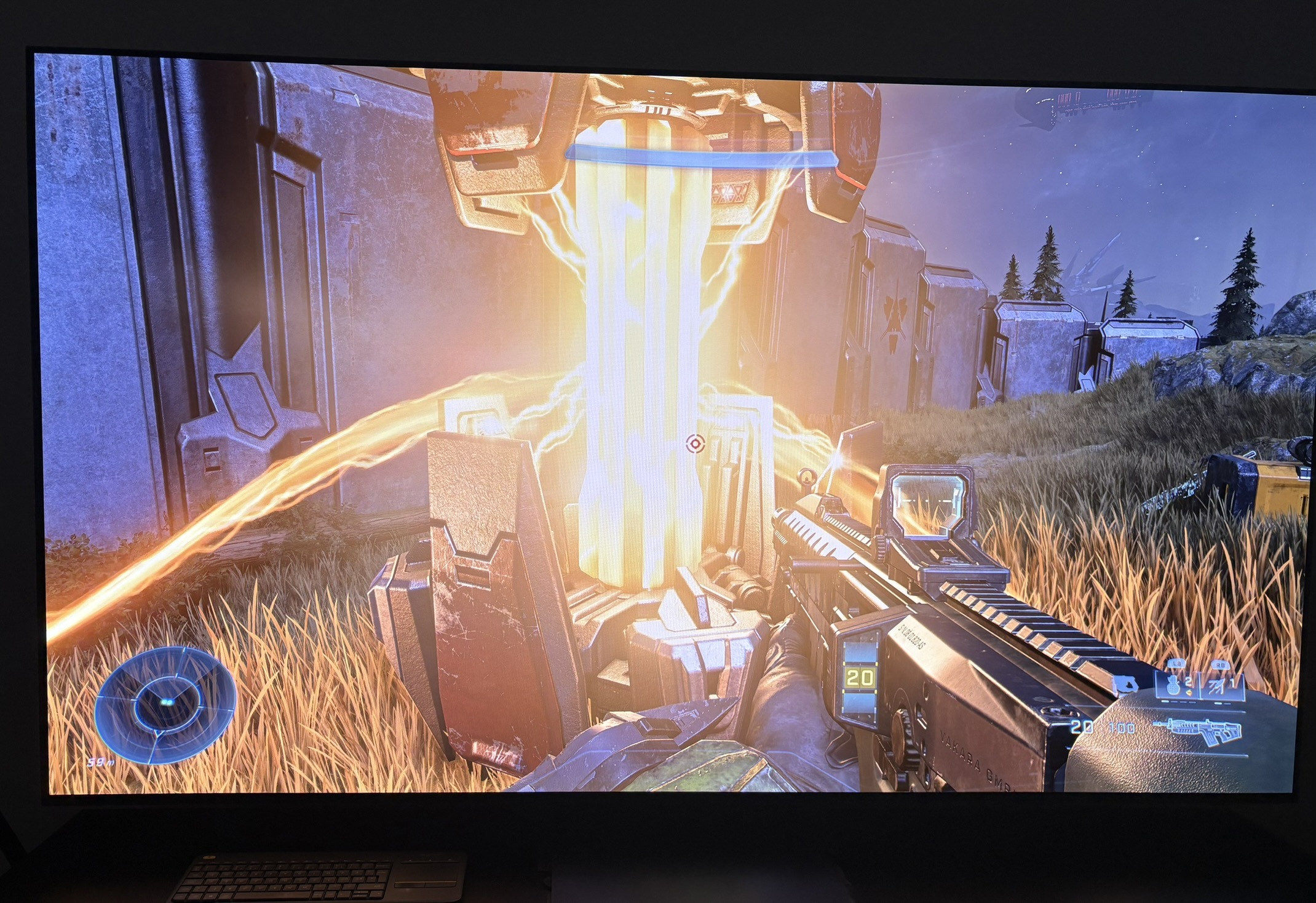
There are some clipping of detail in highlights. It's there no matter what peak brightness you setup ingame and no matter what brightness setting you use.
It's most noticeable in reflections in all the metal surfaces in bright outdoor scenes. Picture 3 shows this.
I don't think it's a major issue in most scenes.
Paper white (midtones):
There is a brightness slider. It affects upper shadows the most, but it also affects midtone brightness. That's not how such a slider should work. It should mostly affect midtone brightness, with a stretch into upper shadows and upper midtones.
Keep the slider at its default settings (0), because here I think upper shadows look the best.
Only increase or decrease the brightness slider a bit if the game looks too bright or too dim to you, so you need to change midtone brightness. The slider will change midtones, but it will change upper shadows even more, so be aware of that.
Black levels / shadows:
The game has great black levels and shadow detail. It's adjustable on the brightness slider. Unfortunately that also changes midtones, so there is no way of adjusting midtone brightness and shadows independently.
Keep the brightness slider at default (0) setting for best contrast.
SDR versus HDR:
I see no major shadow detail or color hue difference between SDR and HDR, so that's good.
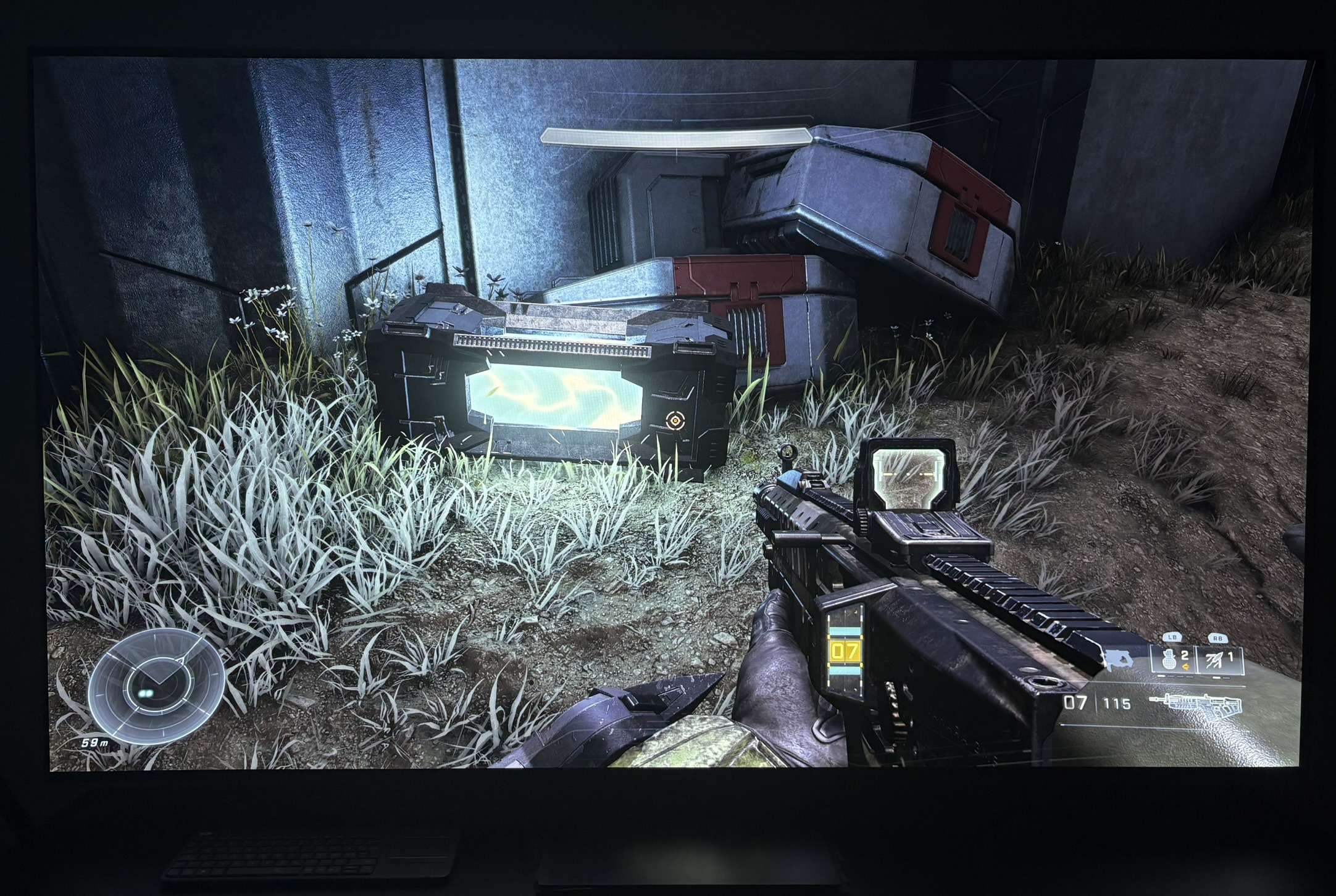
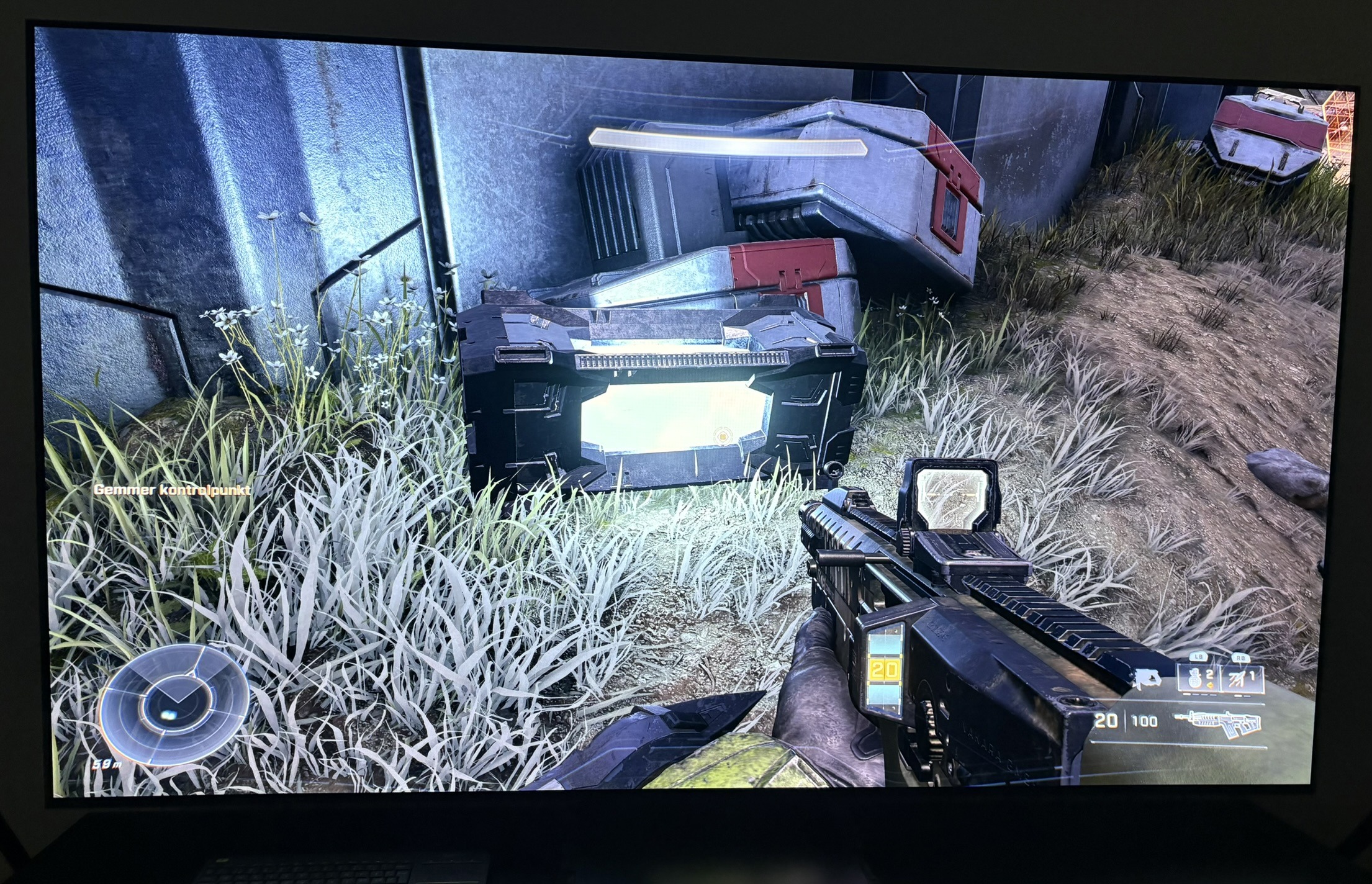
HDR looks much better, as it should. Not only does HDR have the usual much higher dynamic range. SDR also has a lot of highlight clipping of detail and color, that HDR does not have. It's typical for SDR, but it's more noticeable in some games than others. In Halo Infinite, there are lots of particles from laser weapons and many bright neon lights, containers etc. Here detail and some color is clipped in SDR.
Below I show examples of this.
Chromatic aberration / Bloom:
Turn that off ingame. Chromatic aberration ruins fine detail and bloom is quite heavy used. I think the game looks much better with these settings turned off.