Hell Let Loose: Vietnam
HDR in Hell Let Loose Vietnam on PC.
Here I will show how to get HDR in Hell Let Loose Vietnam on PC and give my recommendations on how to setup RTX HDR for this game.
Go and read my two articles about RTX HDR and Auto HDR on Windows PC.
In-game HDR:
The game does not support HDR. Only SDR.
HDR - Engine.ini:
HLL Vietnam is using Unreal Engine 5, so we usually can enable UE5's standard native HDR via engine.ini commands. We can't in this case because the game has no exclusive fullscreen.
RenoDX:
We can't use RenoDX because HLL Vietnam is using anti-cheat. It's understandable for an online competitive shooter.
Auto HDR:
It's an DirectX12 game, so Auto HDR should work. I could not get it to work, and it's most likely because I'm using Steam and RivaTuner overlays. That is a well known problem when the game has no exclusive fullscreen. I did not test without these overlays, because I want to use them.
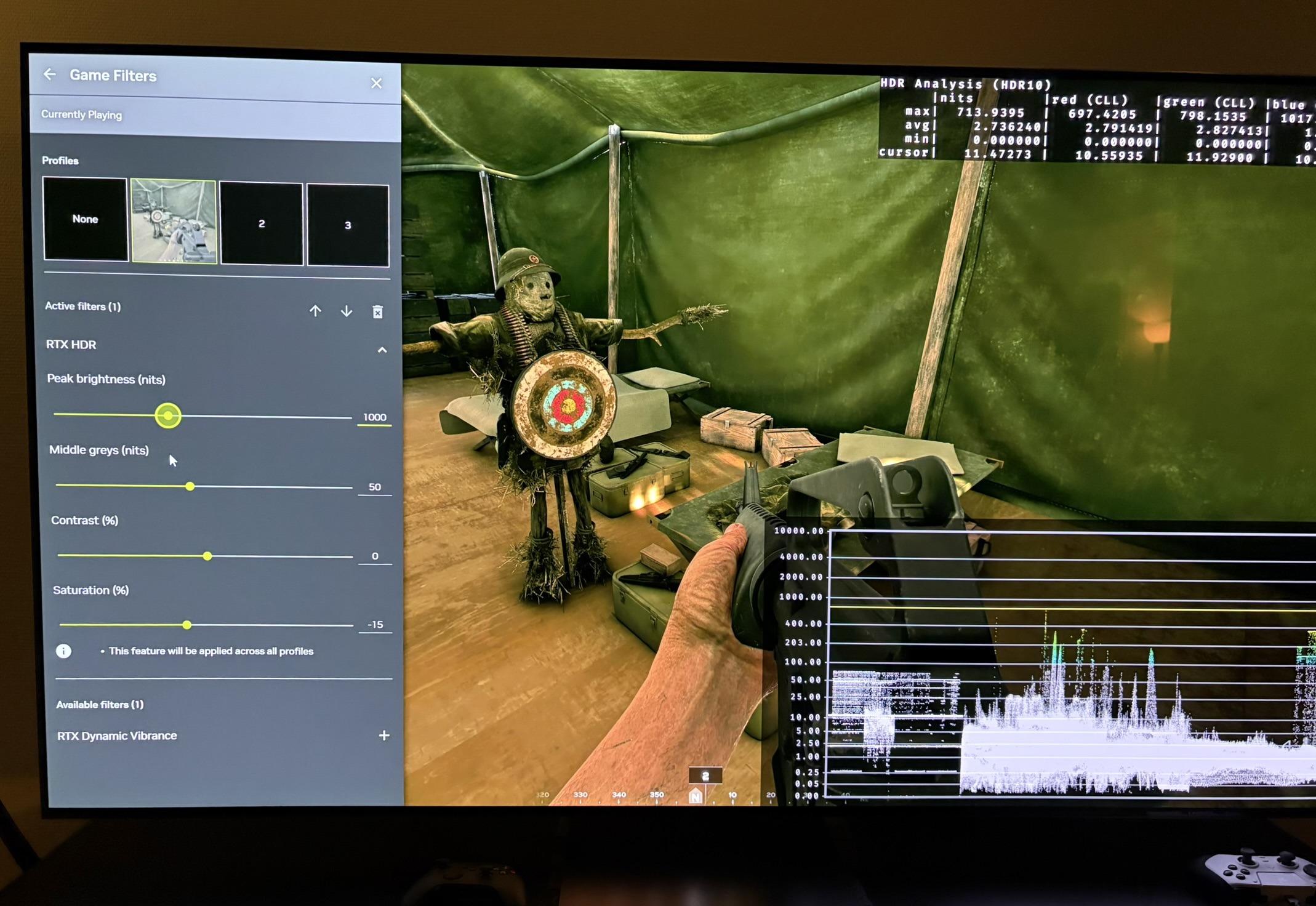
If you get Auto HDR to work, then be aware that the game has the Windows bug with raised black levels. See my article on how to fix that. You can see that in the picture I will add in my next post. It is showing HDR ON in Windows without RTX HDR. We clearly see a black level raise on the waveform compared to when RTX HDR is enabled in picture 4.
RTX HDR:
I have an RTX GPU, so I used RTX HDR to get HDR. It works just fine with overlays without exclusive fullscreen.
It looks pretty good to me, but not at default settings on the sliders.
Peak Brightness slider:
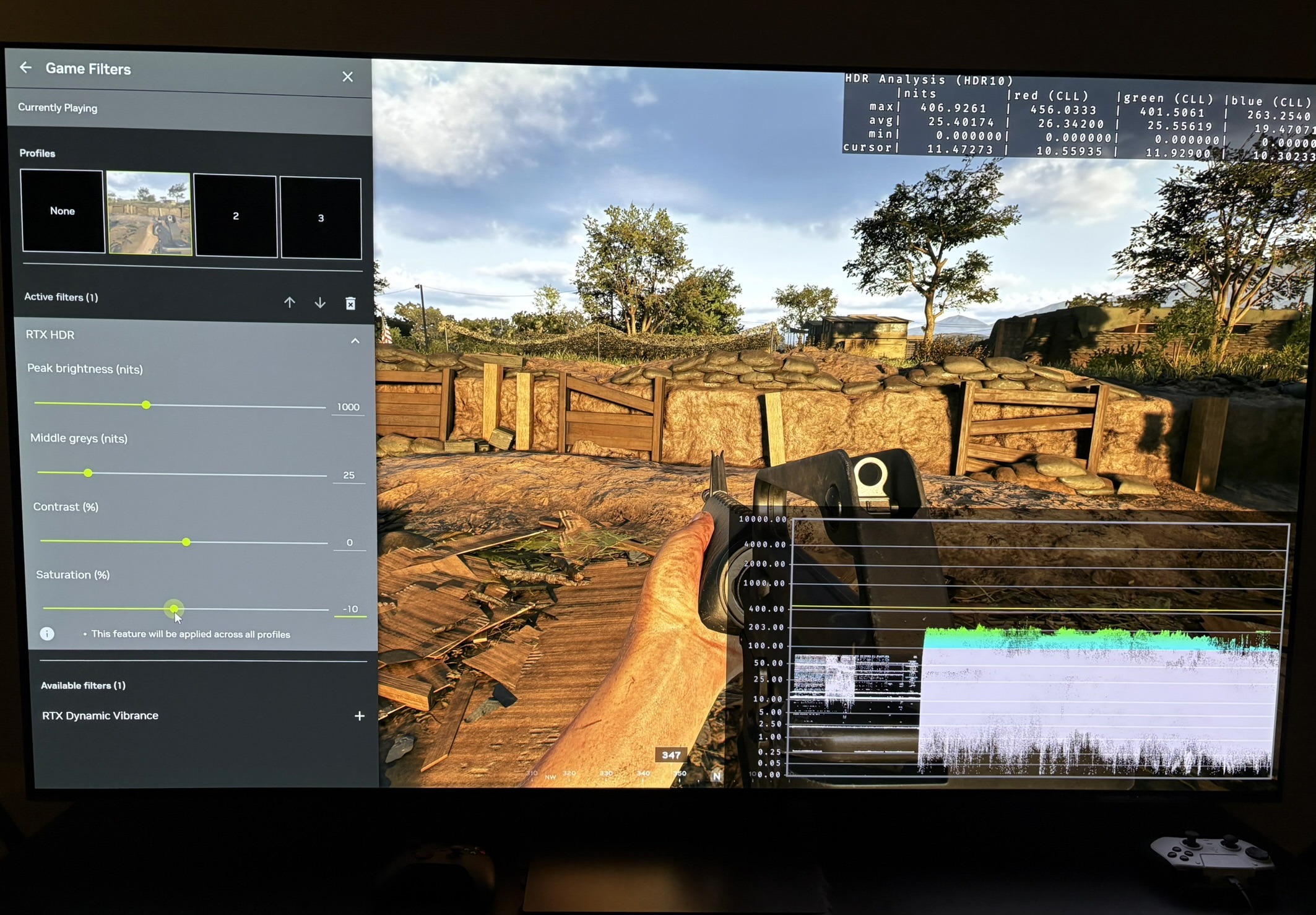
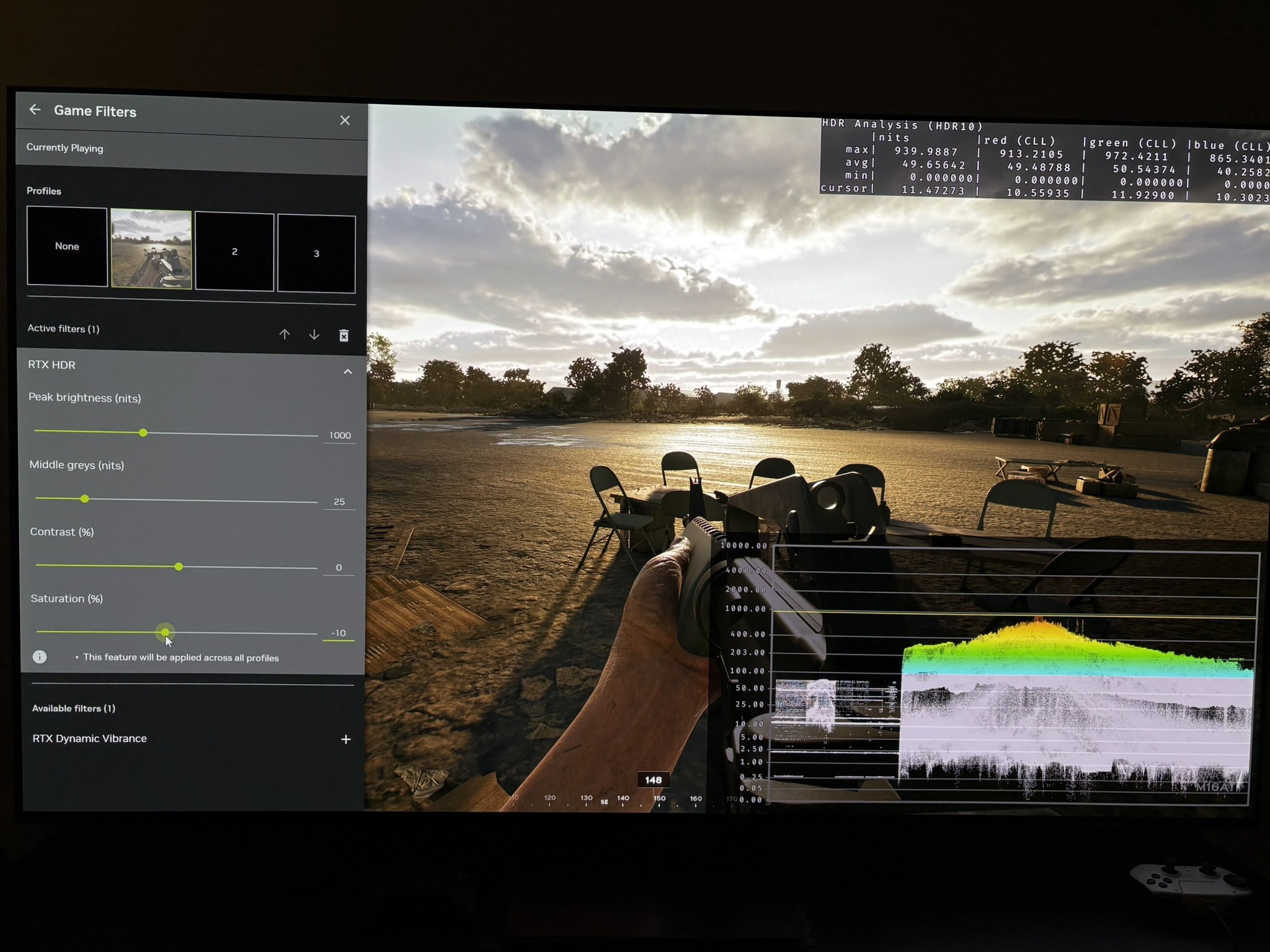
The slider goes up to 2000 nits, as you can see in the pictures. However RTX HDR does not output more than 1000 nits. What happens if we increase the slider above 1000 nits is that secondary highlights get pushed up into peak which ruins highlight separation. So I don't recommend to set the slider higher than 1000 nits.
Middle Greys slider:
This slider affects the overall brightness. That's primarily midtone brightness inbetween peak and black level floor. I think it looks too bright at default 50. We see that lowering it to 25 gets us around 200 nits midtones. That looks much more natural to me with 1000 nits peak.
Adjust the slider to what looks most natural to you.
Contrast slider:
It's a real contrast slider that increases midtone brightness and darkens shadows as we increase it. I didn't find a reason to change the default 50 value.
We have to remember the game has to have a bit more contrast than SDR with HDR On in Windows, because of the gamma bug I mentioned under Auto HDR.
Saturation:
RTX HDR is known for over-saturating the image. I found a minor correction of -10 from default 0 was enough.
The above is based on my very limited time with the game. So feel free to adjust to your personal preference and display.
Issues RTX HDR:
- I had to adjust default settings in RTX HDR everytime I started the game
- I had to set RTX to ON in the Nvidia App for RTX to work in the game. It's something I often see many don't know, so they think RTX HDR does not work.