Horizon Forbidden West
HDR analysis Horizon Forbidden West on PC and PS5 Pro:
It's an impactful HDR implementation. Specular highlights are bright and plenty and the overall brightness of the game is high. But it's definitely not a perfect HDR implementation.
The HDR implementation is basically the same on PC and PS5, but in-game adjustments don't look the same (they do behave the same).
Max Luminance:
On PC we set it up in-game. It can unfortunately only go up to 1500 nits.
On PS5 max luminance is automatically setup using PS5's system level HDR calibration values. And it can go much higher than 1500 nits in max luminance.
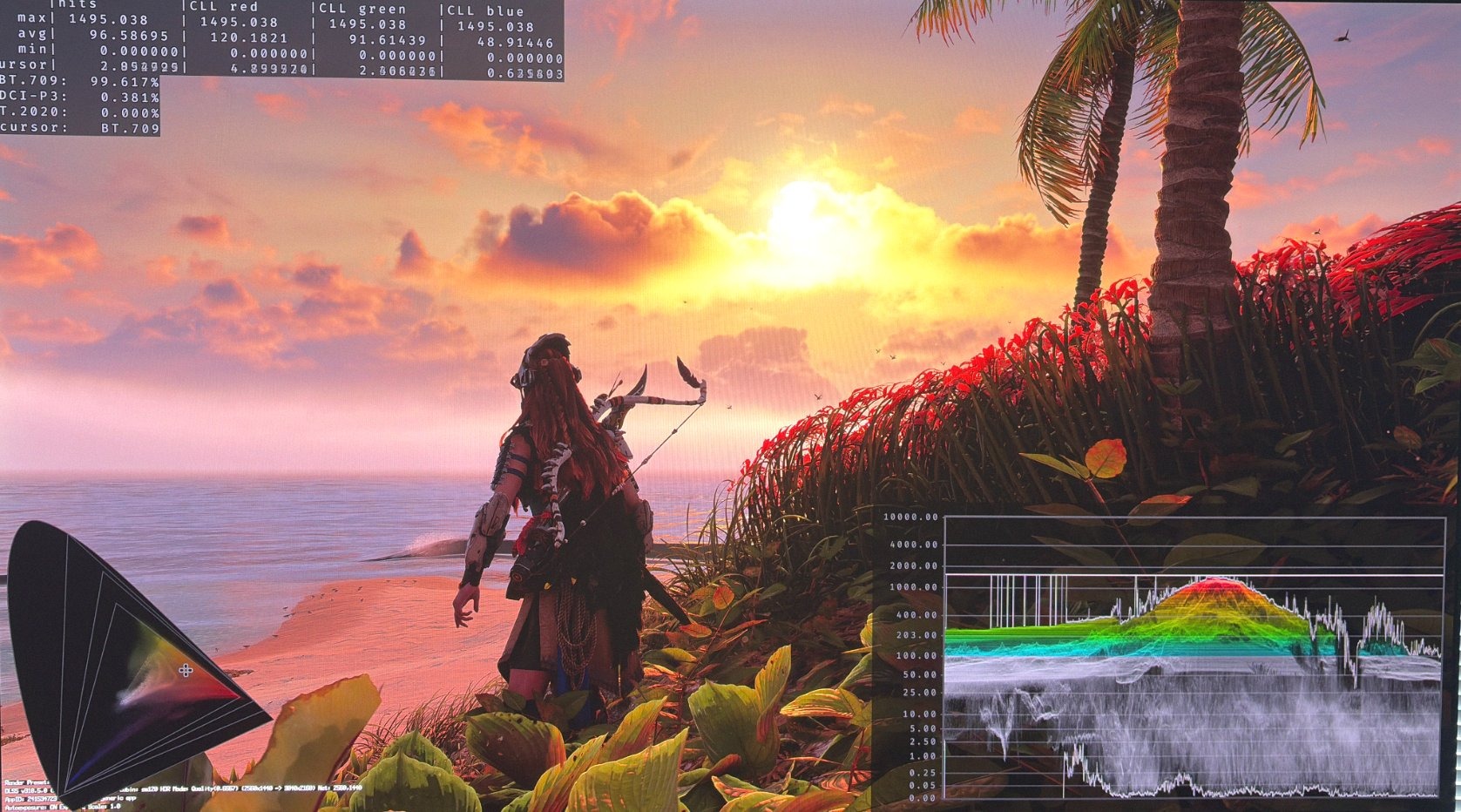
See picture 1 where the game outputs exactly 1500 nits on PC.
There is a highlight setting. Turn that all the way up to 10 for most impactful highlights.
Black levels:
Black level floor and shadows look perfect to me. See picture 1.
You can adjust shadows and black level floor using the in-game HDR Shadow Boost on PC and the Shadows setting on PS5.
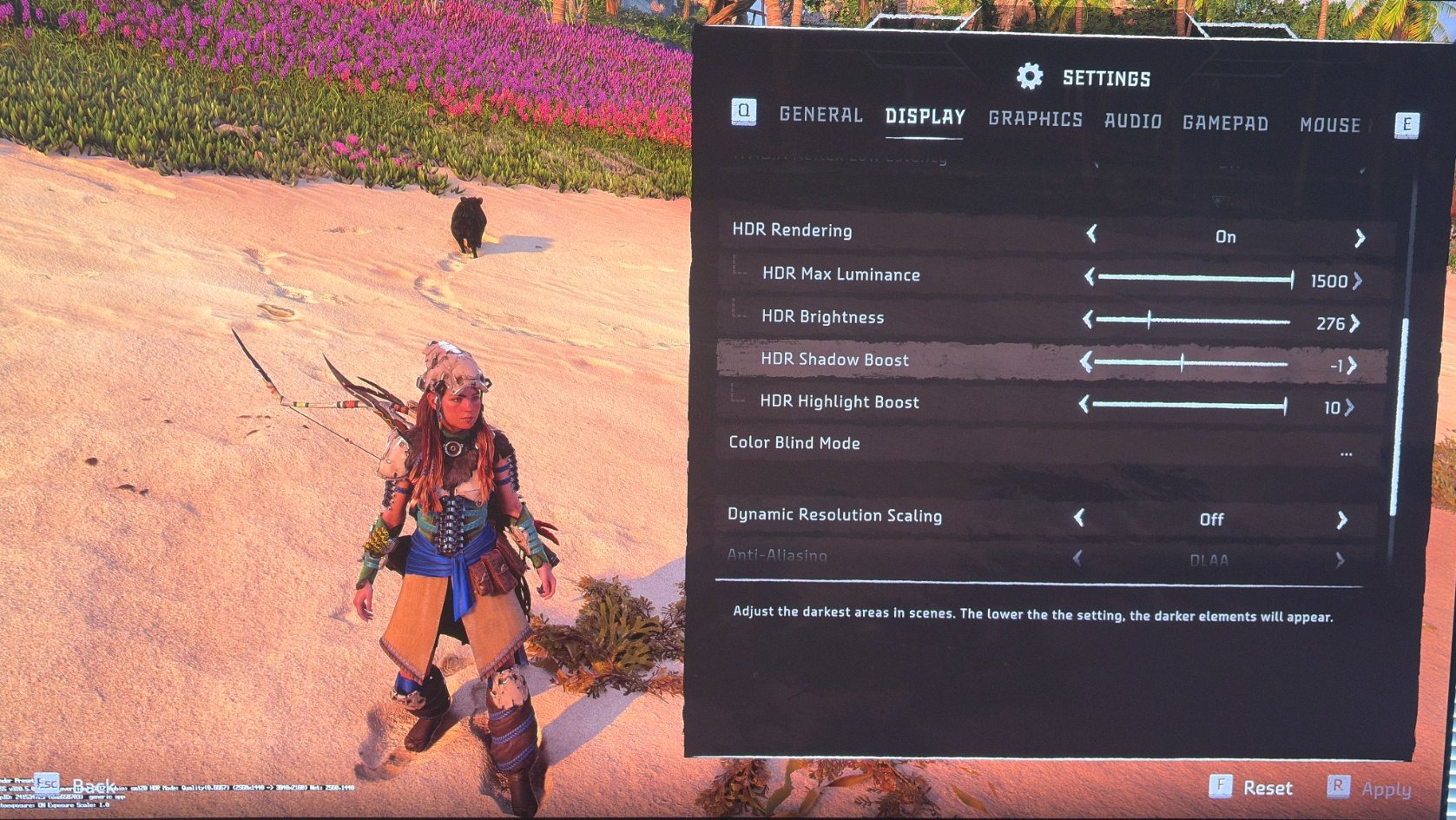
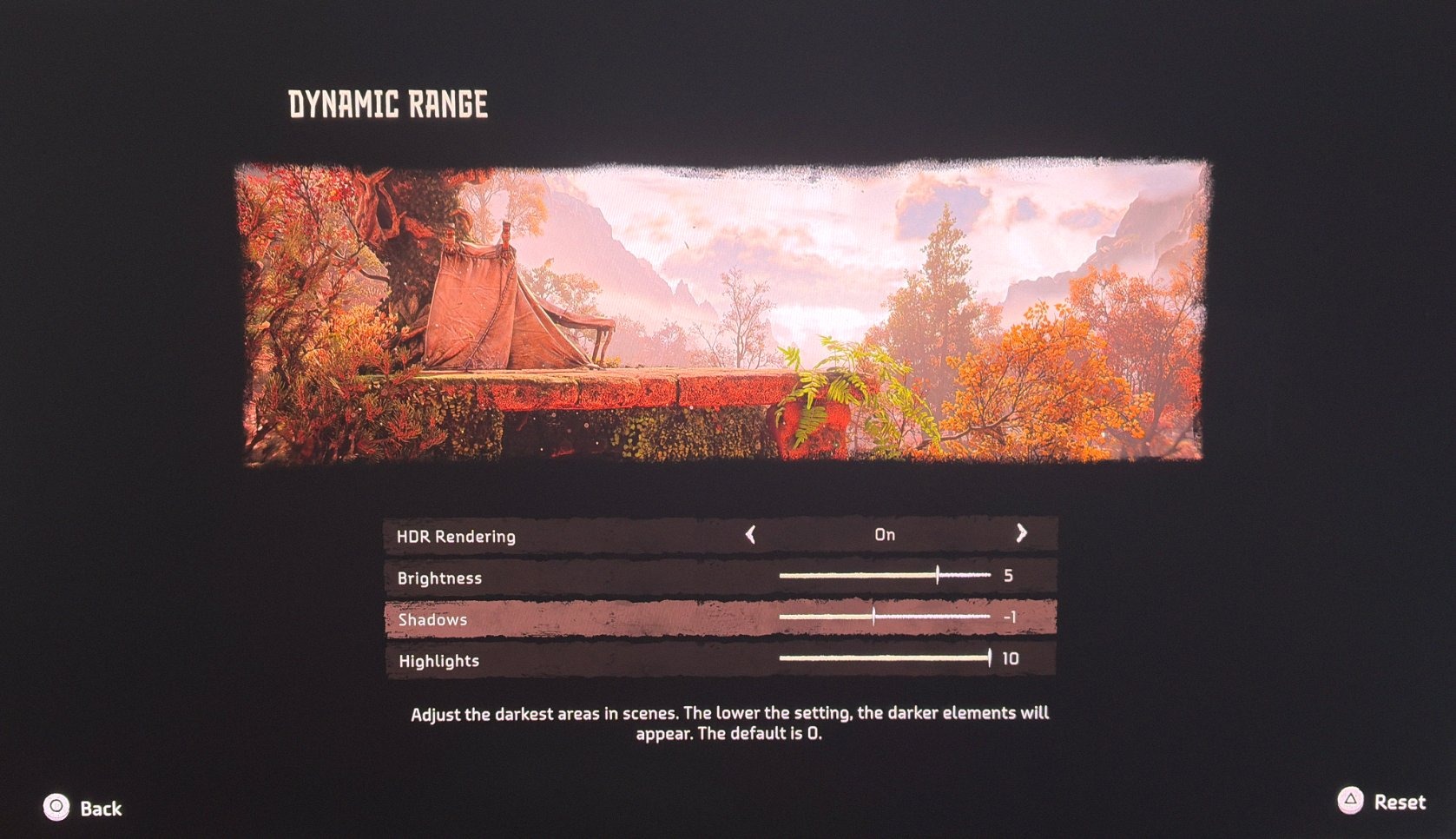
See picture 2 and 3 for in-game settings on PC and PS5.
Paper white:
It's a bright game. There are no dim lit up objects in this game.
I think the game is a bit too bright at zero brightness on PS5 and 203 nits on PC for a 1000 nits TV. So adjust it down a bit. Maybe one setting on PS5 and 180 nits on PC.
Definitely turn it down for an 800 nits display.
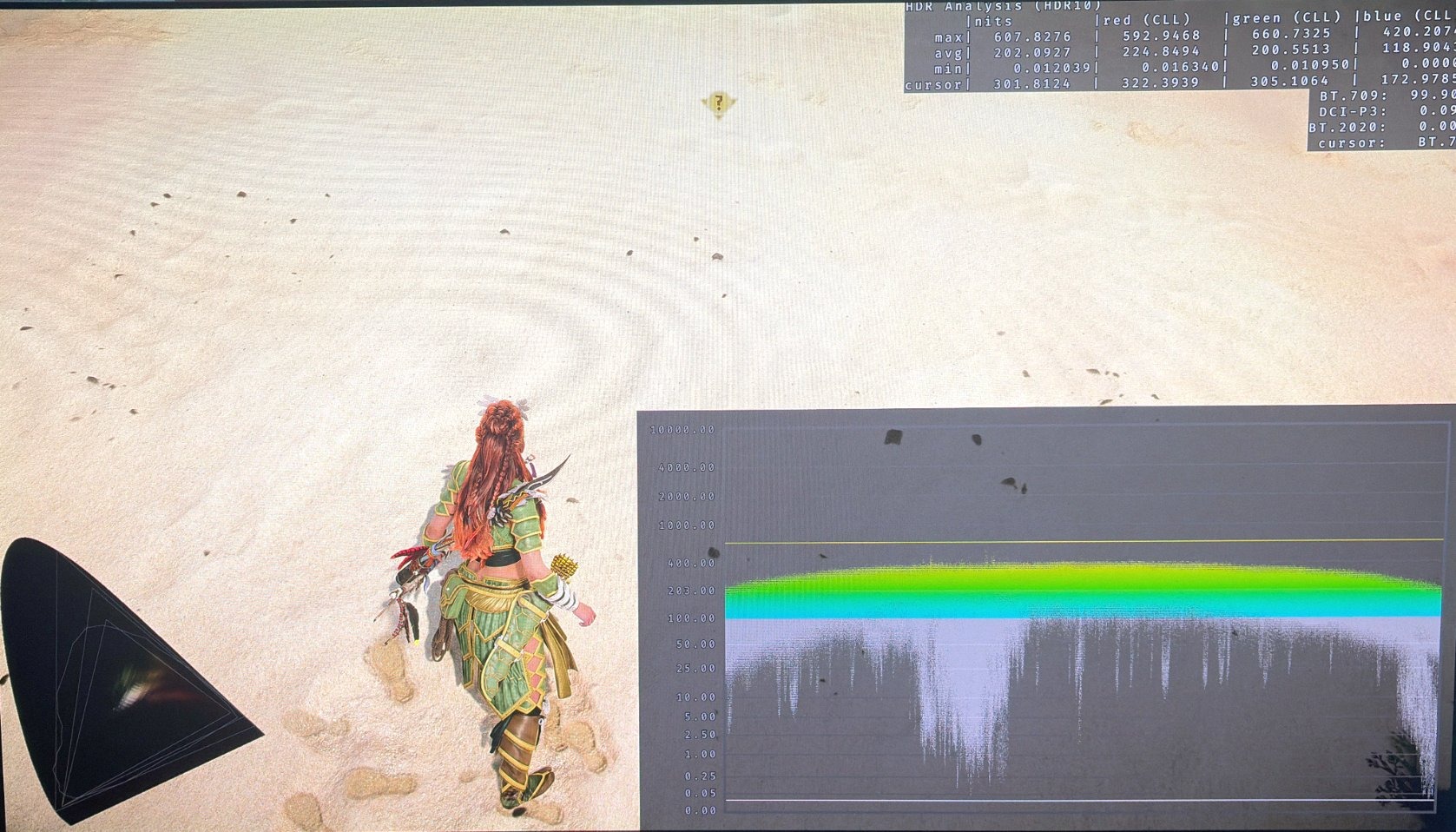
In picture 4 we can see 200 nits full screen brightness. If we adjusted for vignette (darkening of the edges) then it would be 250-300 nits full screen. No 1000 nits TV can show this on such a large part of the screen. It will look a bit blown out. I have tried to test many sections of the game for too high brightness on larger part of the screen, but generally it's not an issue. But the game pushes the overall brightness to its limits. So lower overall brightness just a touch on 1000 nits and lower peak nits TVs, if you think it looks a bit overblown when walking on the beach etc.
The in-game brightness setting on PC and PS5 works as intended. It lifts midtones and upper shadows to increase paper white.
In picture 2 I show what I would recommend to setup for a 1500 nits TV. Here we need 276 nits paper white. I would also lower the shadows with one, because I think shadows above black level floor are lifted slightly too much.
In picture 3 I have shown the settings I would use on PS5 for a 2000 nits TV. 4-5 in brightness is around 343 nits paper white. I also here suggest lowering shadows with one.
Color shift:
However, I unfortunately think increasing the brightness slider shifts the colors a little bit. They begin to look just a bit too washed out or have a bit less contrast/saturation. The graphs look fine, but it's something I think I see visually. It's not a huge effect. Try it out yourself.
So for PC I actually recommend to use HDR Fix Adapt reshade to increase paper white. It can also be used to increase brightness above 1500 nits.
If you see the color shift on PS5, then simply don't touch the brightness setting. Leave it at zero. It's still a bright game and you still get the higher upper midtones and peak brightness on a TV brighter than 1000 nits, even if paper white is left unchanged at 203 nits or zero brightness.
Vignette and Bloom:
This can only be turned off in-game on PC. It makes a significant improvement to the PC version over the PS5 version.
Vignette is darkening of the edges of the screen and you can see this effect in picture 4 from PS5 Pro.
Bloom makes all bright objects, such as eyes on the machines look blurry on PS5. It's a small effect, but on PC small highlights just look much better and detailed, because of this.
Color Volume:
I unfortunately don't see any use of HDR colors, such as P3 colors. I only see SDR colors in Rec.709 color volume. It's what I see with most games.
We of course still get the 10 bit color gradient and high brightness of HDR, but not the saturated and vibrant colors HDR P3 color space could provide (See my article explaining why HDR is better than SDR).