OLED Gaming Monitors - Setup HDR peak brightness
This article gives recommendations on how to setup HDR peak brightness in games on OLED gaming monitors.
OLED monitors can be more tricky than OLED TVs to setup HDR peak brightness on, so they get their own article. I also have a dedicated article for OLED TVs.
Disclaimer: I don't own an OLED gaming monitor. I game on an OLED TV. This article is built on measurements from RTINGS and others, and on my research in general on this subject — not on my own real world testing.
Please share your own experiences with setting up peak brightness on OLED gaming monitors in the comments.
The problem with OLED monitors
Gaming OLED monitors use much more aggressive ABL dimming than OLED TVs. A typical OLED monitor only outputs around 450 nits on a 10% window, even if it can show 1000 nits or higher on a 2% window.
This massive ABL dimming has negative consequences. To try and mitigate it, OLED monitors typically have several different HDR picture modes, such as TrueBlack 500 and HDR Peak 1000 (or VESA 1000). TVs don't have these modes, and the mode you choose changes how you should setup max luminance.
TrueBlack picture modes
The disadvantage of these modes:
- TrueBlack and similar modes typically can not output higher peak brightness on a 2% window than on a 10% window. It basically clips everything at around 500 nits.
The advantage of these modes:
- HDR follows the EOTF curve precisely, so HDR looks as it was mastered. Reviews also consistently find they use much less aggressive ABL, leading to smoother, more consistent brightness from scene to scene.
In a TrueBlack 500 mode you must set HDR max luminance to around 500 nits.
HDR Peak 1000 / VESA 1000 picture modes
The advantage of these modes:
- These modes can typically output 1000 nits or more in small highlights (2% window) — but only in dark scenes. This gives a more impactful HDR gaming experience.
The disadvantage of these modes:
- In brighter scenes ABL typically limits a 2-10% window to around 450–500 nits. So you will only get small bright highlights in darker scenes. That means inconsistent brightness shifts in smaller highlights from scene to scene.
- Upper midtones and highlights take up more of the average ABL scene brightness budget, potentially lowering midtone brightness to get higher upper midtone and small peak brightness. It will lead to a more inconsistent overall scene brightness from darker to brighter scenes (see further explanation below, under "But be aware").
- These modes also don't follow the EOTF curve as precisely as TrueBlack modes, so the image deviates more from how it was mastered. How much varies from monitor to monitor — some deviate very little, and when gaming it might not matter. Your monitor's review on RTINGS will show how much it deviates.
- QD-OLED monitors have a further disadvantage in these modes: typically 40–50% lower full screen brightness compared to their TrueBlack modes (again due to ABL dimming). This is not the case for WOLED monitors.
My recommendations
There are a lot of monitors on the market, no monitor is the same, and some don't have the exact same picture modes. So here are three approaches:
Conservative: use TrueBlack mode (or set peak brightness to your monitor's 10% window value, around 450–500 nits). Most consistent and accurate image. You give up the brightest small highlights.
Middle Ground: use Peak 1000 mode but set peak brightness to around 600–700 nits (the newest OLED monitors go brighter, so lean toward 700 on those). This limits the aggressive effect of ABL dimming, making scene to scene brightness more consistent, while still keeping some extra brightness in small highlights on dark backgrounds.
Aggressive: use Peak 1000 mode and set max luminance to your monitor's 2% peak value (1000 nits or higher). There is a good argument for this: in bright scenes ABL dims the highlights down anyway — so using a cap, as mentioned in Middle Ground, mostly just limits your monitor in dark scenes, where it could show its full peak. This is especially valid on monitors where the EOTF curve doesn't deviate much in Peak 1000 mode.
But be aware: ABL works on the average brightness of the whole scene, and the monitor only has so much total brightness to use. When you set peak brightness higher than the 600–700 nits from the middle ground, it's not only the small peak highlights that get brighter — everything above paper white scales up, including the upper midtones: skies, bright windows, sunlit surfaces. Those large areas are what really drive ABL, because they fill much more of the screen than the small peaks.
So with peak brightness set very high (for instance 1500 nits), bright highlights in a real mixed scene might exceed the 600–700 nits from the middle ground — but the whole image can get dimmer to pay for it. And you get bigger brightness shifts between dark and bright scenes.
If you don't know your monitor's measured values, RTINGS test most monitors.
Small OLED TVs versus OLED gaming monitors
If you are choosing between a 27–32" OLED monitor and a small 42" OLED TV for HDR gaming, the TV generally wins — even with similar panel technology.
In picture one we see RTINGS test of typical OLED gaming monitor and in picture 2 the 42" LG C5.
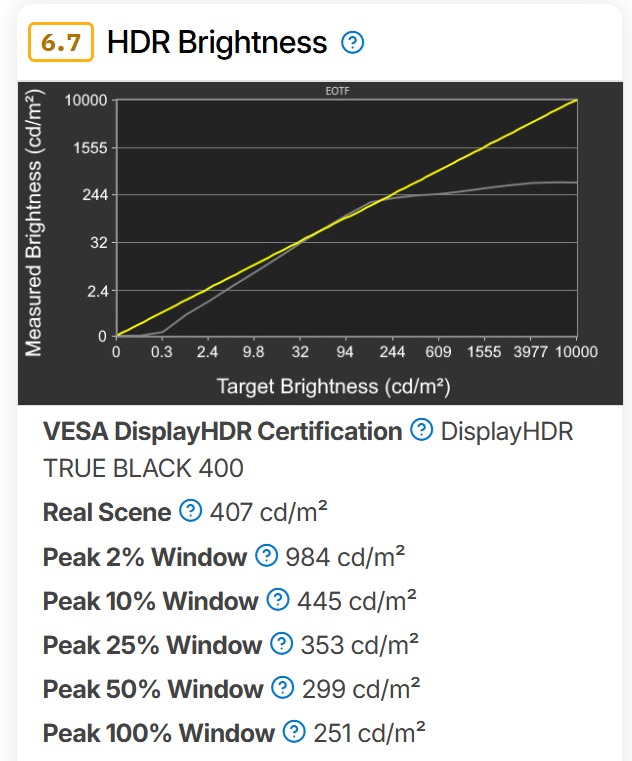
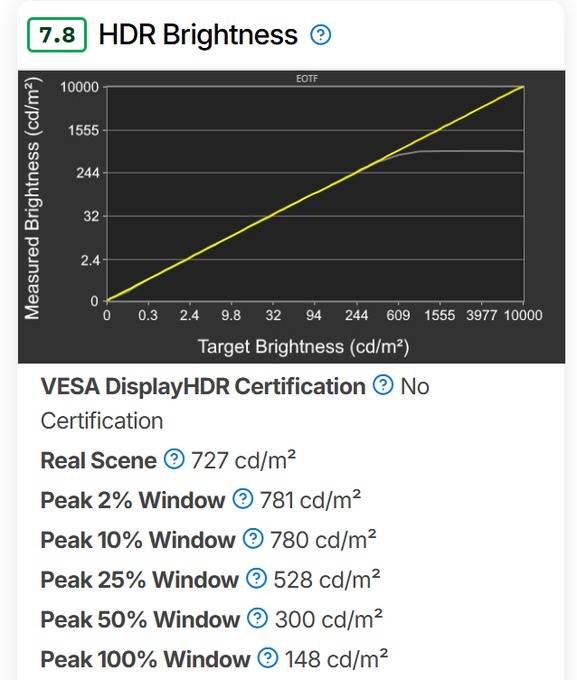
The LG C5 has the same brightness on 2% and 10% windows (780 nits). The gaming monitor only manages 445 nits on 10% due to its aggressive ABL.
RTINGS also do a real scene test — a bright scene with two very bright lights, measuring how bright the display can actually show those lights. This picture is what Rtings uses for their real scene test - not the picture on the monitor, but the whole picture with the two big bright lights.
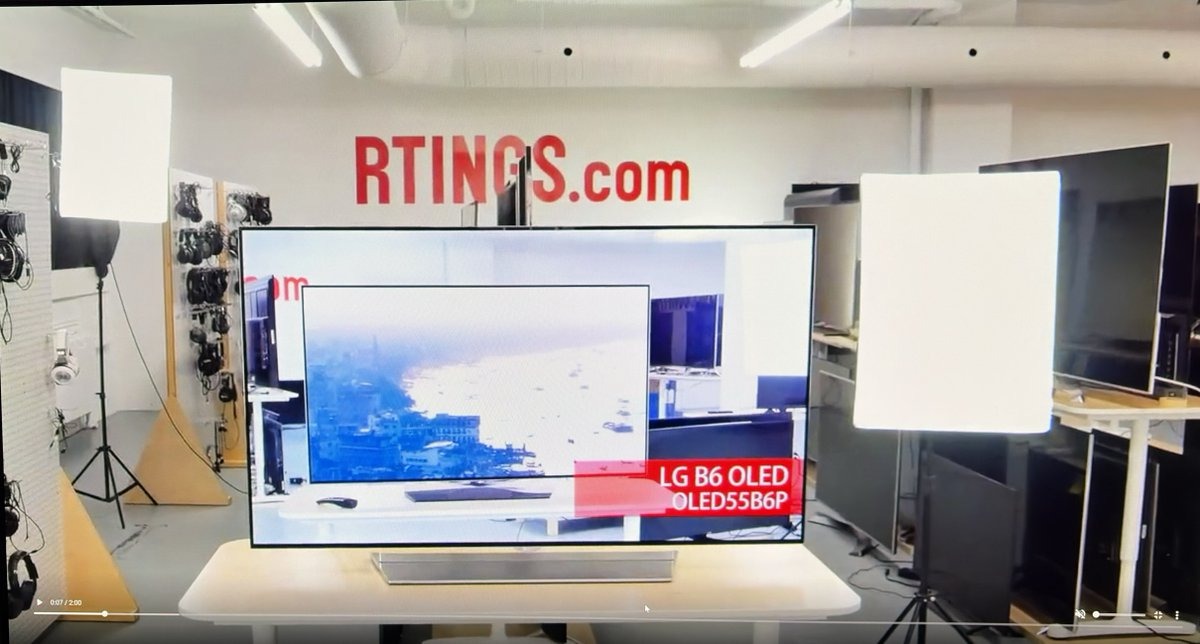
The LG C5 can show almost the same brightness in this real scene as on small test windows (727 nits). The typical monitor can only show 400–450 nits (407 nits), even if it can show 1000 nits on a small object on a black background.
The simple reason: bigger panels handle heat and power better, so their ABL is much less aggressive. In real games — which are mostly mixed and bright scenes, not small highlights on black — that's what decides how bright your HDR actually is.