OLED TVs - Setup HDR peak brightness
This article gives general recommendations on how to setup HDR peak brightness in games on OLED TVs.
I have made a separate article for OLED gaming monitors, because they behave differently and need their own recommendations.
My article is inspired by all the questions I get about setting up HDR, and by the TV reviews we have seen of the LG G6. The reviews reveal a significant shift in brightness tuning, such as Rtings tests in the picture below. The G6 achieves approximately 2700 nits on 2% window sizes but drops to around 2500 nits on a 10% window — unlike older models that maintain roughly consistent output across 1–10% windows.
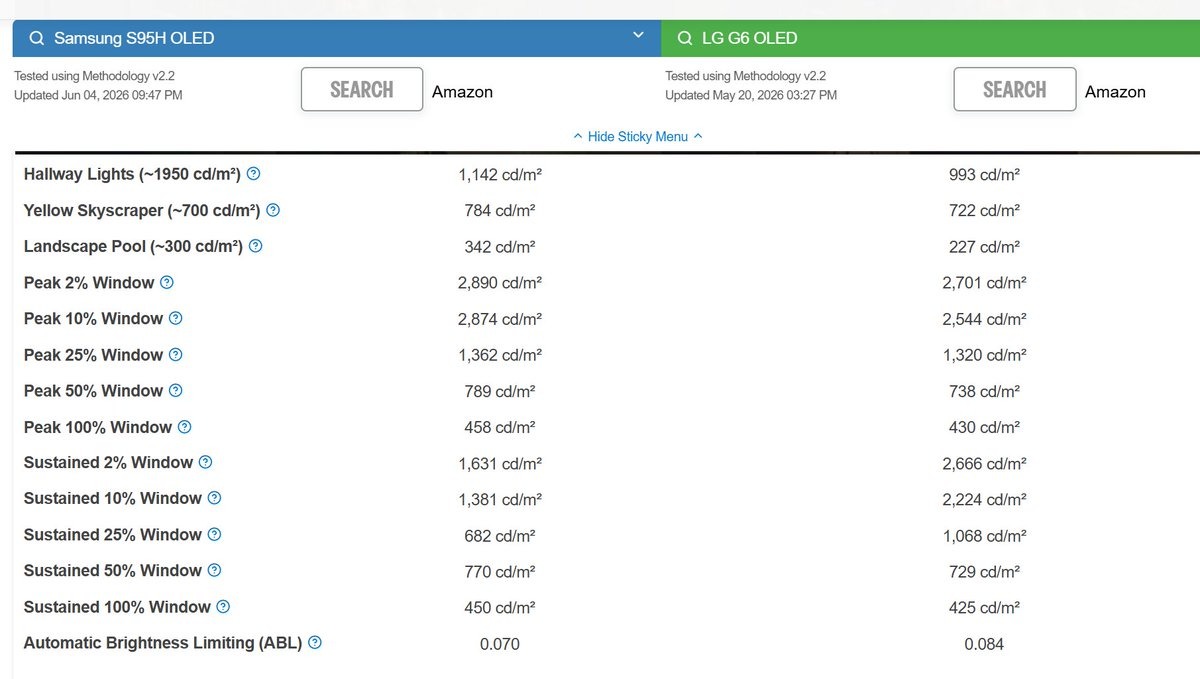
We see the Samsung S95H still have almost the same brightness on a 2% and 10% window.
The old rule no longer works
The general rule of thumb has been to setup peak brightness to what your TV can do on a 10% window.
But it's not the most commen peak peak brightness lightsources i see in my HDR analysis of games. I don't see highlights at a displays peak, that fill up around 10% of the screen. Thats a big lightsource at a displays peak.
A game will mostly output 1-5% small highlights at peak brightness. The Sun, sun glints on metal or water, a bare bulb, muzzle flashes, a distant streetlight — a large share of those sit below 5%, often under 1–2%.
I'd say most highlights at peak brightness or very close to, fall in roughly the 1–10% range, with a heavy tail below 5%.
Here I show how much a 2% and 10% area of the screen actually is. 10% is a huge area. I don't see light sources in games that big at peak brightness.
2% window size

10% window size

The game will NOT output brightness higher than the peak brightness we setup. So if we setup 2500 nits on a LG G6, we lose the brightness in the small 2% highlights that the TV could have shown at 2700 nits.
Not only will you lose the small 2700 nits highlights. All secondary high lights (those between paper white (midtones) and peak brightess) will also be pushed down a bit. So you lose brightness in all the highlights. Both the very bright ones at peak 2700 nits and the secondary high lights.
So the conclusion is that, when OLED TVs like the G6 have begun to output significantly lower 10% brightness than 2% brightness, the old 10% recommendation no longer applies.
And we can also no longer rely on white screen calibration methods, either because of this (see the section below).
HGIG and ABL - why this works
The game always does the actual tone mapping. With HGIG the TV deactivates its own tone mapping, outputs strictly on the PQ curve, and clips everything above its physical max output limit.
The TV will then use ABL dimming to dim down the full image based on the TVs power and heat constraints, measured on the average picture brightness in a scene. It will dim 10% highlights on the LG G6 to 2500 nits, as we see in Rtings test.
The advantage: ABL dimming retains all detail in the highlights, because it dims the whole image down proportionally. If we instead cap peak brightness at the 10% value, the small 2-3% highlights are simply lost — games do not output higher luminance than we setup.
Why white calibration screens fail on these TVs
White calibration screens, like in many games, in the Windows HDR calibration app or Xbox's and Playstations HDR system settings, do not necessarily show the TVs actual clipping point. When the white pattern merges, it might just show the ABL-limited output. On a LG G6 it will show 2500 nits.
One of the HDR calibration screens in Windows 11 HDR calibration app.
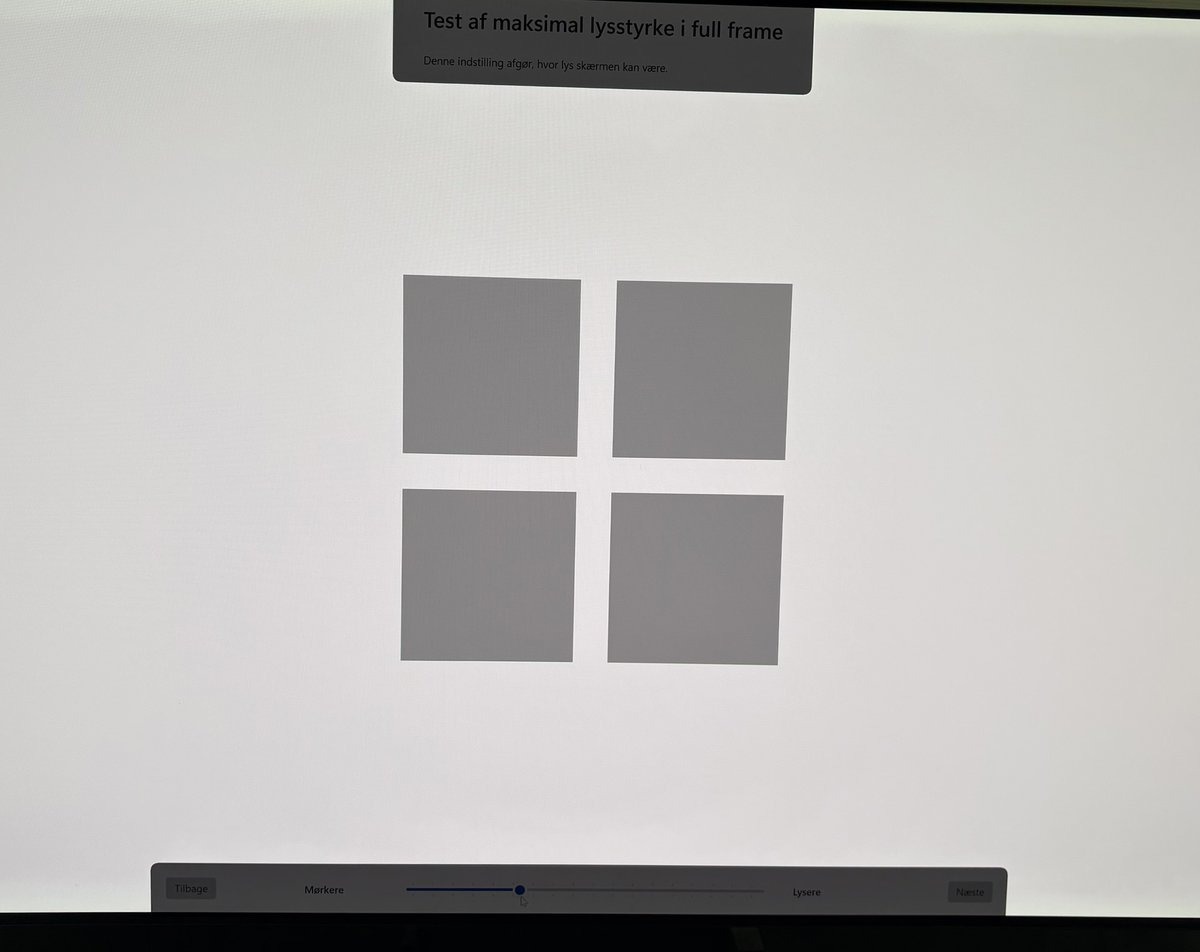
So we can NOT use these calibration screens if we want to keep the small bright highlights on a TV like the G6.
Some TVs, such as Samsung TVs, add another problem: they do a bit of roll-off at the top of the PQ curve. The TV compresses highlights above its physical capabilities to preserve detail. On the white test pattern this looks like the TV can output higher brightness than it physically can — there is still detail in the pattern, so we keep increasing. We end up setting peak brightness too high.
So the only reliable method is: find your TVs measured 2–3% window value (RTINGS test most TVs) and enter that number directly. My console and Windows setup guides show exactly where to enter it.