Phantom Blade Zero
WIP - THIS analysis is not finished. Im currently updating it with findings on PS5.
HDR analysis and setup guide for Phantom Blade Zero on PC and PS5.
I think HDR looks good, but it's un-intuitive to setup and the game does not fully output what the sliders indicate.
The biggest issue I have, is a personal one, and it's the massive use of fog all over the game. At least in the first area of the game, I have tested so far. A lot of use of fog effectively raises black levels and shadows, lowers contrast and washes out colors.
Other issues:
- The HDR Mid point slider is using middle grey nits instead of paper white nits (mid tone brightness). Paper white is 7.8x middle grey. I don't think gamers can be expected to know this. 26 nits middle grey is 203 nits paper white. Games should use paper white nits, so we can easily compare settings on these slider between games.
- The HDR Mid point sliders default is 30 nits middle grey. That's 234 nits paper white and that is higher than the standard 203 nits paper white most will use (gamers on 800-1200 nits capable displays). Most will just use default values, so most will end up having a too high paper white.
- Paper white increases with peak brightness, so the game will not output what the HDR Mid point slider indicates.
- The game outputs less than the HDR Peak Brightness slider indicates. It's especially an issue for higher nits display owner.
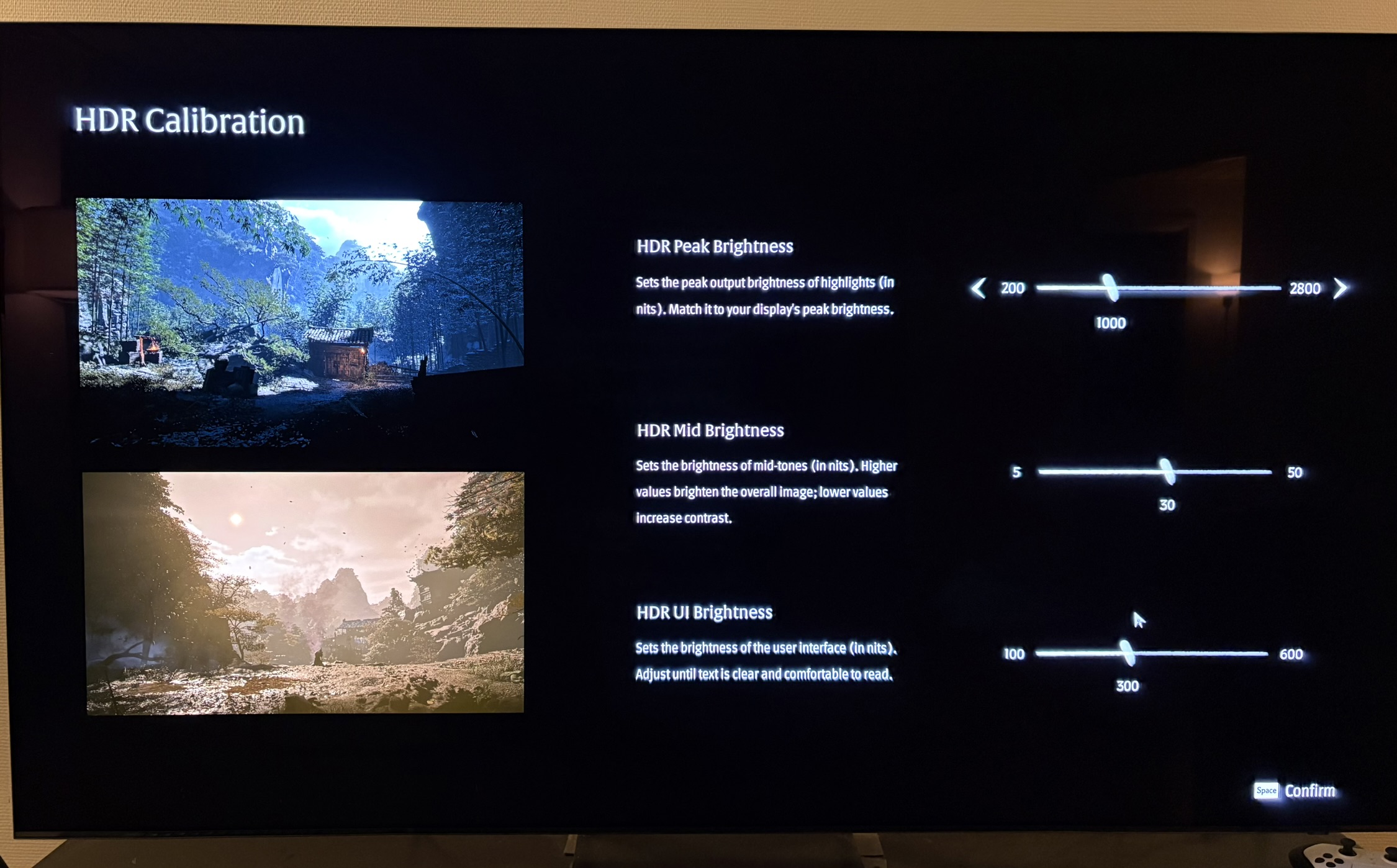
Below I will explain the sliders. Picture 1 shows the games sliders (on PC).
HDR Peak Brightness slider:
This is what the game outputs at different values on the HDR Peak Brightness slider (calculated values from the games shader code and tested in-game using Liliums HDR waveform analysis);
Peak 1000 -> brightest ~970 nits
Peak 2000 -> brightest ~1780 nits
Peak 2800 -> brightest ~2360 nits (slider maximum)
As we see the game outputs to low on higher nits displays. The maximum the slider can go up to is 2800 nits, so the max the game can output is 2.360 nits.
Picture 2 is with 1000 nits on the slider and we see the game outputs 970 nits. Picture 3 is with 2800 nits on the slider (its max value) and the game outputs 2.380 nits.
HDR Mid Brightness slider:
Below we can see that at 30 nits (default) on the HDR Mid Brightness slider paper white increases when we increase the HDR Peak Brightness slider. That I don't like, especially when the HDR setup menu doesn't explain it. It does not make HDR easier to setup.
Mid 30 (default):
Peak 400 -> paper white ~173 nits
Peak 1000 -> paper white ~234 nits
Peak 2000 -> paper white ~277 nits
Peak 2800 -> paper white ~297 nits
HDR UI Brightness slider:
This slider works as intended. The games UI outputs what the slider indicates in nits. I don't like the default of 300 nits. We usually set up UI brightness to the same as paper white to get UI brightness to equal mid tone brightness. A default of 200 nits would have been better because the industry standard paper white is 203 nits.
Black levels and shadows:
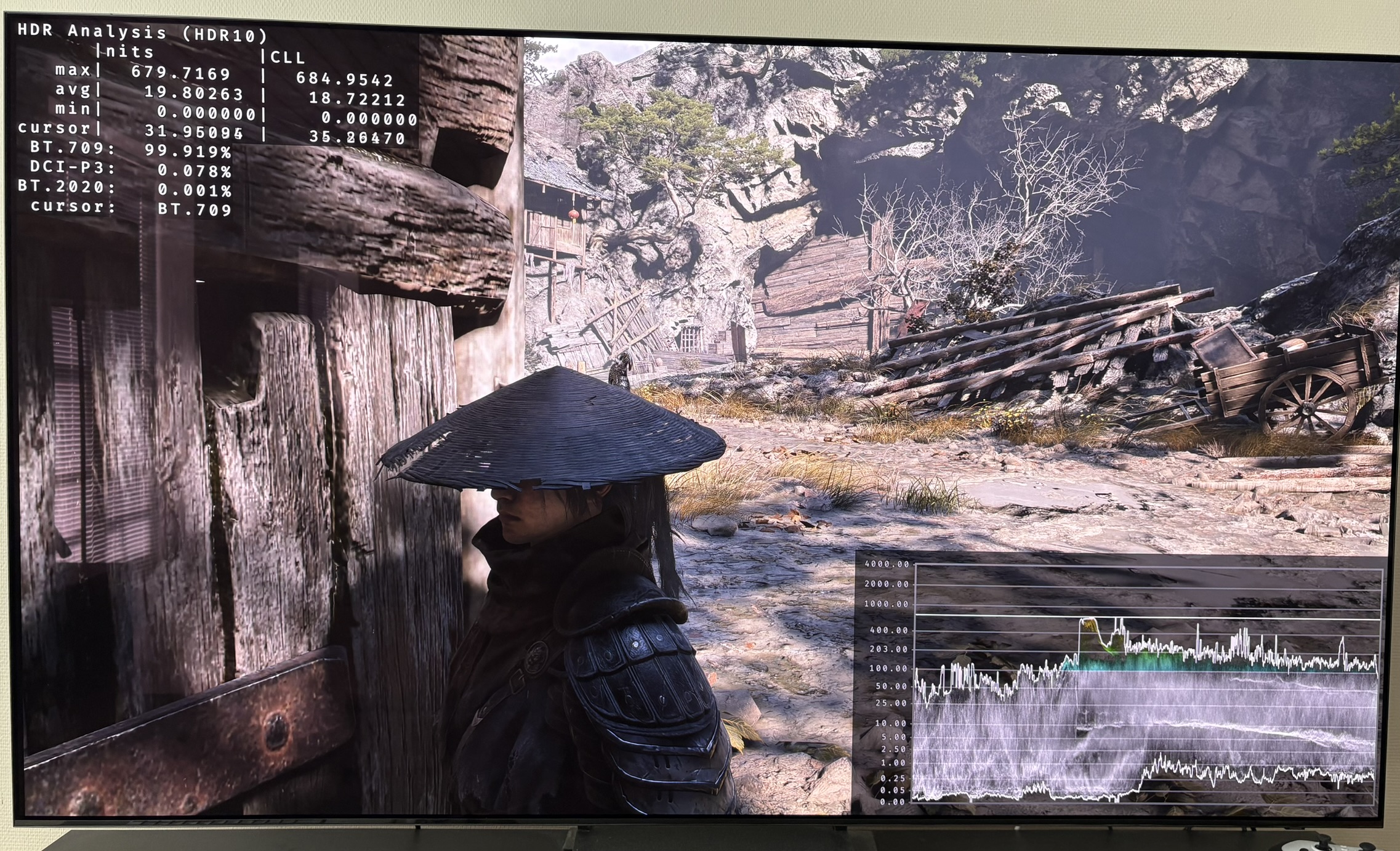
The games shader code tells us that the games black levels goes to zero. So that's great. We just don't really see it in-game. At least not in the first area, because so much fog is used. In picture 4 and 5 I show, that black levels do go down to zero or close to it.
It's not the fault of HDR that a game uses this much fog all the time, effectively lifting black levels, shadows and washing out colors.
Setup recommendations:
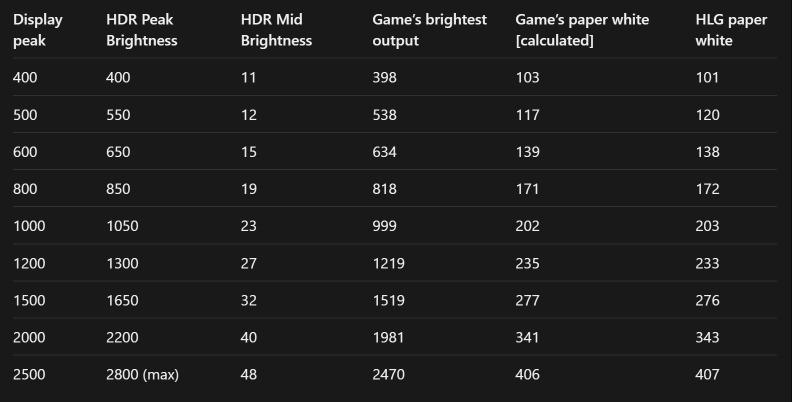
In this table I show how I recommend to setup the HDR Peak Brightness and HDR Mid Brightness slider on different displays. The first column is the max nits capabilities of your display.
The values in the table are calculated from the games shader code by Claude AI and I have verified them in-game using Liliums HDR waveform analysis tools.
Especially higher nits display owners need to increase the peak brightness slider a bit more than their displays actual peak brightness.
The recommendations for paper white is based on the HLG broad casting standards. They basically take into account that the brighter display you have the paper white and mid tones can be without you losing HDR impact. See my article Paper White - In HDR Games, if you want to know more.
Use the recommended settings on the HDR Mid Brightness slider as a starting point. Adjust to your personal preference.
Also you might want to lower the paper white and mid tone brightness in a game like this that uses so much fog. Increasing the HDR Mid Brightness slider, does not only increase the mid tones, but also shadows and upper shadows. Increasing shadows in a game where shadows are already lifted from a lot of fog might not be to every ones taste. I will need to see more areas of the game to give a more precise recommendation.
Picture 1:
Picture 2:
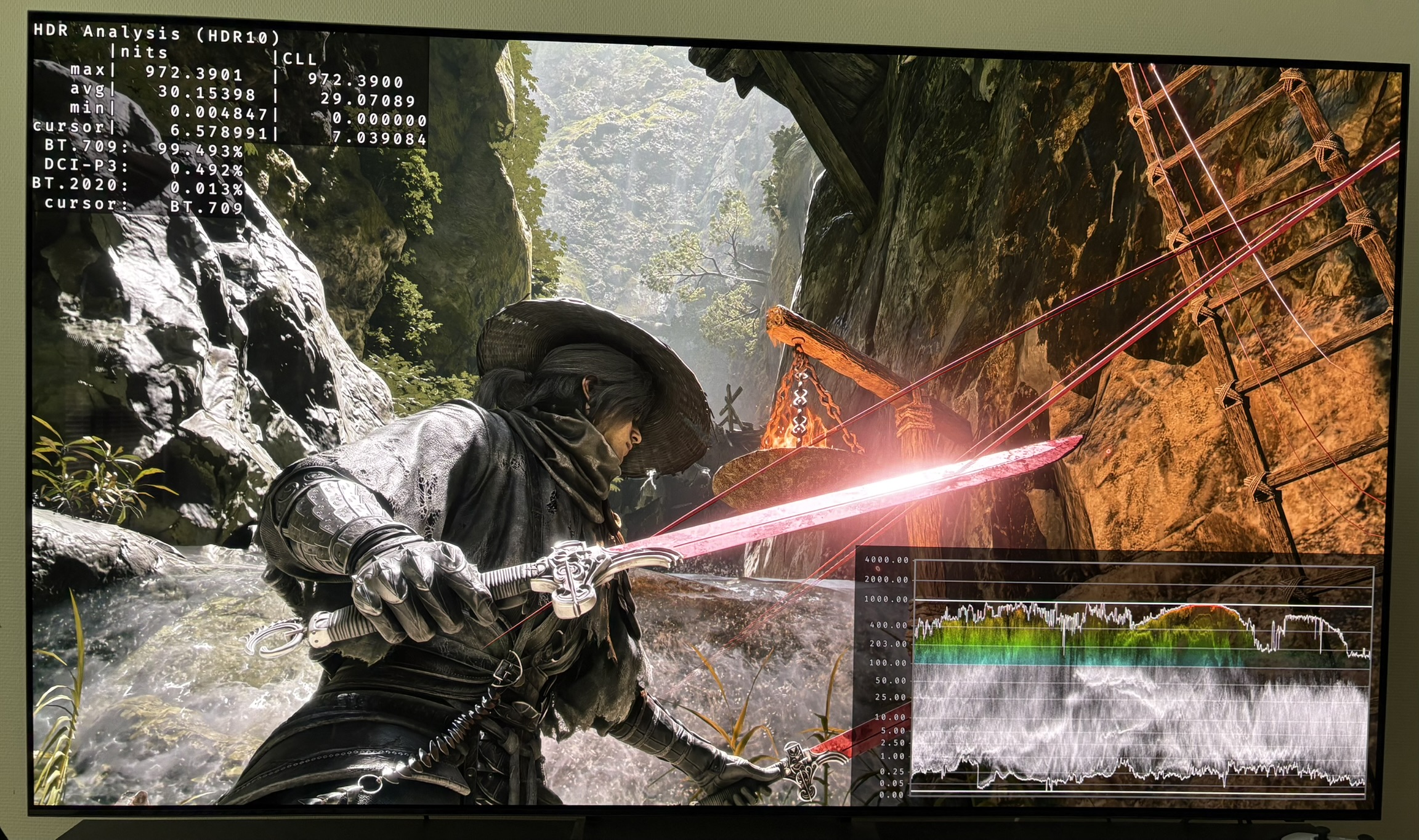
Picture 3:
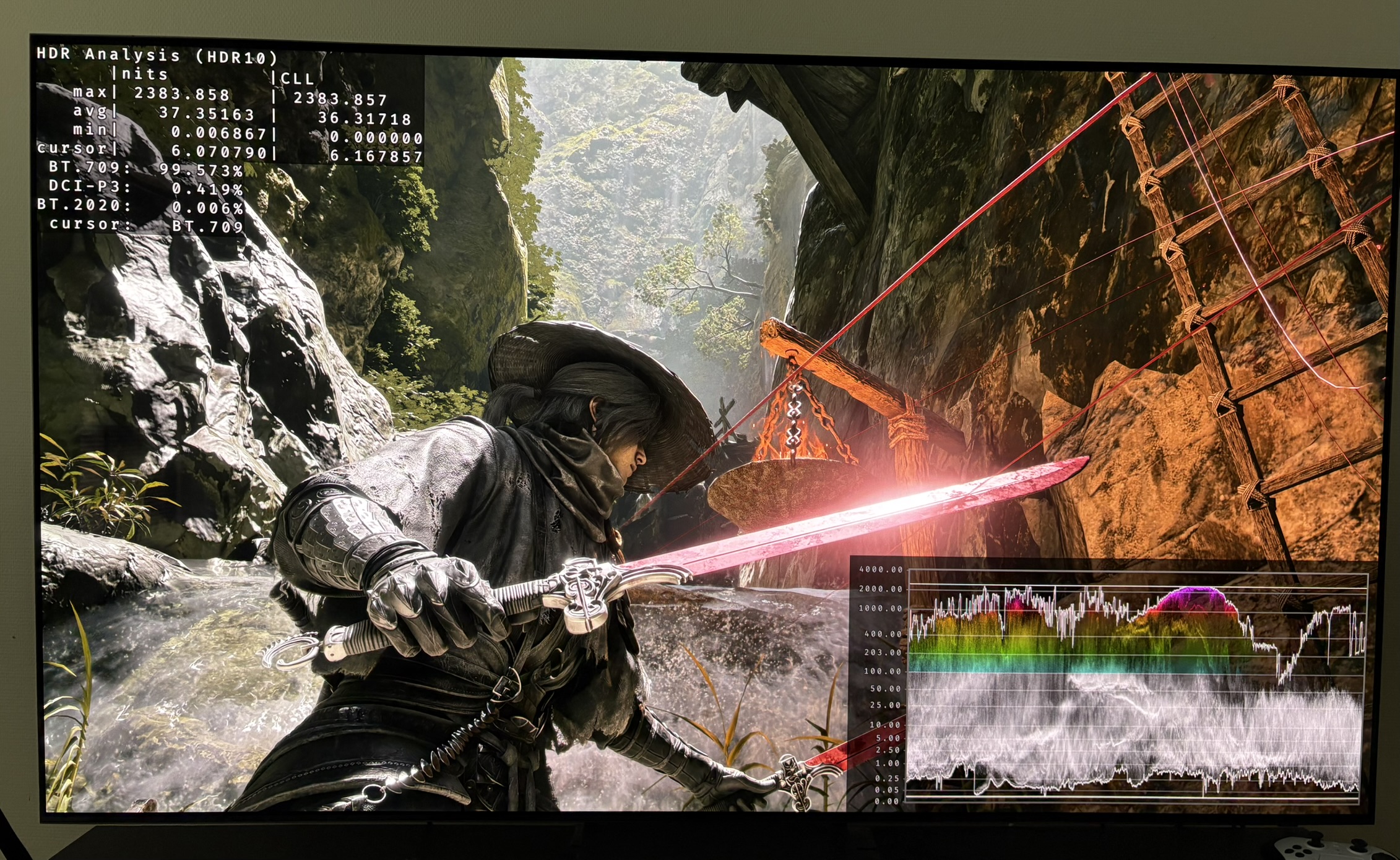
Picture 4:
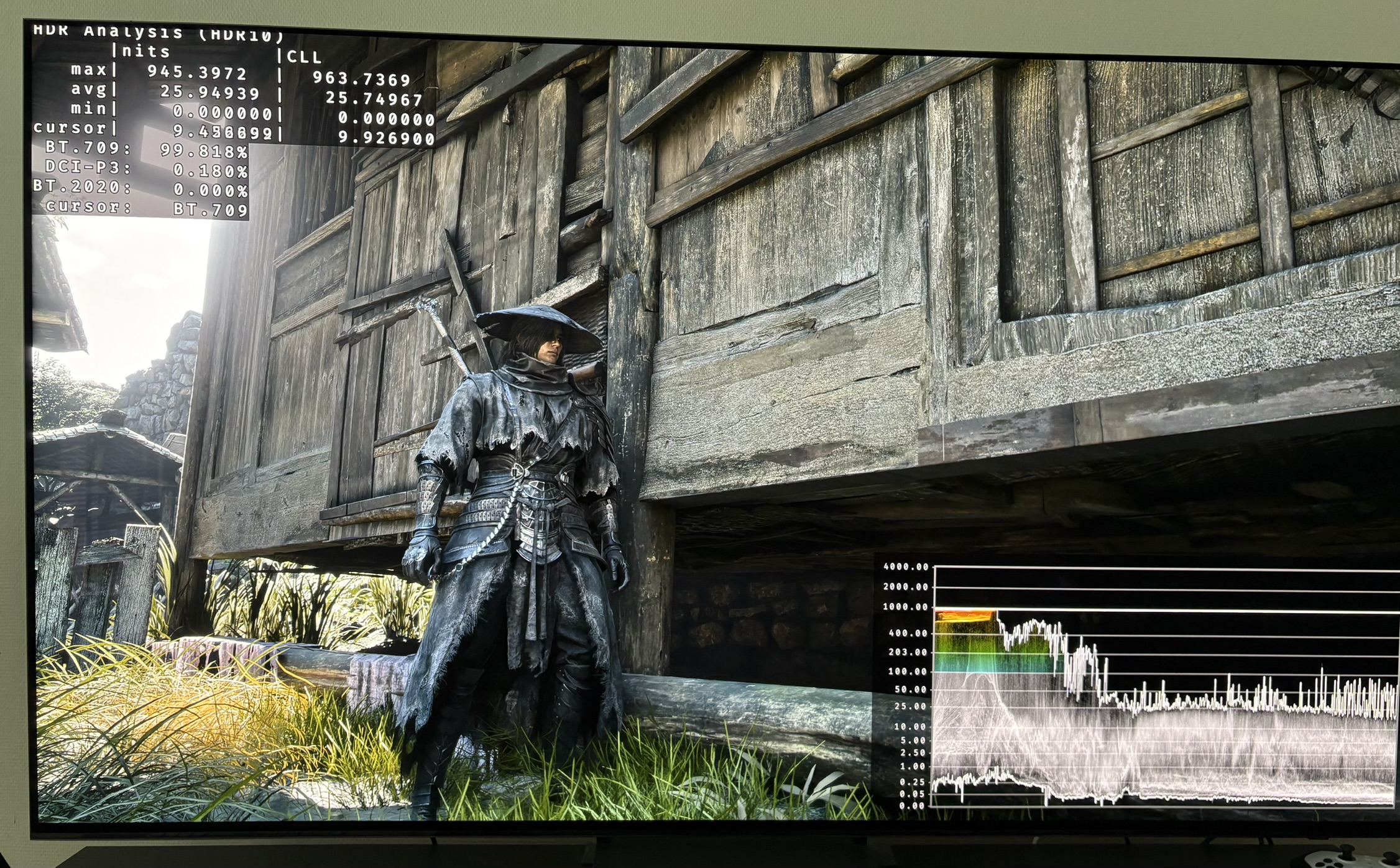
Picture 5: