Ratchet & Clank Rift Apart
HDR analysis and setup guide for Ratchet & Clank Rift Apart on PC and PS5.
It's a great looking game on both systems and HDR looks good overall, but it has a lot of issues, especially with outputting way to low peak brightness, then the sliders indicate, and it has misleading sliders that makes HDR unintuitive to setup.
The good:
- HDR looks great overall
- Black levels are dark and that's great for true contrast on our OLEDs
- HDR tone mapping looks great, including highlights. I see no loss of detail in highlights and there are good separation between light sources.
- The game increases mid-tone brightness as we increase peak brightness, so it increases the overall brightness of the image as peak brightness increase. I like that. However, it can also be a negative if you want to be able to setup this separately.
The bad:
- The game outputs significantly lower peak brightness on both PC and consoles than the in-game slider on PC indicates and than we have setup in PS5's HDR system settings. The game will therefore not utilize our displays fully, unless you follow HDR setup guides or have HDR waveform analysis tools yourself to help setup HDR. Most gamers of course don't do or have that, so most with not experience how good the game looks with higher peak brightness.
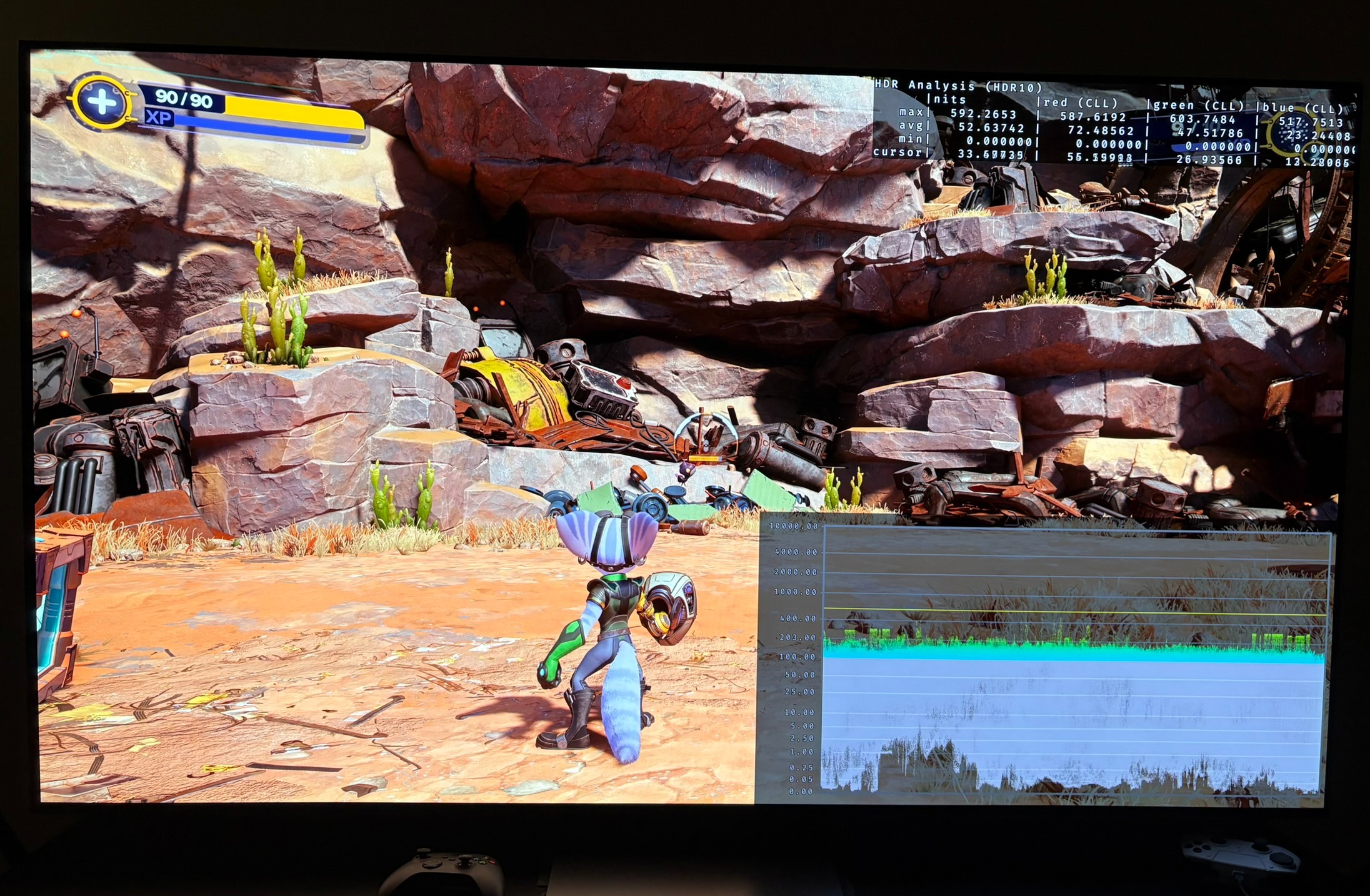
- Peak brightness on PC is capped at only 1200 nits. I have tested up to 2500 nits on PS5, and it might go much higher, so this cap only effects PC.
- The sliders for brightness increases upper shadows, mid tones and peak brightness in a linear way. It effects upper shadows way too much. When it changes peak brightness than setting up HDR becomes difficult. So don't use it. Use the contrast slider instead, if you have to increase brightness.
- The contrast slider does the same as the brightness slider, except it does not effect peak brightness. So it's a brightness slider and not a contrast slider. So this is actually the slider to use if you want to increase the overall brightness of the game. The slider can not increase contrast, only lower it. It does not work as a contrast slider must, because a contrast slider increases upper mid tones and lowers upper shadows at the same time to increase contrast or vise versa. It of course makes HDR unintuitive to setup when the slider don't work as such a slider must.
- The paper white slider on PC is not a paper white slider because it only effects brightness of the UI and not the brightness in-game of mid tones. It's a very misleading slider.
- There is black level crush in some scenes. It does not look to be an HDR issue, but low quality indirect lighting in the game, that does not lit up shadows properly. We sometimes see developers increase the black level floor if a game has too dark shadows due to poor lighting quality. I'm glad Insomniac did not raise the black level floor to combat this. Some black level crush in some scenes is much better than raised black levels.
What the game outputs of peak brightness on PS5 at different settings in HDR system settings:
24 clicks: 3440 = 2560 nits
23 clicks: 3000 = 2160 nits
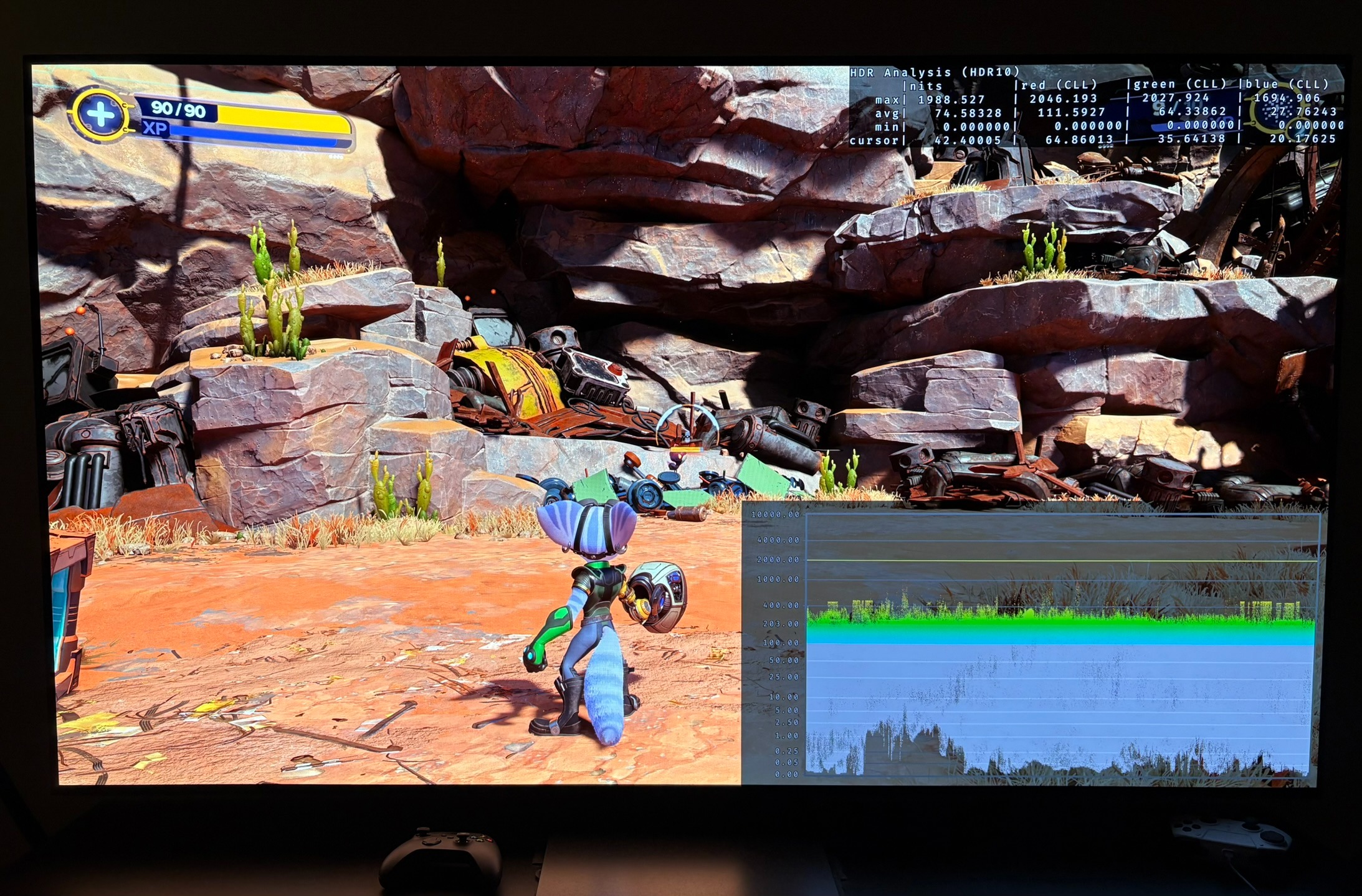
22 clicks: 2680 = 2000 nits
20 clicks: 2000 = 1500 nits
18 clicks: 1500 = 1200 nits
17 clicks: 1225 = 1000 nits
15 clicks: 970 = 800 nits
14 clicks: 840 = 700 nits
13 clicks: 720 = 600 nits
12 clicks: 600 = 500 nits
10 clicks: 480 = 400 nits
What the game outputs of peak brightness on PC at different settings on the in-game slider:
1500 = 1200 nits
1225 = 1000 nits
970 = 800 nits
840 = 700 nits
720 = 600 nits
600 = 500 nits
480 = 400 nits
Setup recommendations:
Peak brightness:
On PS5 you use the above to setup peak brightness in PS5's system. If you want 1000 nits peak brightness from the game then you use 17 clicks. See my article about setting up peak brightness on PS5, if you need more help.
Gamers on PC with displays capable of 1200 nits or less, can use the above values to setup peak brightness. Set the peak brightness slider to 1225 nits to get 1000 nits peak brightness output from the game, for instance.
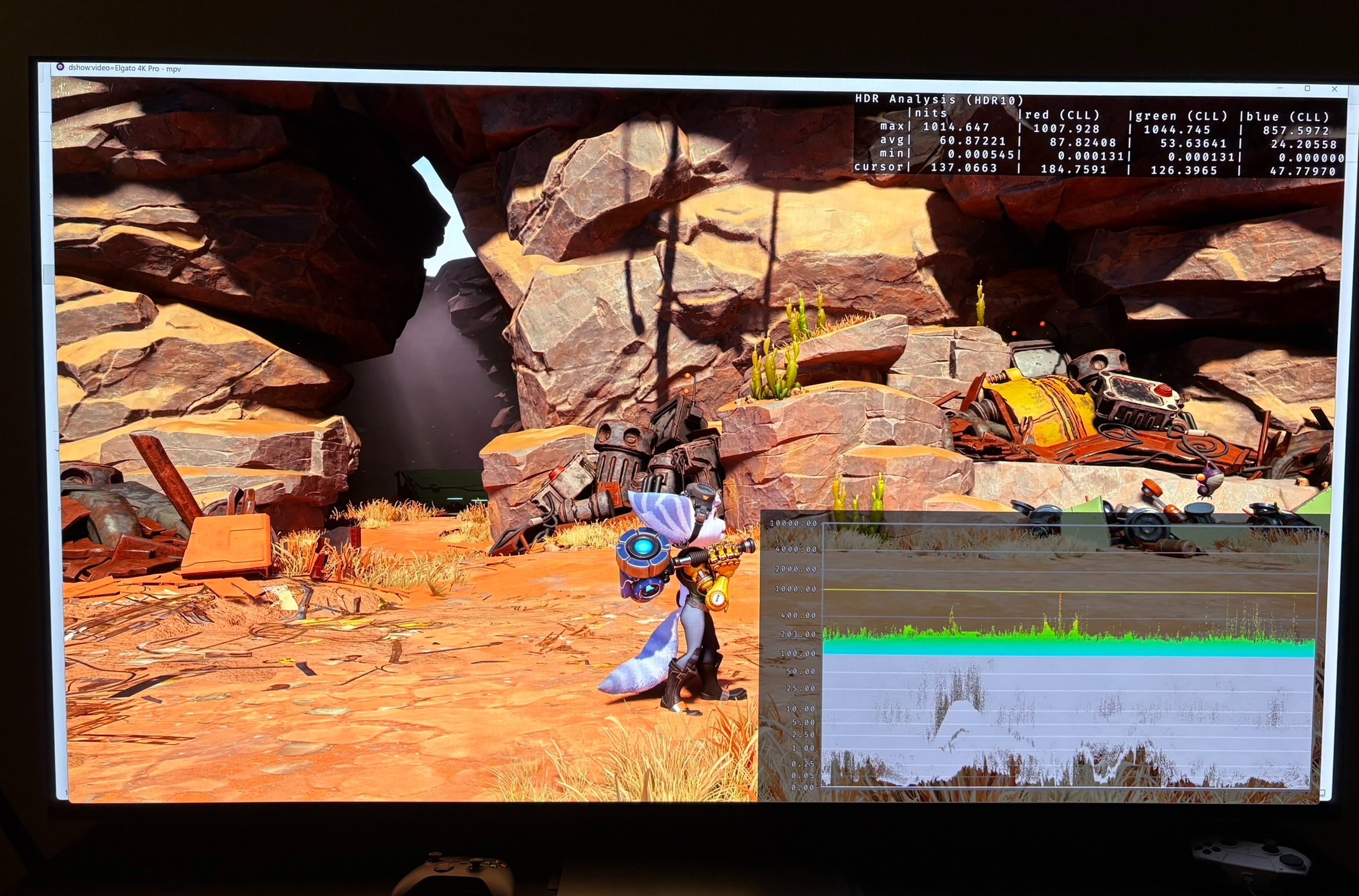
PC gamers with displays capable of more than 1200 nits can use Liliums Brightness Adjustment tool via Reshade to increase peak brightness. I show that in the pictures below for my 2000 nits TV.
Mid tone brightness / Paper white:
The game automatically increases mid tone brightness as we increase peak brightness. The game outputs around the paper white we want at different peak brightness levels. At least that is how it looks to me. So don't change the contrast or brightness slider. Leave at default.
Be aware, the paper white slider on PC is not a paper white slider. It only changes the UI brightness. 200 nits on the slider I have measured to 200 nits on the UI in-game. Leave it at that. It's a good value for the UI brightness, because its close to the mid tone brightness at 1000 nits peak.
Shadows:
Shadows in the game look good to me at default settings on the brightness slider and contrast slider. Those two sliders actually do not effect the black level floor. They only increase upper shadows, and I see not reason to change those, because shadows look good and dark to me. Leave sliders at default.
In-game HDR settings on PS5:
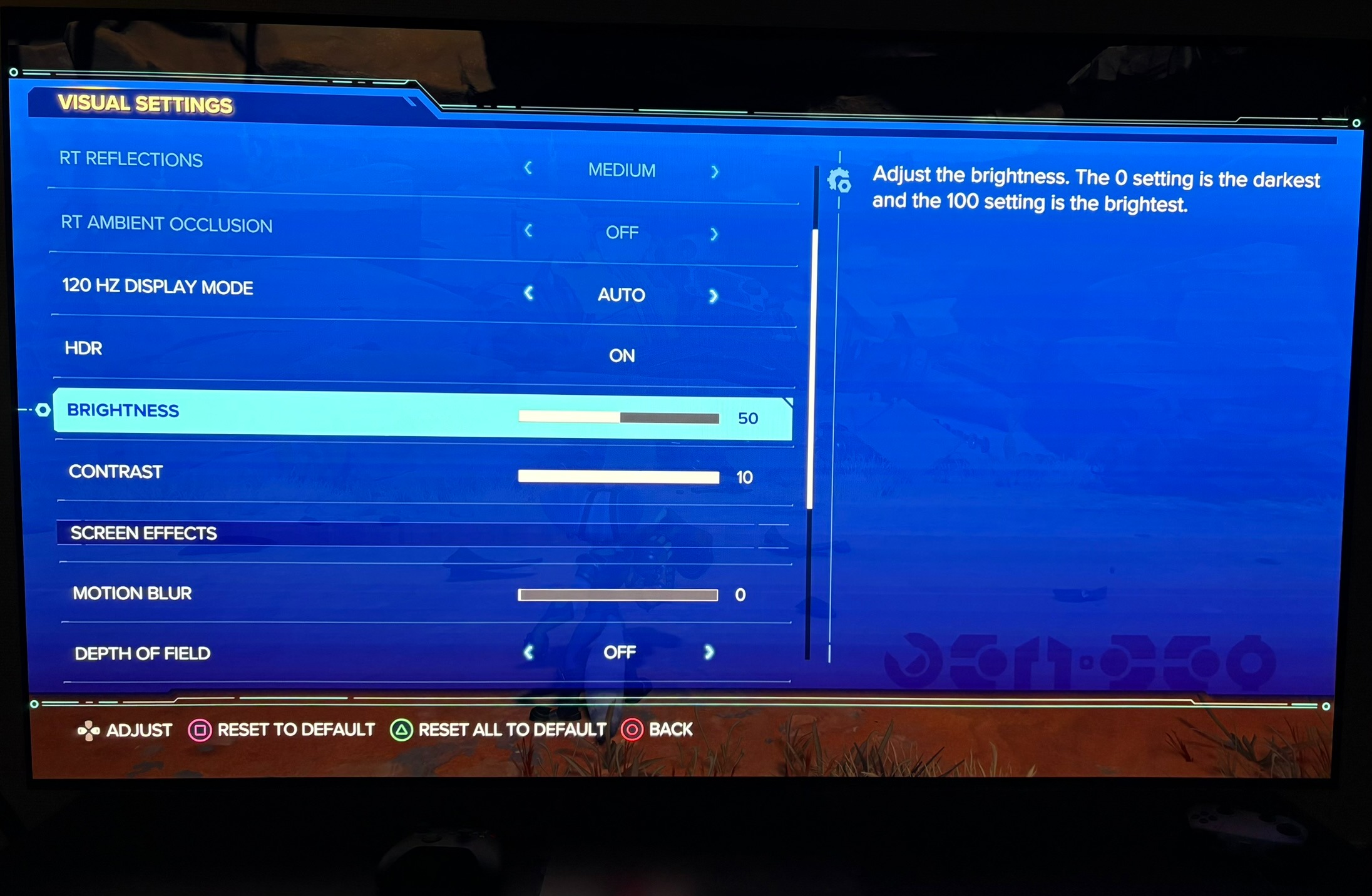
In-game HDR settings on PC:
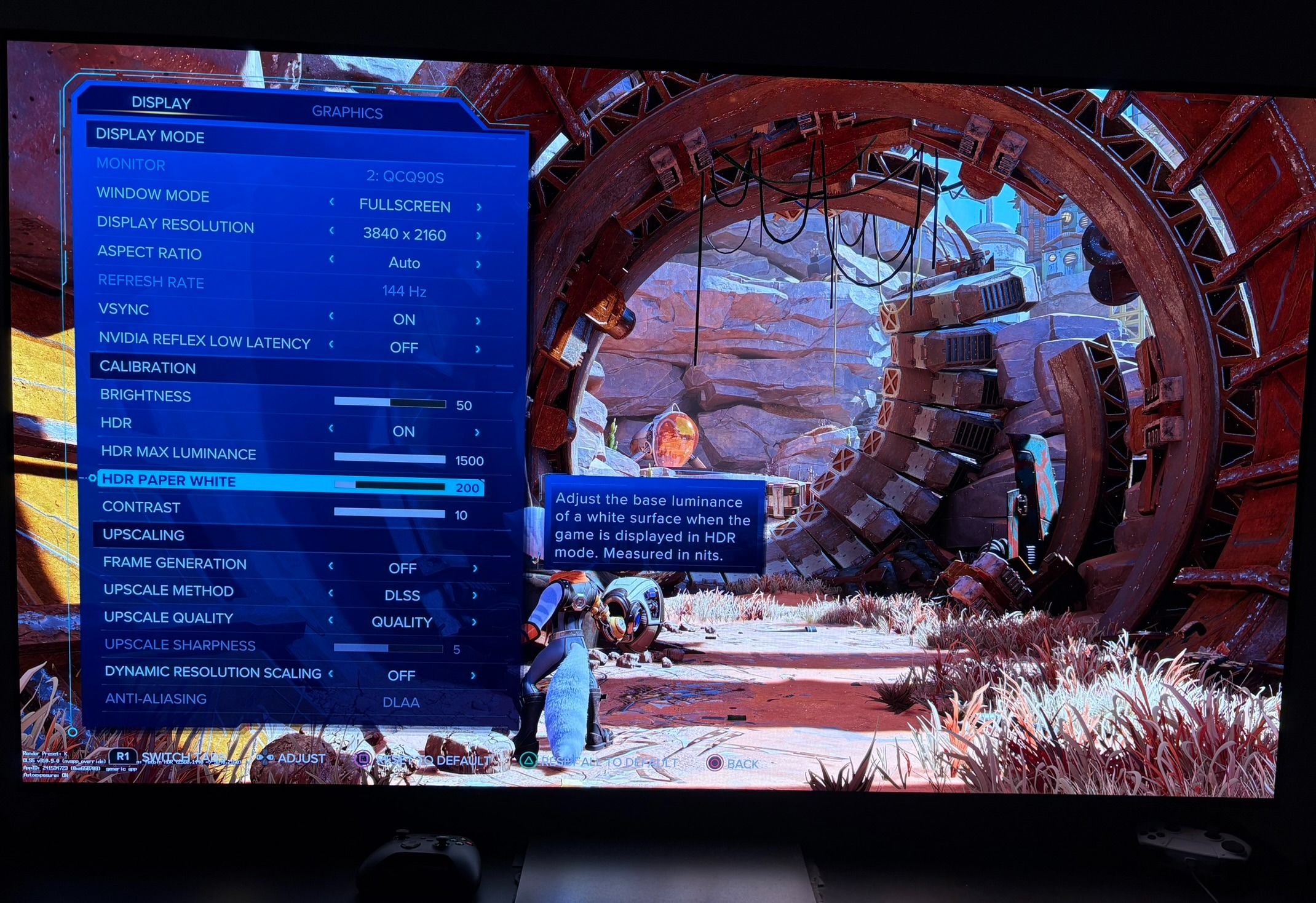
Only 1200 nits peak brightness at 1500 nits on the slider:
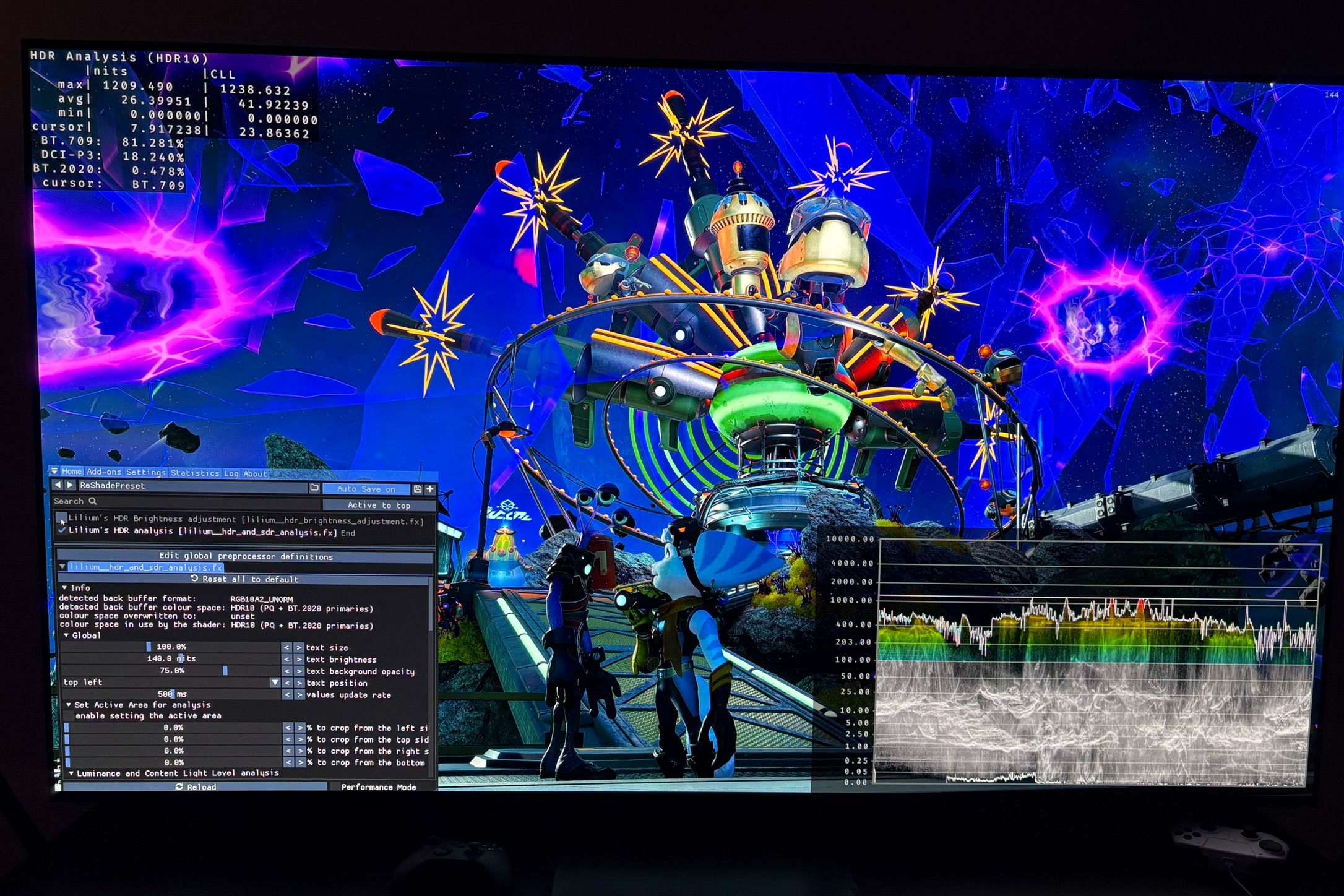
2000 nits peak brightness on PS5 using 22 clicks:
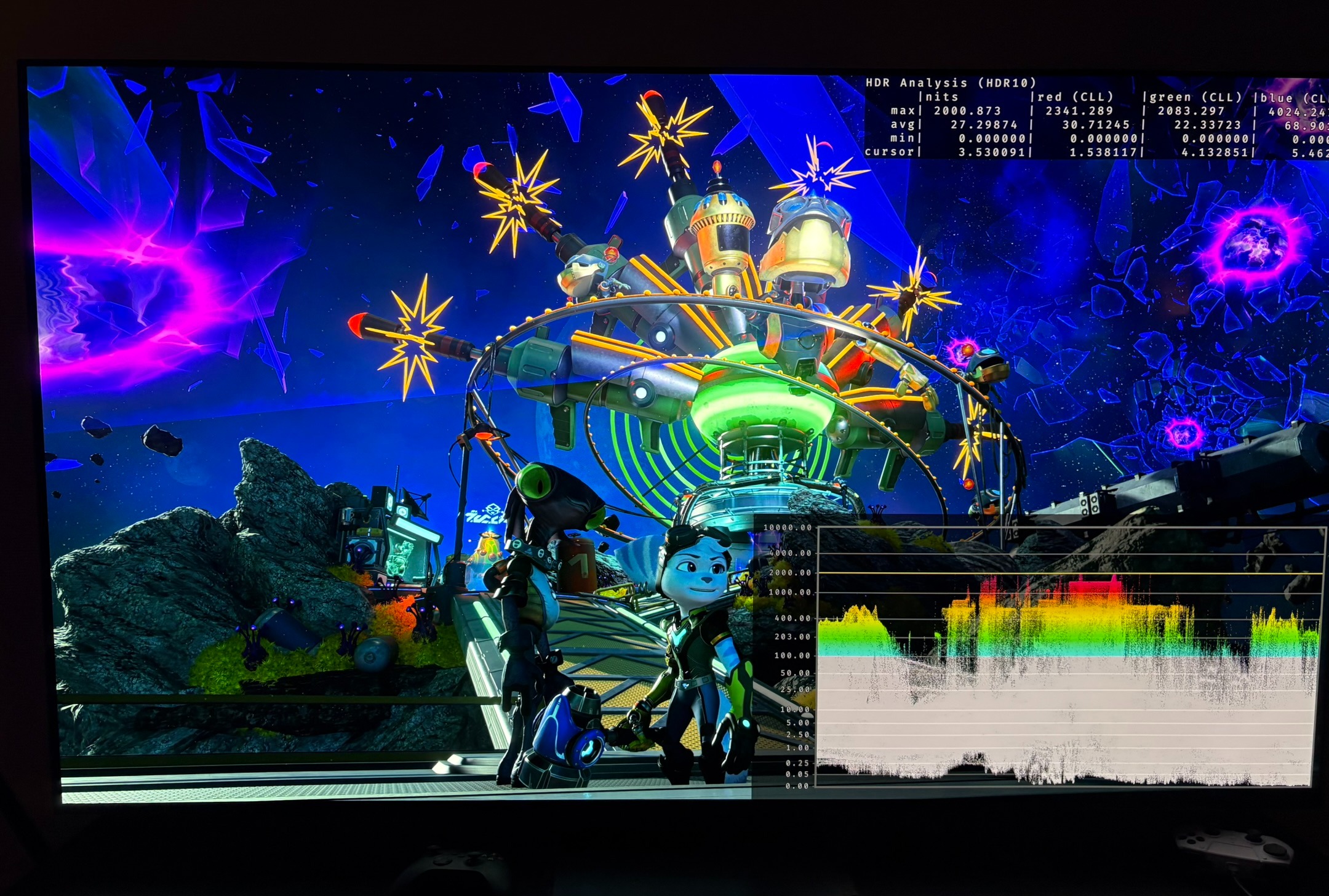
2000 nits peak brightness on PC, using Liliums Brightness Adjustment Reshade:
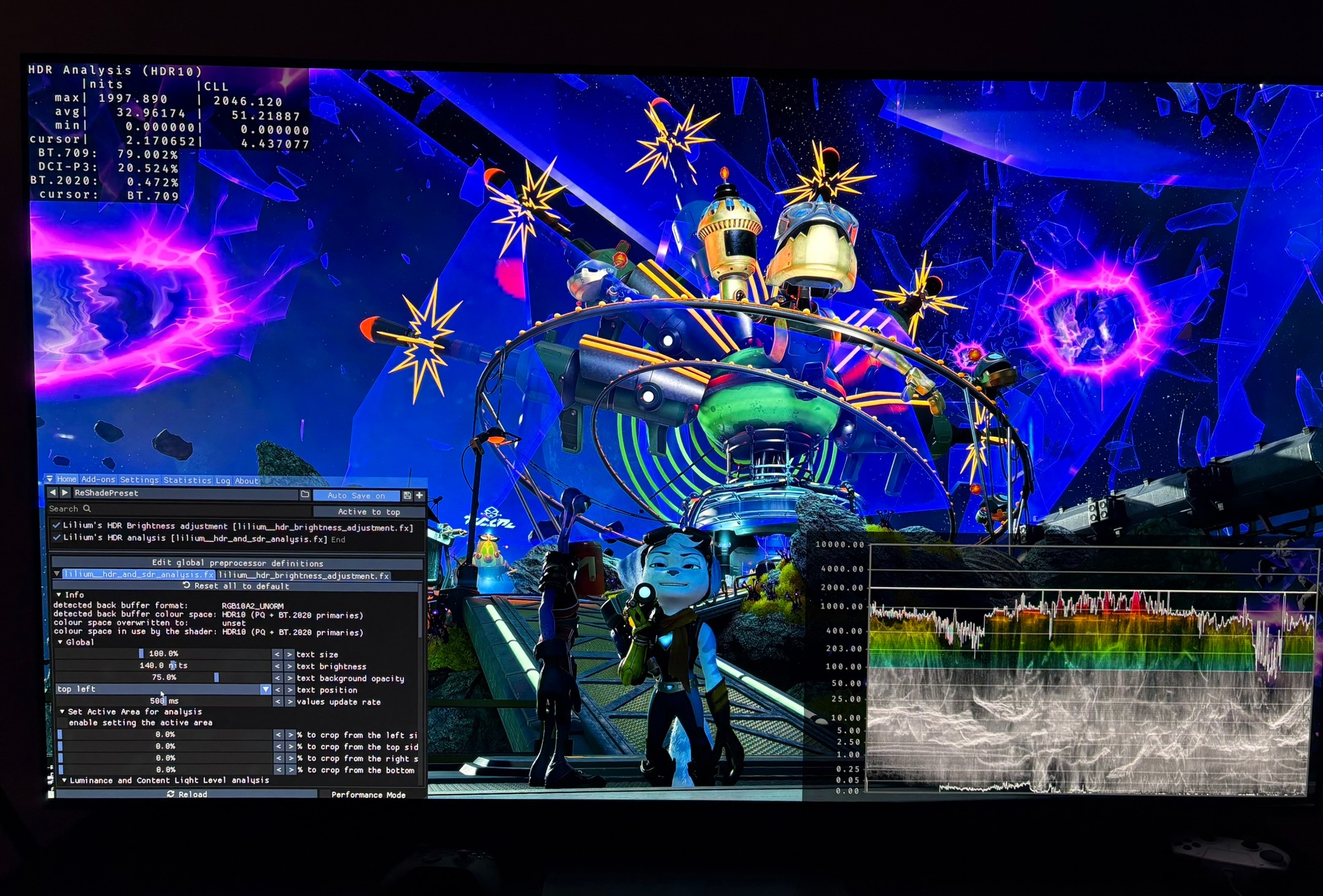
Black level crush:
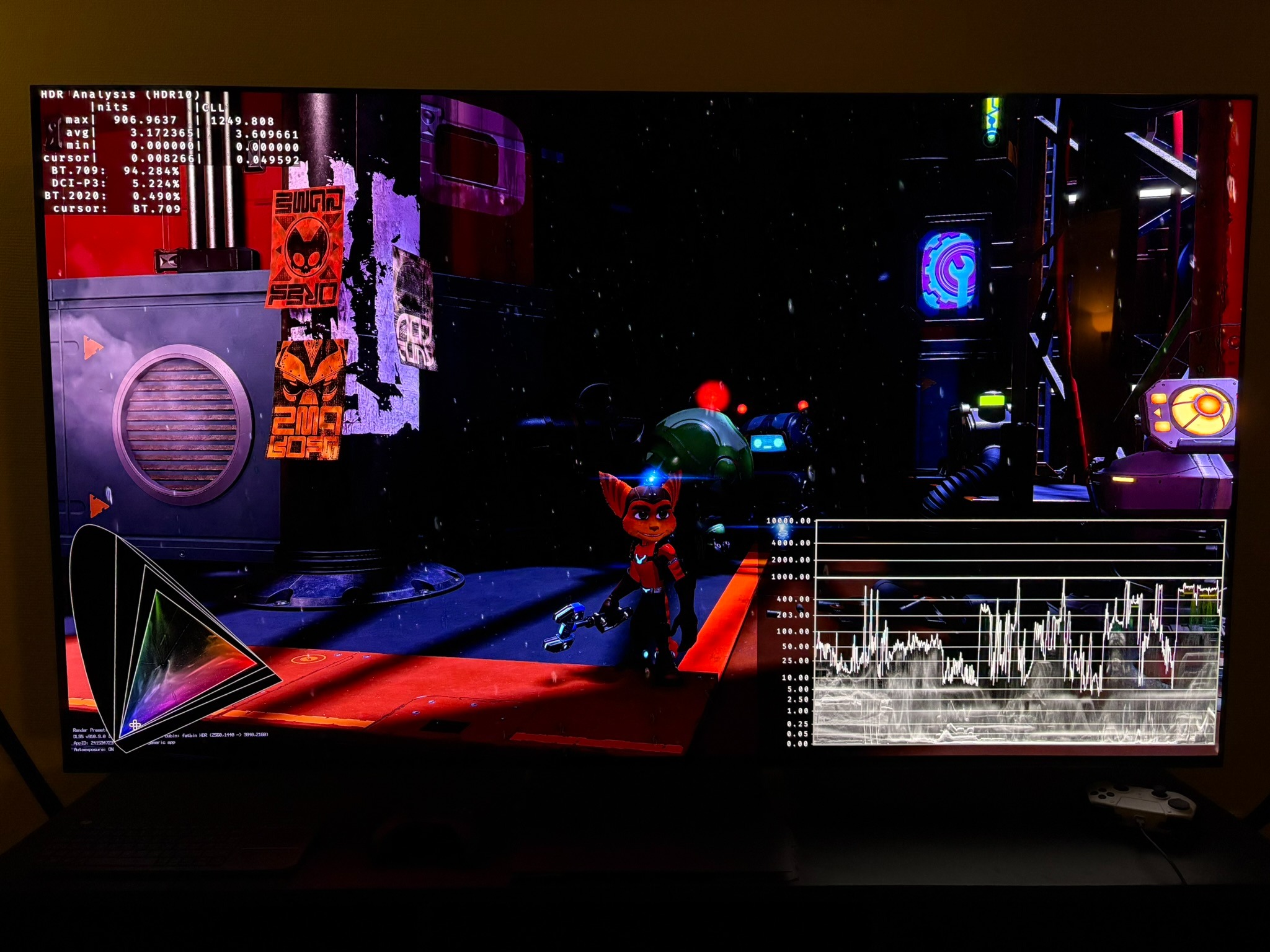
The next 3 pictures show how mid-tone brightness increase as peak brightness increase from 600, 1000 to 2000 nits output: