RTX HDR
Foreword: This article will explain what RTX HDR is and when to use it. I will explain what its settings/sliders do and compare it to "reference" HDR (RenoDX HDR mod) to evaluate its output. I only use one game, Kena Bridge of Spirits, for this "test" so its behavior can differ elsewhere. I'm not a developer, and this is from a gamer's perspective. It's not an exact science article.
I have a separate article about Auto HDR. It compares to RTX HDR and goes in further detail about Auto HDR.
RTX HDR - what it does
RTX HDR takes the SDR image the game outputs and runs it through a neural network that runs on Nvidia GPU's Tensor cores.
The purpose is to "guess" how HDR would have looked IF it had the game engine's data to do a proper HDR tone mapping.
It does that for every frame, and running this neural network costs a significant performance hit.
It can't recreate what was lost in the process of creating the SDR image. It can "only" redistribute and expand the luminance that survived. What it can do is better separation of the brighter areas close the SDRs peak.
RTX not only expands, it also intelligently adds more color-steps, so banding is reduced. An advantage it should have over Auto HDR (I did not verify this in my testing).
And RTX HDR adds the sliders / settings below.
Enabling it
- Turn Windows HDR on.
- Turn Auto HDR off — RTX HDR replaces it, and the two conflict.
- Enable RTX HDR in the NVIDIA app (overlay → game filters)
- Enable it in-game using ALT Z
- Restart game
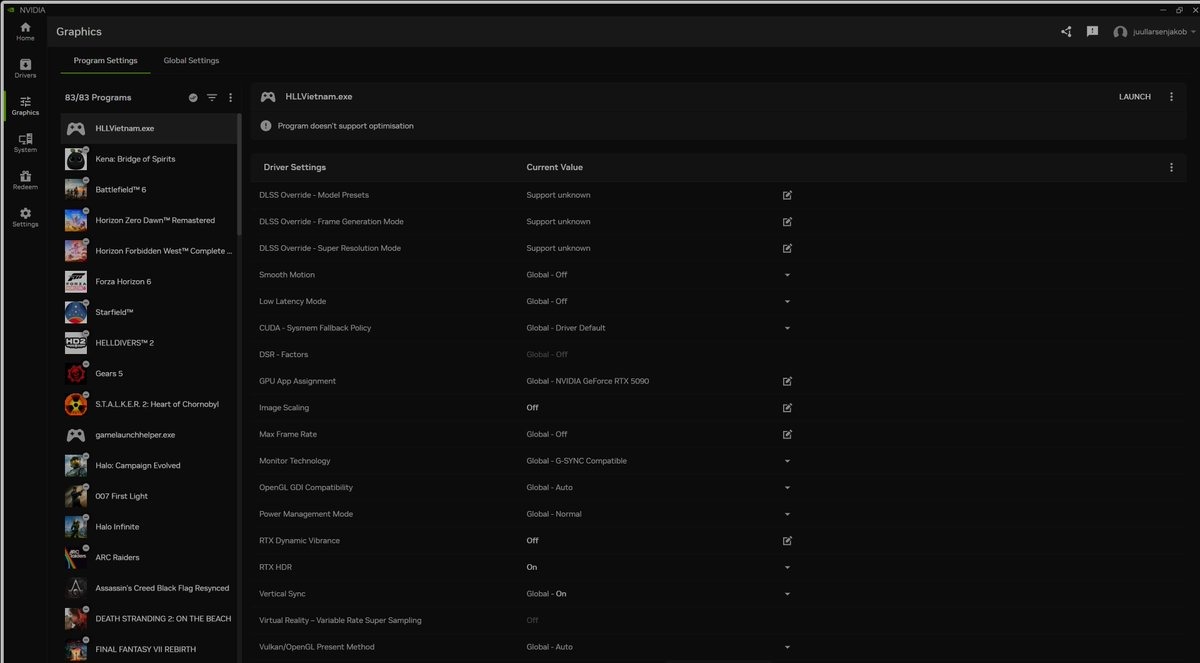
If you can't get RTX HDR to work in the game via ALT Z, then go set RTX HDR to ON in the Nvidia App. Add the game if it's not listed there. See in picture below.
The sliders
Peak Brightness
It adjusts peak brightness and secondary highlights. It will output what you set on the slider, but it can not output higher than 1000 nits.
When increasing the slider above 1000 nits it drags secondary highlights towards peak (1000 nits), which makes them look brighter but risks to flatten luminance detail (less highlight separation).
Set it to 1000 nits as default. Increase it a bit, to 1150 or 1200 nits if you lower the middle Greys slider a lot, to 25-35. The Middle Greys slider does pull secondary highlights down a bit, so to compensate it can be useful to increase the peak brightness slider a bit.
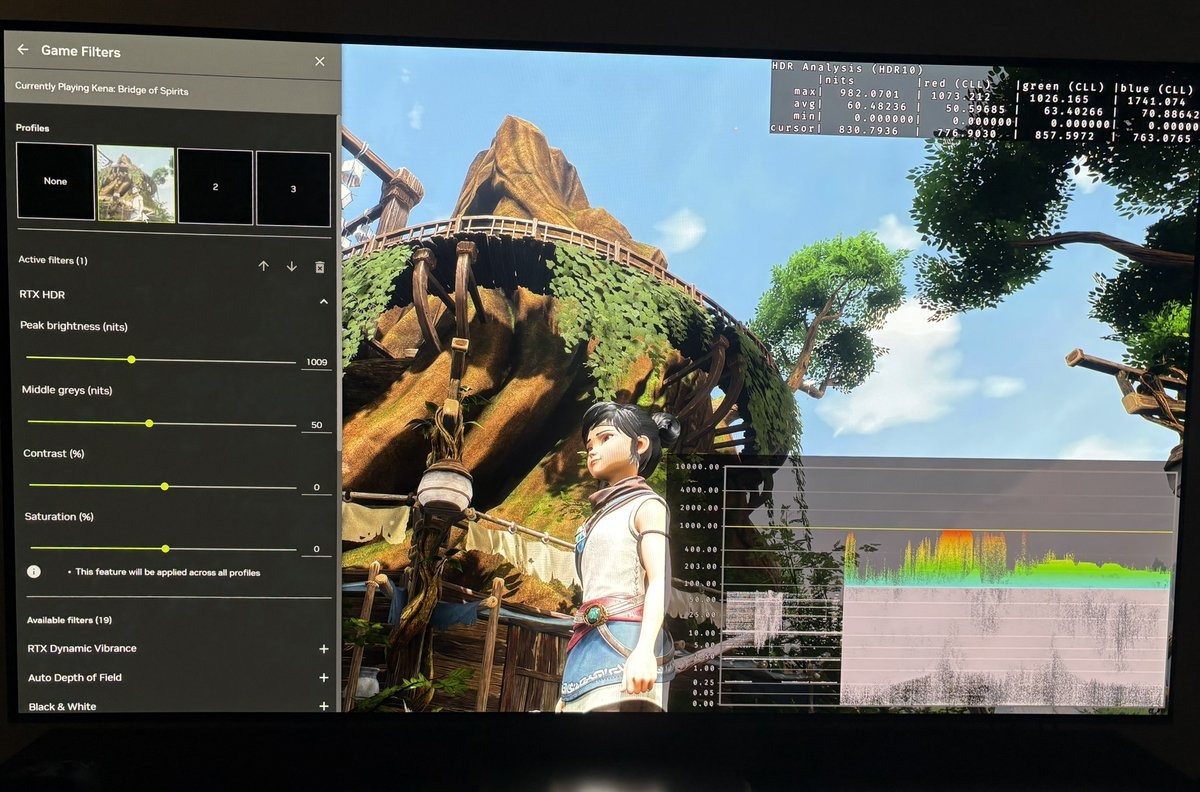
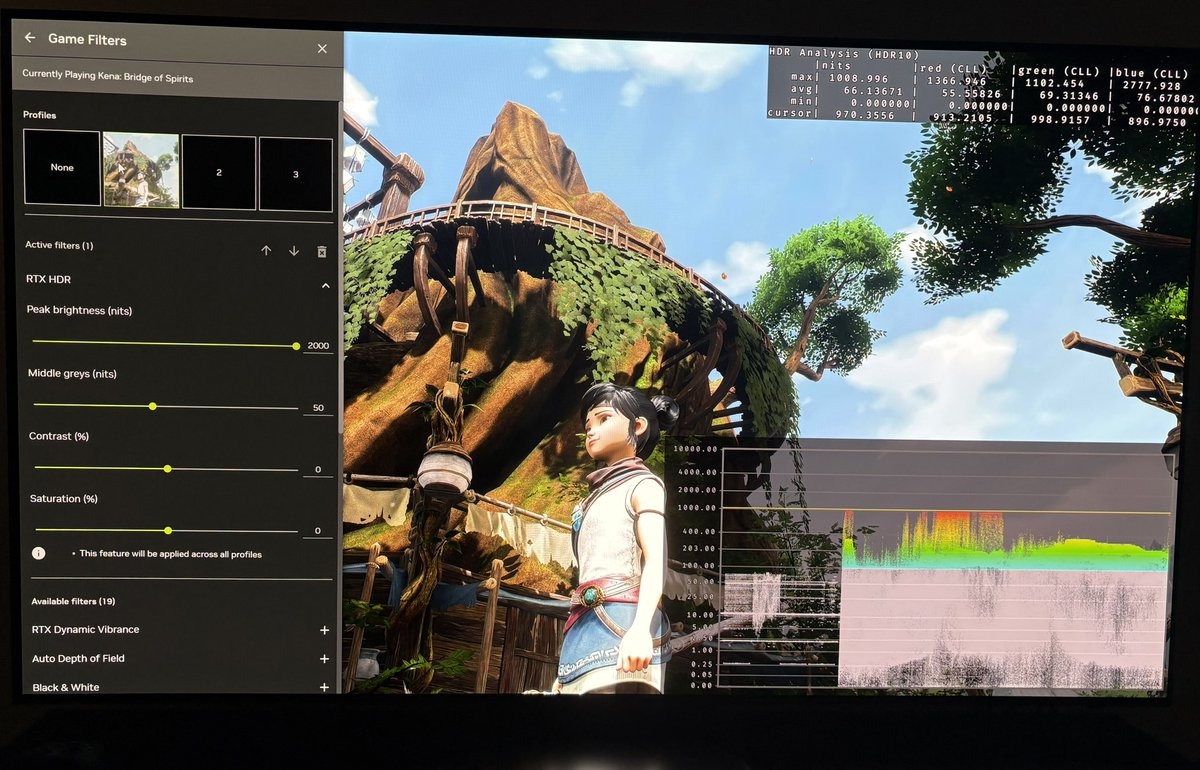
The 3 pictures below show 700, 1000 and 2000 nits peak brightness at default RTX HDR settings. We see how 2000 nits on the slider does not give higher peak output than 1000 nits and secondary highlights are pushed towards peak. Using 700 nits on the slider, we get 700 nits peak output.
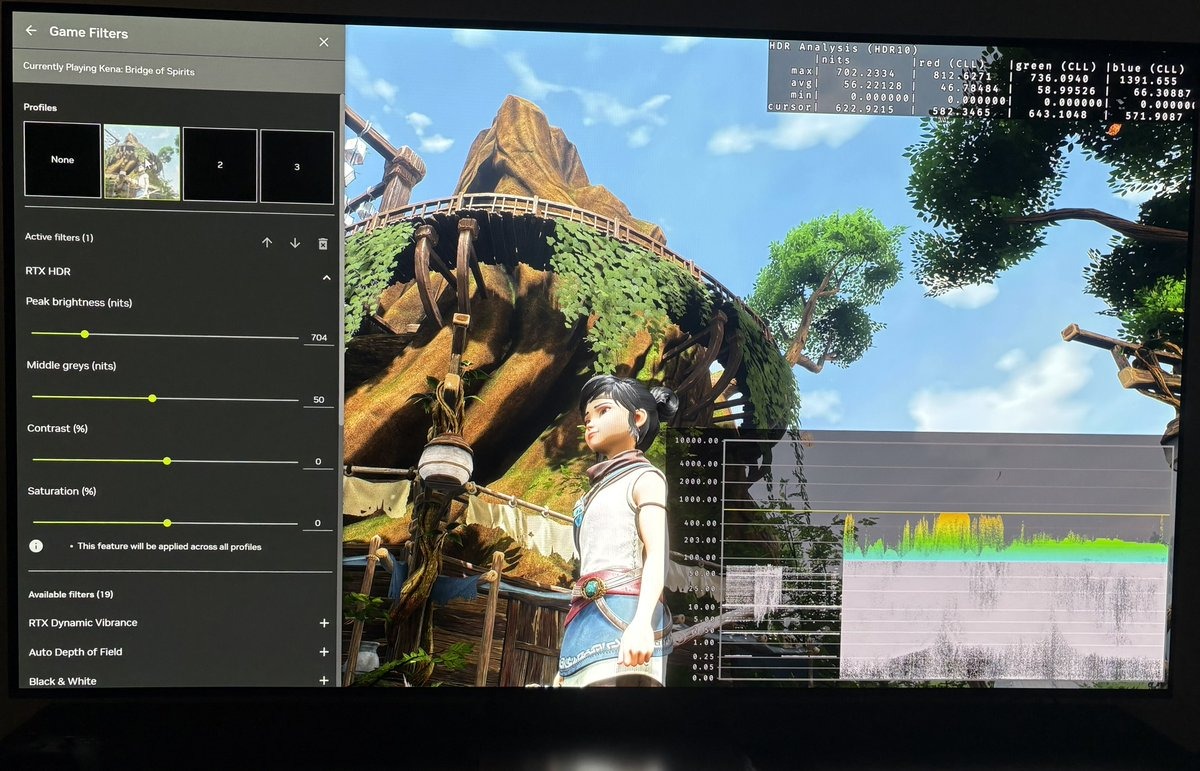
Middle Grey
Controls paper white / overall midtone brightness, affecting everything between the black floor and peak (with some stretch into upper shadows and upper midtones and highlights).
The slider does what such a slider must.
A value of 50 lands around 203 nits — the "standard" paper white. Middle grey 25 drops it with 100 nits - to around 100 nits paper white.
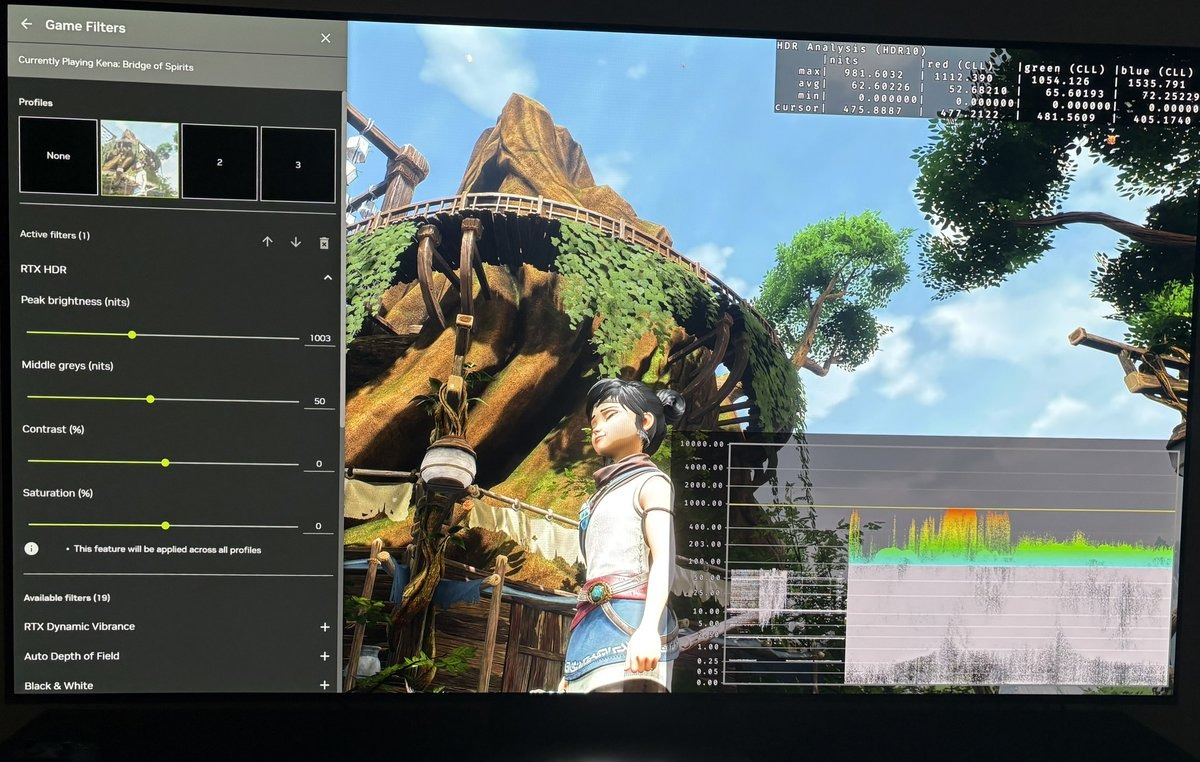
Picture 1 below shows around 200 nits midtones and picture 2 shows around 100 nits. We also see how upper shadows are slightly lowered in picture 2.
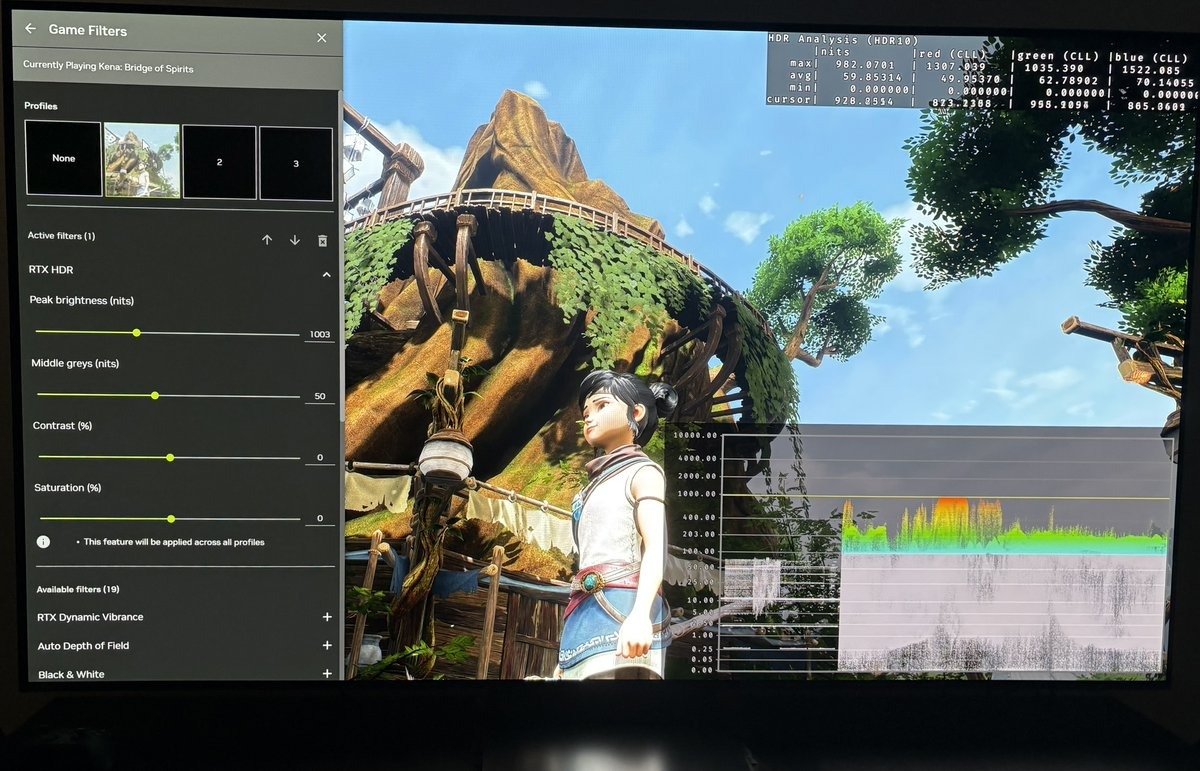
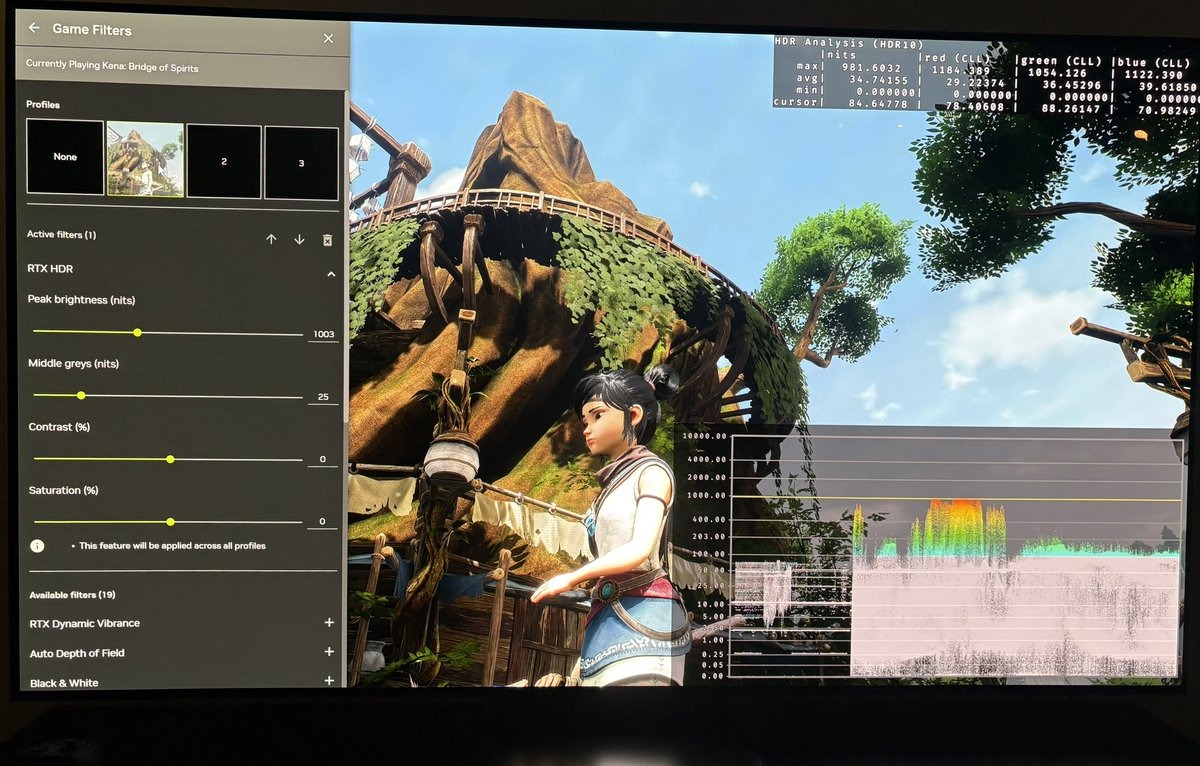
Contrast
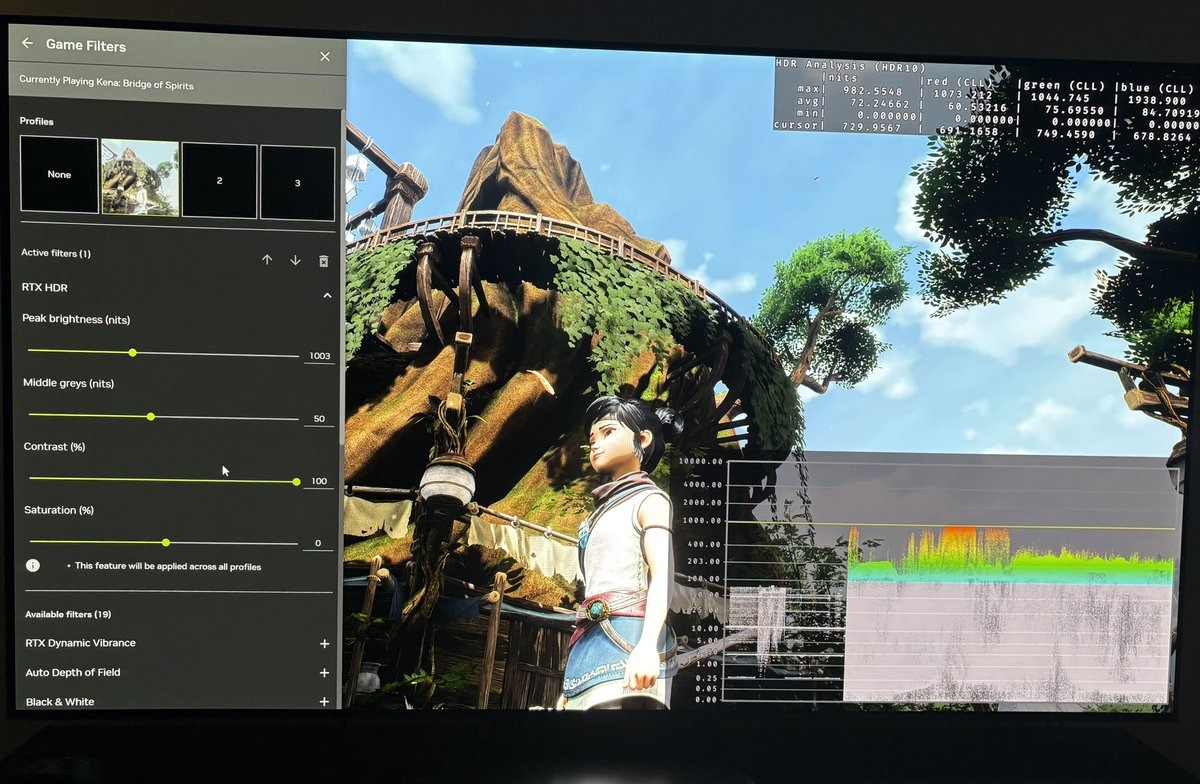
Brightens mid tones and darkens upper shadows - when increasing the slider.
In picture 3 and 4 below, we see how increasing the contrast slider from 0 to 100 increases mid tones and darkens shadows. That's how a contrast slider should work.
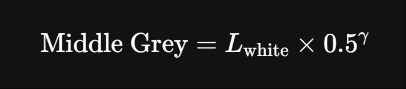
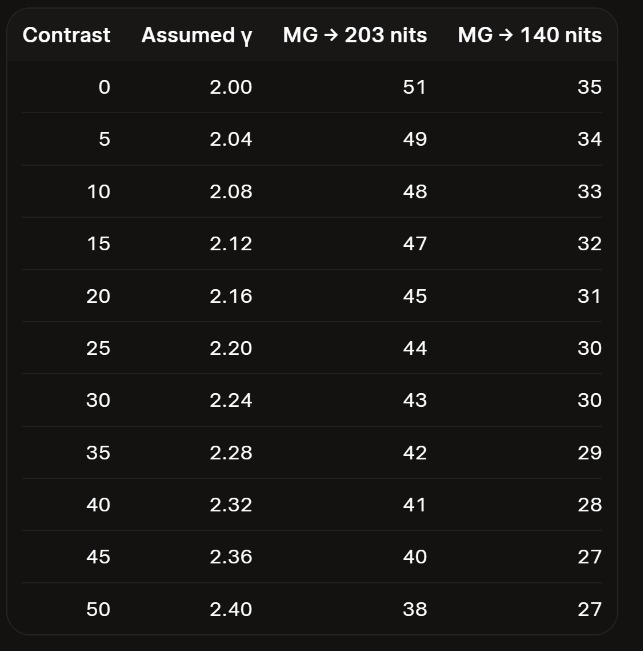
Because contrast effects mid tones, it also effects paper white. So if we increase it we have to lower the middle gray slider to offset the the mid tone increase. It can be calculated that an increase from 0 to +25 on the contrast slider can be offset by lowering the middle gray slider to 44.
In picture 2 we see what middle grey to set at different contrast values to get 203 nits or 140 nits paper white. 203 nits paper white is good for displays capable of a max nits of 800-1000 nits and 140 nits for display capable of lower than 800 nits. That's why I have chosen those two paper white values.
The numbers are calculated using the formula in picture 1, I have seen online. It's not an official Nvidia formula and I have not tested all these numbers in games. Use them as starting points when setting up the sliders.
Saturation
Adjusts color saturation only, with no effect on tone mapping. So that is how this slider must work.
RTX HDR is known for oversaturation at default settings. So be prepared to lower it when setting it up. Use can use Win Alt B to enable SDR in-game to see how saturation looks in SDR. Use SDR as a reference. Setup to something that is a tiny more saturated than SDR, because a brighter game must look a bit more saturated.
RTX HDR - How it "tone map" compared to native HDR
Kena Bridge of Spirits does not natively support HDR, so I have used the RenoDX HDR multi-game mod as a "reference", so we can see how RTX HDR's image looks compared to a "reference" HDR tone mapped image.
I matched peak brightness to 1000 nits. Be aware RenoDX can be setup to go much higher (up to 4000 nits).
Detail lost
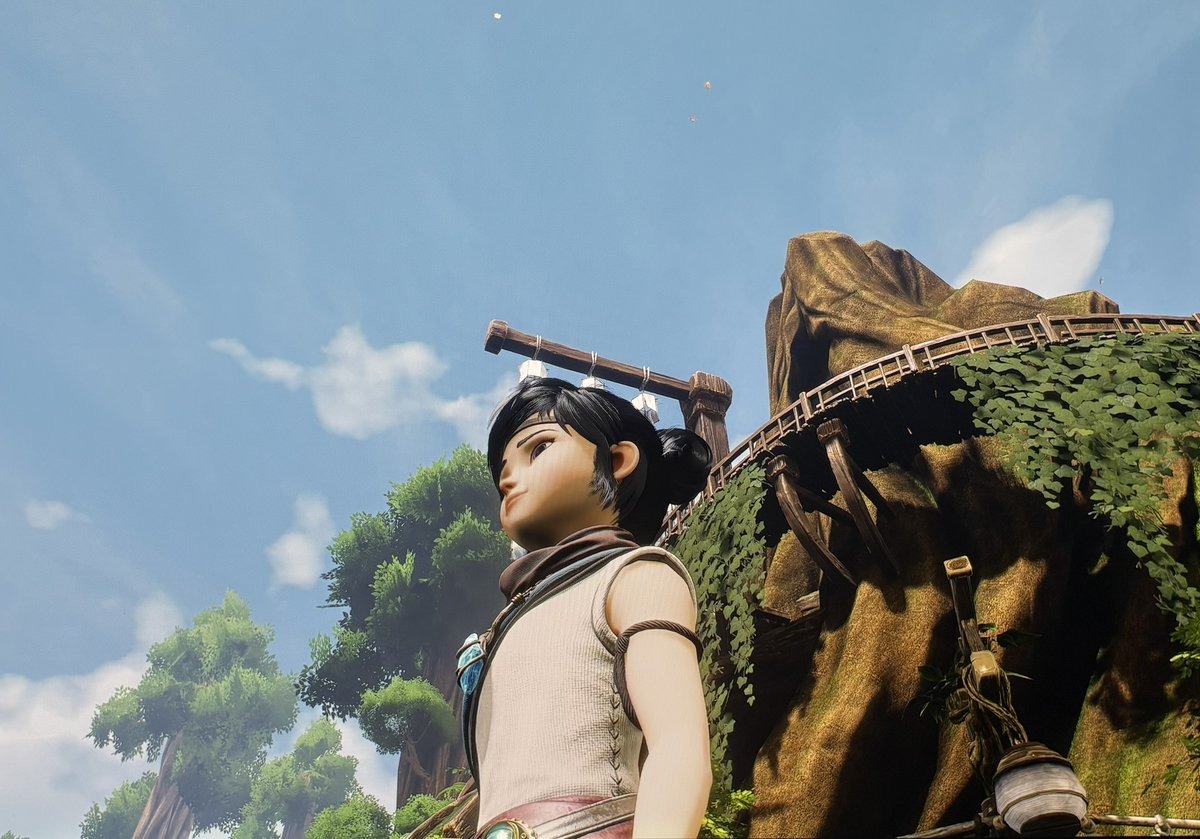
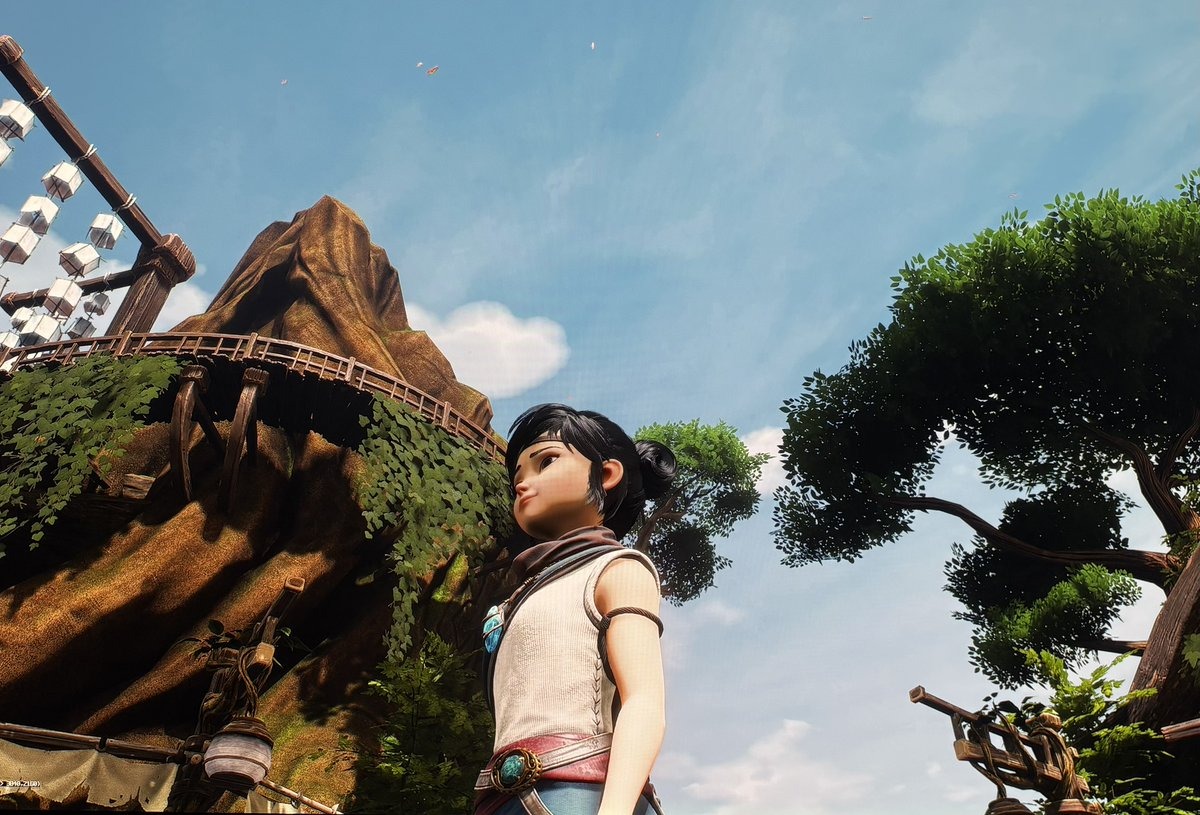
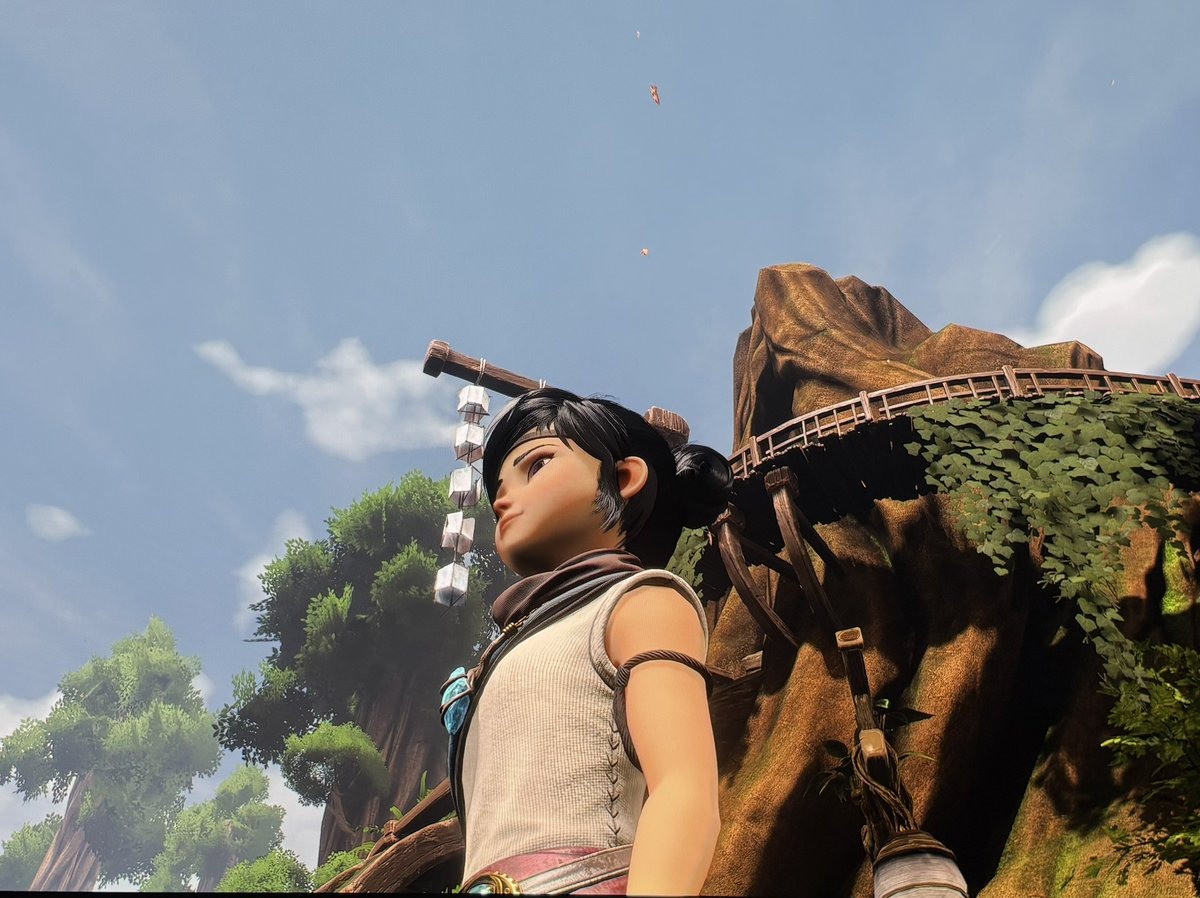
The pictures below show the Sun shining on Her arm and blouse. Picture 1 is SDR and here we see color/detail on Her arm is completely clipped away and color and detail on her blouse is reduced. That's what we typically see In SDR - smaller and bigger bright highlights get crushed, such as fine detail in explosions, skies, lights, or reflections just clips to flat white. No texture left.
RTX HDR increases the brightness of the already crushed SDR image, so no detail or color gets restored. This is what we see in picture 2.
RenoDX fully restores the color/detail in picture 3. RenoDX works inside the game's engine (pre-tonemapping), so it preserves the full dynamic range and restores those hidden details, that were clipped away in SDR.
"Tone mapping"
I started with trying to get RTX HDR as close as I could to RenoDX.
Settings to get RTX HDR closest to RenoDX in Kena:
- Contrast 25
- Saturation −50
- Middle Grey 45
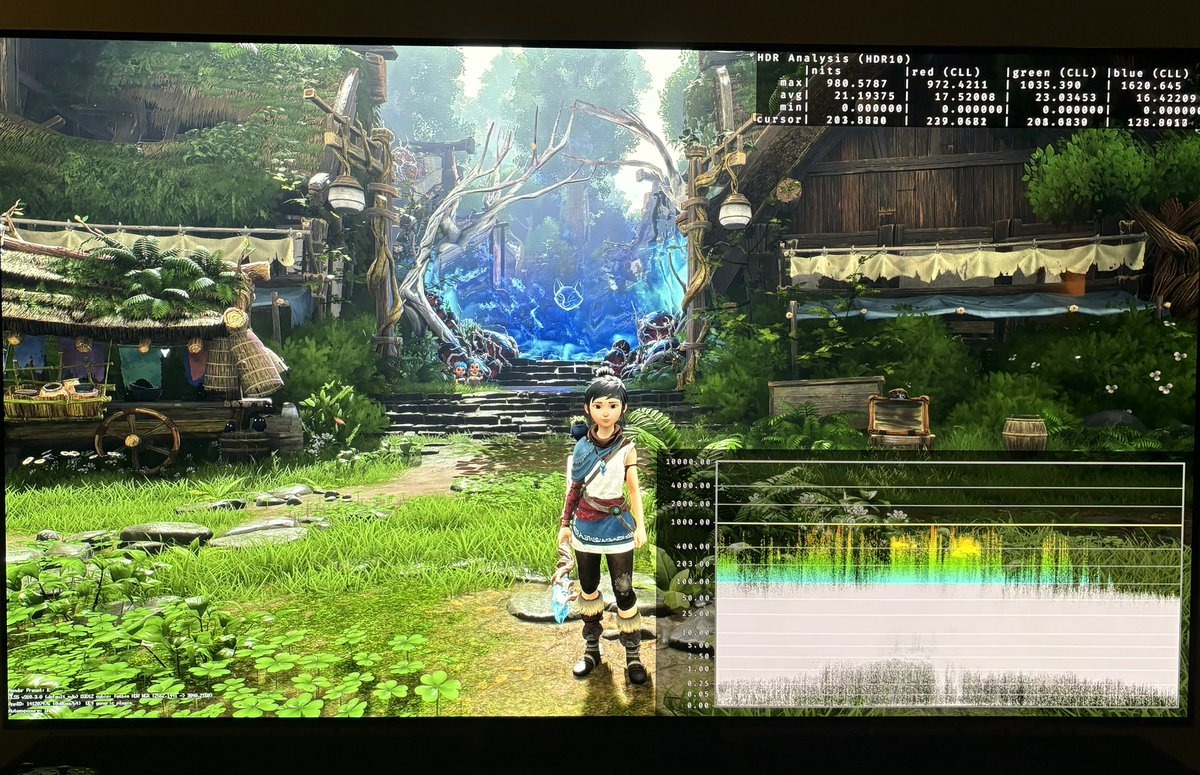
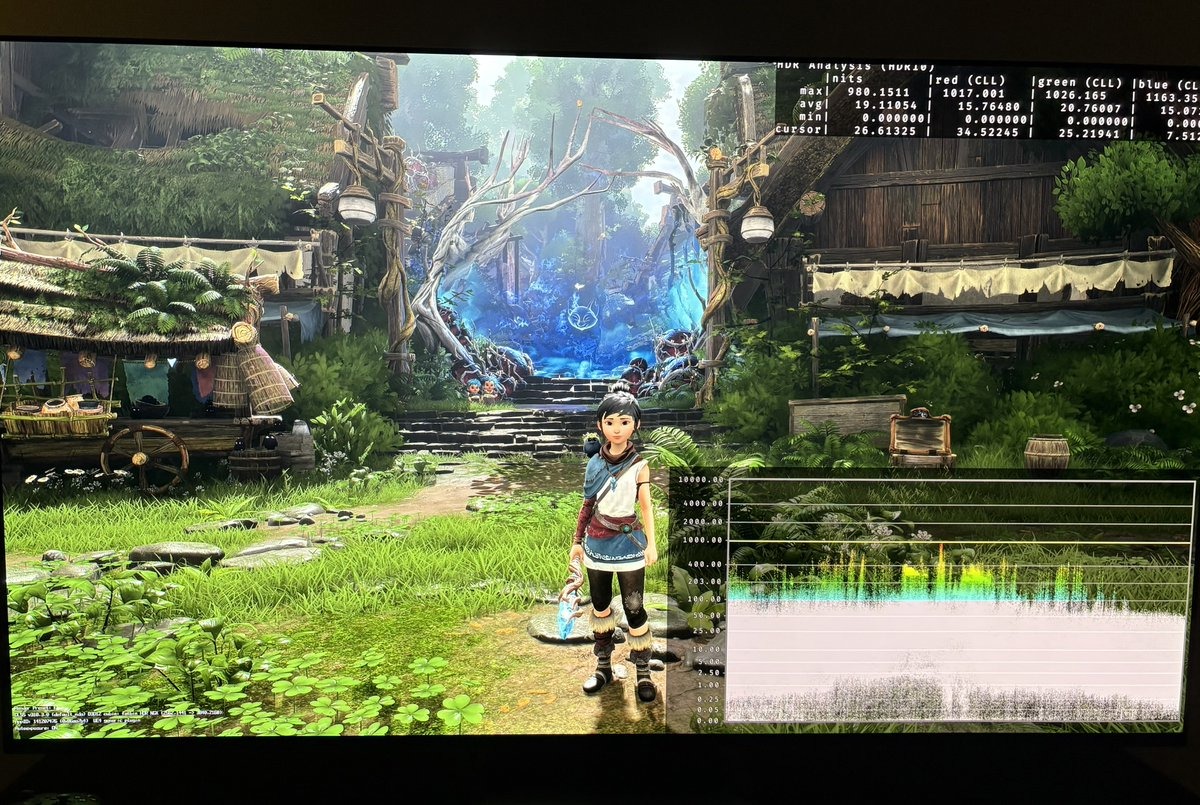
Picture 1 and 2 show that lower and upper shadows and up to midtones can be matched pretty closely.
Above the midtones is where they diverge. It's here RTX HDR's algorithm has the least real data and has to make its educated guess. We see how RTX pushes upper midtones and secondary highlights higher than RenoDX.
Be aware, that this is what I found in this game. It could be different in other games.
When to use RTX HDR
If a good RenoDX mod exists for a game, use it — it will not have SDR's clipping of detail and color in bright highlights, and it will do a more properly tone mapping of upper midtones and highlights (no guessing).
RTX HDR earns its place where RenoDX isn't an option: mainly online games using anti-cheat software, that does not allow the use of Reshade tools and RenoDX mods.
I do think RTX HDR does a genuinely good job of expanding a well-mastered SDR image. It looks much better than SDR on a good HDR capable display.