Setup HDR - Windows
This article will explain how to setup HDR in Windows 11 on PC.
I assume you are using your displays HGIG mode, or equivalent. That is what PC gamers should be using, in combination with adjusting HDR on the game level, using mods like RenoDX if needed.
Display Settings:
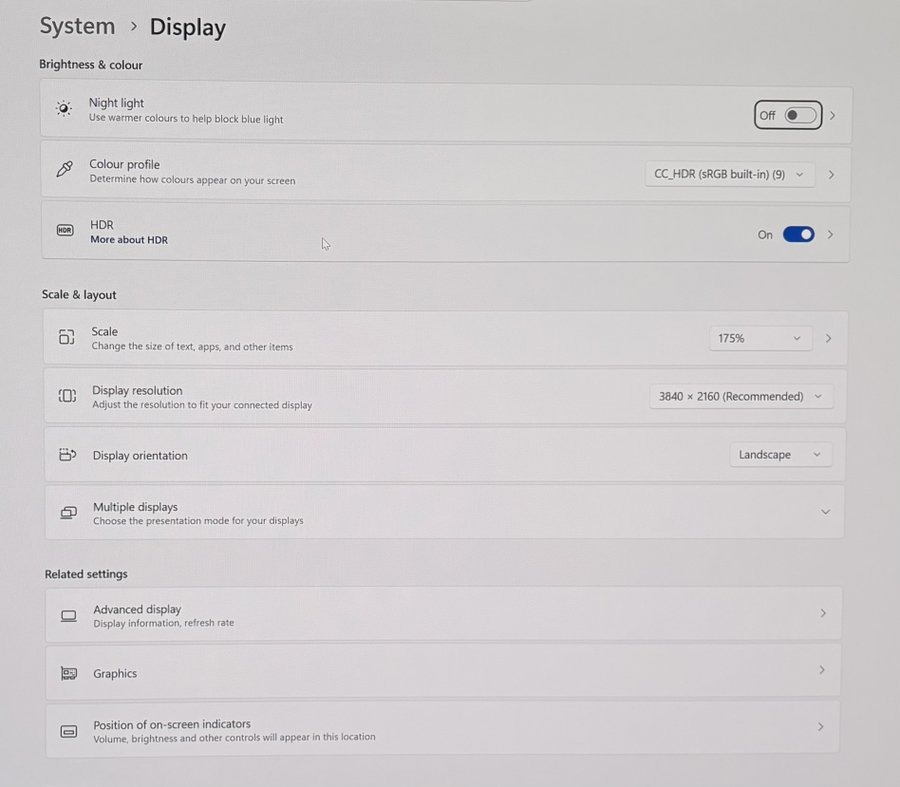
Go to Display Settings (picture 1) and turn on HDR.
Then go into HDR (picture 2).
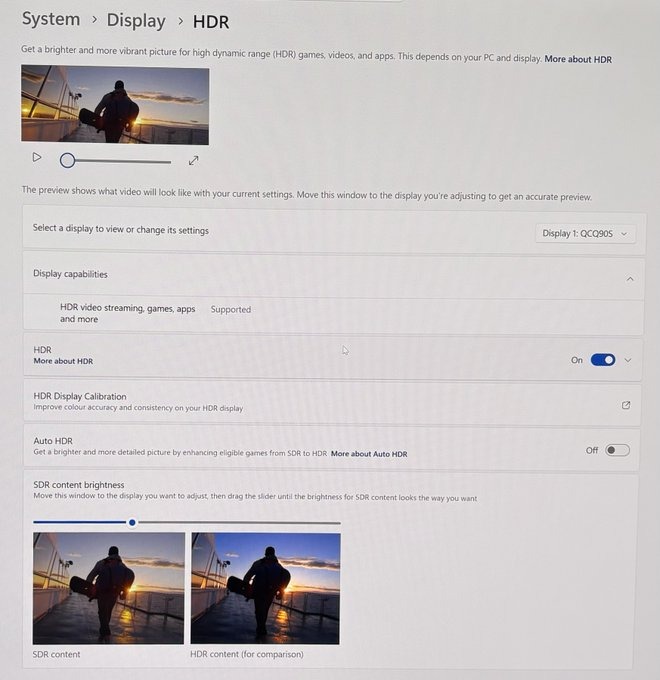
HDR Display Calibration:
Open HDR Display Calibration. It should lead you to Windows HDR Calibration App. Open the app.
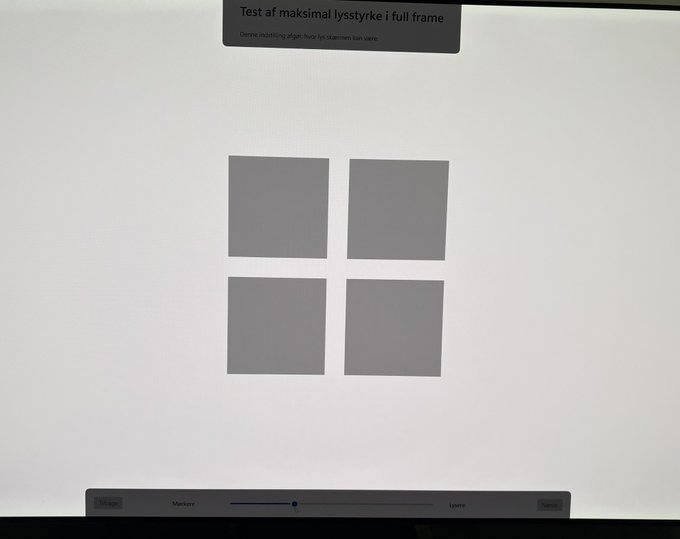
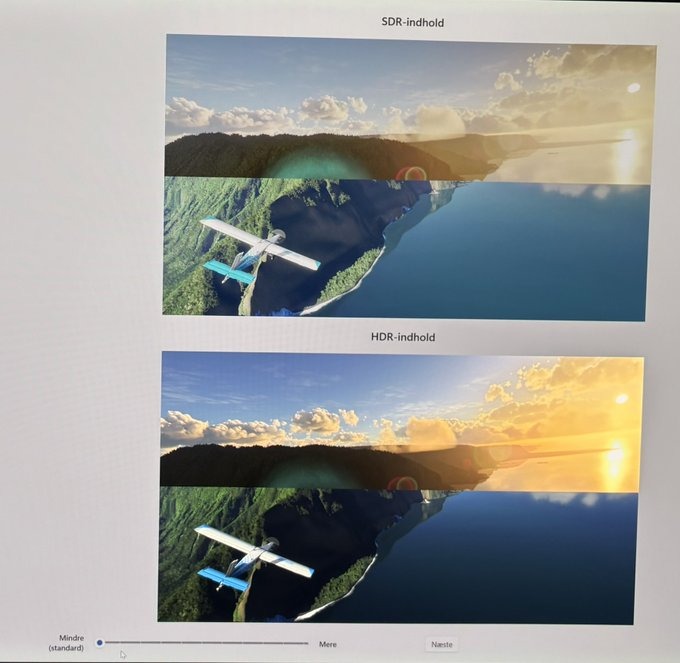
Below you see the app's four setup screens.
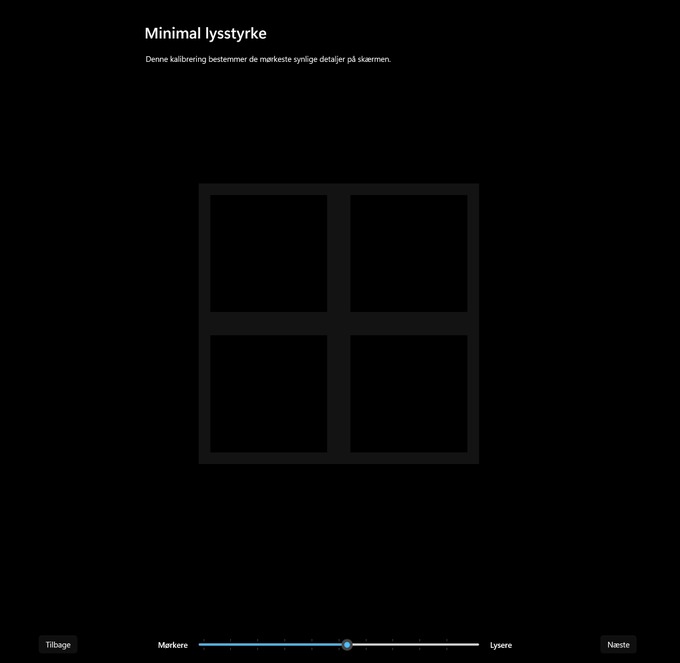
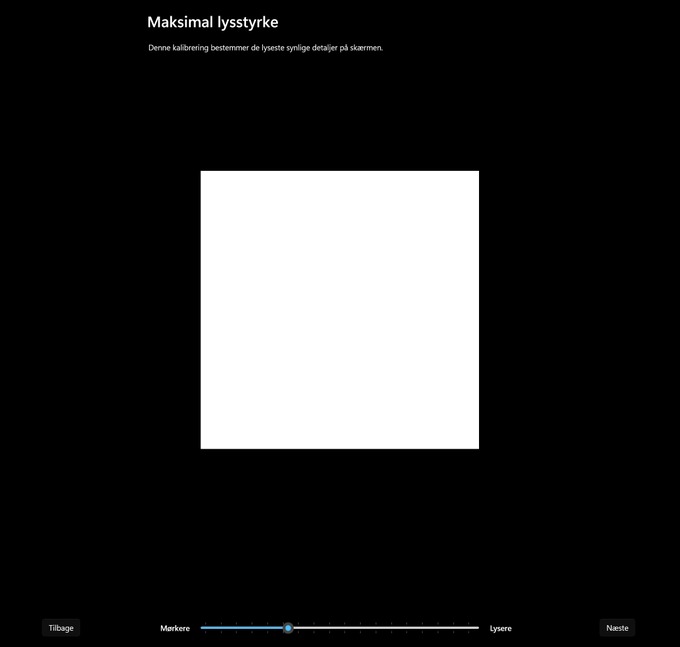
The first screen sets up black levels. Move that all the way to the left.
The second and third screen sets up peak brightness. Don't follow the instructions on the setup screens. Instead set the value on the slider to what your display can output maximum.
At the end of the article I show what a selected number of TVs can output maximum, according to Rtings.com.
Setting up peak brightness on gaming monitors can be more tricky. You can find more guidance in my OLED gaming monitors article.
The last setup screen sets up saturation. Set that to its standard position, all the way to the left.
Auto HDR:
Turn off Auto HDR. It's important to do that, so Windows doesn't use it automatically in some games.
SDR Content Brightness:
This slider controls how bright SDR content (desktop, browsers, Youtube etc.) appears when HDR mode is enabled in Windows.
The table below shows the nits that Windows will output in SDR content at any given value on the slider.
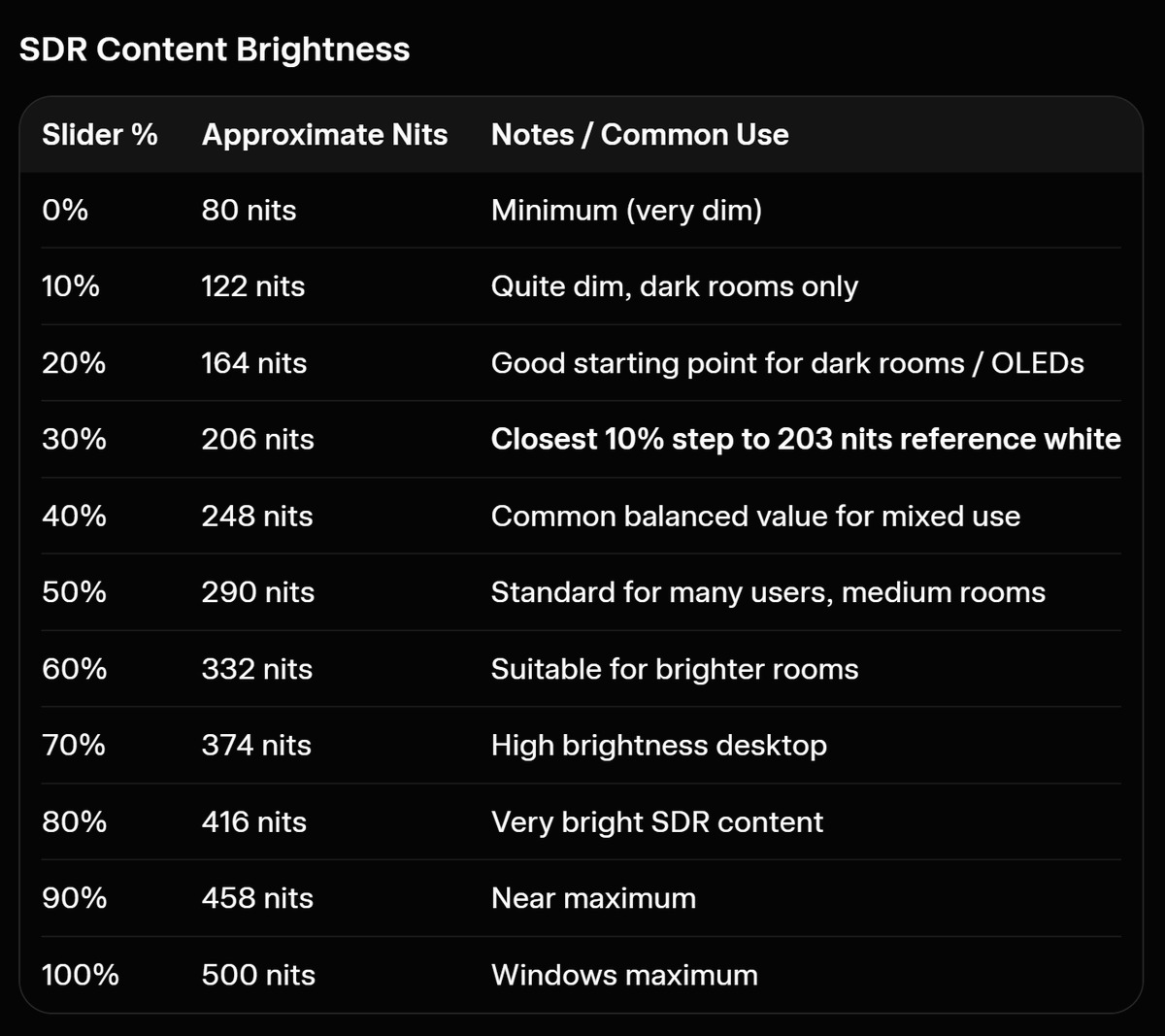
If you want the closest value for diffuse white or reference white of 203 nits, then set to 31%. It's based on community testing and real-world usage. The numbers in the table below is calculated approximations.
I personally set it to 30 myself. Its because I use 30 in my color profile that fixes the Windows gamma bug that raises shadows in many games (see my article about Auto HDR, that also explains how to fix the Windows gamma bug).
Maximum brightness output (TVs)
Maximum brightness, a selected numbers of OLED TVs, can output in their game picture modes. The numbers are from Rtings.com
For Samsung models, it's always for the QD-OLED panel, unless stated otherwise.
LG C2 42" - 700 nits
LG C1 65" - 730 nits
LG C4 42" - 740 nits
LG C1 48" - 790 nits
LG CX, C2, C3 (55"+) - 800 nits
Samsung s95b - 880 nits
LG C4 65" - 920 nits
Sony BRAVIA 8 - 920 nits
Samsung s90c - 1000 nits
Samsung s95c, s90d - 1200 nits
LG C5 65" - 1280 nits
Sony A95L OLED - 1430 nits
LG C6 65" - 1470 nits
Samsung s90h (WOLED) - 1540 nits
Samsung s95d - 1650 nits
Sony BRAVIA 8 II - 1860 nits
LG G5 - 2100 nits
Samsung s95f - 2100 nits
LG G6 - 2700 nits
Samsung s95h - 2900 nits