Wolverine
HDR analysis and setup guide for Wolverine on PS5 and PS5 Pro.
HDR looks great and it's easy to setup.
It's much the same HDR implementation as in Spider-man 2. Both games use the same game engine, have the same in-game HDR sliders and output the same HDR. The only change I see is that in Wolverine the brightness slider no longer can increase peak brightness above what we have set it too.
Reg2020 color space:
According to Mike Fitzgerald at Insomniac Games, the game uses Reg.2020 color space. I have not tested for that. What he has said in an X post:
Under the hood, this is the first time our rendering is done in full Rec. 2020 color space rather than scaling uniformly into it from Rec. 709. It’s real color dork stuff, and uncommon in games, but it means your HDR TV will look incredible if calibrated right.
In-game sliders:
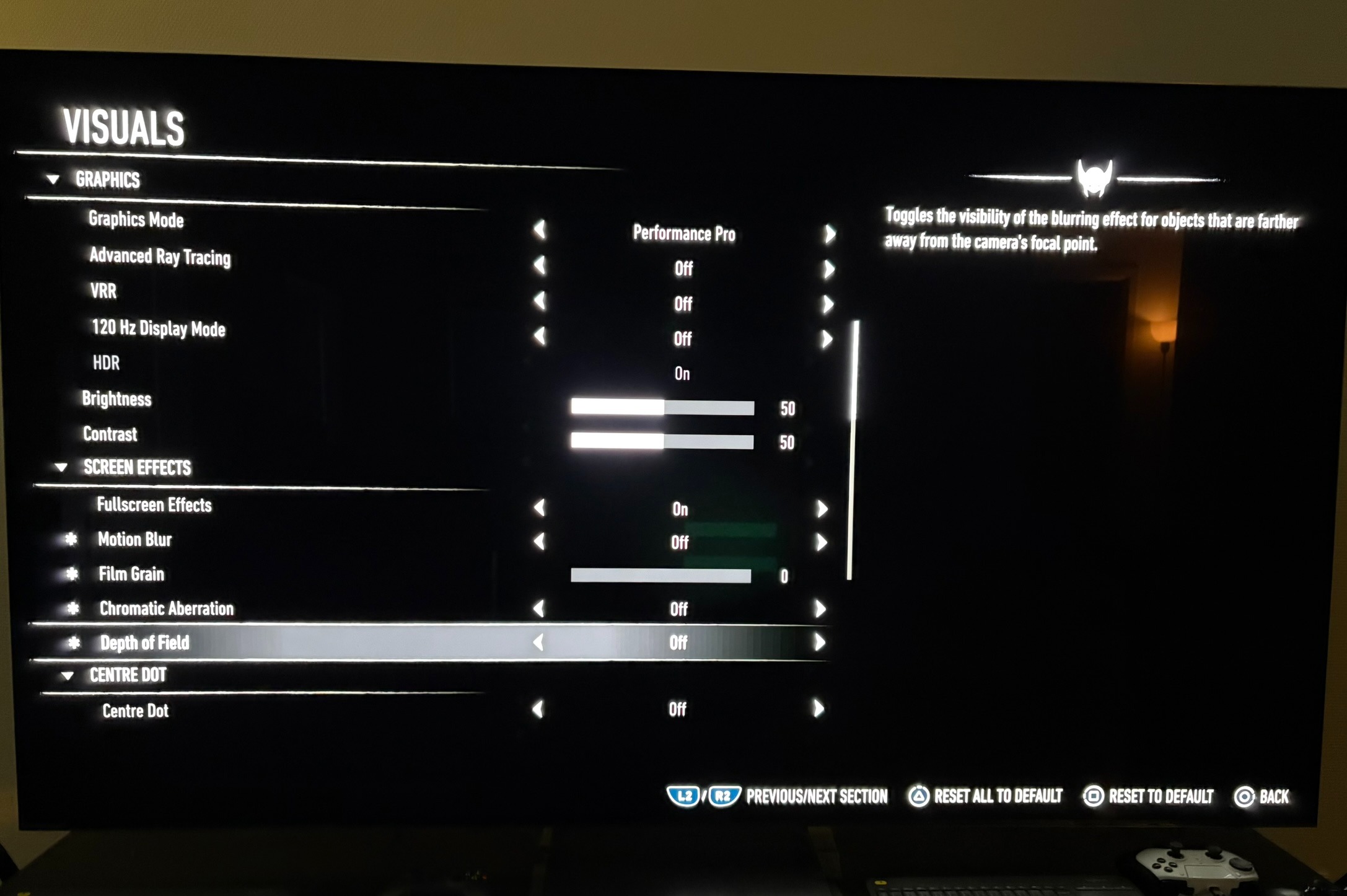
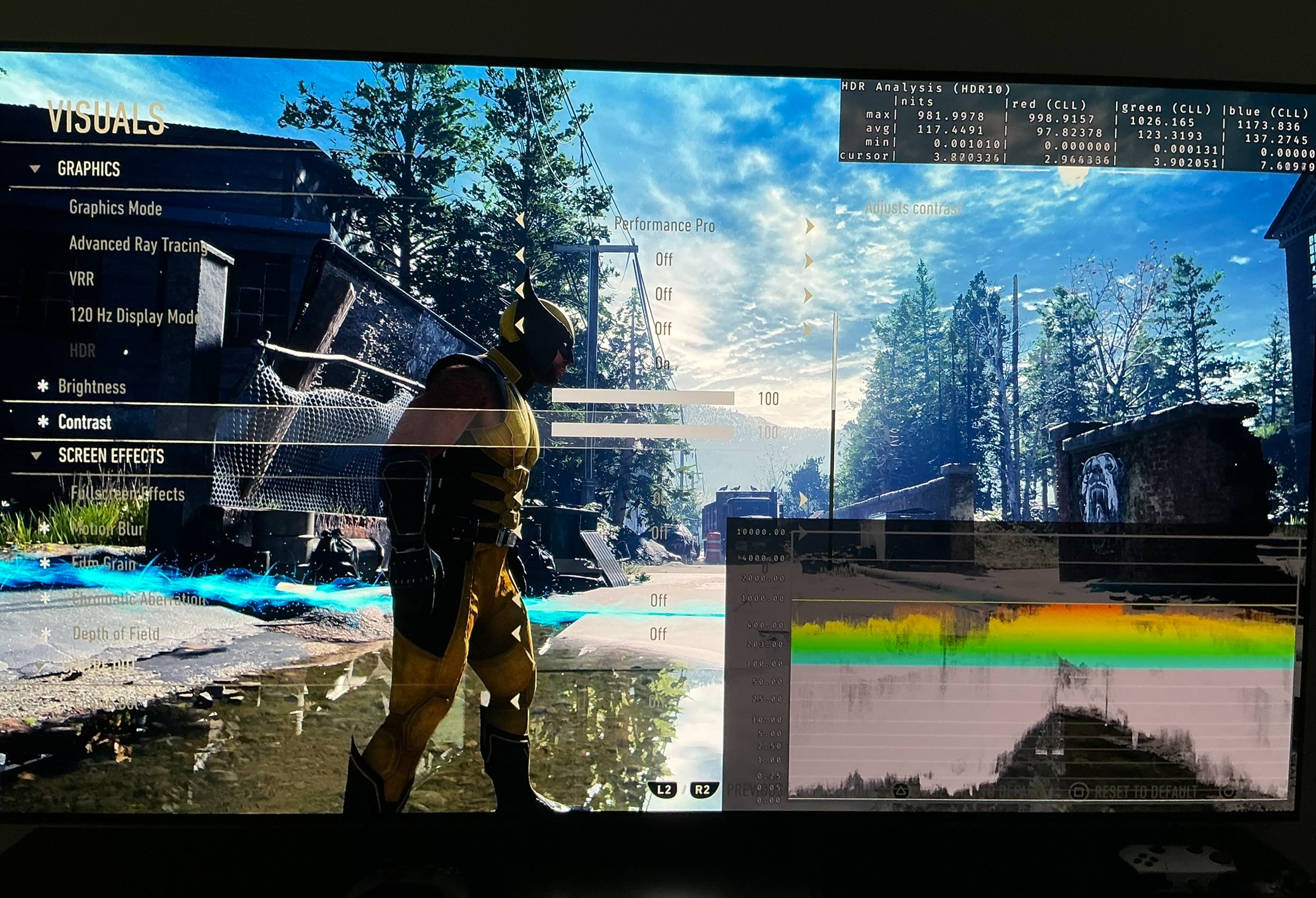
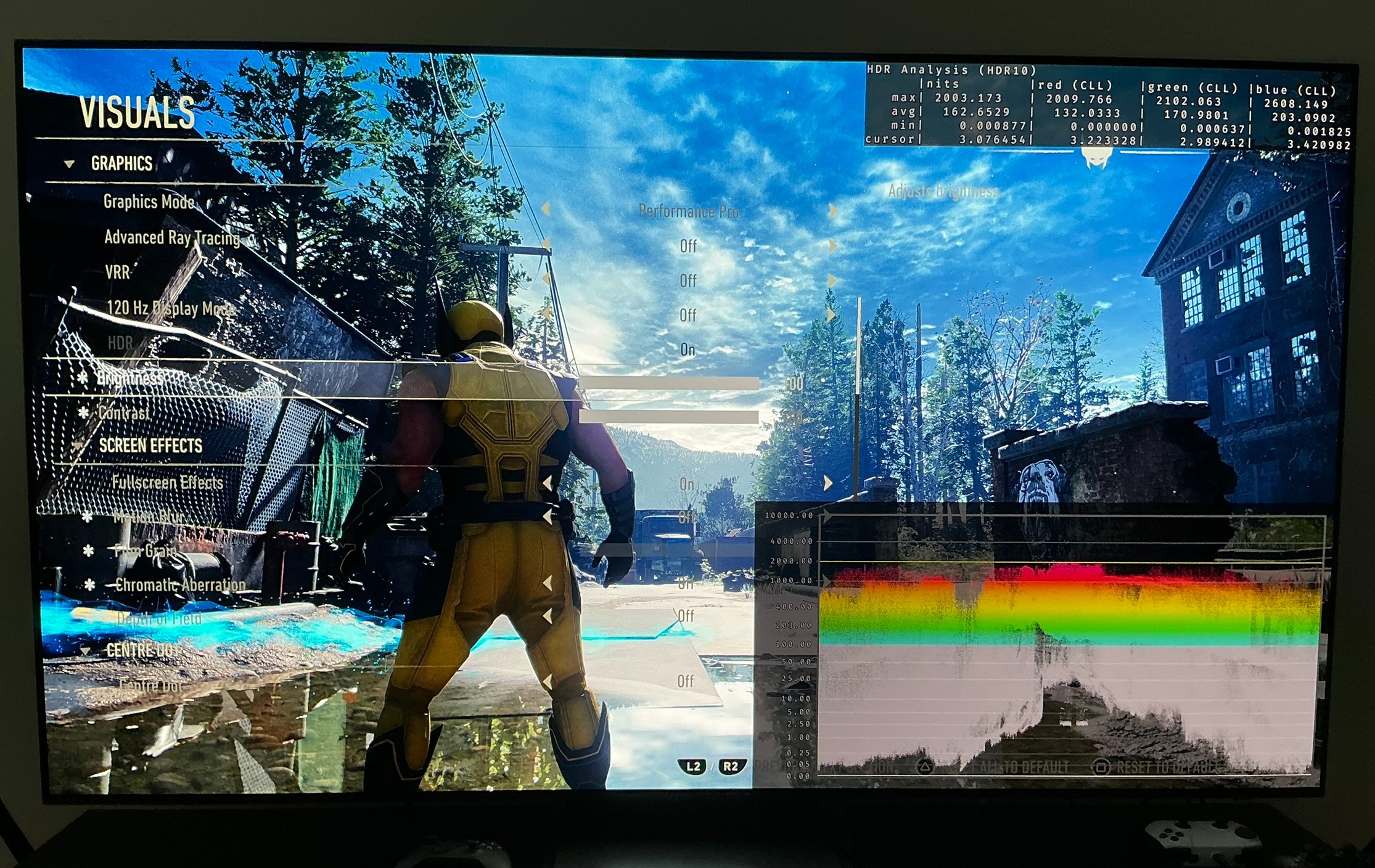
In picture 1 we see the game has two sliders. A brightness slider and a contrast slider. I will explain them below.
Remember to turn off chromatic aberration, as we see in picture 1. It ruins fine detail.
Peak Brightness:
Peak brightness is automatically setup based on PS5's HDR system settings. I have tested that peak brightness can go up to at least 2000 nits on PS5. The game outputs what you setup in it's brightest highlights.
Setup to what your display can maximum output. See my article about setting up peak brightness on PS5 to know more.
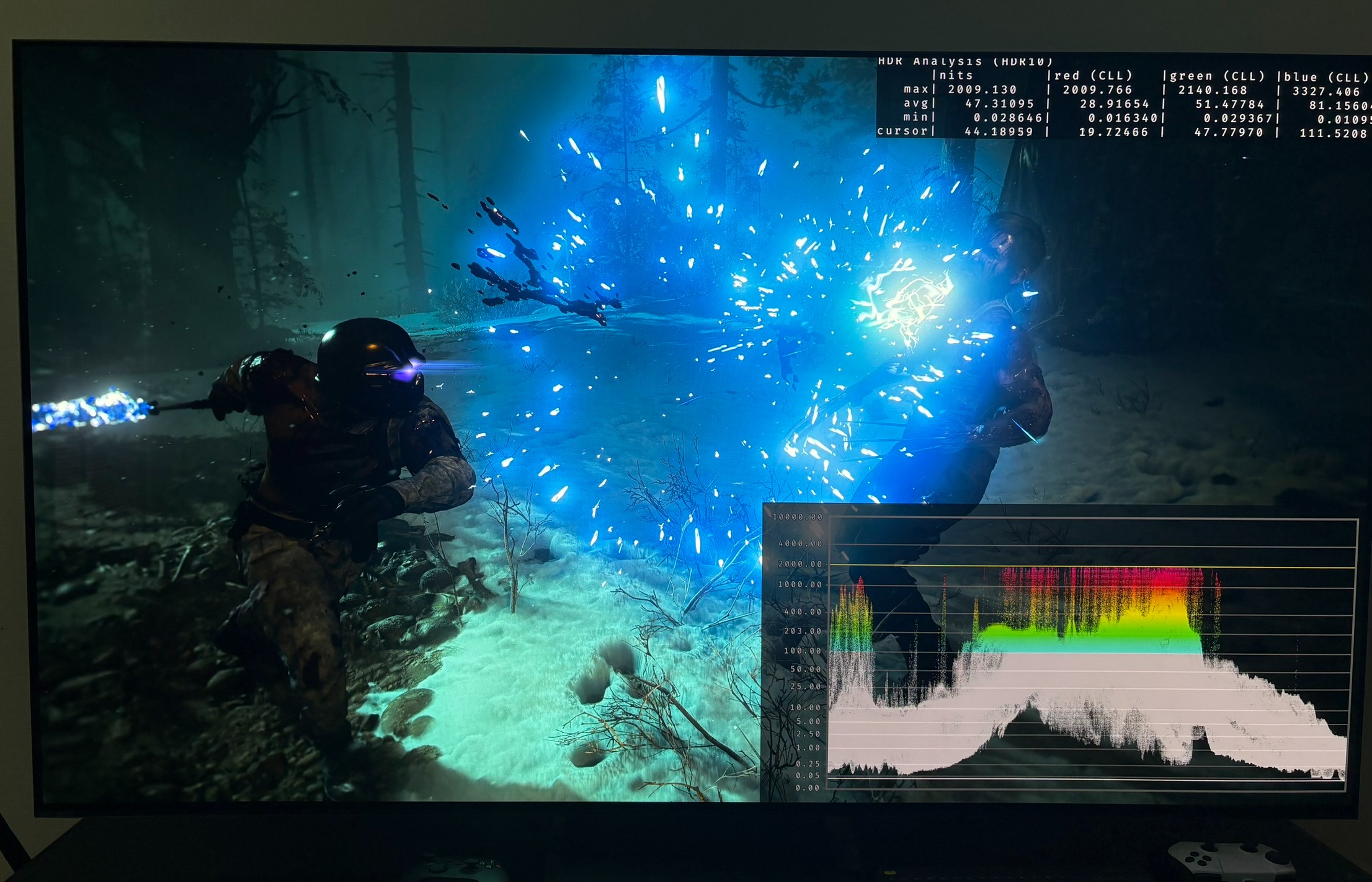
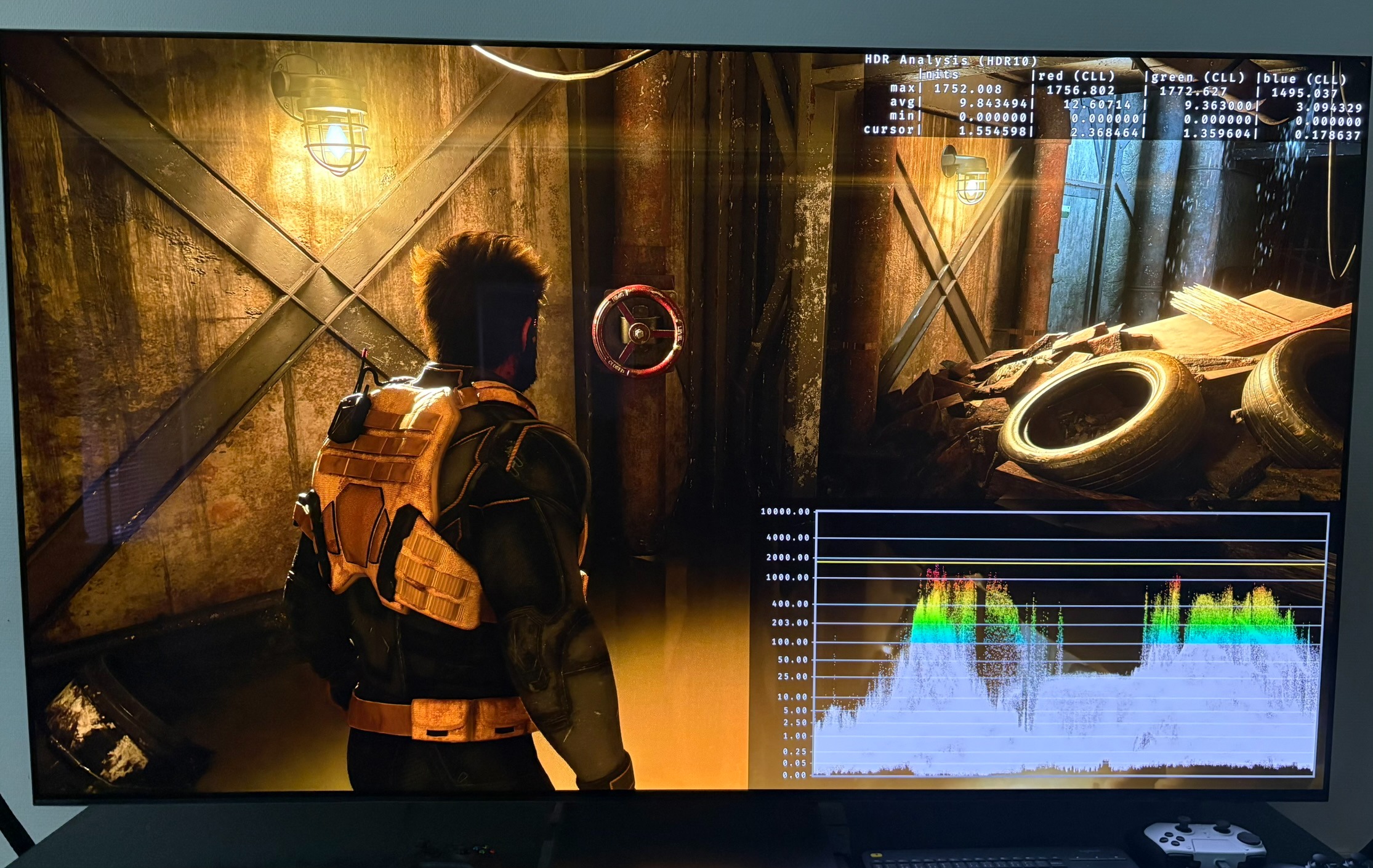
Picture 2 shows 2000 nits peak brightness in the particle effects on my 2000 nits TV.
Paper White / mid tones:
The game adjust mid tones, or overall brightness of the game, as we make changes to max luminance.
It's difficult for me to indirectly estimate what Paper White is precisely, but it seam to be around the levels we want for different brightness levels. So around 203 nits for 1000 nits peak brightness etc.
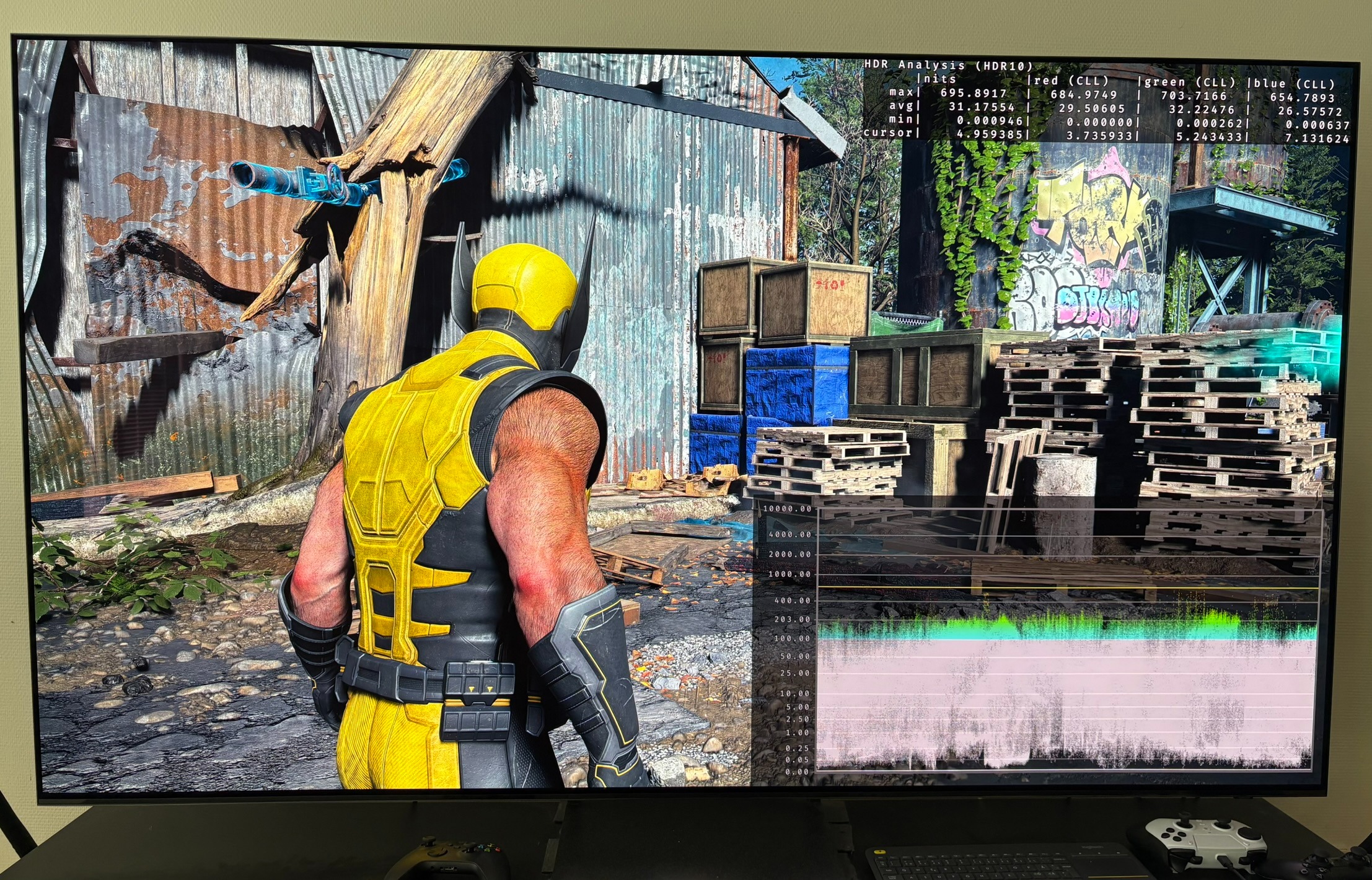
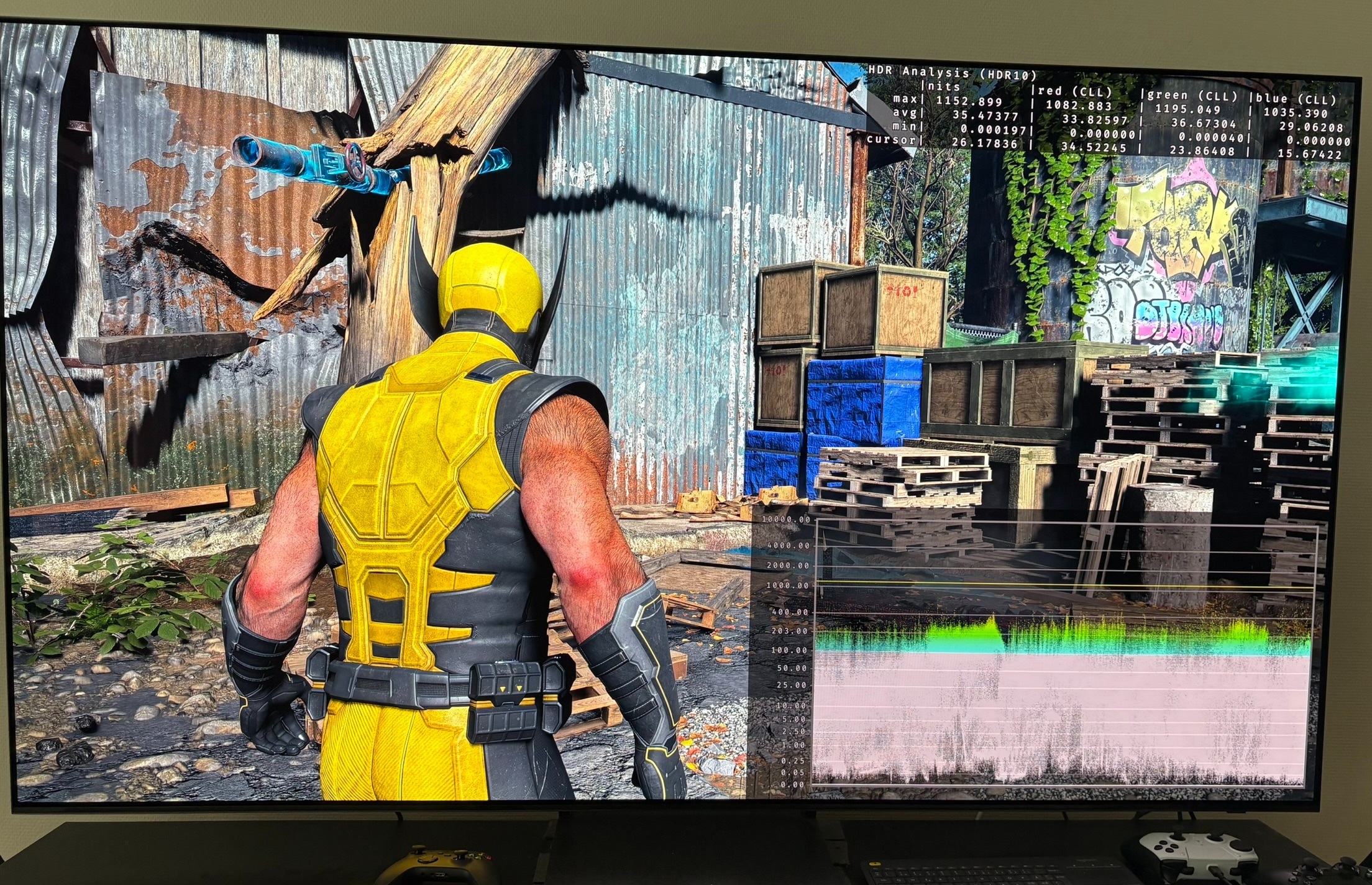
Picture 3 and 4 is using 1000 nits and 2000 nits peak brightness. We see the game increases mid tones (paper white) as peak brightness increases.
Brightness slider:
The brightness slider changes upper shadows, mid tones and pushes secondary highlights towards peak with a slight roll off before peak brightness. That how such a slider must work. It does not increase the peak brightness above what we have set it too, as the slider did in Spider-man 2. Decreasing the slider will decrease secondary highlights. I could not confirm if the brightest highlights also decreases when lowering the brightness slider.
I don't recommend adjusting it if you game in a dark room, because i find upper shadows and mid tone brightness generally fine. And mid tones are adjusted automatically based on peak brightness by the game.
If you game in a bright room, you can use the slider to give you more brightness in the entire image.
Picture 5 and 6 show that the brightness and contrast slider do not increase peak brightness above 1000 and 2000 nits, that peak brightness is set too.
Contrast slider:
It's a typical contrast slider. Increasing it increased upper mid tones and lowers shadows, leading to increased contrast. I don't see a need for changing it because I find contrast, shadows and black levels detailed and dark.
In picture 5 we see great black levels.
Summarized setup recommendation :
- Setup peak brightness to the max your display can output in PS5s HDR system settings
- Don't change the brightness slider or contrast slider