A Plague Tale: Requiem
HDR analysis and setup guide for A Plague Tale Requiem on PC, SS/SX and PS5.
I have tested HDR on PC and PS5. It's the same HDR implementation on PC and PS5, and it's most likely the same on SX too.
The good:
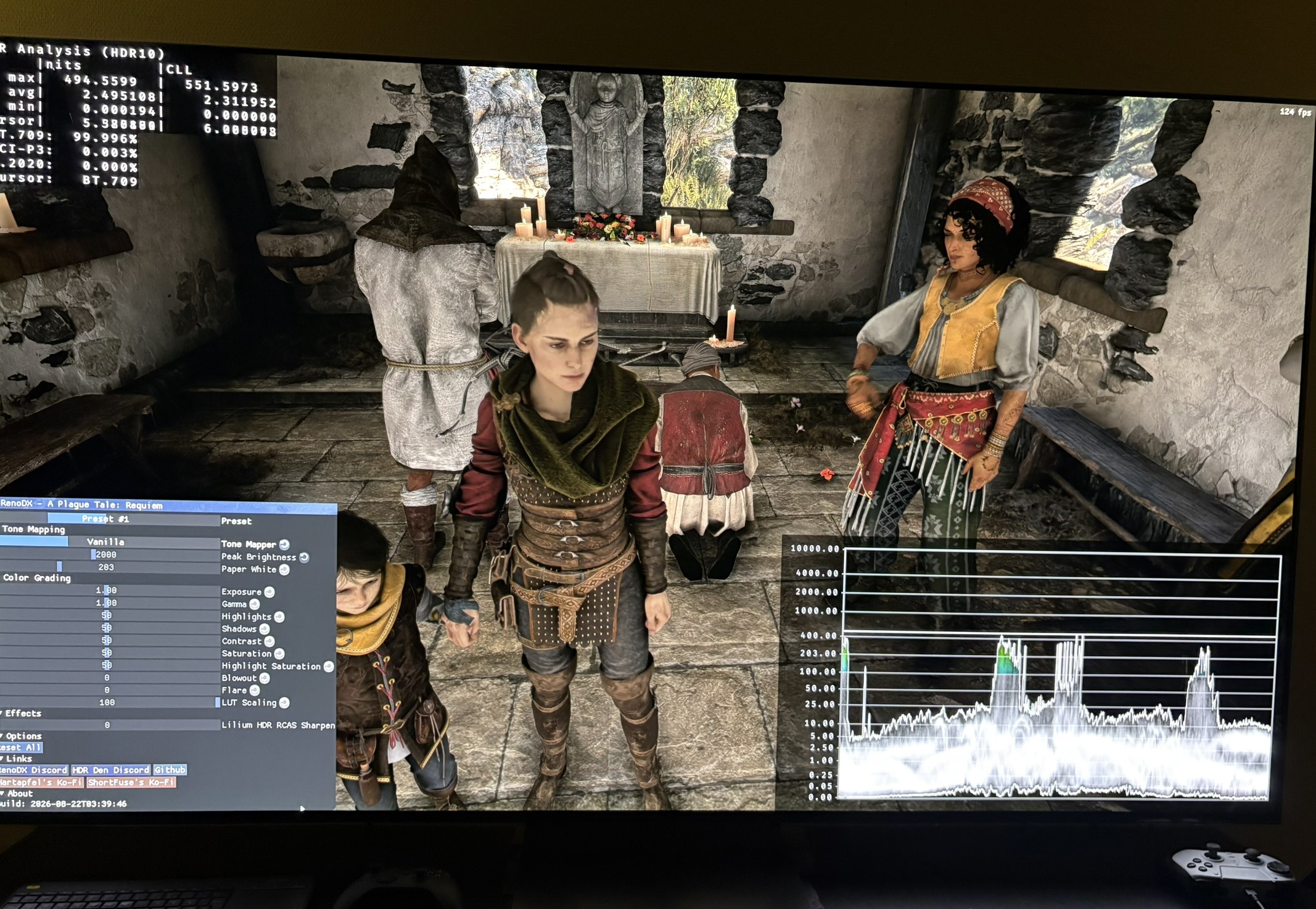
- It's impactful HDR with good black levels and shadow detail. Picture one shows good black levels and shadow detail.
- HDR peak brightness is automatically setup based on what we have setup in Windows calibration app or consoles HDR system settings.
- The game actually outputs that peak brightness and it goes up to at least 2000 nits. I only tested up to 2000 nits.
- We have a good brightness slider for changing the overall brightness of the game.
The bad:
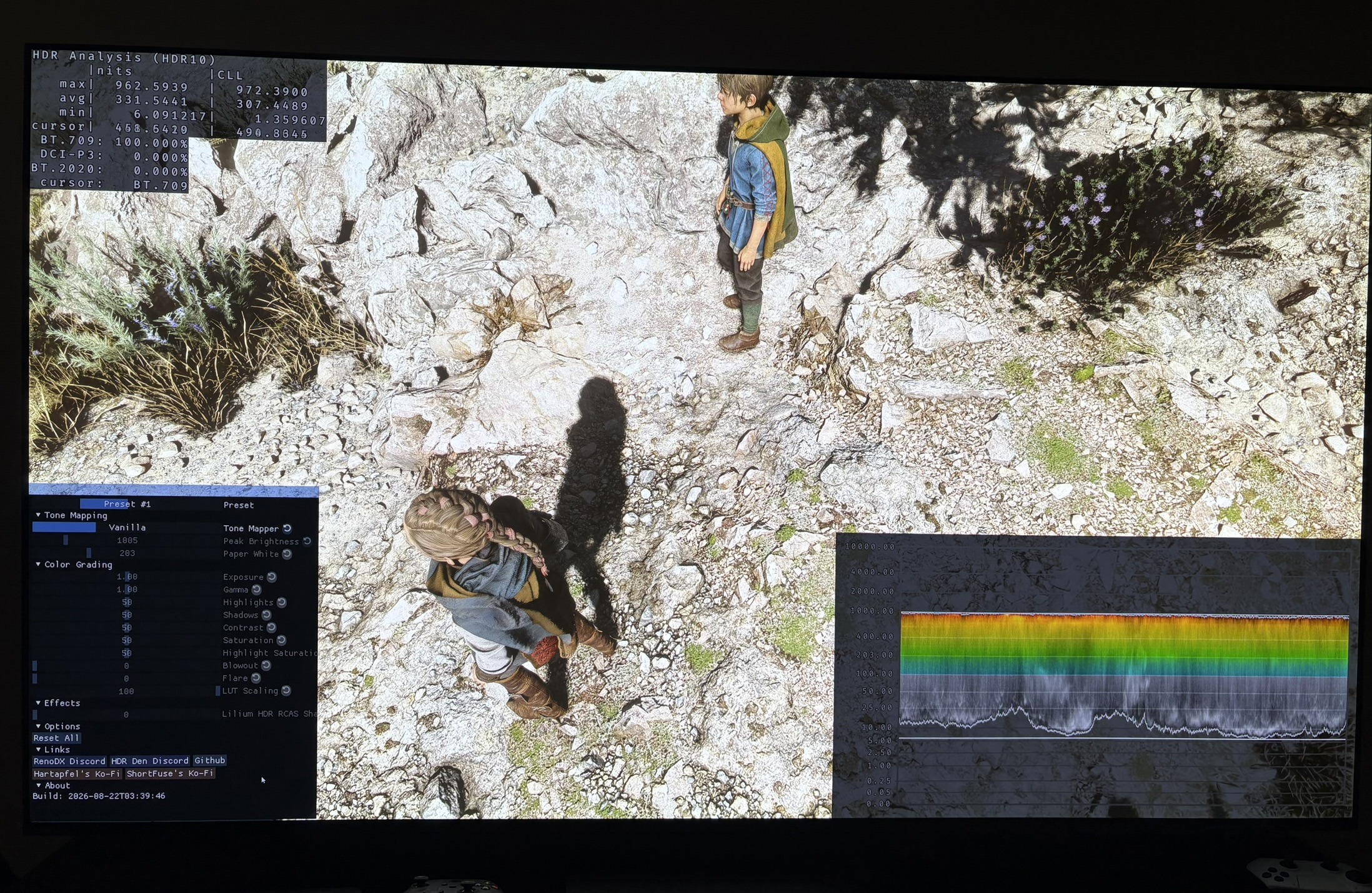
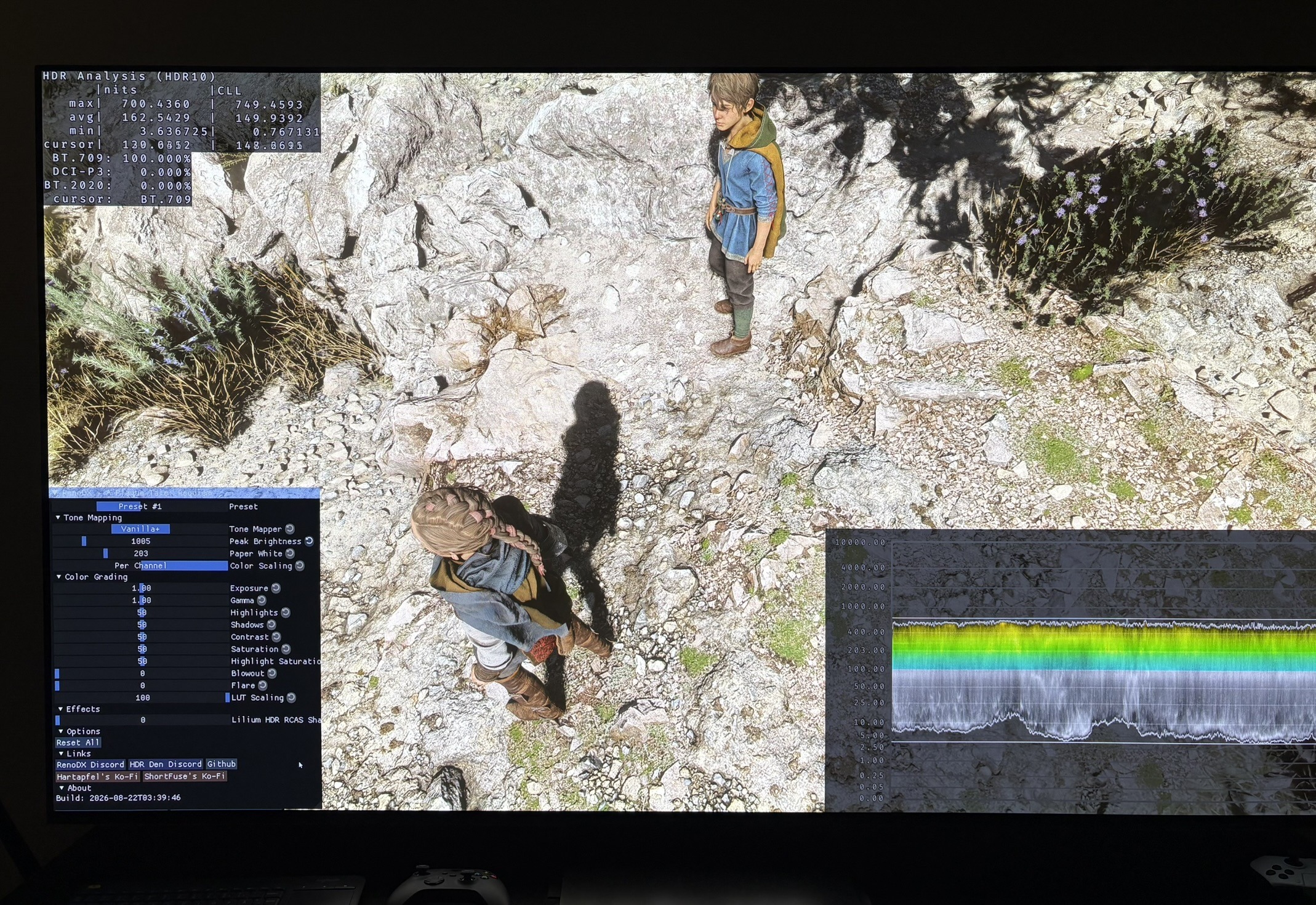
- The biggest issue I have is that upper midtones and secondary highlights are too bright. In picture 2 we see 331 nits average picture brightness and 1000 nits highlights, when looking at the ground at default HDR settings. That's way too high average brightness for a 1000 nits display and it's also way too high brightness for looking at ground assets like these. In picture 3 we see the RenoDX HDR mod having only 162 average picture brightness and 500-600 nits peak on those ground assets a 203 nits paper white and 1000 nits peak. RenoDX may even be a bit too high, but it's more in line with what we expect at 203 nits paper white in an image with some shadows. This is an extreme case, and it's of course dependent on the scene.
- The default HDR settings should be at the standard 203 nits paper white. Default settings on the brightness slider looks more like 350 nits paper white.
- There are minor clipping of detail in the brightest highlights.
HDR setup:
This is the approximate paper white output at different settings on the brightness slider. 0 is default setting at the middle of the slider.
The numbers I have estimated by comparing the overall brightness level to RenoDX.
-5= around 120 nits paper white
-4= around 160 nits
-3 = around 200 nits paper white
-2=230 nits
-1=280 nits
0 (default)=350 nits
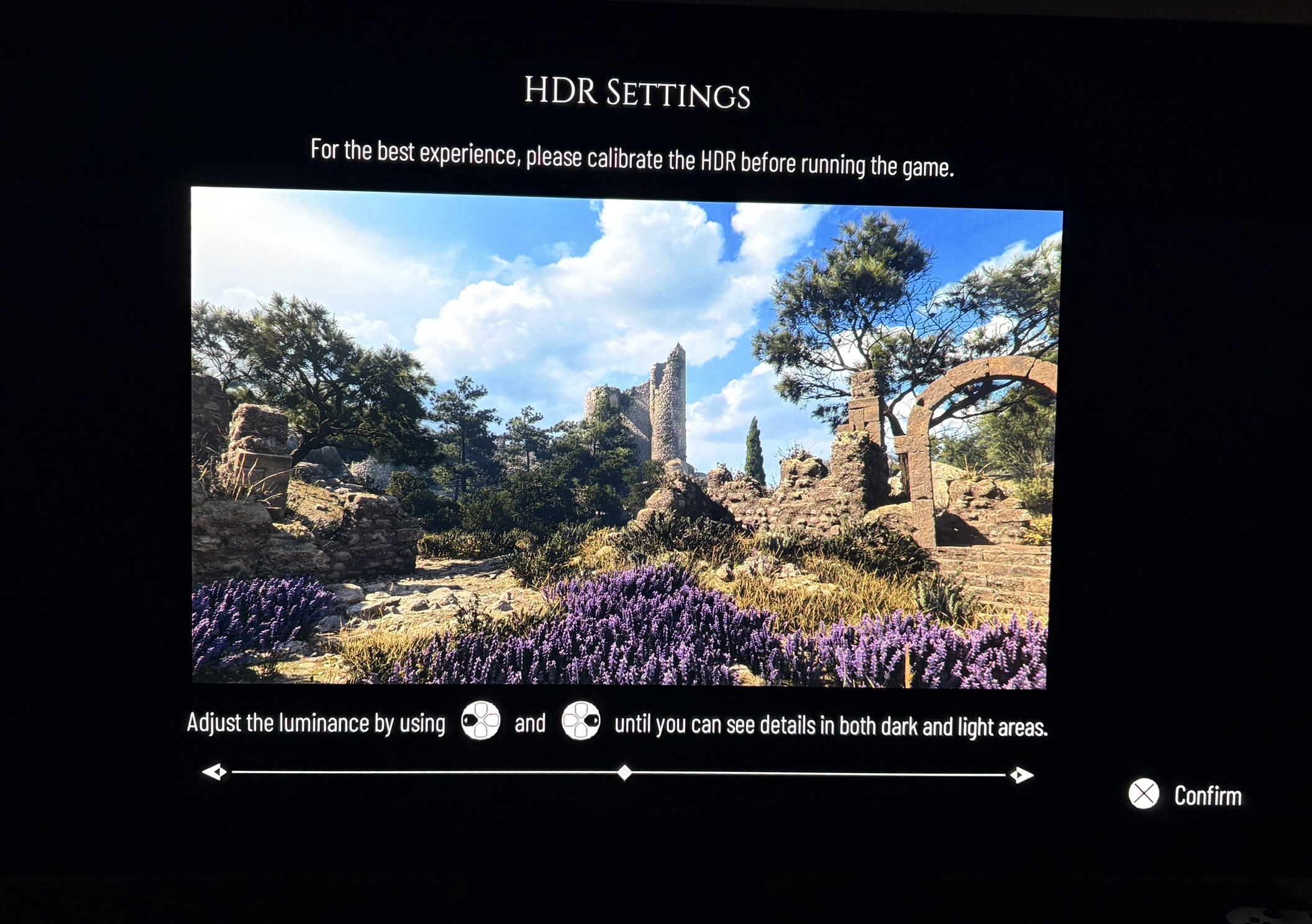
I recommend the following settings on the brightness slider in picture 4. They are meant as a starting point in a dark room. Adjust further to personal preference and how bright your room is.
- 1800-2500 nits display (-1,0)
- 1300-1700 nits display (-2,-1)
- 800-1200 nits display (-3)
- 500-700 nits display (-4)
- 300-400 nits display (-5)
The settings above can't fix the too bright upper midtones and secondary highlights. It will pull them down somewhat without getting a too dim overall brightness.
RenoDX HDR mod:
There is no official RenoDX HDR mod on the RenoDX Github mod page. The mod is, as I understand it, a work in progress, and it's only available on the RenoDX Discord server. I could not get it to work with ray tracing.