Baldur's Gate 3
HDR analysis Baldur’s Gate 3 on PC and PS5 Pro.
It’s the same HDR implementation on PC and PS5 (almost).
In-game settings:
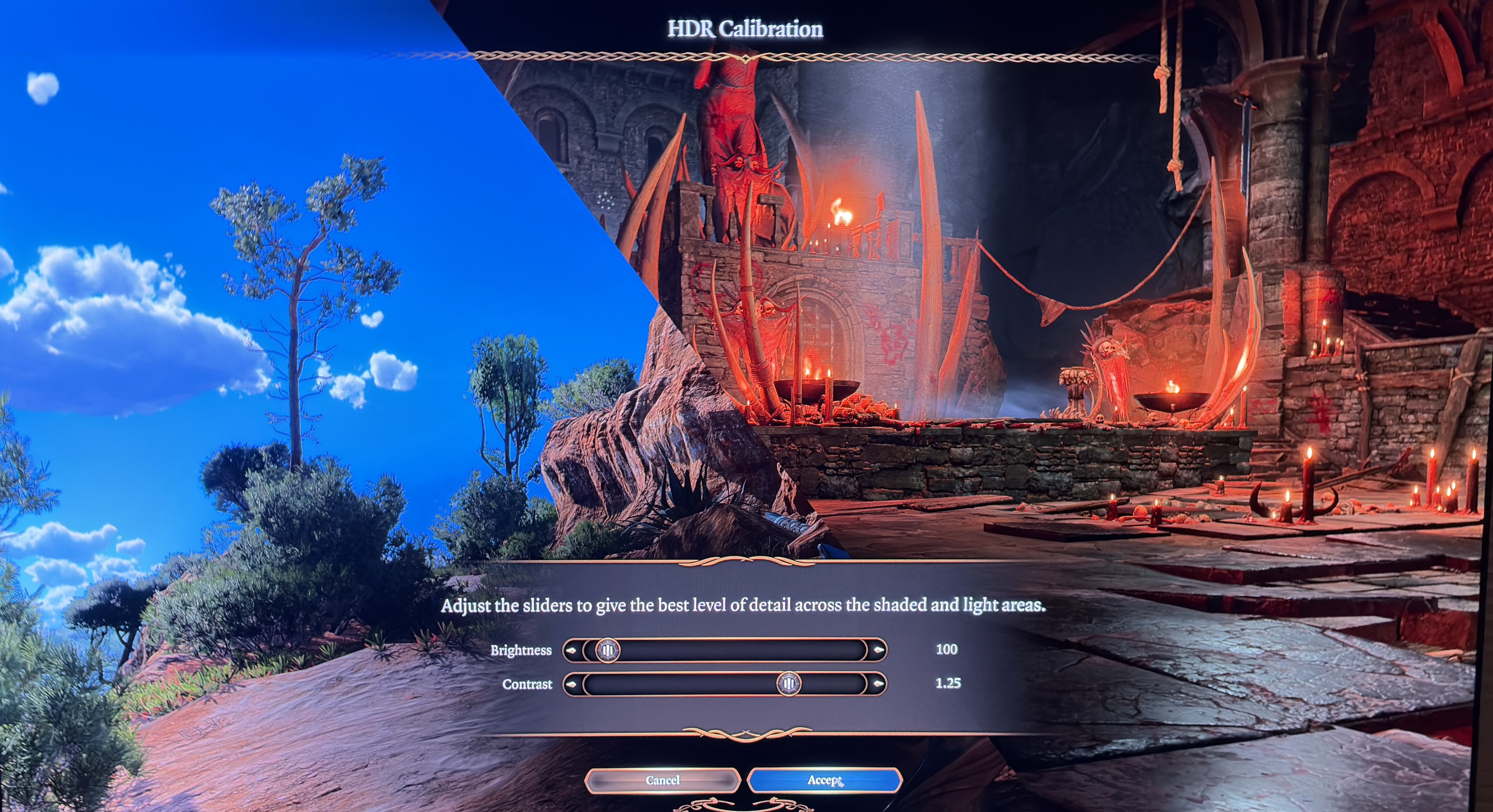
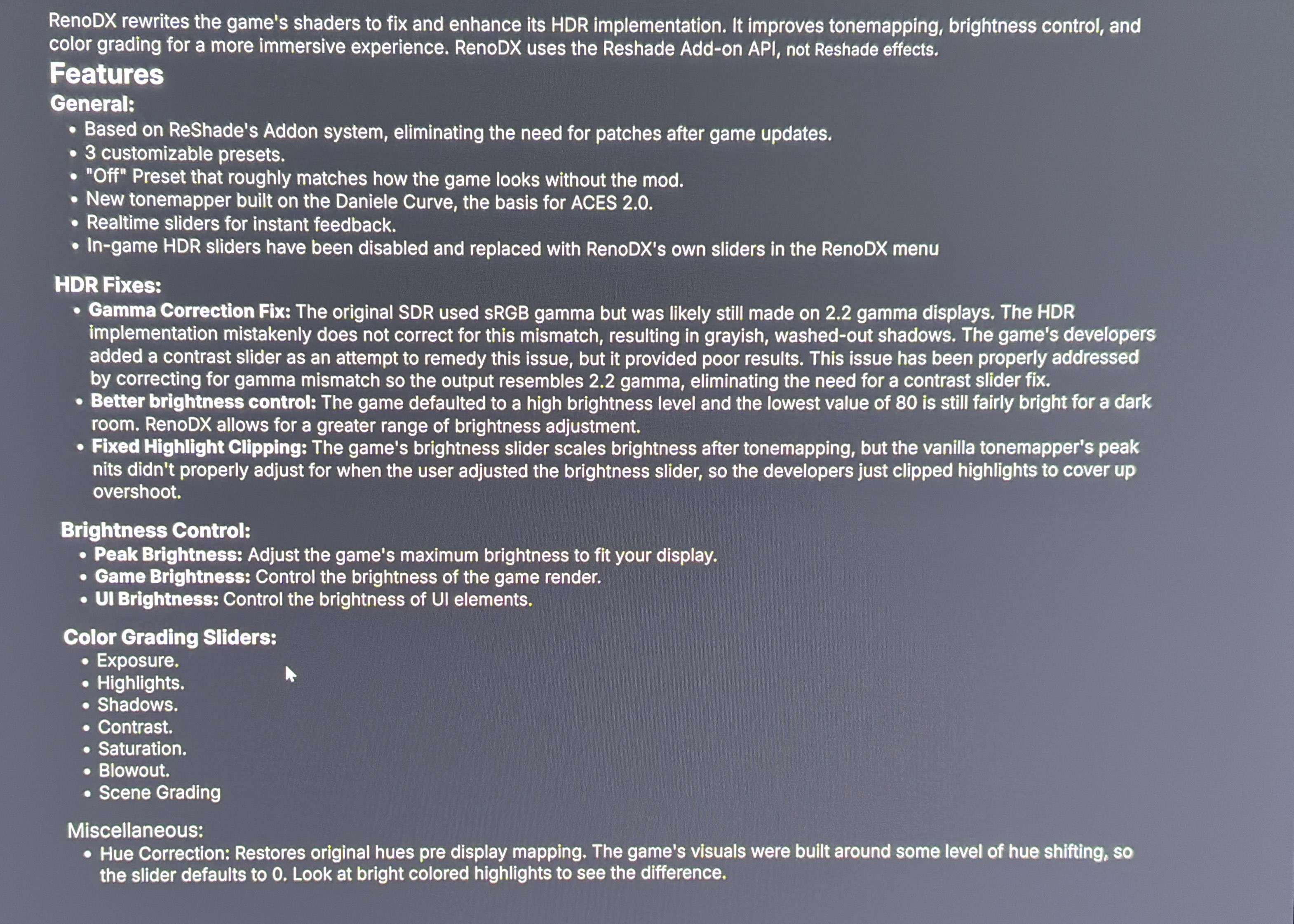
In picture 2 we can see the in-game settings on PC and PS5. The brightness slider increases paper white (game brightness), but also increases max luminance a bit.
The contrast slider lowers shadows and the black level floor and increases upper midtones and peak brightness.
Max Luminance:
On PS5 max luminance is setup automatically via PS5's system level HDR calibration.
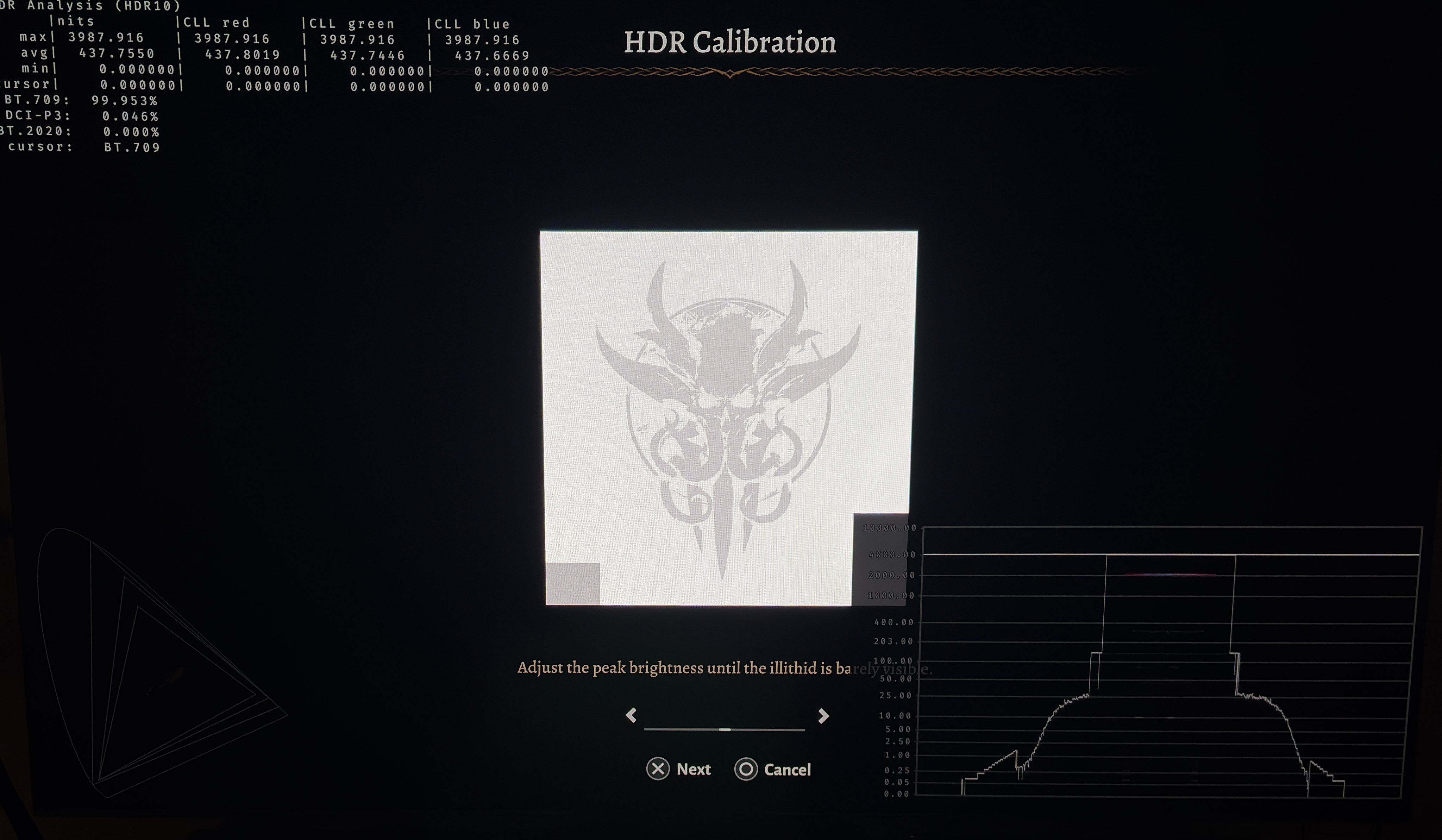
On PC it’s setup using the calibration screen in picture 3. There is no indication on the slider of how many nits the game outputs. That’s problematic for all those gamers who use a Samsung TV, that still does a bit of tone mapping (roll-off) in HGiG mode. Is it really so difficult to just write the nits on the slider ?
One reason the developer didn’t write nits on the slider is probably because the brightness slider and the contrast slider also change max luminance. And that’s a big issue. It makes it difficult to setup HDR.
Paper white:
You can increase paper white by increasing the brightness slider. It will not increase black level floor but it will increase max luminance. There is no indication of the nits output on the slider for paper white.
Black levels:
At standard in-game settings there is a black level raise and shadows also look too lifted. It makes shadows look grey and we get less contrast.
SDR/HDR gamma shift:
Black levels and colors are not the same in HDR and SDR due to gamma mismatch in HDR. See explanation in picture 4.
Solution PC:
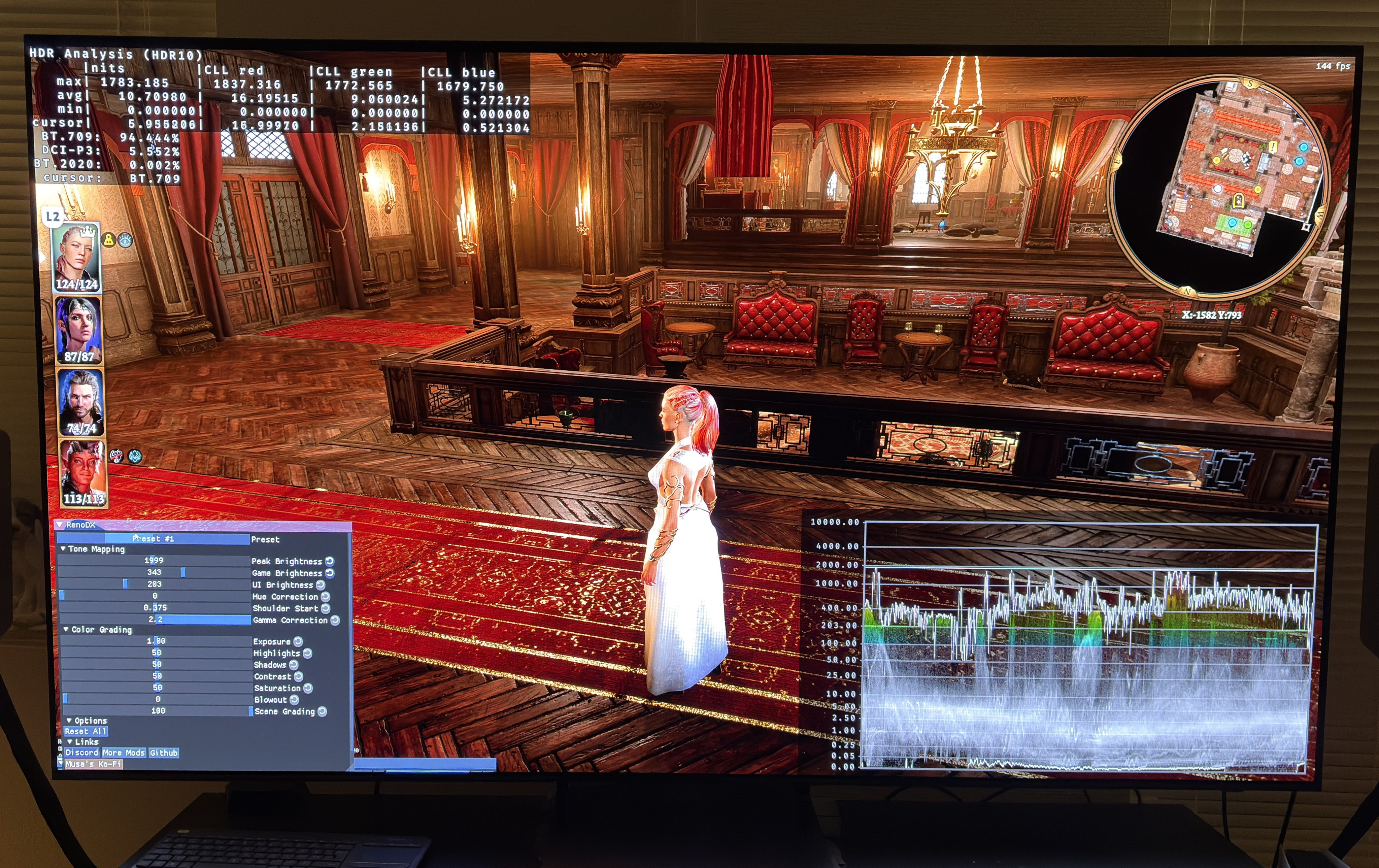
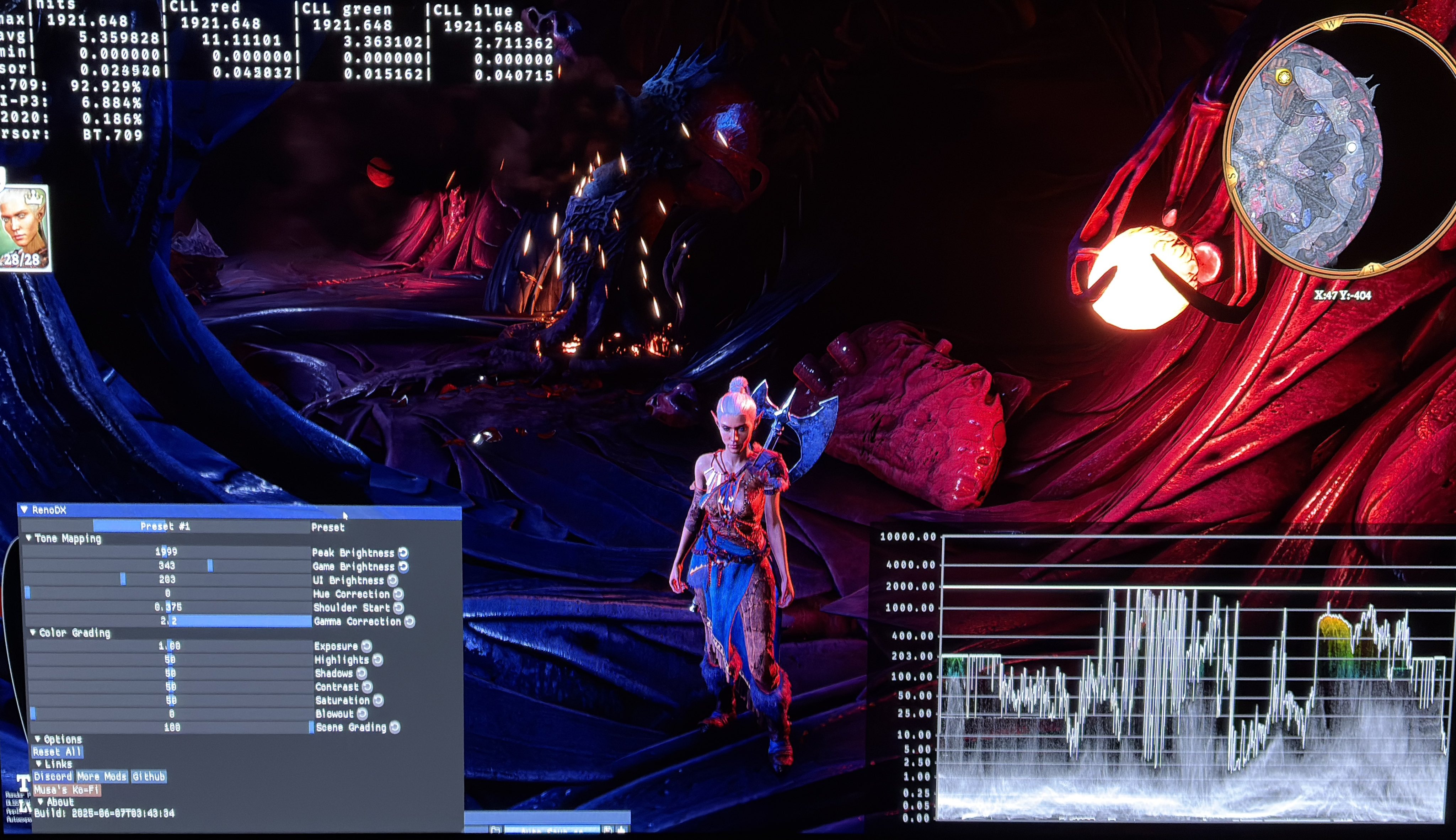
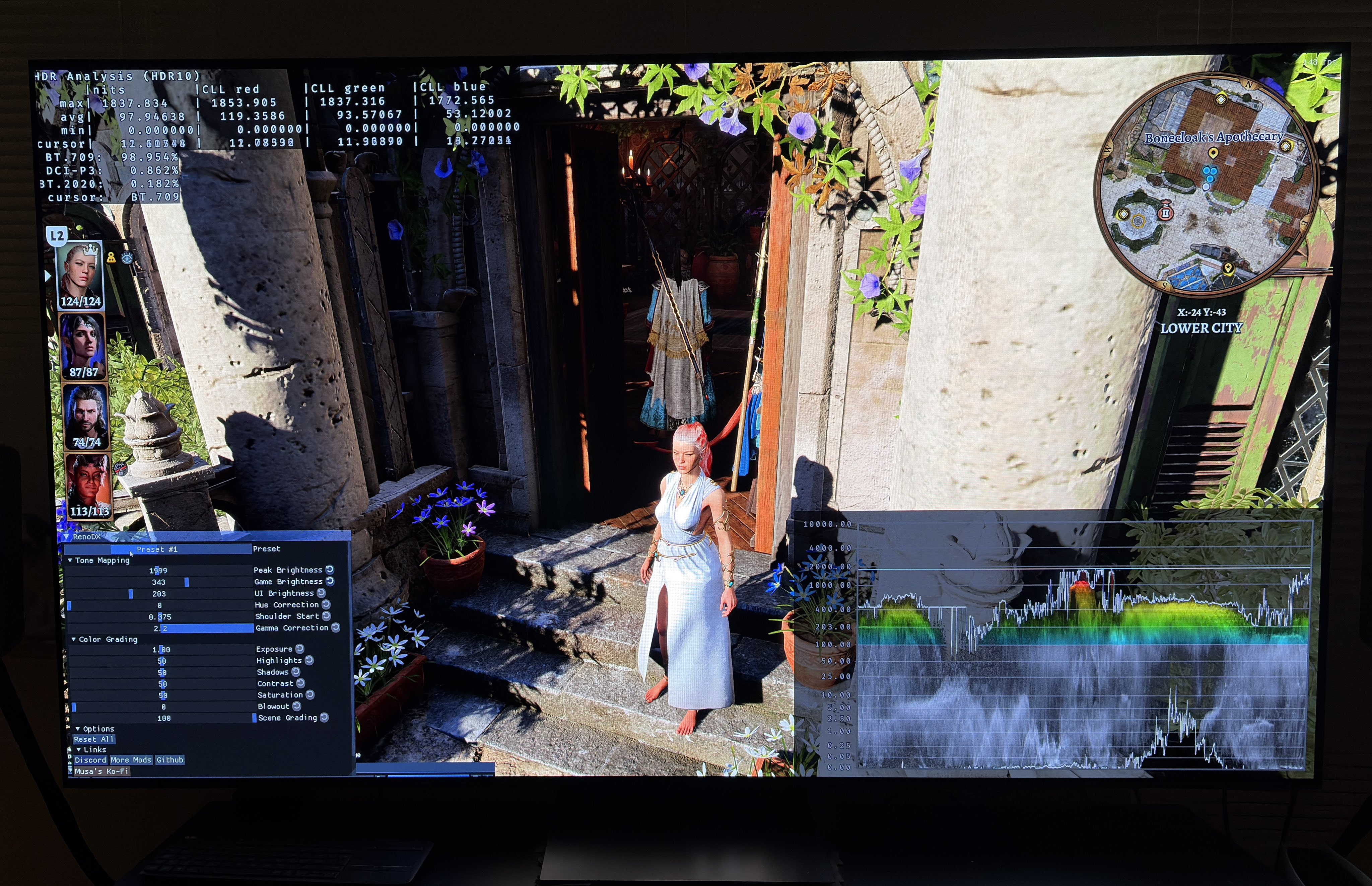
On PC there is a native RenoDX HDR mod. It fixes the gamma mismatch, the black levels and gets control over max luminance. RenoDX also better tone maps the different lights in the game. And we can change paper white etc. HDR looks amazing with RenoDX. See what the RenoDX mod fixes in picture 4.
Picture 1 shows the settings I use in RenoDX for my 2000 nits TV. Look at the graph on the right and how there is control over the highlights and black levels 👍
Solution PS5:
I would increase contrast from 1.00 to 1.25. It fixes the black levels, mostly. I would not touch brightness, unless you need to lower it, because increasing contrast already increases upper midtones and max luminance.
You can get HDR to look decent on PS5.
HDR looks great on PC using the RenoDX mod, so use RenoDX as always. RenoDX is very easy to install and use.
RenoDX good black levels 1
RenoDX good black levels 2