Beast of Reincarnation – PC
HDR and settings guide for PC - Beast Of Reincarnation.
This is only for the PC version (I play it via GamePass PC).
I will post a setup guide for HDR on Xbox (and PS5) later.
Game looks extremely blurry and uses UE5s standard HDR. This guide will help fix both.
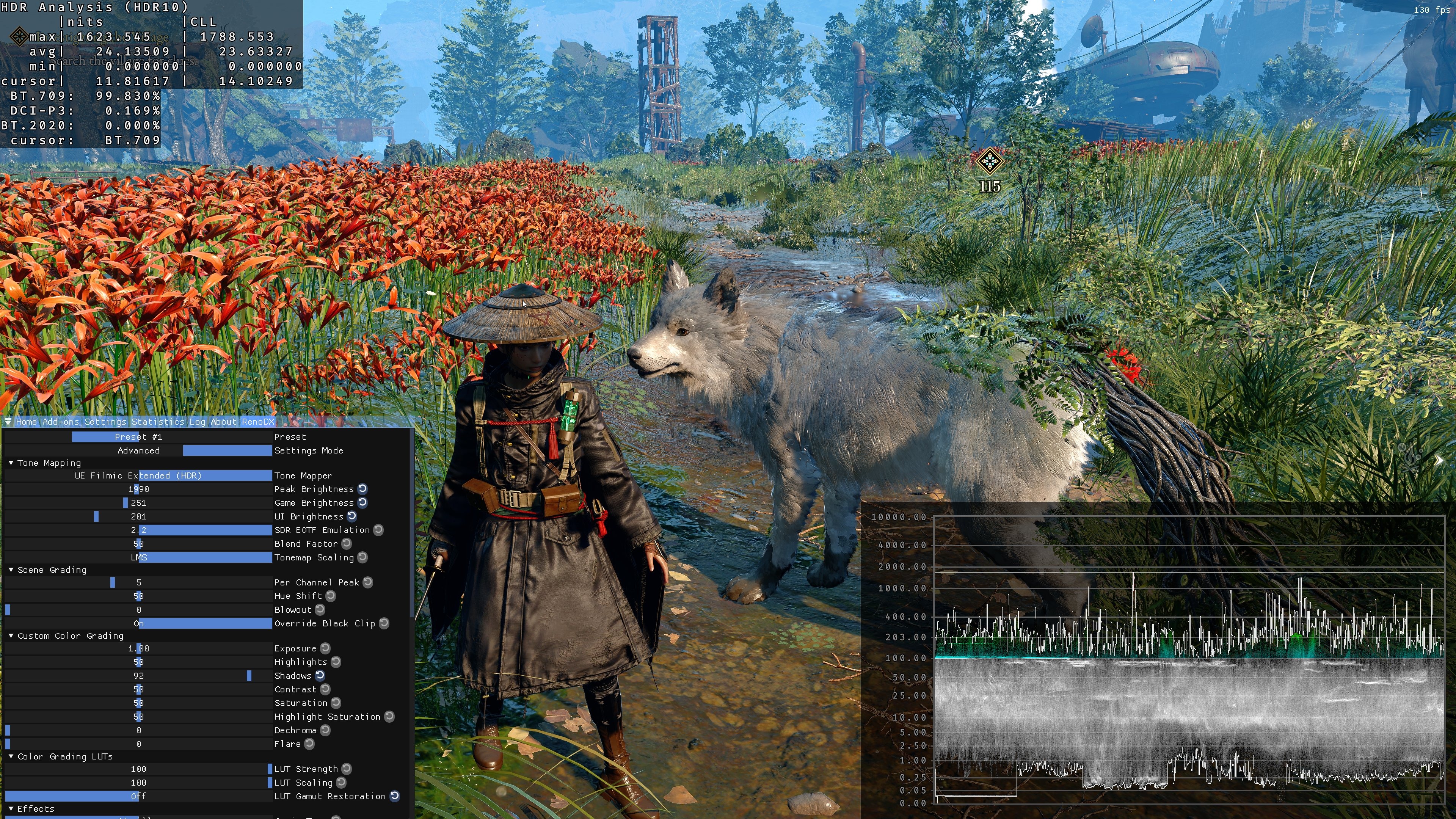
Picture one is looking detailed and uses RenoDX Extended version.
HDR:
It seems the game uses the standard HDR solution for Unreal Engine 5.
Don't use time trying to setup HDR on PC using in-game HDR. Instead install the RenoDX Multi game mod Extended version.
It worked fine for me, but I had to use an older Reshade Add On version, than the newest 6.8 version. I used 6.7.3.
HDR on in-game and Upgrade Path Off under Reno's Advanced settings.
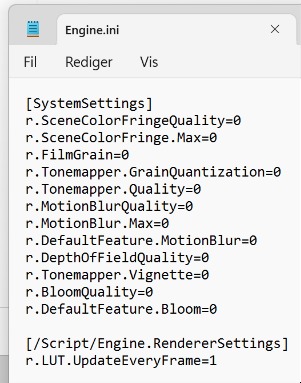
I also added the last two lines in a newly created Engine.ini file. See picture (I did not test if they are actually needed anymore).
Chromatic Aberration etc.:
The game looks very blurry due to Chromatic Aberration and probably also other in-game effects. We can only turn off motion-blur ingame.
However we can turn them off, if you make a new text file called Engine.Ini in this location (That's for Game Pass PC).
C:Users<YourUsername>AppDataLocalBeastOfReincarnationSavedConfigWinGDK
Then paste in the text in picture 2 (in my next post I will add the text to copy in).
AMD CAS sharpening:
The game has an in-game sharpness slider, but it's not enough. We can get a lot more detail by using AMD CAS sharpening.
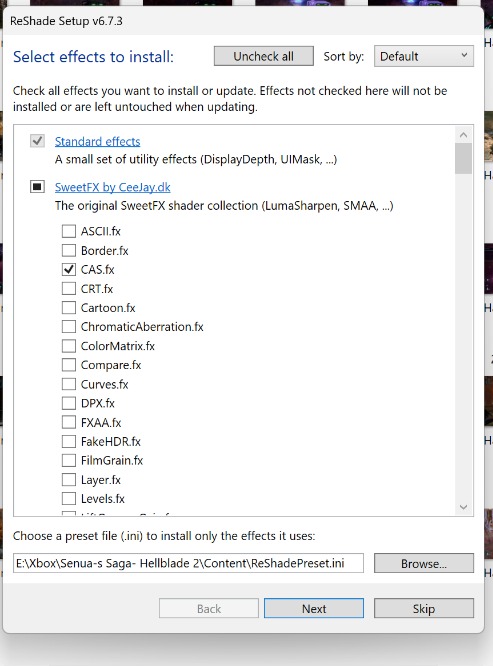
Install it via Reshade. See where to find it in picture 3.
I use AMD CAS sharpening in many of my games. It applies sharpness to where it's needed instead of on the entire image. So we can get more sharpness before the overall image gets over-sharpened.