Helldivers 2
A look at HDR in HellDivers 2 on PC and PS5 / PS5 Pro.
I'm trying out Helldivers 2's recent update with DLSS 4 on PC and PSSR 2 on PS5 Pro.
It really is a great update. It looks great.
PC / RenoDX HDR mod:
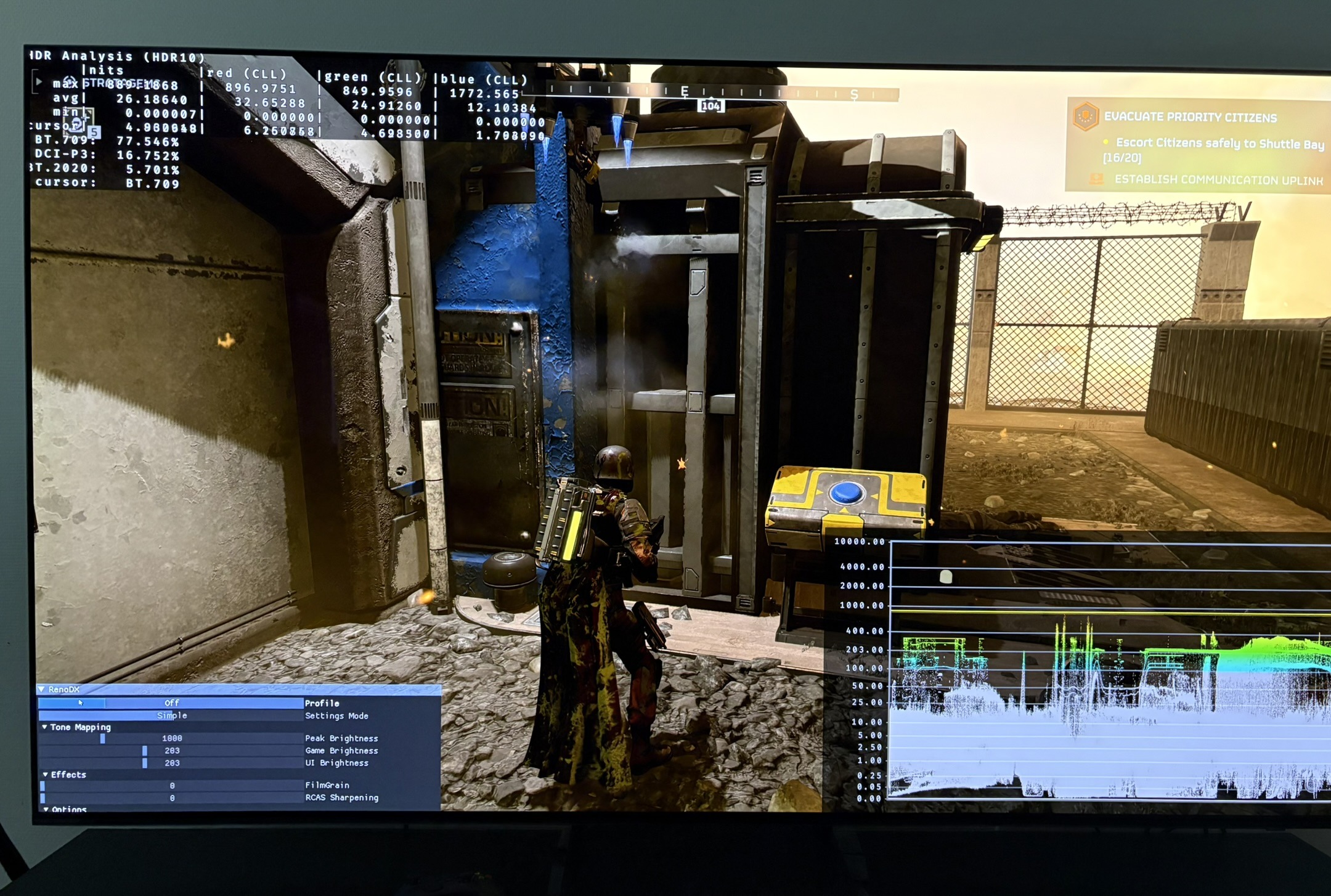
It's a long time since I played the game. I didn't know there was a RenoDX HDR mod because of anti-cheat. It makes the HDR look really good.
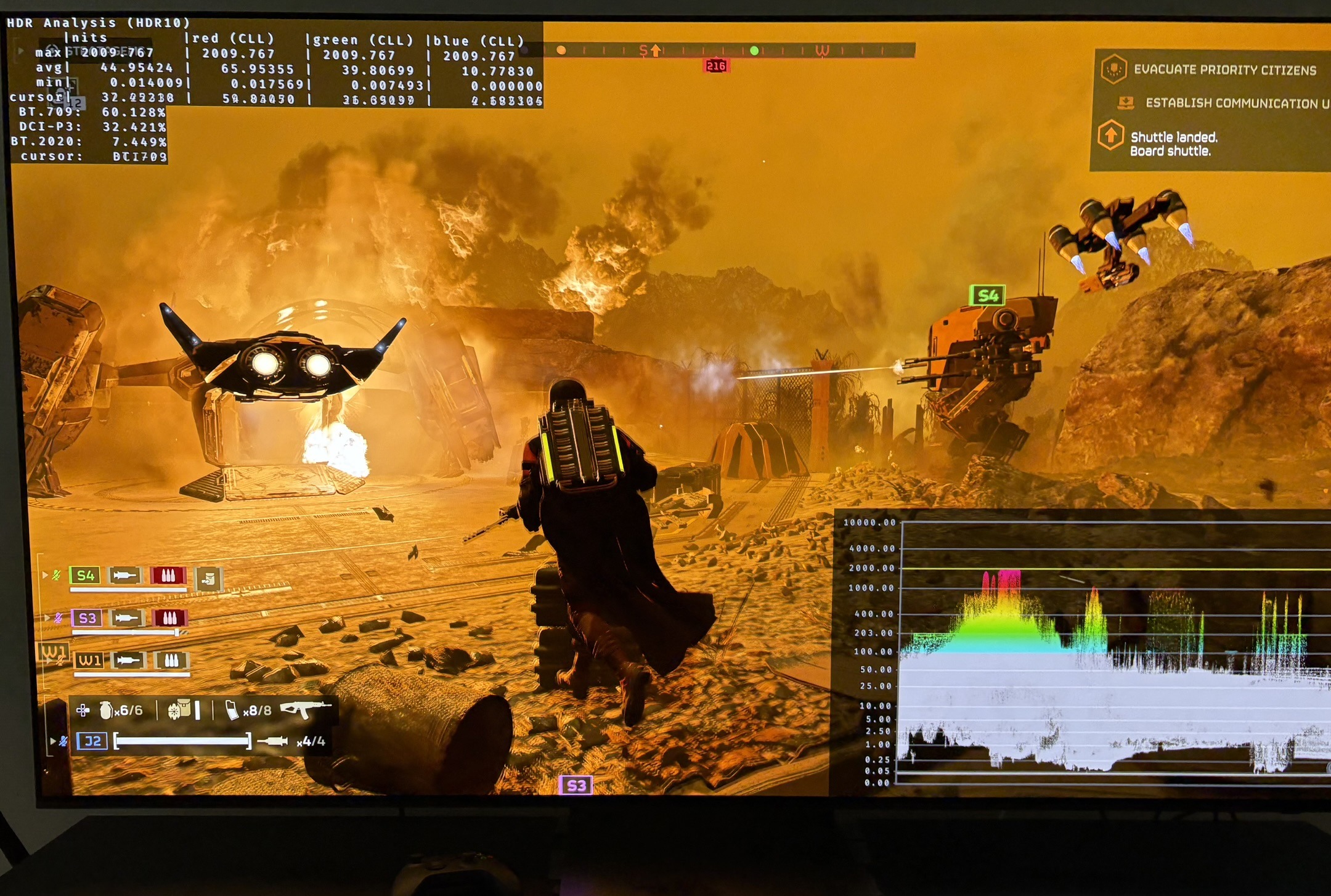
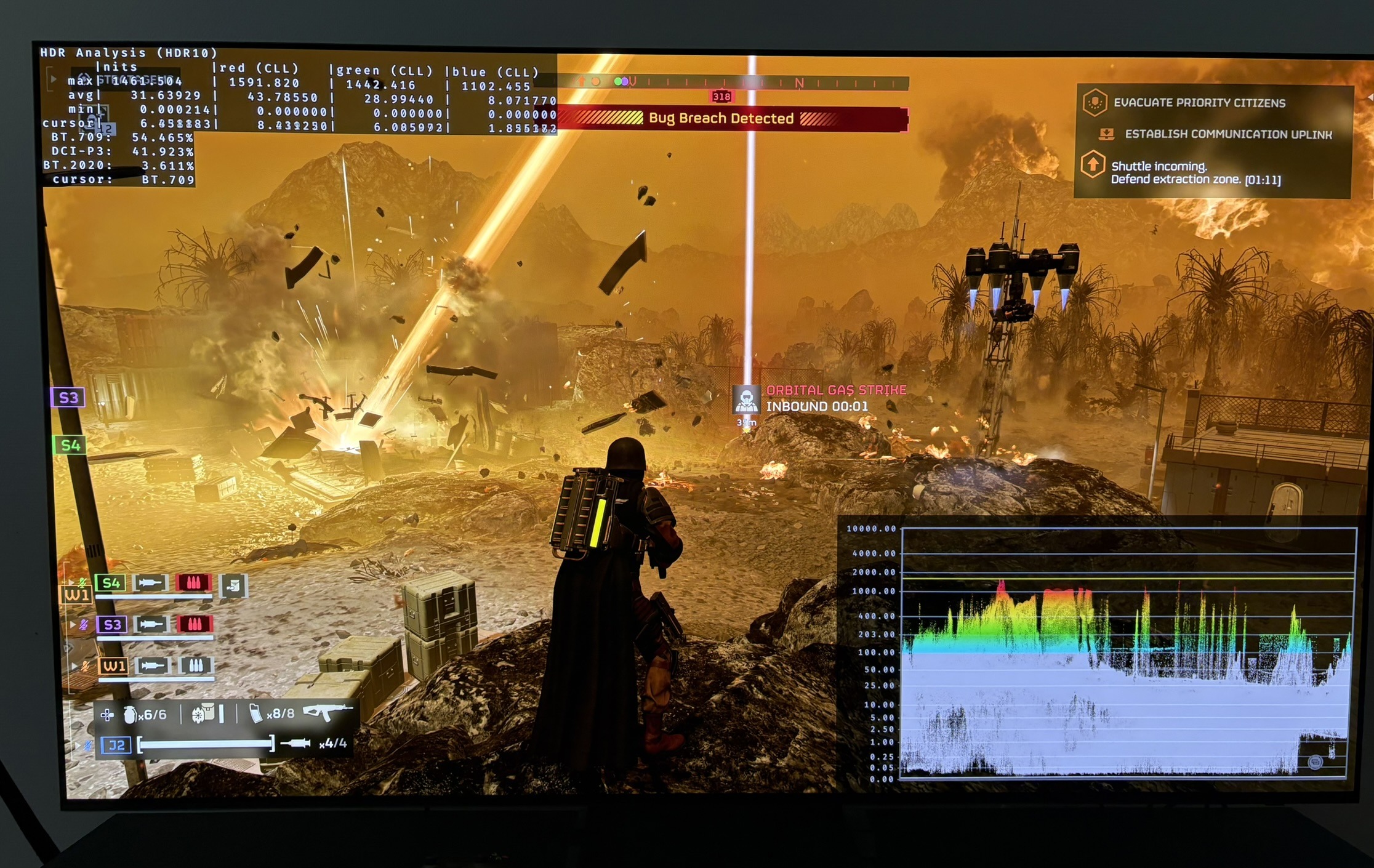
It seems to tone map very differently. It tones down the upper midtones and upper shadows, making the game look less bright overall than the in-game HDR. In-game HDR looks a bit washed out and generally over brightened in comparison.
And we get separate control for peak brightness and paper white (game brightness).
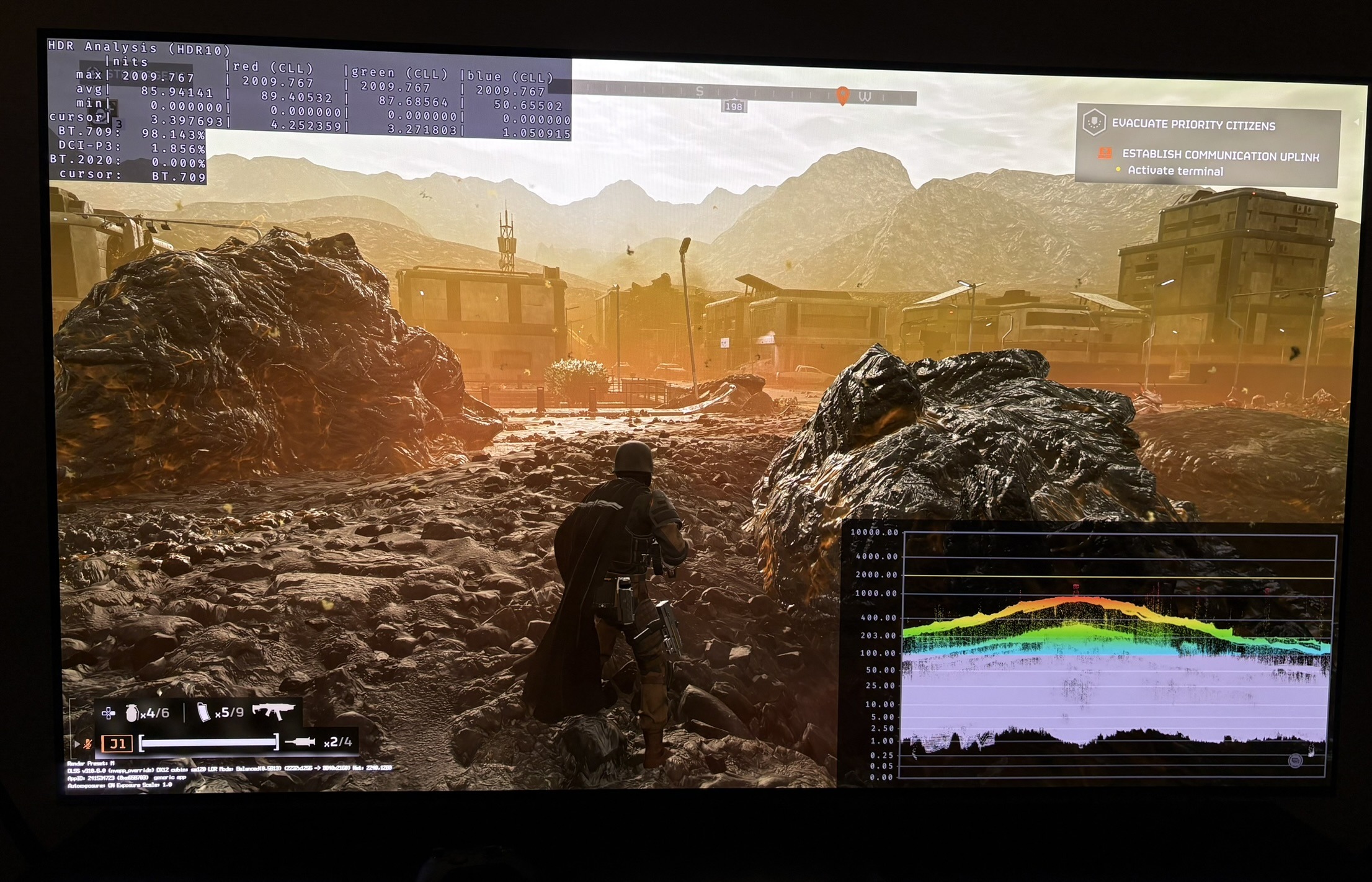
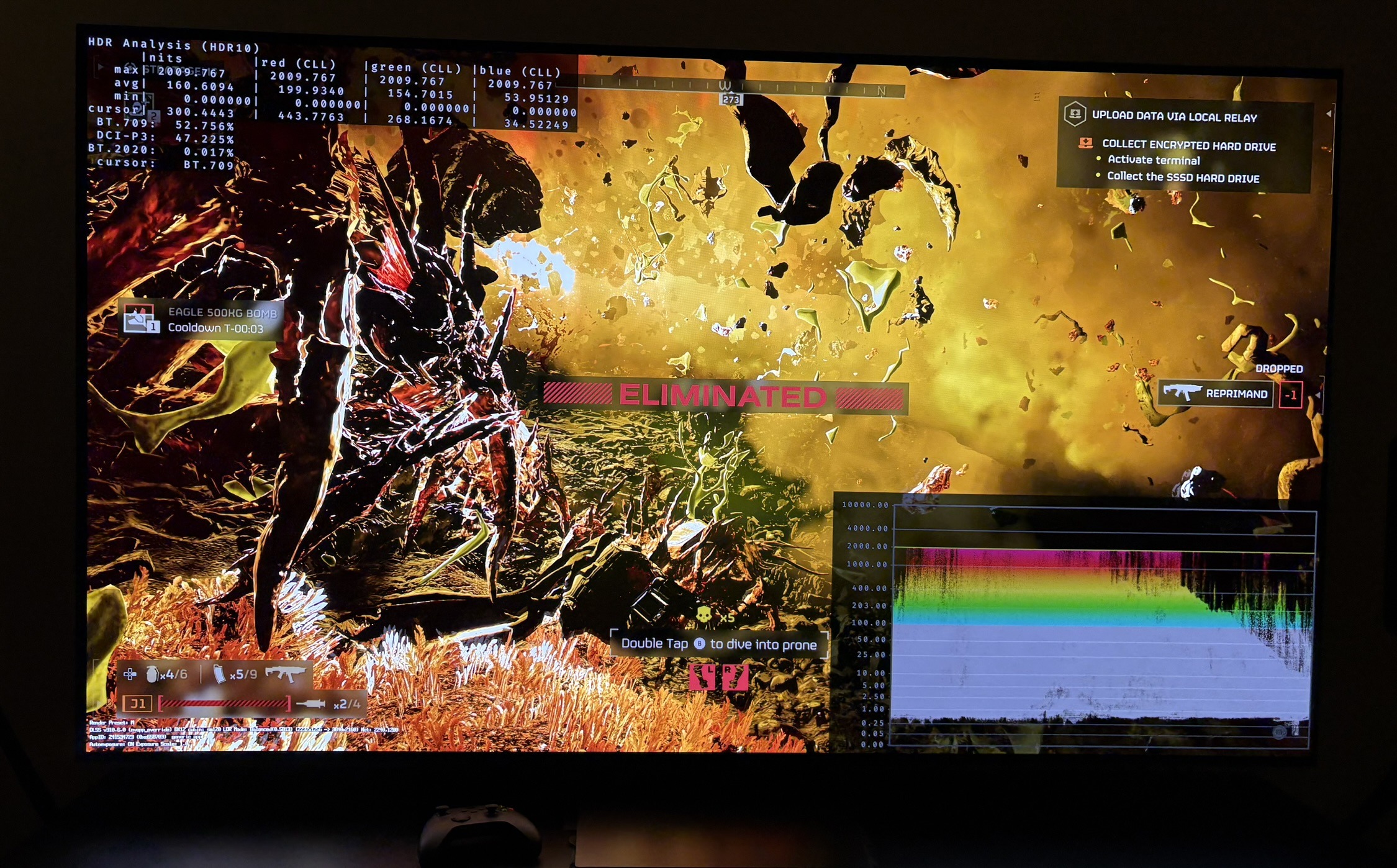
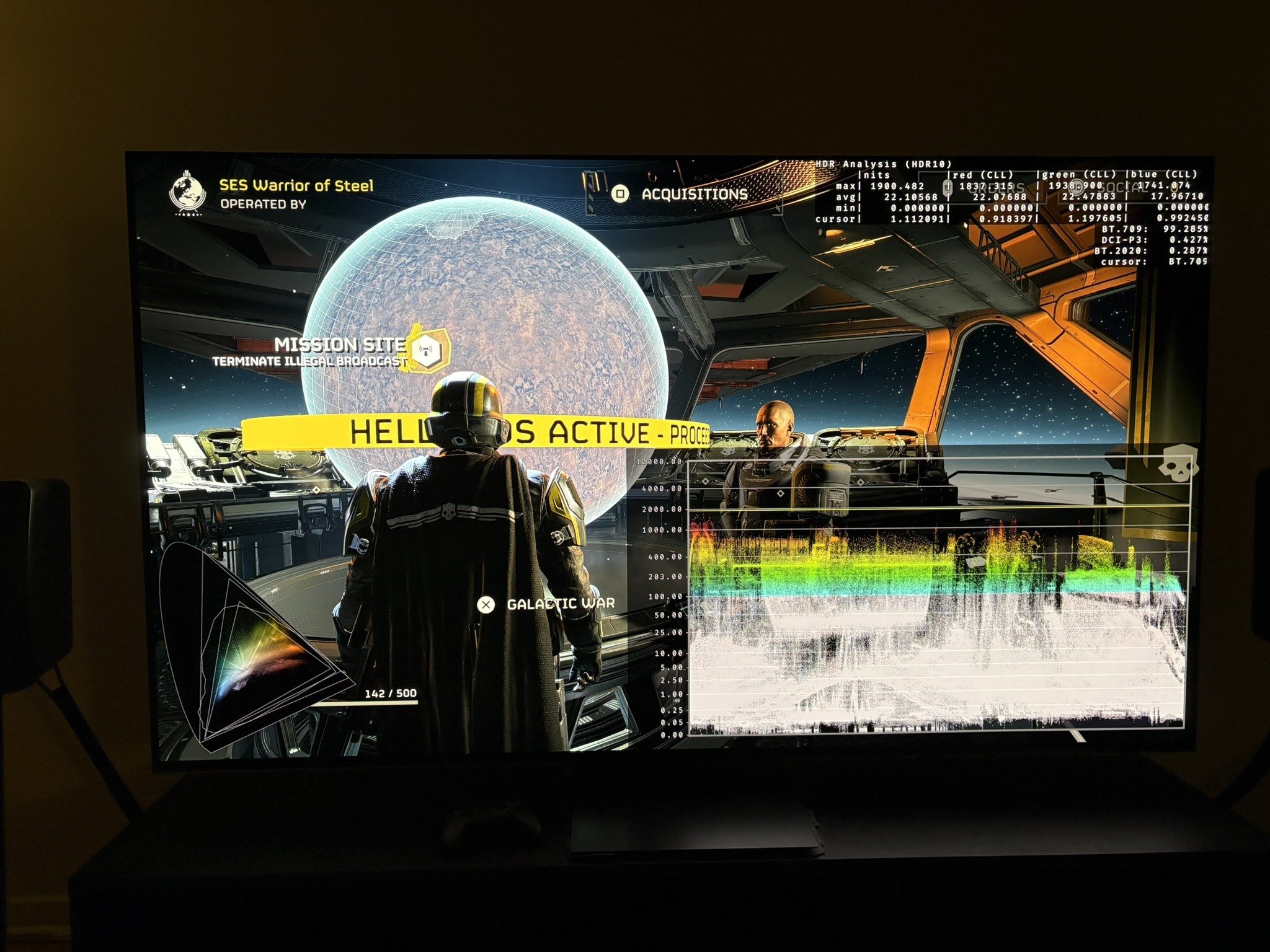
Picture 2 and 3 are using RenoDX with 2000 nits max.
So use the RenoDX HDR mod, if you are on PC.
The RenoDX mod in combination with DLSS 4.5 is a really nice upgrade.
Setup Screen.
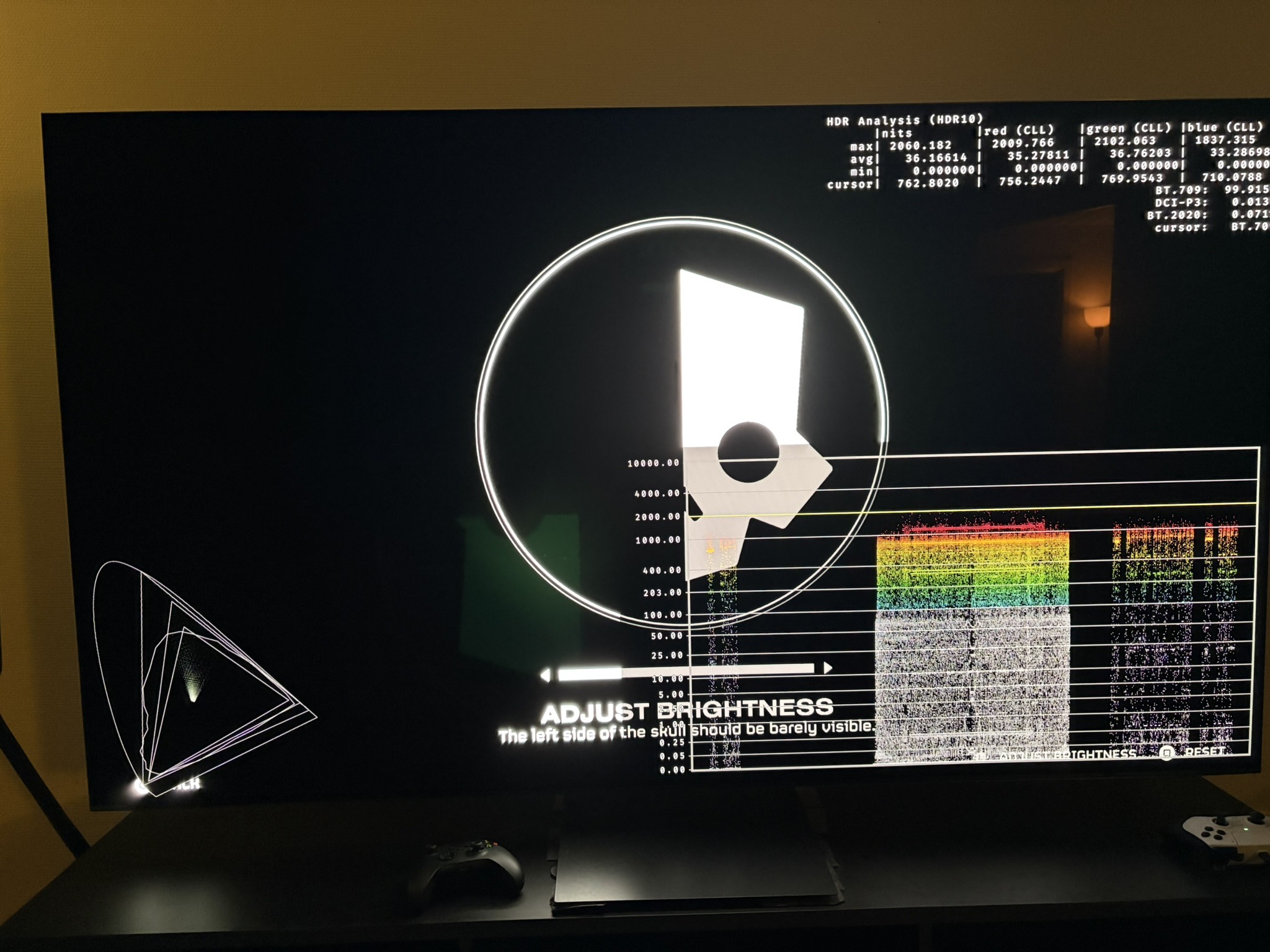
Before I go deeper into the HDR, I want to talk about the setup screen in picture 4.
We are supposed to adjust the slider until the left side is barely visible. The problem is that no matter how you change the slider, the left side always is zero nits. Its the same in SDR and HDR.
So the setup screen doesn't work.
My question is. Why is it there if it doesn't do anything ? It will only confuse gamers trying to setup HDR or SDR.
It's a small issue, of course, but it annoys me. It's a symptom of game studios' lack of quality control, and also lack of interest in or understanding of making setup of HDR (and SDR) easy and intuitive for the gamer. We see so many setup screens in games being broken.
I really wish this would stop. Just delete the screen, if you can't get it to work, and simply keep the slider.
PC / PS5:
HDR is implemented the same way on PC and PS5 (and most likely also on Xbox, but I haven't tried it on my Series X).
Peak brightness:
The game gets the peak brightness value we have setup in Windows HDR calibration app and PS5's HDR system settings.
The very small highlights in the game can go much higher, but the bigger highlights, the game keeps around the value we have setup.
Midtones:
The brightness slider in picture 4 increases shadows, midtones and upper midtones.
I would leave it at default (in the middle) because increasing it lifts shadows too much.
If you are on a 1000 nits or lower display, you might even want to lower it one click (to the left from the middle). To get midtones and upper midtones down a bit.
Black levels:
They are generally fine. A bit lifted perhaps, especially on maps with a lot of fog, contrast is low. But it's not a major issue.
The issue is that we have no way of adjusting it in-game. Why not give gamers this option ?
Good black levels 1
Good black levels 2
Good black levels 3
Good black levels 4