Monster Hunter Wilds Demo
HDR analysis and setup guide for Monster Hunter Wilds on PC and consoles.
It's only based on the demo on PC and PS5 Pro, so I have not seen other areas of the game and I have not tested it on SX. It's most likely the same on SX if the game has the same in-game sliders on SX.
It's a really bad HDR implementation, like we are used to on games using the Re Engine because:
- Peak brightness caps at only 885 nits.
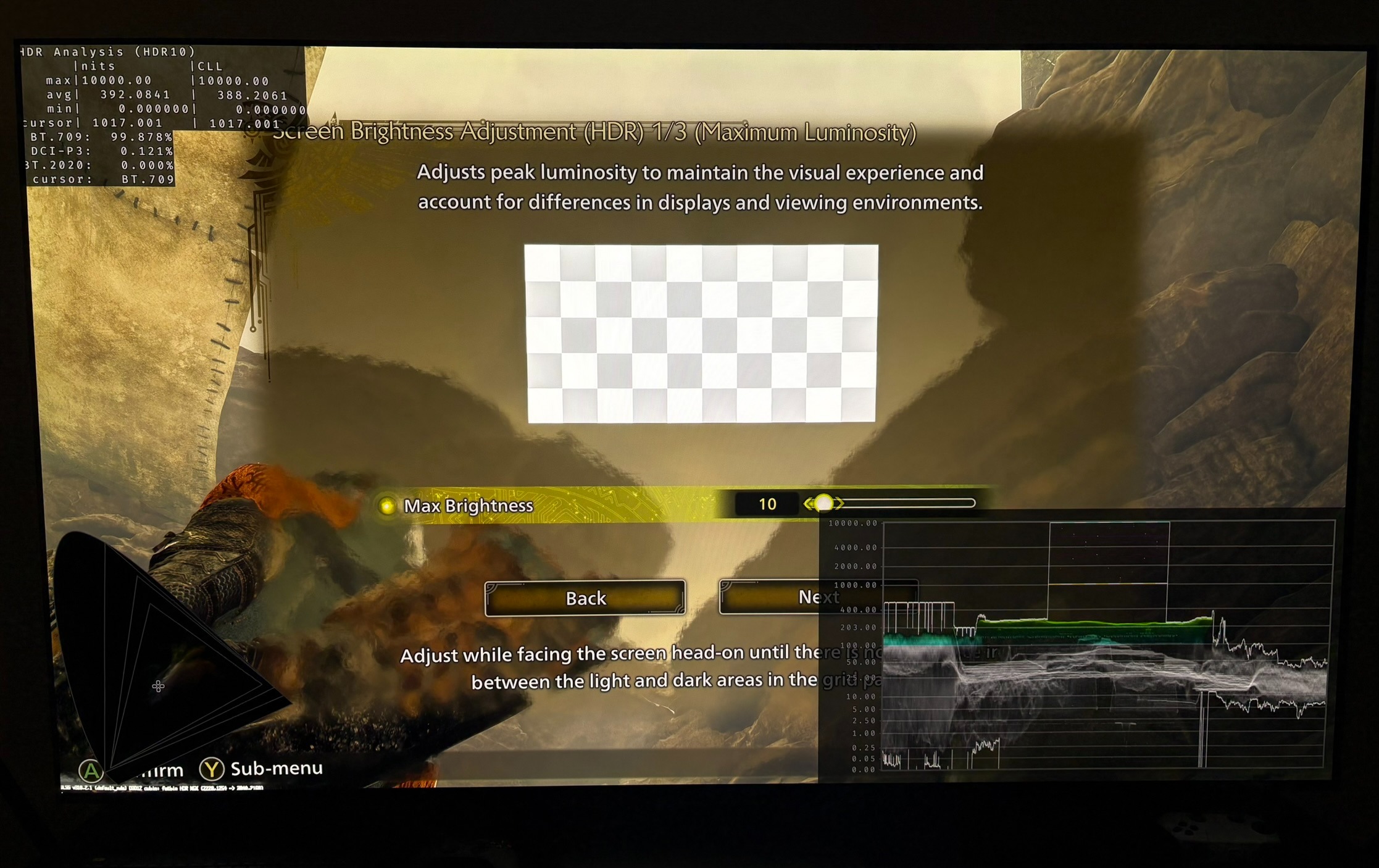
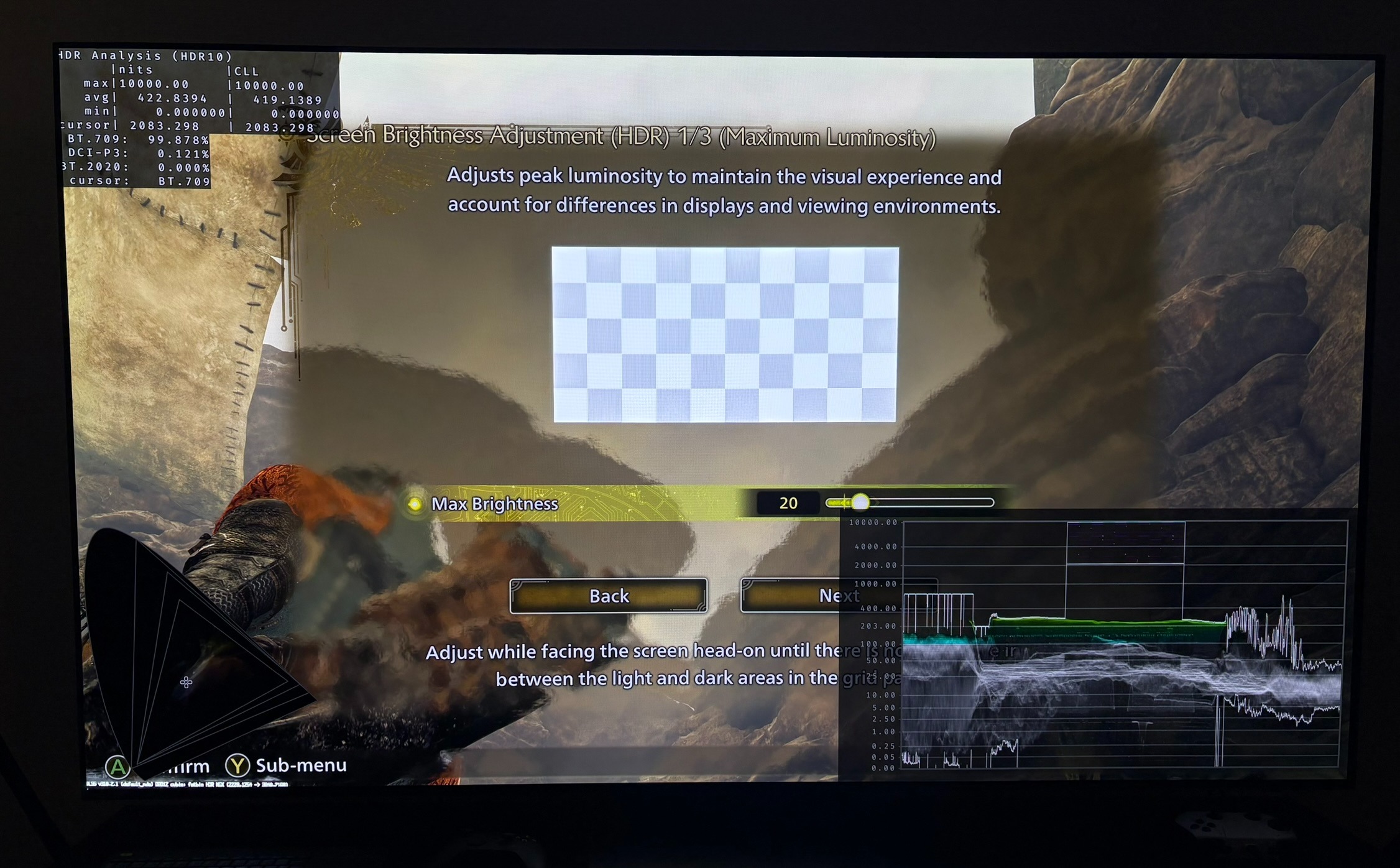
- HDR peak brightness setup screen is broken (does not show the same as in-game)
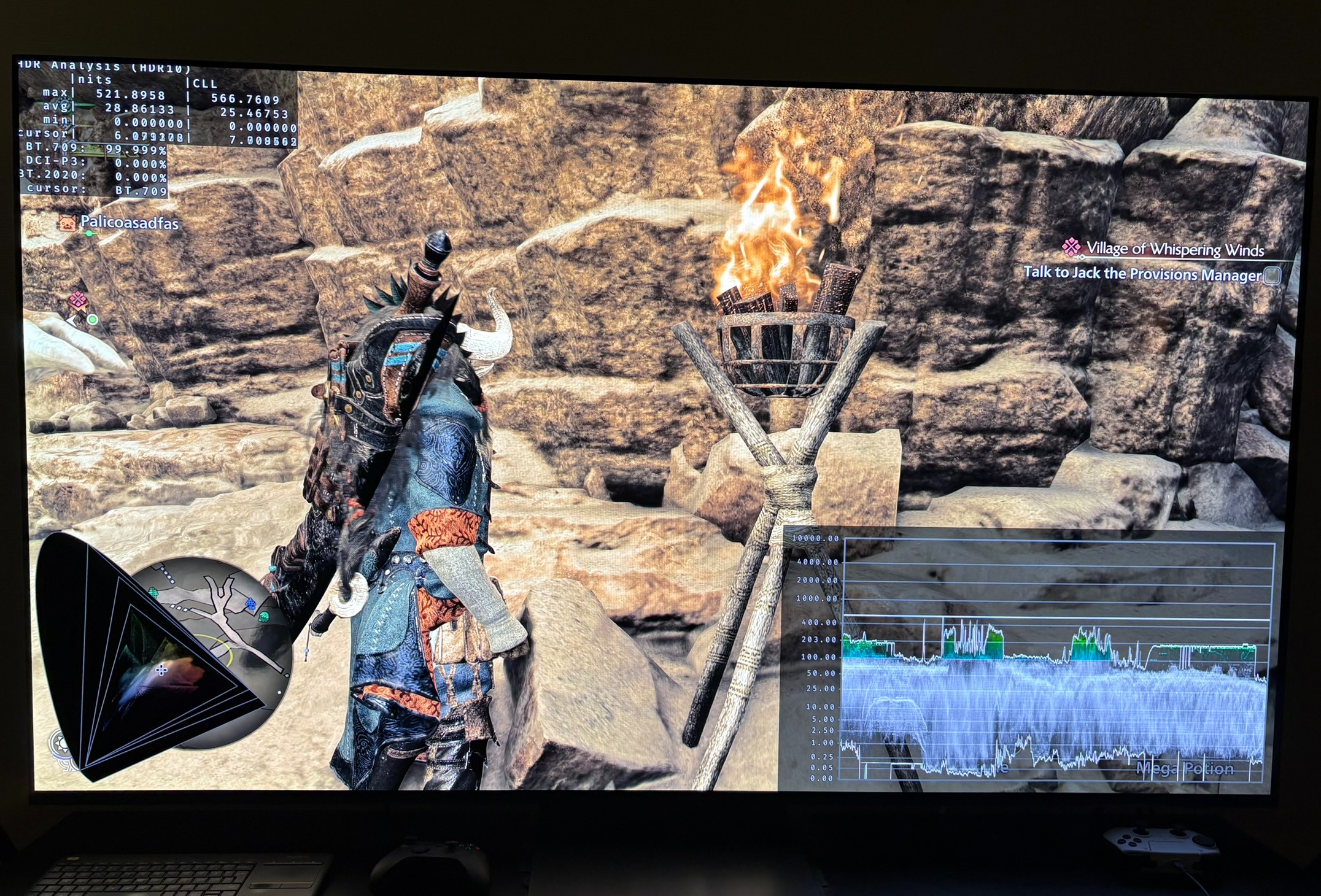
- Many light sources, like fire and candles are very dim (400-500 nits).
- Black level raise, at default settings
RenoDX HDR mod
PC gamers is recommended to use the RenoDX HDR mod.
Setup recommendations:
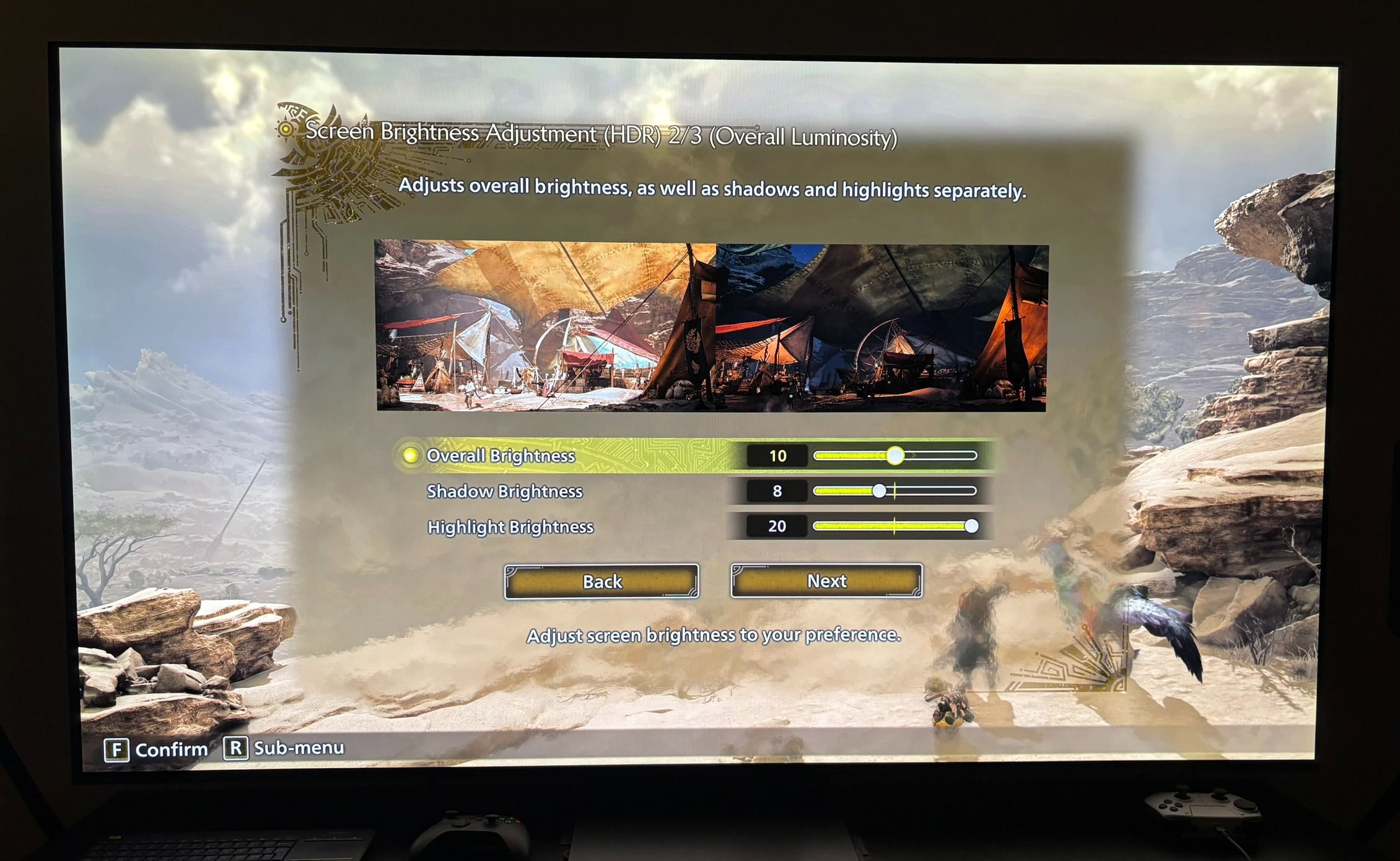
See in-game slider in picture 1-4.
Max Brightness slider:
This slider sets up peak brightness. Don't use the setup screen because it's broken. It shows much higher brightness than in-game, so using it will setup peak brightness to low. The setup screen shows 1000 nits at 10 and 10.000 nits at 100. Picture 1 and 2 shows the setup screen outputs 1000 nits at 10 and 2000 nits at 20 on the slider.
This is what the game actually outputs in its brightest highlights (using 20 on the Highlight Brightness slider):
100 = 885 nits
50 = 800 nits
25 = 700 nits
15 = 600 nits
10 = 500 nits
Setup to what your display can output maximum.
Highlight Brightness slider:
Setup to 20. It will increase peak brightness with around 80 nits.
Overall Brightness slider:
The game seams to output around 203 nits mid tones - paper white, at default 10. It's at good mid tone brightness for the games peak brightness of 885 nits. Lower it one or two if you game on a display capable of lower than 800 nits peak brightness.
Shadow Brightness slider:
The game has lifted lower and upper shadows at default settings on the slider. I recommend to lower it from 10 to 8. It will bring down upper shadows a lot and lower shadows to zero nits. In picture 5 and 6 we see 10 and 8 on the Shadow Brightness slider in a night time scene. We see how the waveform gets lowered a lot in the shadow region.
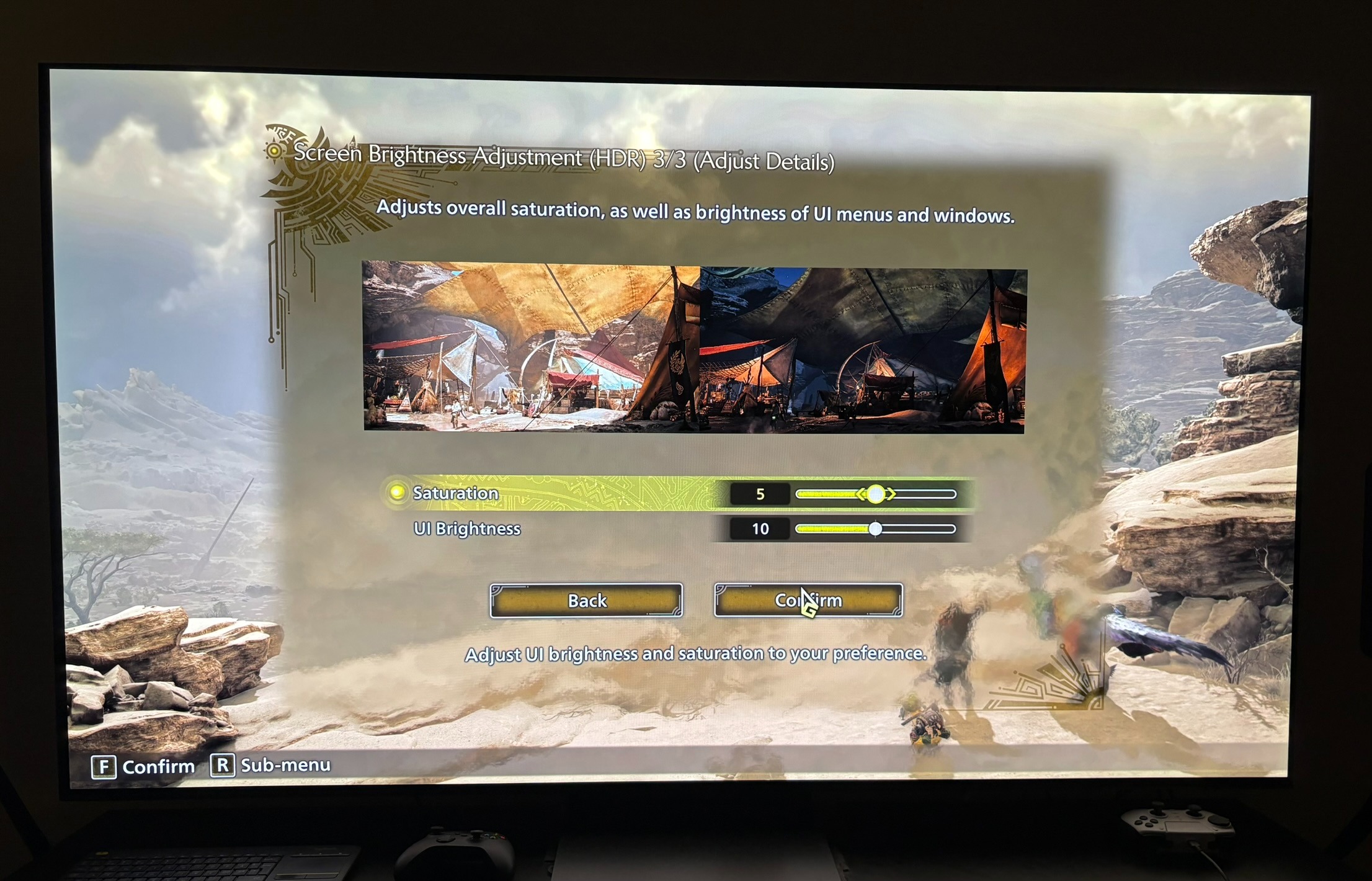
Saturation slider:
It's a true saturation slider that has no effect on HDR. It makes colors look more saturated. Setup to what your personal preference are.
UI Brightness slider:
It sets up brightness on UI elements. Default 10 is 150 nits and 11 is 200 nits. Use one of those two.
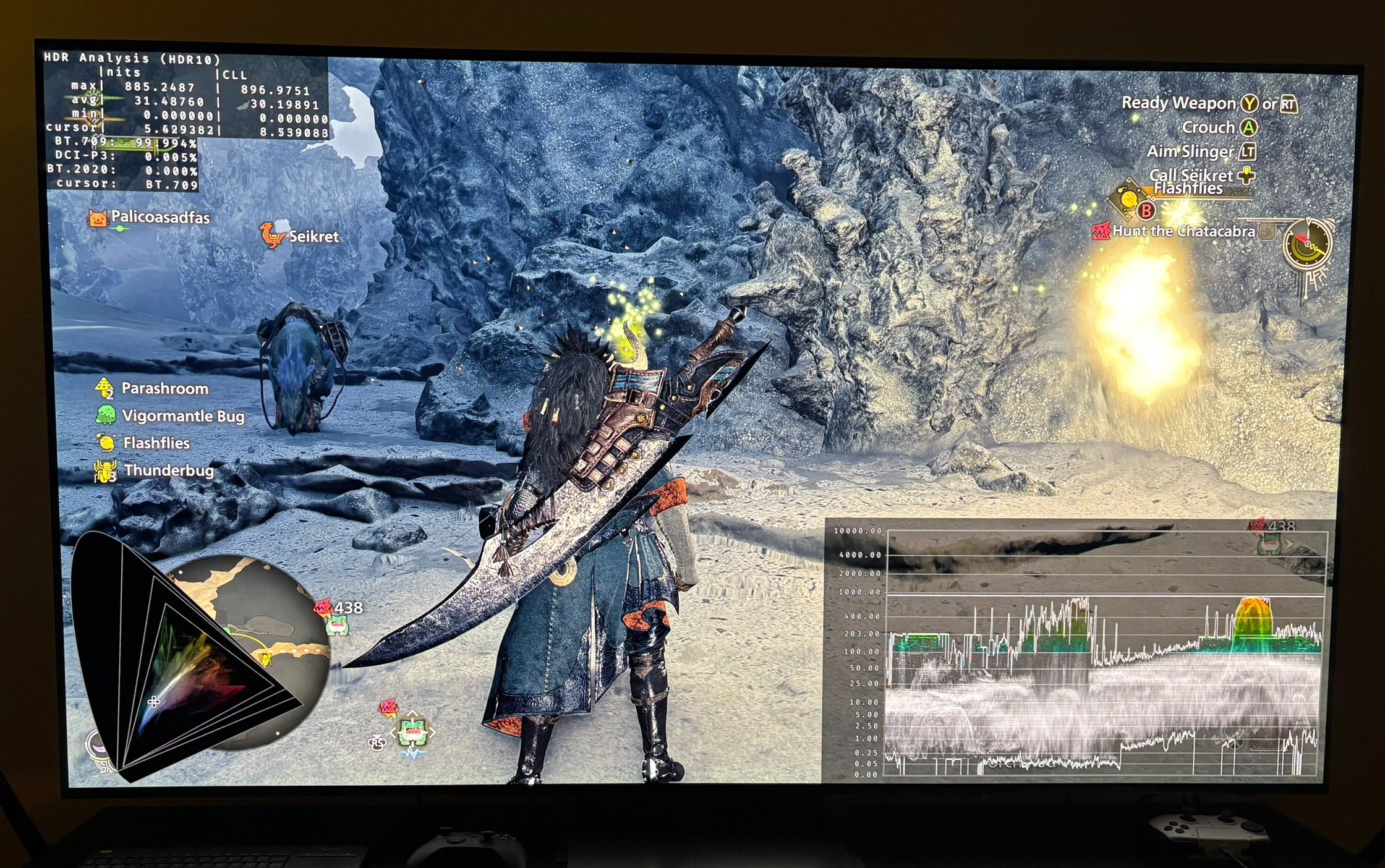
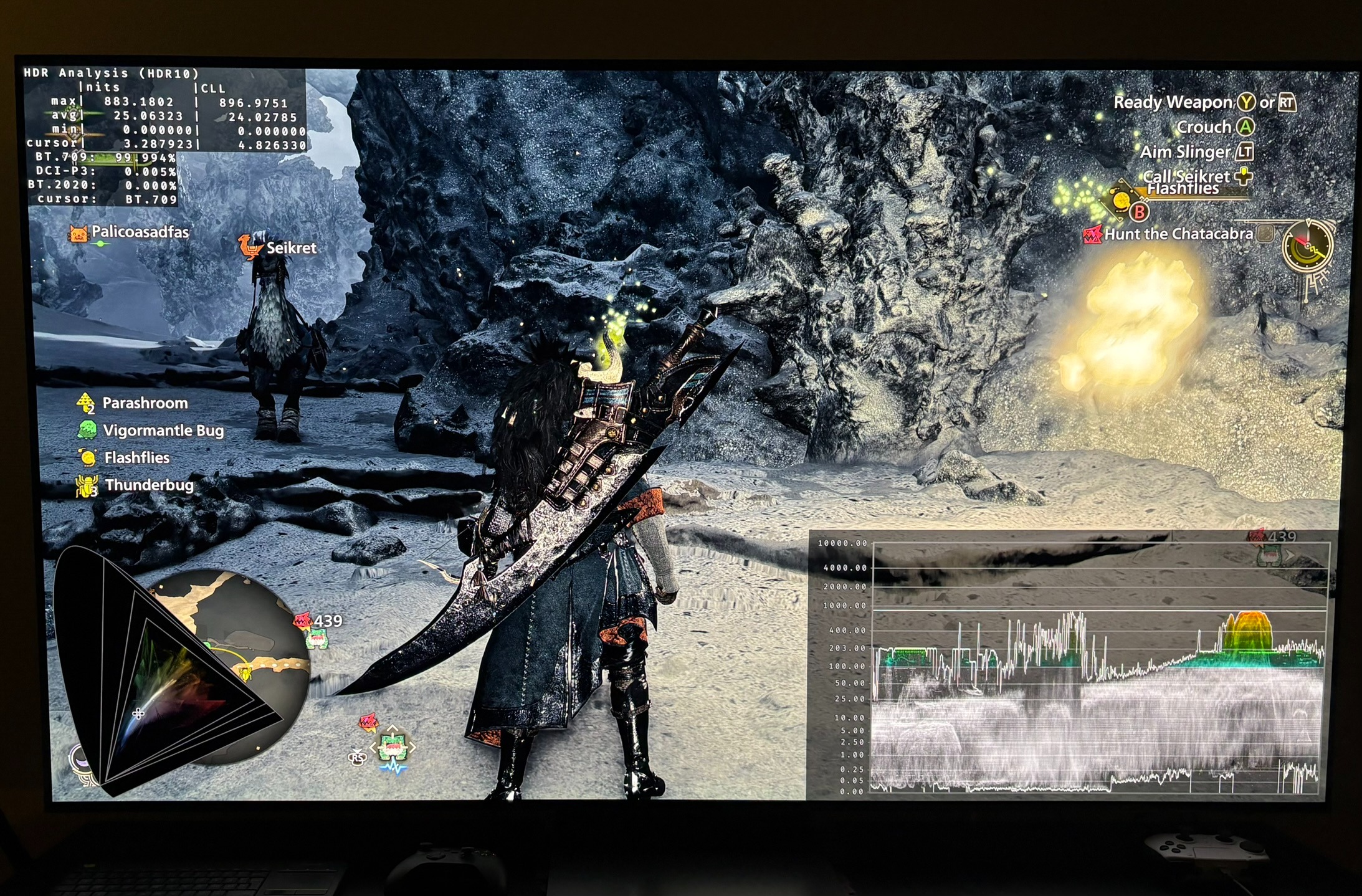
A torch only outputs 500 nits: