Pragmata – Long version
HDR analysis and setup guide for Pragmata on PS5 (and PS5 Pro).
PC I will look at when it releases later today. It's probably the same HDR implementation on PC as on PS5 because it was in the demo, but until I test it, I won't know.
The RenoDX modder Musa made a great RenoDX HDR mod for the demo, so we will probably also get one for the final game, so use that on PC when the mod is ready.
Let me start by saying, that the HDR implementation is a complete mess☹️
HDR looks much better than SDR so use HDR, but you will have difficulties setting it up correctly due to completely broken setup screens for max brightness and brightness, and there are major issues with max luminance and black levels (shadows).
It's much the same HDR implementation as we saw with Resident Evil Requiem, unfortunately. Both games use the same game engine.
Max Brightness:
The game does not use PS5's HDR system settings, so we setup max brightness in-game using a setup screen and a slider.
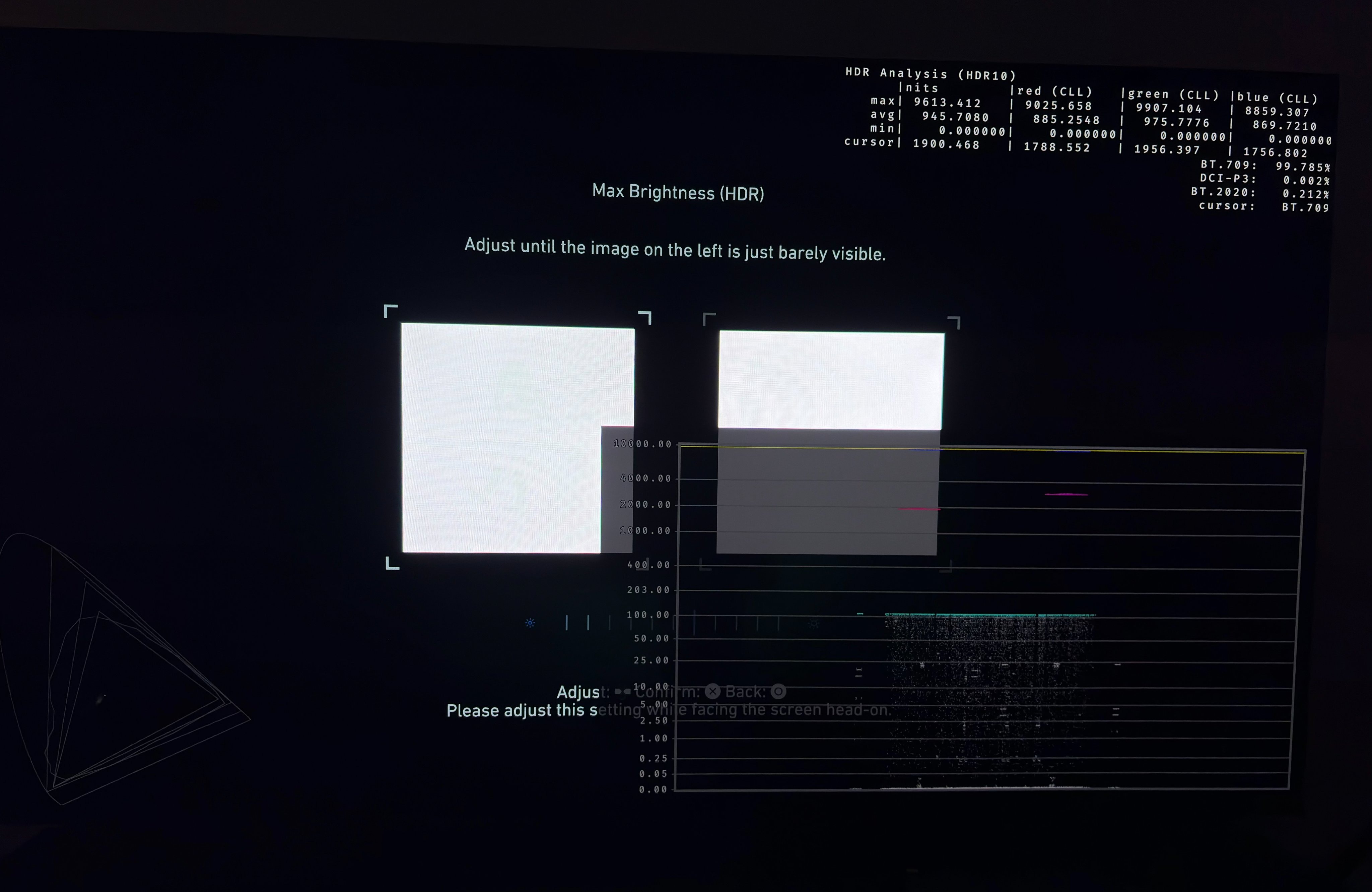
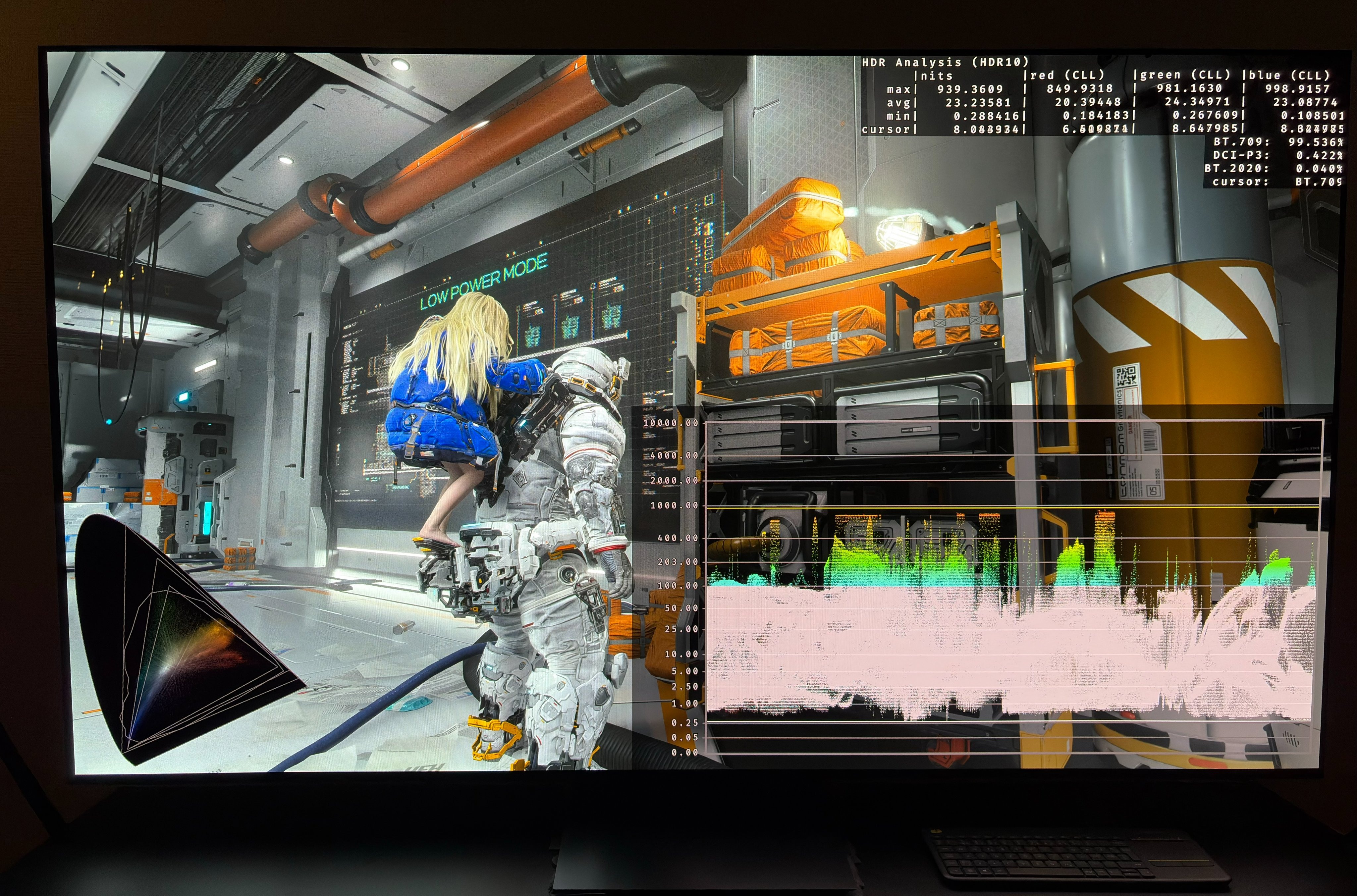
The game can not output higher than 940 nits max brightness. That's of course unacceptable when OLED TVs today can output 2500+ nits. Even though the game can't output more than 940 nits, the HDR setup screen still goes all the way up to 10.000 nits.
The HDR setup screen does not output the same brightness as the game does, so you can't use it for anything. You have to go in-game to see what the settings changes.
Below I show what the game outputs in-game at different settings on the slider. See my article about how to setup HDR max luminance on OLED TVs and monitors, if you need more guidance.
Be aware that you can only get 545 and 795 nits if you move the min brightness slider from left to right at the same time as you adjust the max brightness slider, or you will just get 400 and 700 nits. I tested this many times. I have never seen this error before in a game.
5 clicks: 325 nits
6 clicks: 400 nits
7 clicks: 400 nits (545 nits)
8 clicks: 700 nits
9 clicks: 700 nits (795 nits)
10 clicks: 865 nits
11 clicks: 900 nits
12 clicks: 940 nits
13 clicks: 940 nits
20 clicks: 940 nits
Use a bit higher brightness than lower brightness, if you can't get a brightness output equal to your monitors capabilities. It's because most lights in the game are lower than the peak brightness.
Black levels:
Everyone should set the min brightness slider all the way to the left.
The black level floor is good, meaning that we can see black colors close to zero in some areas.
But the shadows are lifted to much and that gives the game a washed out look.
We saw the same in Resident Evil Requiem, where you could see great black levels in completely dark areas, but as soon as there was some light in the scene we could see lifted shadows.
You can't do anything about it on console.
Paper White (brightness):
The brightness slider is adjusting the overall brightness of the game, also called paper white.
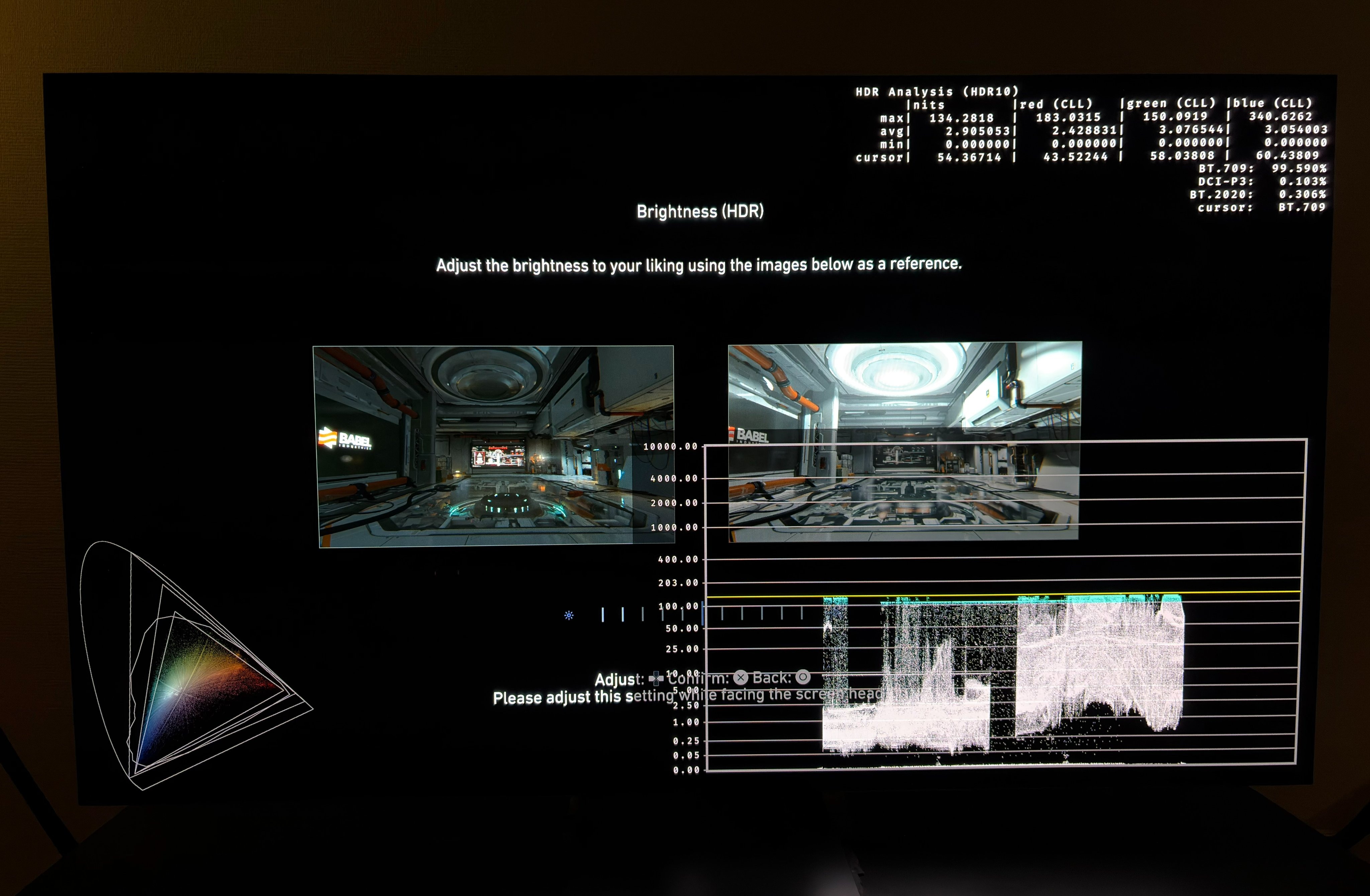
You also can't use the setup screen for anything, because it outputs much less brightness than in-game.
At neutral (in the middle) it seems to me that paper white is 230 nits, when max brightness is set to 700 or 940 nits. At minus 5 the game outputs 203 nits. That's the same as in Resident Evil Requiem.
At a max brightness of 940 nits most would use a paper white of 203 nits. But paper white is influenced by how much light you have in your room and personal preference, so set it to what you think looks most natural to you.
Don't go lower than minus 5 if you have a display capable of significantly lower than 700 nits, such as 400 nits. Because here the game will lower paper white a bit more when max brightness gets this low, to leave room for the midtones (see below).
With Max 700 and 940 nits:
Neutral: 230 nits
Minus 5: 203 nits
At 400 nits Max
Neutral: 203 nits
Minus 5: 185 nits
HDR On When Supported:
When you set the PS5 to output HDR On When Supported on the system settings, then the game will still output the HDR Always ON signal to your TV.
So use HDR Off if you want to see the true SDR signal from the game.
Read my article about HDR Always On to understand what PS5 outputs in this setting.
This is the third game in a short while where HDR On When Supported doesn't work correctly. Crimson Desert and Starfield does the same, if I remember correctly.
Conclusion:
HDR is a mess to setup, but if you follow my recommendations above, I still think it looks decent overall, and much better than SDR, especially if you have a display capable of 1000 nits or less. The HDR is not worse than in so many other games. It's the setup that is especially bad in this game.
It's just crazy to me, that a developer can release a game with such poor HDR setup. It's impossible to setup HDR using the setup screens. You will have to do it in-game using your eyes (or read HDR analysis).
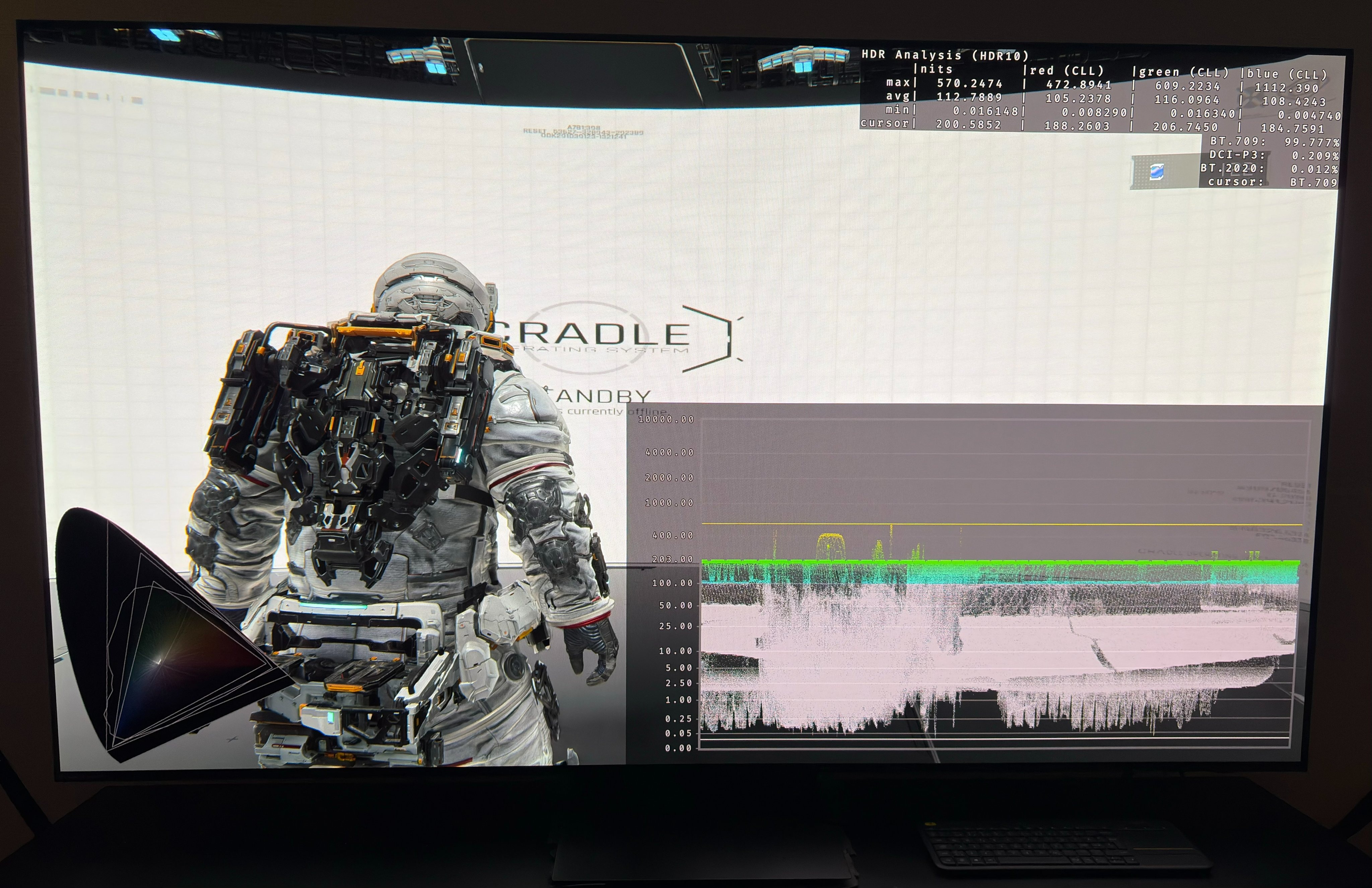
Picture 1: Shows the max brightness setup screen and it shows way too high brightness.
Picture 2: Shows max luminance of 940 nits.
Picture 3: Shows the brightness (paper white) setup screen. It shows way too little brightness.
Picture 4: It shows the lifted shadows.
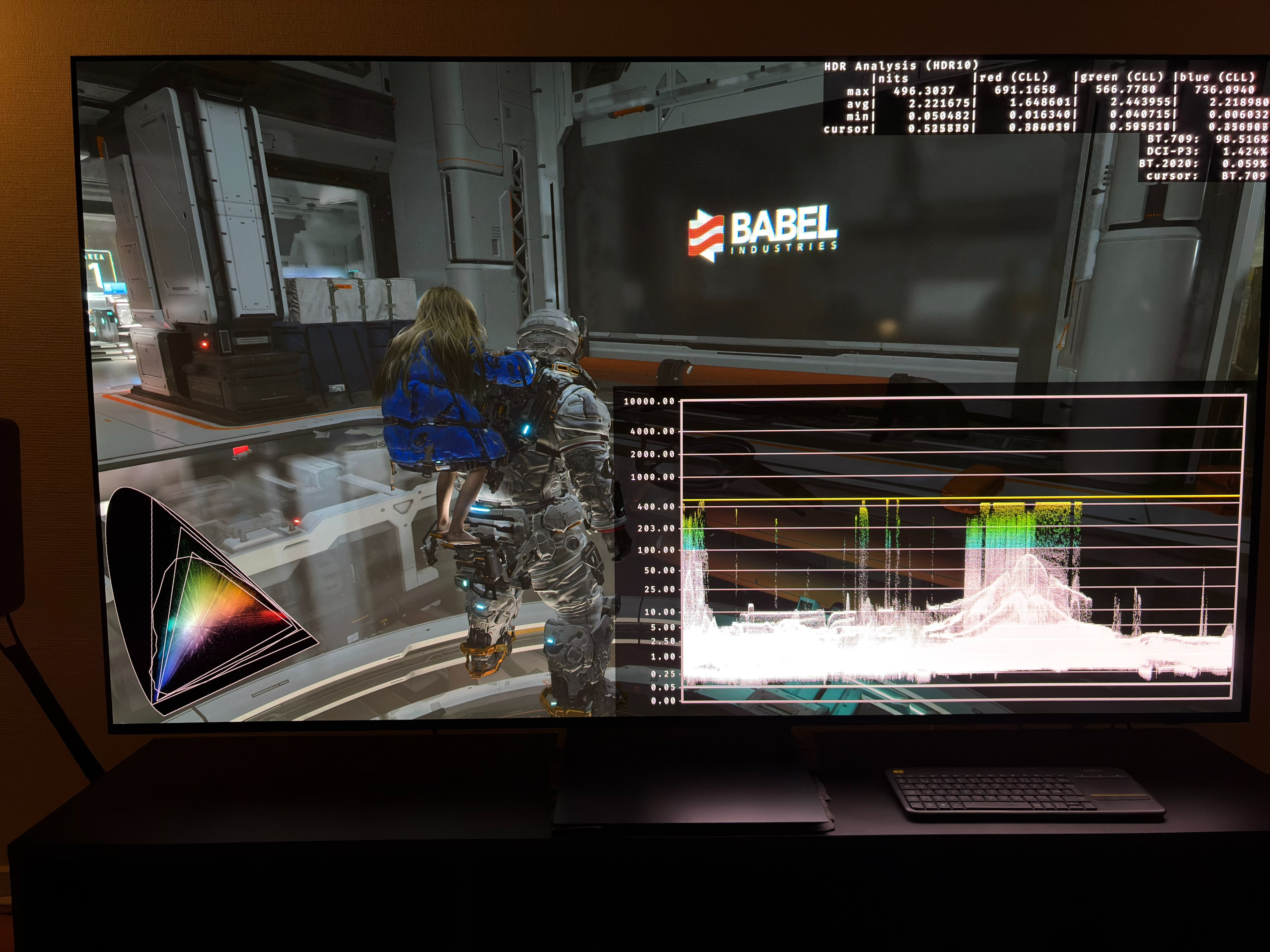
Paper white 230 and 203 nits 1
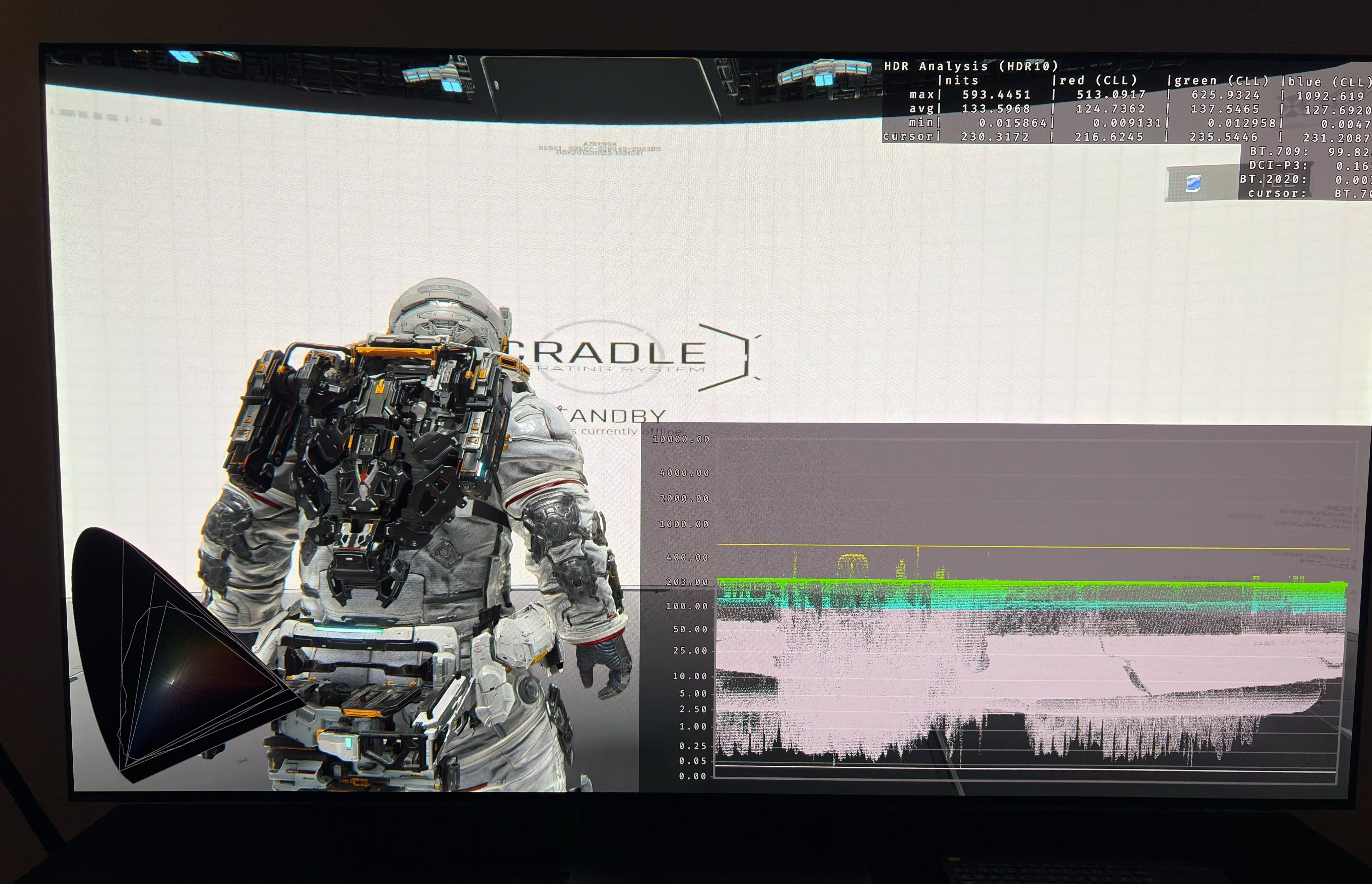
Paper white 230 and 203 nits 2