Star Wars: Zero Company
HDR analysis and setup guide for Star Wars Zero Company on PC and PS5.
It's most likely the same on Xbox console.
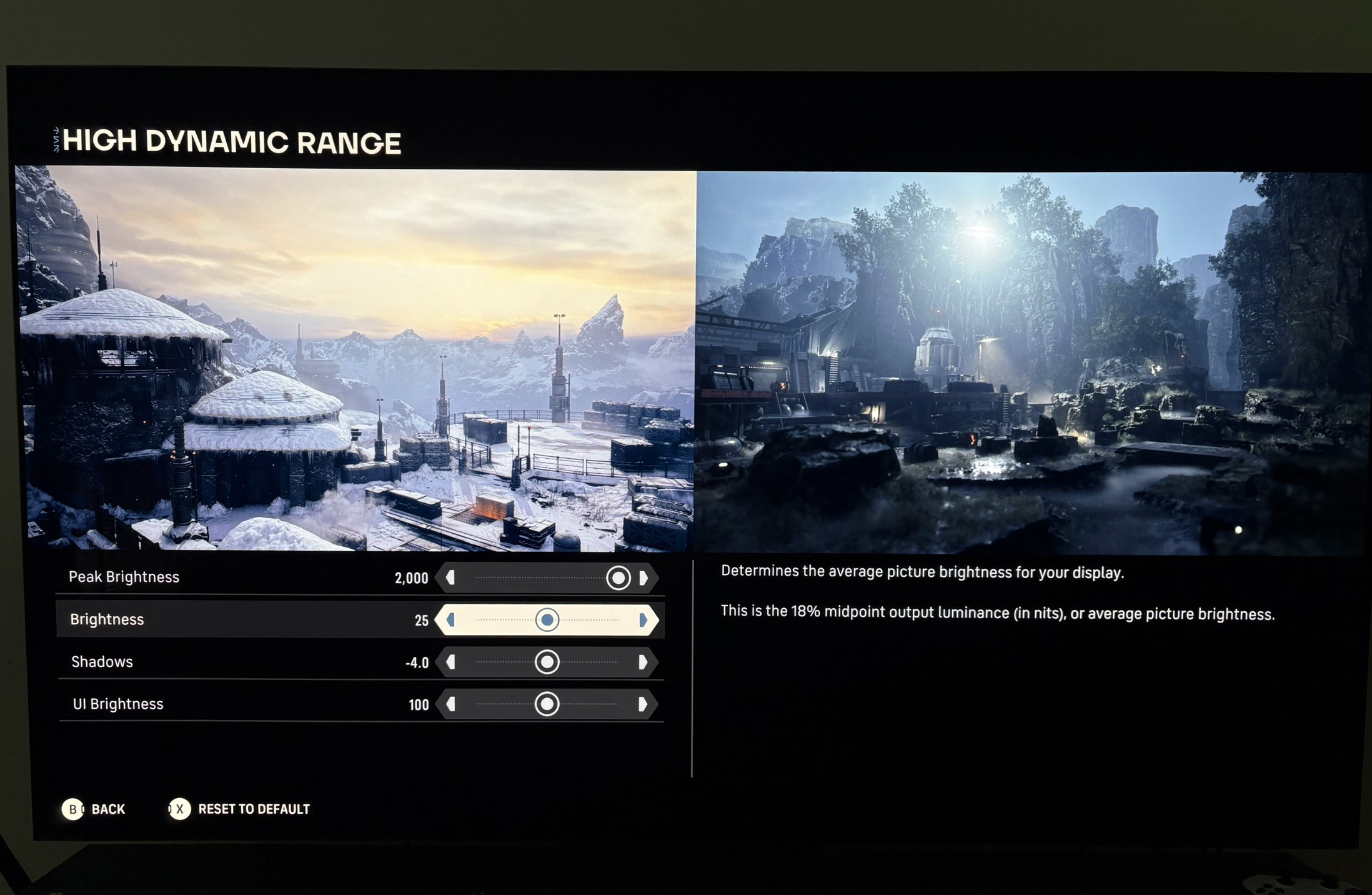
It's overall pretty good and impactful HDR. But I think the in-game HDR sliders values are not intuitive to understand for the gamer. And the game does not output the peak brightness the sliders indicate and shadows in HDR is brighter than in SDR.
PC gamers:
They should use the RenoDX HDR mod UE extended version. I have a guide that shows how to install it or use RHI (RenoDX HDR Installer).
Console gamers:
Console gamers should read everything below and follow my setup recommendations at the end.
Peak brightness:
This is what the game outputs;
At 25 on brightness slider (default):
-800 nits on peak brightness slider = 790 nits peak output in-game
-1000 nits on slider = 960 nits output
-1200 nits on slider = 1140 nits output
-1500 nits on slider = 1380 nits output
-2000 nits on slider = 1760 nits output
At 40 on brightness slider:
-1500 nits = 1430 nits
-2000 nits = 1840 nits
We see that the game does not output what we set on the peak brightness slider. The higher nits display you have the more you are affected.
We also see that increasing the brightness slider affects peak brightness output, but not by much. I don't like when the brightness slider affects peak brightness output.
Brightness mid point (paper white):
This is the slider that sets how bright the overall image looks.
This games uses another standard, middle grey, to define mid point brightness than we mostly see in other games. The standard is paper white or diffuse white. Please developers. Lets have a common standard. This only confuses gamers.
A value of 25, is the 18% grey card level measured in nits from the BT.2408 HDR standard.
A grey of 25 nits is the same as paper white (or diffuse white) of around 200 nits. Picture a grey card and a white card under the same lamp. The white card reflects roughly 200 nits back at you and the grey card around 25. Same light, different surfaces.
Here I convert middle grey output to paper white. It looks to me that the game does output these values.
Middle grey to paper white (nits)
10 = 80
15 = 120
20 = 160
25 = 200 (default)
30 = 240
35 = 280
40 = 320
45 = 360
50 = 400
Black levels and shadows:
The shadow slider shows a value of -4 as default. -4 is the logarithm of 0.0001 nits. That's true black. OLED displays can't show differences below this.
I don't think gamers should be expected to understand logarithmic scales. Developers should just set default to 0. Why make it so difficult for gamers to understand and setup HDR ?
The values on the slider equal to this in nits:
0 = 1
-2 = 0.01
-4 = 0.0001 (default)
-6 = 0.000001
-8 = 0.00000001
The values above define the lowest black level floor. But the slider also affects shadows.
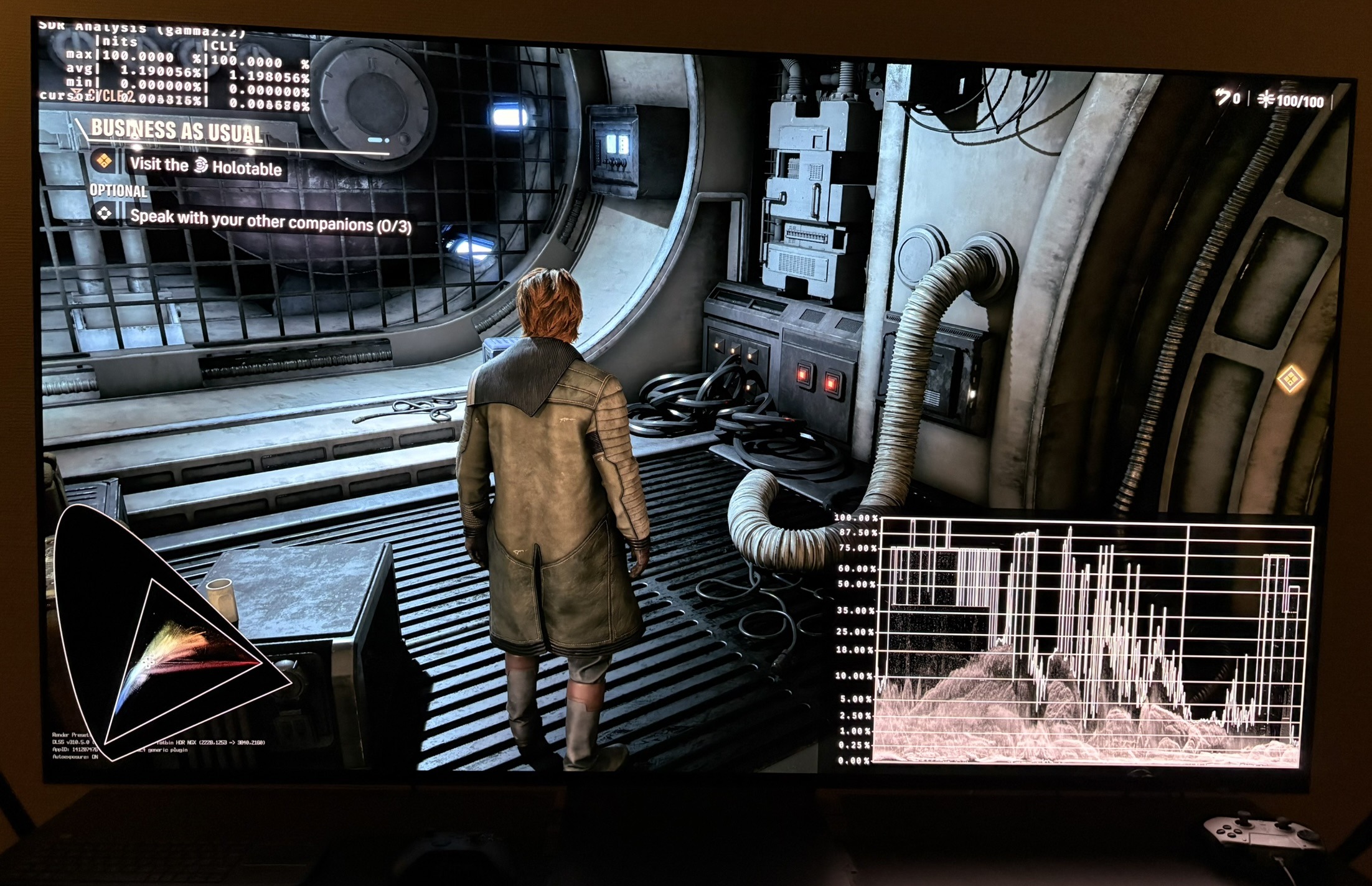
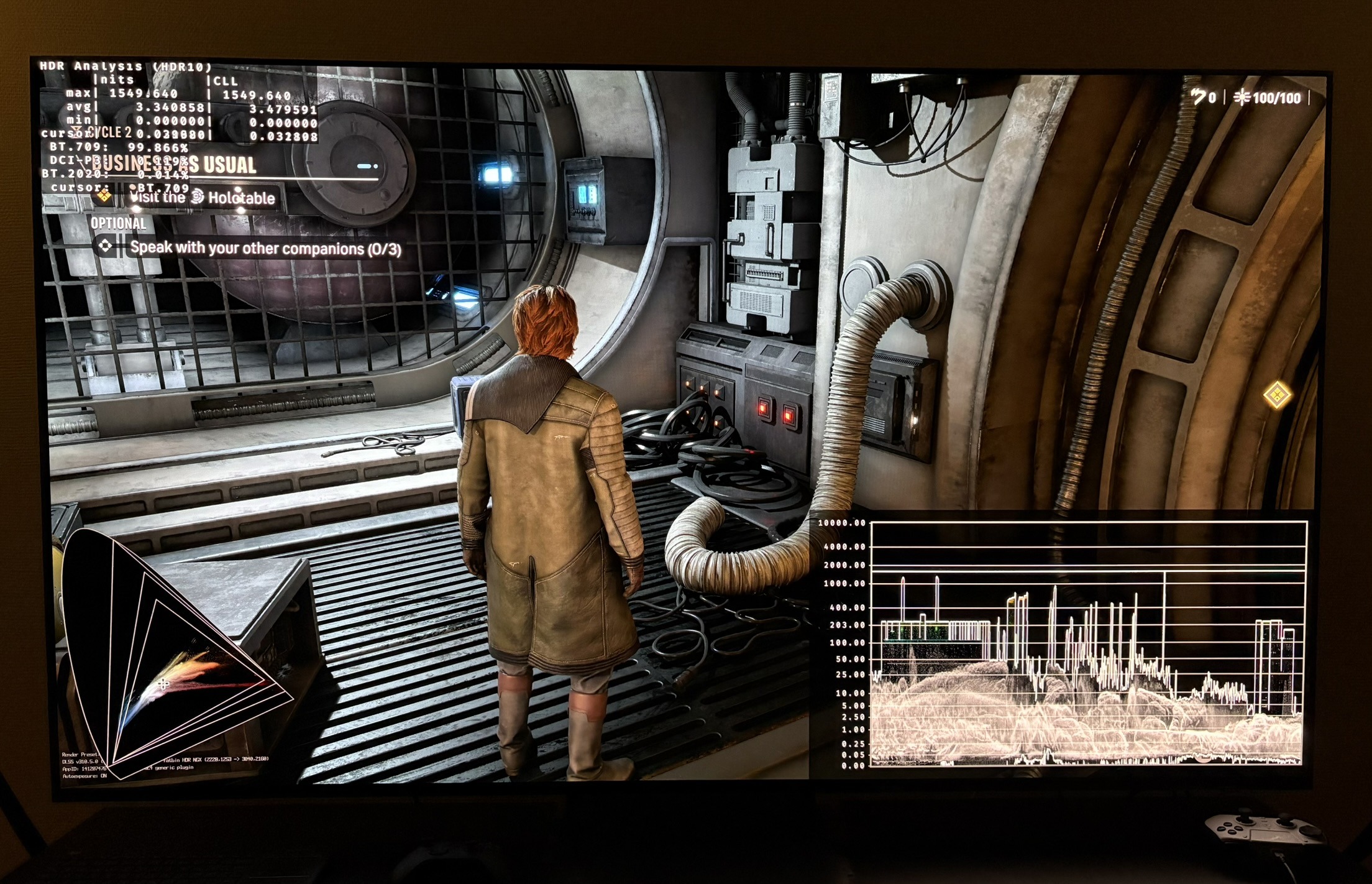
In HDR the game has a black level floor of 0 in many scenes, but its shadows are higher/brighter than SDR. We see that in picture 3 (SDR) and picture 4 (HDR).
UI slider
This is the nits on UI elements at different settings on the UI slider
90=203 nits
100 = 226 nits (default)
140=316 nits
Why do they not just write the nits on the slider. Why make it so un-intuitive for the gamer to setup ?
Setup HDR:
Peak Brightness slider;
Setup to what your display can output maximum and then add the nits the game will output too little. So setup around 1600 nits for a 1500 nits display.
Brightness slider:
400-700 nits display: 10-20
800-1200 nits display: 25
1300-1700 nits display: 30-35
1800-2000 nits display: 35-40
Use the above as starting points and adjust to personal preference and how bright your room is. I assume you game in a dark room in my settings.
Shadow slider;
I recommend to lower from -4 to -7 to get closer to the darker shadows of SDR. The RenoDX HDR mod has even darker shadows than this.
UI Brightness slider:
Set it to output the same nits as the paper white / midgrey. So 90 if you set brightness slider to 25. Then both the UI and mid-tone brightness will be around 200 nits.