Wardogs
HDR analysis and setup guide for Wardogs on PC.
The game does not support HDR, so it only outputs SDR.
SDR - Windows gamma bug
If you chose to play the game in SDR then play it with HDR disabled in Windows, because if you enable HDR in windows the shadows will be raised due to the gamma bug.
If you want to play the game in SDR with HDR enabled, to use your displays HDR features or to use Auto HDR, then you must use the gamma fix. See my article about Auto HDR Windows PC, that will explain how to do that.
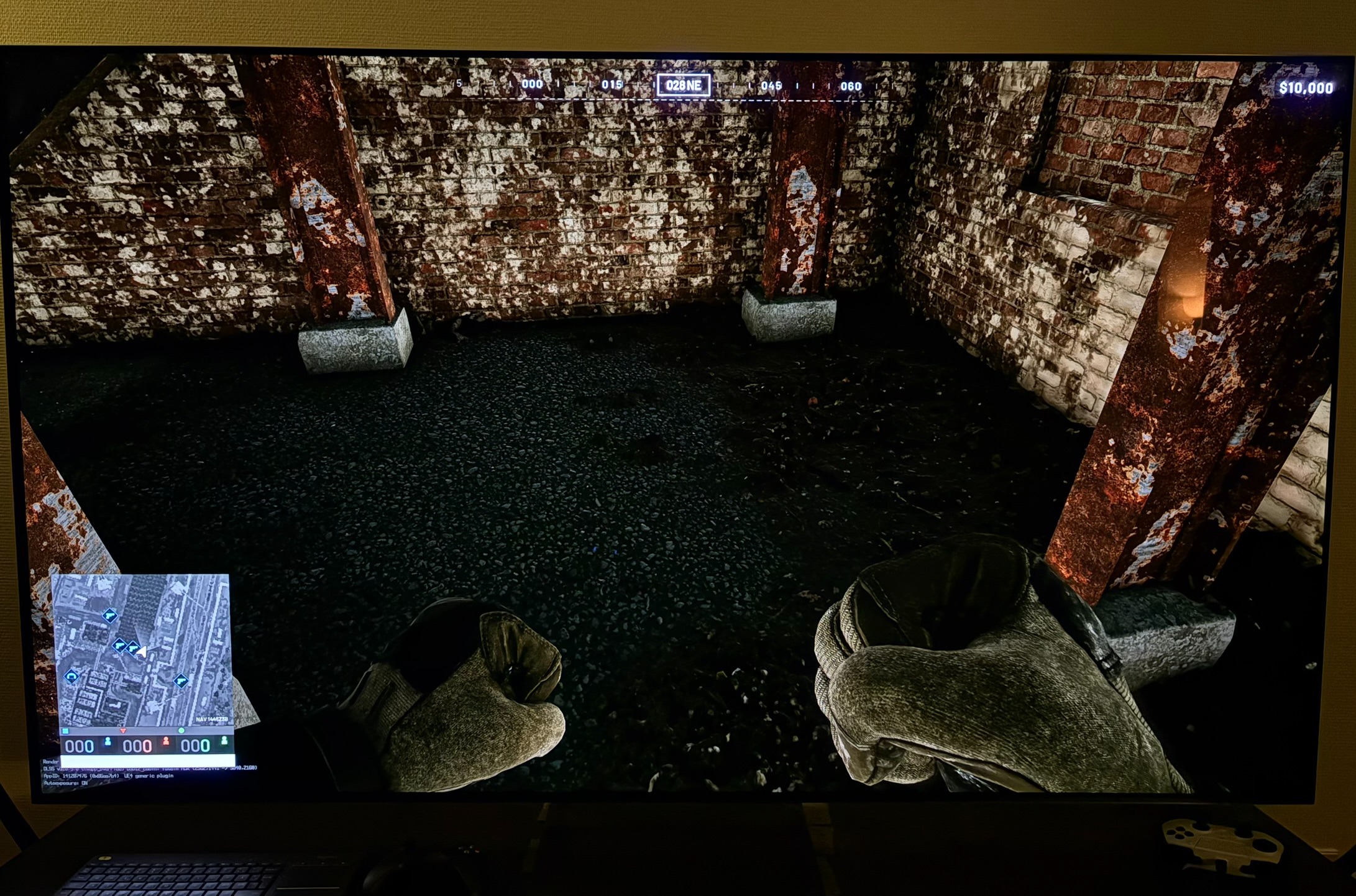
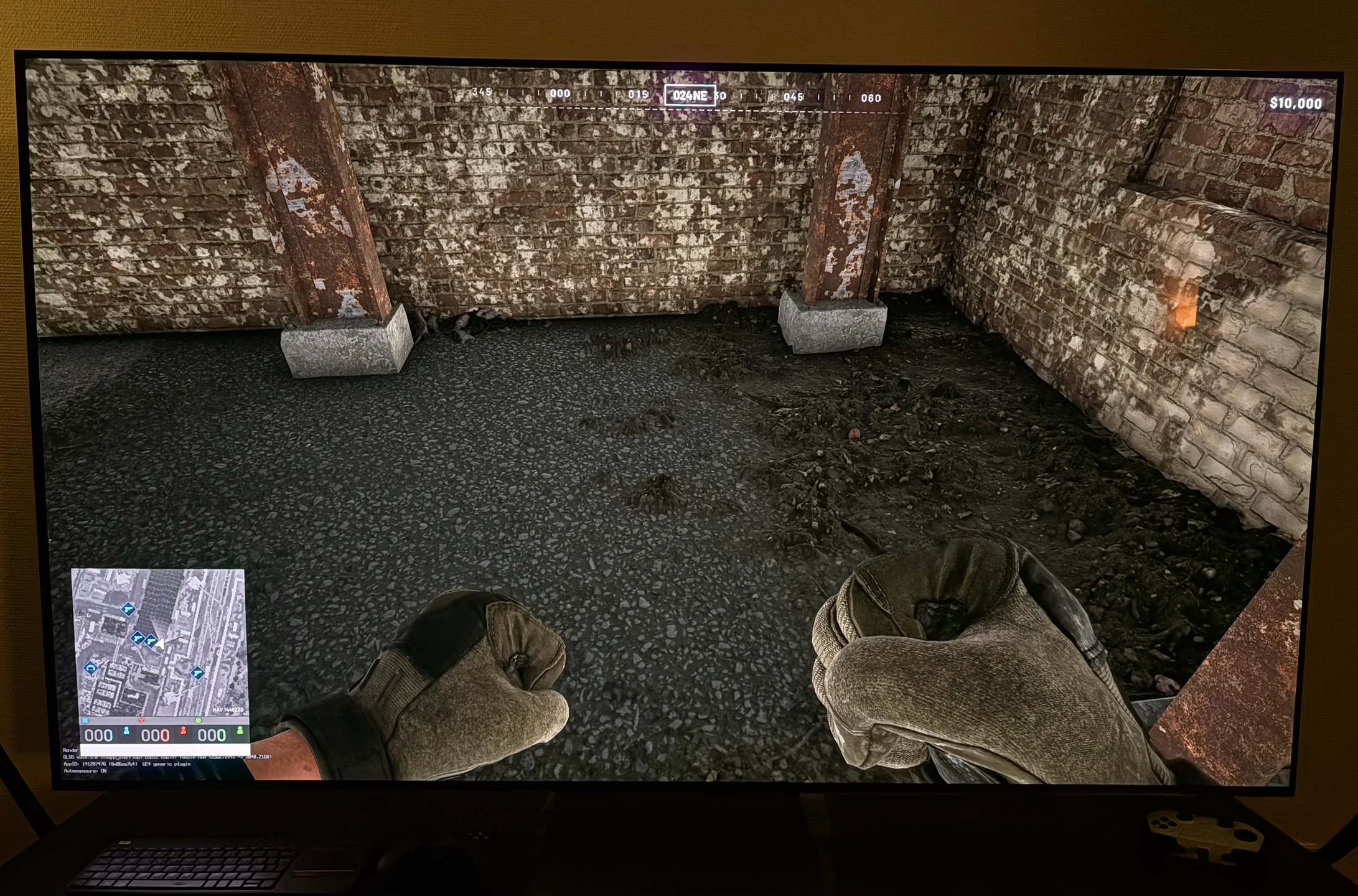
Picture 1 is SDR with HDR disabled in Windows. It shows much darker shadows than picture 2 SDR with HDR enabled is in Windows.
Engine.ini:
It's an Unreal Engine 5 game, so we usually can enable HDR using Engine.ini commands, but not in this game
RenoDX:
The game uses anti-cheat software that prevents the use of Reshade, so we can't use RenoDX to get HDR in this game.
RTX HDR:
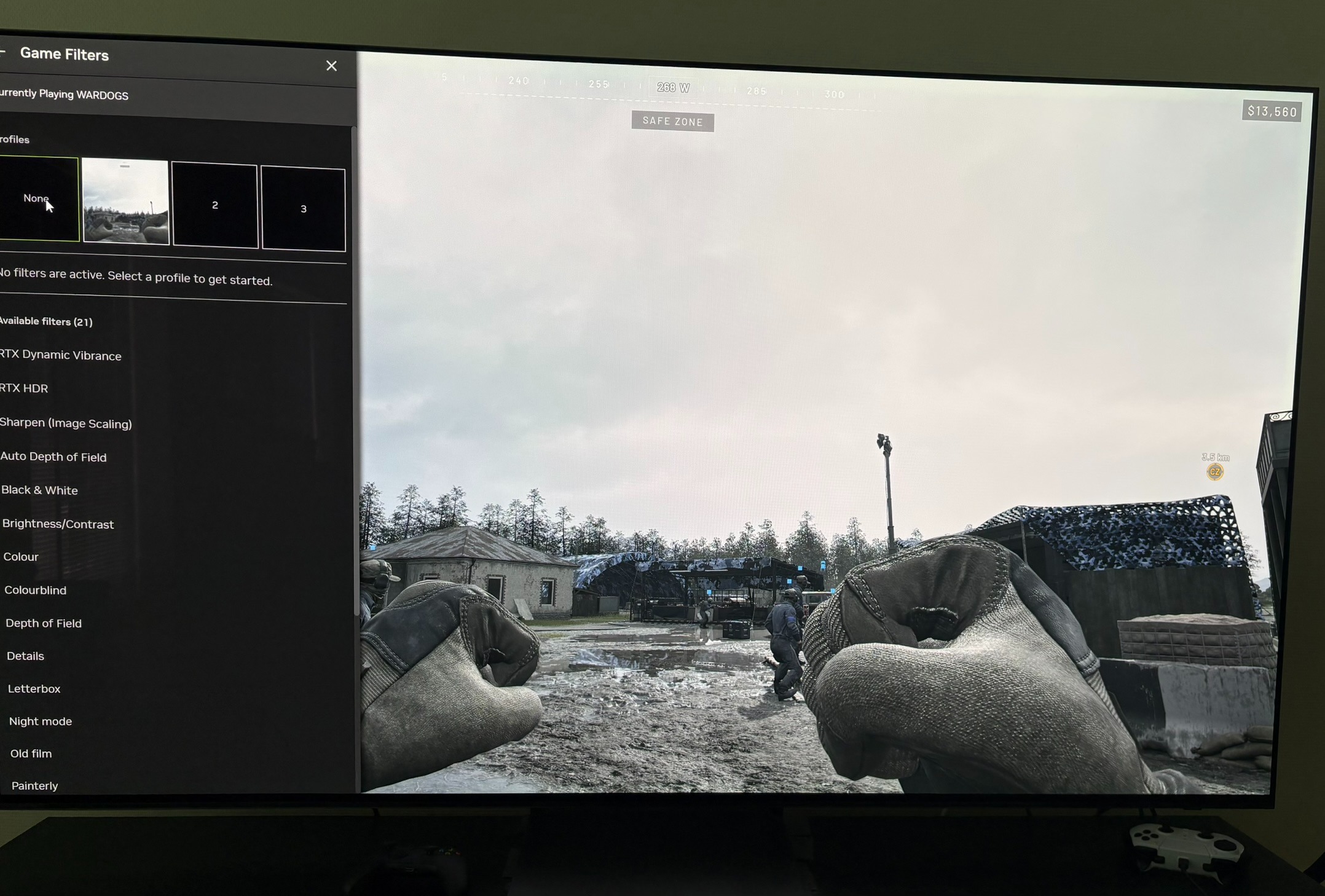
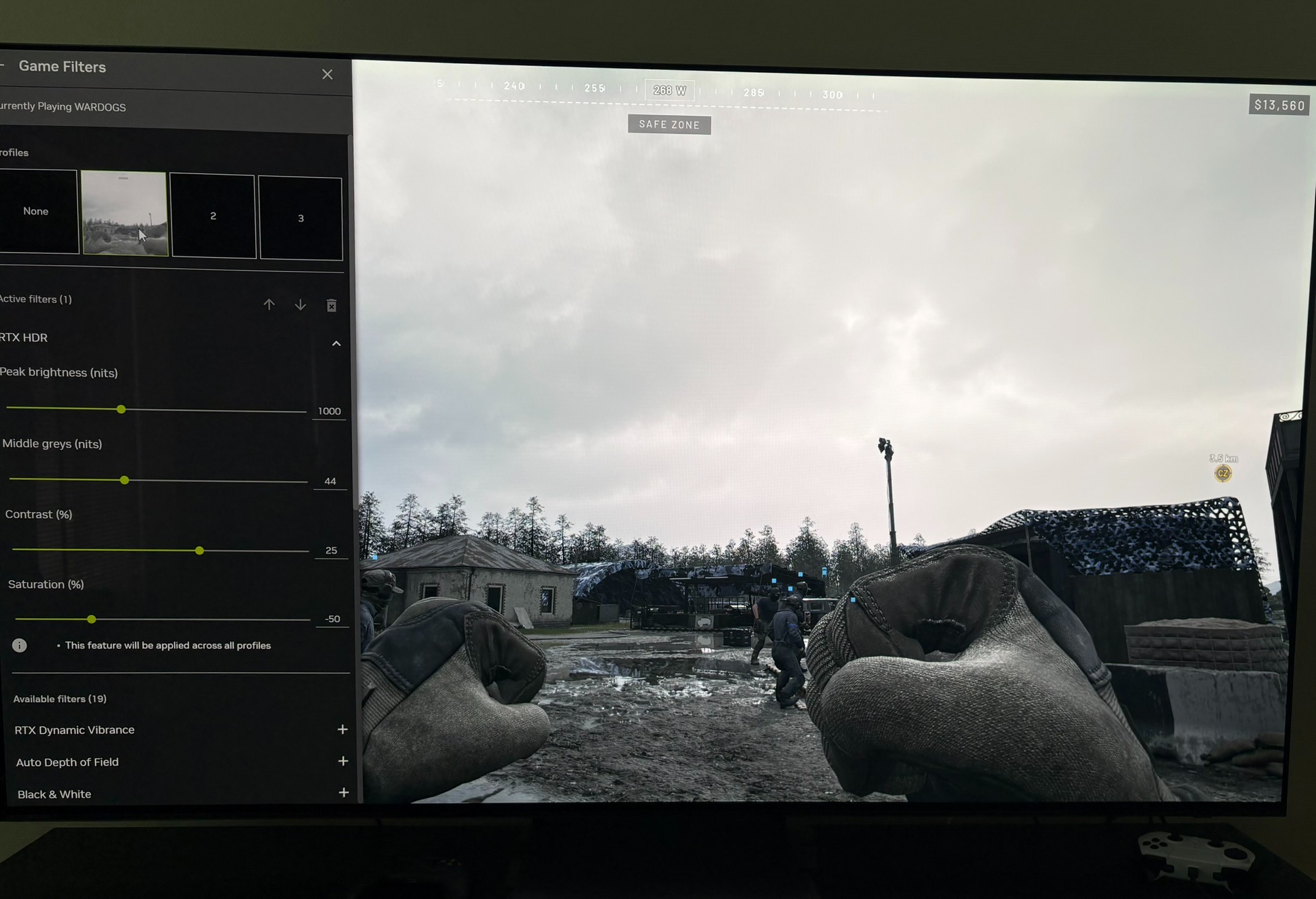
So we have to use RTX HDR (or Auto HDR). I think it looks pretty good with RTX HDR. I will here show my recommended settings for RTX HDR. Read my article about RTX HDR if you are interested in knowing more.
Peak Brightness:
RTX HDR can't output higher than 1000 nits peak brightness. The peak brightness slider can show higher than that. It for instance shows 2000 nits for my TV. If we increase the brightness above 1000 nits, peak brightness is not increased, but secondary highlights gets pushed into peak and we can lose detail (highlight separation).
Setup the peak brightness slider to the maximum your display can output, but not higher than 1000 nits.
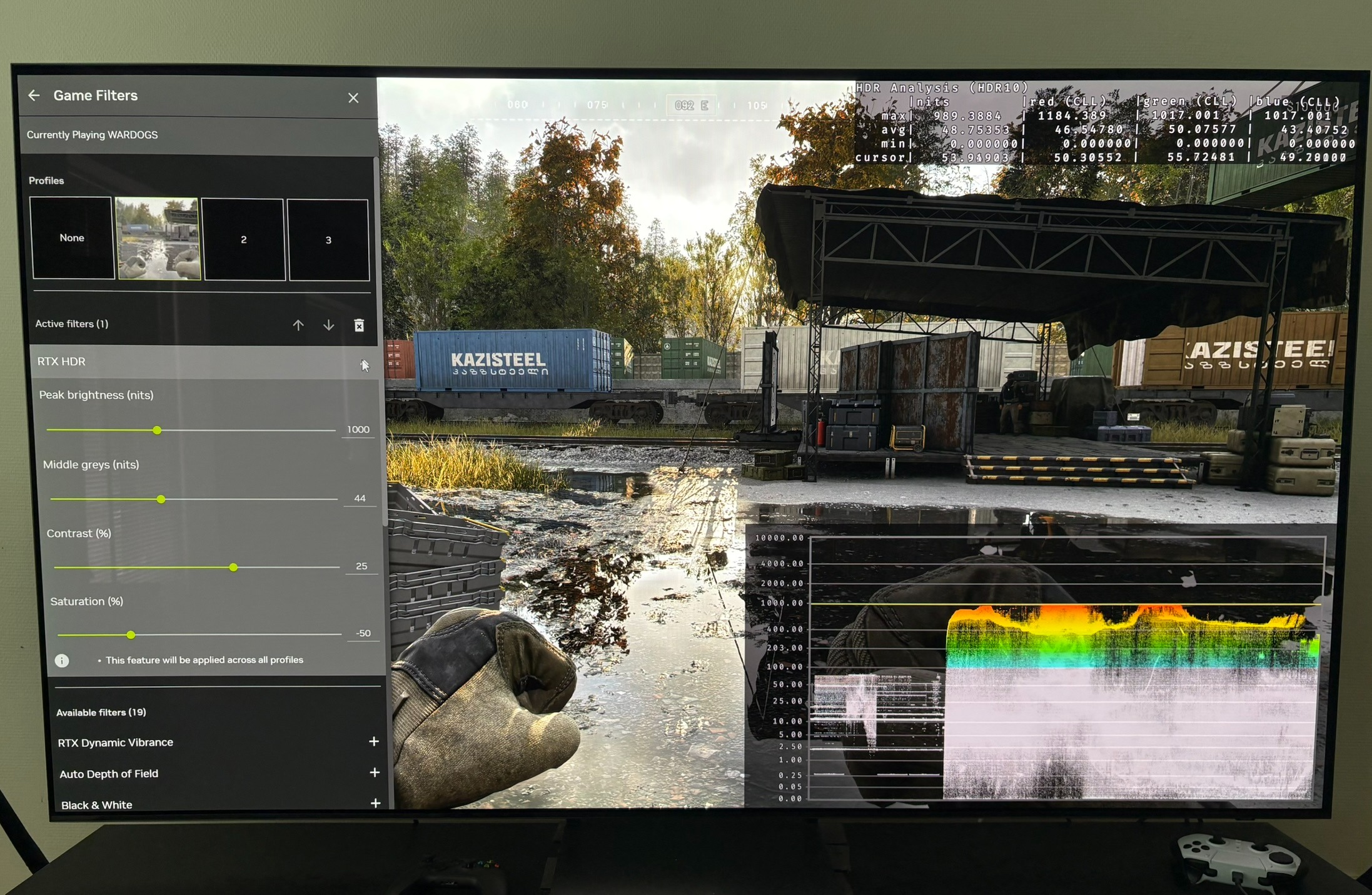
In picture 3 we see close to 1000 nits.
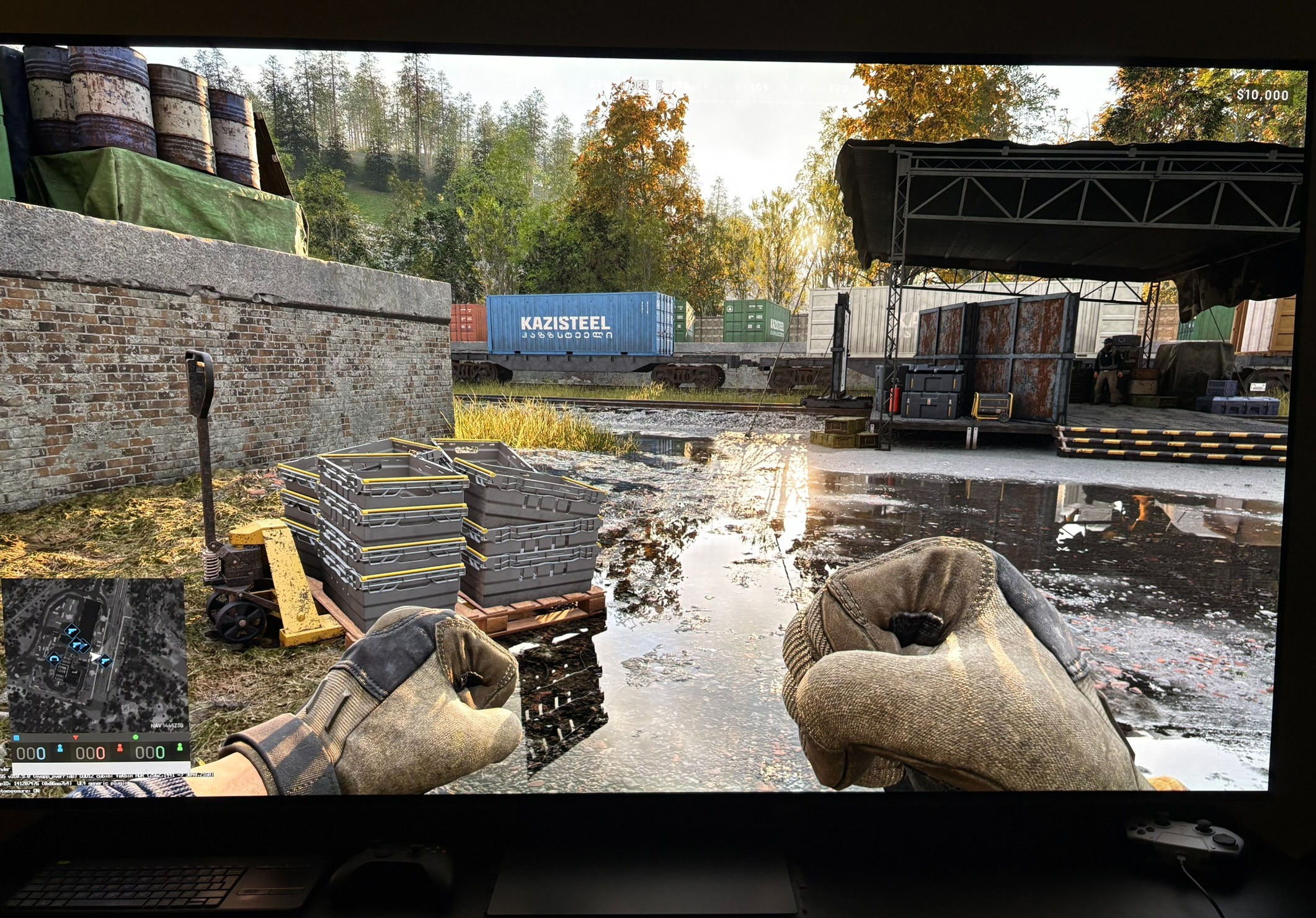
One of the good things about RTX HDR is that it uses its extra brightness headroom than SDR to separate the brightest SDR highlights. I tried to show it in picture 3-6 that clouds are better separated in the sky box. It will be the same in other bright areas in the image that are close to SDR peak (it's much more noticeable in-game).
Middle Gray:
This slider effects the overall brightness of the image and mostly mid tones. 50 is the standard 203 nits paper white. That's a good value for 800-1000 nits peak brightness.
Contrast:
The contrast slider effects mid tones and shadows. Increasing it will increase mid tones and lower shadows. That effective increases contrast. When it effects mid-tones it has an effect on paper white and therefore we have to remember to reduce middle gray a bit if we increase the contrast slider. It can be calculated that if we increase to +25 than the middle gray slider has to decrease to 44 to offset the mid tone increase.
I think the default contrast of +25 with a middle gray of 44 looks the best. But it does not look significantly different to default contrast 0 and middle gray, so try that too.
Saturation
RTX HDR is known to have too high saturation at default. I found a value of -50 on the slider to be closets to SDRs saturated colors, but still a bit higher which is what we want. Higher brightness must lead to a slight increase in saturation.